M.2 Nvme Ssd Enclosure Adapter

An M.2 NVMe SSD enclosure adapter lets you turn any M.2 NVMe drive into a portable or external SSD with ease. It gives you fast speeds, simple plug-and-play setup, and a cost-effective way to expand storage without opening your PC. Whether you need a backup drive, extra workspace, or a gaming storage solution, the right enclosure makes a huge difference.
If you have an M.2 NVMe SSD sitting on your desk and want to use it outside your computer, an M.2 NVMe SSD enclosure adapter is the answer. This small device does one big job — it takes a bare NVMe drive and wraps it in a portable shell that connects to any computer through USB or Thunderbolt.
The beauty of this setup is simplicity. You slot the SSD into the enclosure, snap it shut, plug in a cable, and you have a fast external drive ready to go. No cables inside your PC. No opening the case. No technical headaches. It is one of the easiest upgrades you can make.
In this guide, we will walk through everything you need to know about M.2 NVMe SSD enclosure adapters. We will cover how they work, what to look for when buying one, which types of drives they support, and tips for getting the best performance. By the end, you will know exactly which enclosure fits your needs and budget.
Key Takeaways
- An M.2 NVMe SSD enclosure adapter converts internal NVMe drives into external portable storage with simple USB or Thunderbolt connections.
- NVMe PCIe Gen 3 and Gen 4 enclosures offer dramatically faster transfer speeds compared to traditional SATA-based enclosures.
- Compatibility matters — always check the M.2 key type (B-key, M-key, or B+M) and form factor before purchasing.
- Heat management is critical because NVMe SSDs run hot and can throttle without proper cooling in an enclosure.
- USB 3.2 Gen 2 and Thunderbolt 3/4 ports provide the best real-world speeds for external NVMe SSD enclosures.
- Enclosures range from budget options under $30 to premium models with fans and metal housings for sustained performance.
📑 Table of Contents
- What Is an M.2 NVMe SSD Enclosure Adapter?
- Why Use an M.2 NVMe SSD Enclosure Adapter?
- Key Features to Look For
- Speed Benchmarks: What Can You Expect?
- How to Set Up Your M.2 NVMe SSD Enclosure Adapter
- Common Mistakes to Avoid
- Expert Tips for Getting the Best Performance
- Who Should Buy an M.2 NVMe SSD Enclosure Adapter?
- Comparison: Budget vs Premium Enclosures
- Final Thoughts
What Is an M.2 NVMe SSD Enclosure Adapter?
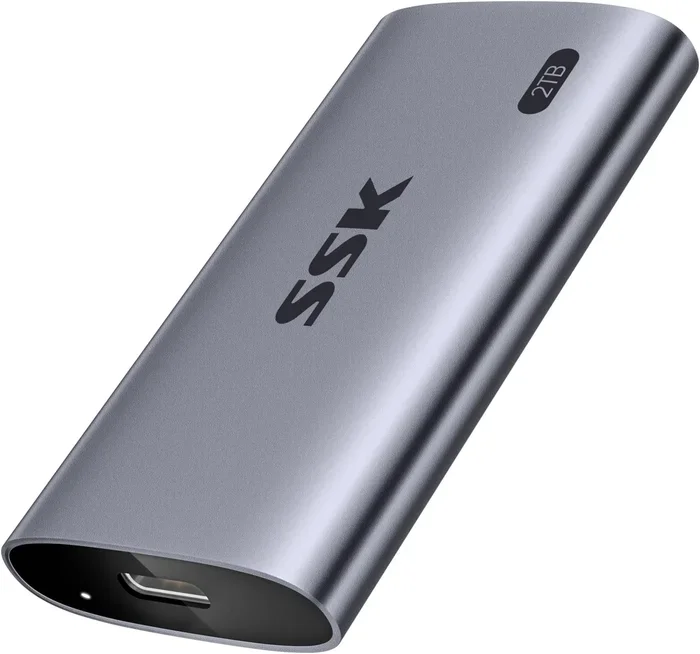
An M.2 NVMe SSD enclosure adapter is a small shell or casing that houses a bare M.2 NVMe solid-state drive and connects it to a computer through an external interface. Think of it as a protective home for your SSD that adds a USB or Thunderbolt connection on the outside.
Inside the enclosure, there is a controller board. This board takes the NVMe PCIe signal from the SSD and translates it into a USB-compatible format that your computer understands. The result is a portable external drive that keeps the blazing speed of NVMe technology.
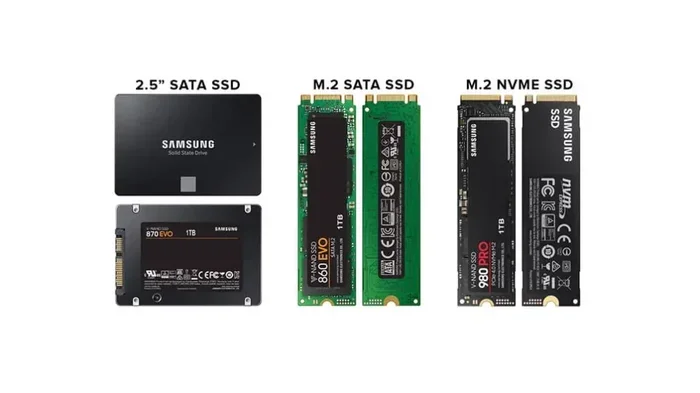
How Does It Differ from a SATA Enclosure?
A SATA enclosure works with older SATA SSDs and has lower speed limits. An M.2 NVMe enclosure adapter uses the PCIe bus, which is much faster. While a SATA enclosure tops out around 500 to 600 MB/s, a good NVMe enclosure can push past 1,000 MB/s or even reach 2,000 MB/s or more with Gen 4 drives.
Why Use an M.2 NVMe SSD Enclosure Adapter?
There are several real-world reasons why people choose an enclosure over keeping their drive inside a PC. Each reason makes a lot of sense depending on your situation.
Portability
An enclosure turns your NVMe SSD into a pocket-sized storage device. You can carry it in a bag, attach it to your laptop with a lanyard, and plug it into any computer when you need it. This is perfect for creatives who work with large video files on location.
Extra Storage Without Opening Your PC
Maybe your desktop or laptop is already full. Instead of swapping drives around, you just plug in the enclosure. It works like a plug-and-play external drive. No tools, no downtime, no risk of damaging internal components.
Data Transfer and Backup
Need to move terabytes of files between two computers? An enclosure makes this quick and painless. The NVMe speeds mean you transfer huge folders in minutes instead of hours. For backup workflows, this speed advantage is huge.
Cost-Effective Upgrade
Instead of buying a brand-new external SSD, you can reuse an M.2 NVMe drive you already own. Enclosures are inexpensive, often under $30, and they give old drives a second life as fast portable storage.
Key Features to Look For
Not all enclosures are the same. Some are bare-bones budget options, and others come packed with features. Here is what you should check before buying one.
Interface and Connection Type
The connection type determines your maximum speed. USB 3.2 Gen 1 gives you up to 5 Gbps. USB 3.2 Gen 2 doubles that to 10 Gbps. And Thunderbolt 3 or 4 can hit 20 or 40 Gbps respectively. For most NVMe drives, a USB 3.2 Gen 2 connection is the sweet spot between speed and price.
M.2 Key Compatibility
M.2 SSDs come in different key types. The most common are B-key and M-key. Some enclosures support both, which is ideal because it gives you flexibility. Always check that the enclosure supports the key type of your SSD before you buy.
Form Factor Support
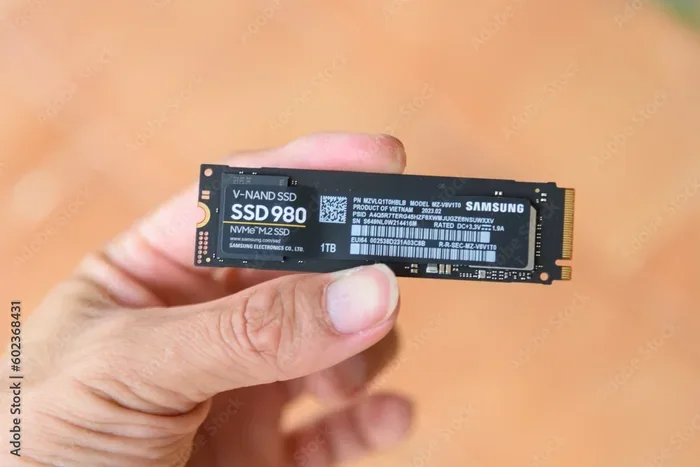
M.2 SSDs come in different lengths, most commonly 2242, 2260, 2280, and 22110. The first two numbers (22) refer to the width in millimeters. The last numbers refer to the length. A good enclosure should support the 2280 size, which is the most common. Some enclosures also fit shorter drives like 2242, which is great for flexibility.
Cooling and Heat Management
NVMe SSDs generate heat, especially during long transfer sessions. Without cooling, they can thermal throttle and slow down. Better enclosures include metal housings that act as heat sinks. Some add small fans for active cooling. If you plan to move large files regularly, cooling is not optional — it is essential.
Build Quality and Durability
Look for enclosures made from aluminum or metal alloys. These materials dissipate heat well and feel solid in hand. Plastic enclosures are cheaper but can warp over time and offer less protection. A sturdy enclosure also protects your investment in a quality NVMe drive.
Speed Benchmarks: What Can You Expect?
Speed is the main reason people choose NVMe over SATA. Here is a realistic breakdown of what you can expect from different enclosure setups.
- USB 3.2 Gen 1 (5 Gbps): Real-world speeds around 400 to 500 MB/s. Good for casual use but will bottleneck faster NVMe drives.
- USB 3.2 Gen 2 (10 Gbps): Real-world speeds around 800 to 1,000 MB/s. This is the most popular range for NVMe enclosures and works great with Gen 3 SSDs.
- USB 3.2 Gen 2×2 (20 Gbps): Real-world speeds around 1,500 to 2,000 MB/s. Best paired with PCIe Gen 4 NVMe drives.
- Thunderbolt 3 (40 Gbps): Real-world speeds around 2,000 to 3,000 MB/s. The top-tier option for professionals who need maximum throughput.
Keep in mind that the drive itself also matters. A PCIe Gen 3 NVMe SSD will not reach Gen 4 speeds no matter how good the enclosure is. The slowest link in the chain determines the overall speed.
How to Set Up Your M.2 NVMe SSD Enclosure Adapter
Setting up an enclosure is straightforward, but following the right steps ensures you get the best results.
Step 1: Prepare Your NVMe SSD
Make sure your M.2 NVMe SSD is clean and free of old data if you plan to use it as a fresh external drive. You can wipe it using disk management tools built into Windows or macOS. If the drive already has data you want to keep, skip this step.
Step 2: Open the Enclosure
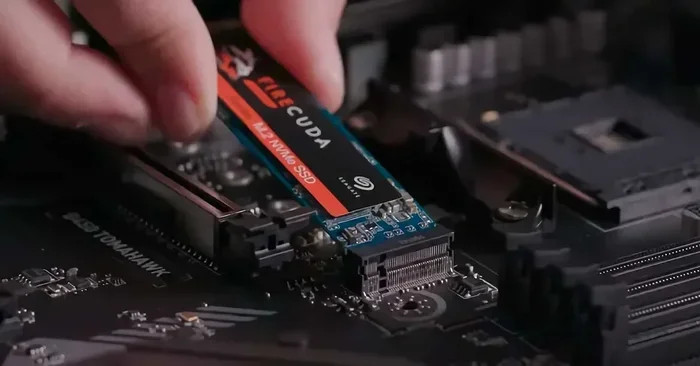
Most enclosures have a simple screw or clip mechanism. Open the housing, align the SSD with the connector on the board, and gently press it down until it clicks into place. Make sure the notches on the SSD match the key on the connector.
Step 3: Close and Connect
Snap the enclosure shut. Plug the USB or Thunderbolt cable into the enclosure and then into your computer. Your operating system should recognize the drive within seconds.
Step 4: Format if Needed
On Windows, you may need to format the drive through Disk Management. On macOS, use Disk Utility. Choose exFAT if you want the drive to work on both Windows and Mac systems.
Common Mistakes to Avoid
Even though setting up an enclosure is easy, some common mistakes can cause frustration. Watch out for these.
- Buying the wrong key type: An M-key enclosure will not work with a B-key SSD and vice versa. Always double-check compatibility.
- Ignoring heat issues: A cheap plastic enclosure with no ventilation can cause your NVMe drive to overheat and slow down during heavy transfers.
- Using an old USB port: Plugging a USB 3.2 Gen 2 enclosure into a USB 3.0 port will cap your speeds. Make sure your computer has the right port.
- Forgetting to update firmware: Some enclosures and SSDs benefit from firmware updates that fix bugs and improve stability.
- Using a low-quality cable: A bad USB cable can limit speeds or cause connection drops. Always use the cable that comes with the enclosure or a certified high-quality replacement.
Expert Tips for Getting the Best Performance
Want to squeeze every bit of speed out of your setup? Here are some tips from experienced users.
- Use a Thunderbolt or USB 3.2 Gen 2 port directly on your computer. Avoid USB hubs or extension cables when possible because they can reduce bandwidth.
- Keep the enclosure on a hard, flat surface. This helps with heat dissipation and prevents the drive from vibrating during transfers.
- Choose an enclosure with a metal body if you do sustained transfers. The metal acts as a passive heatsink and keeps temperatures stable.
- Match your SSD generation to your enclosure. A Gen 4 NVMe SSD in a Gen 3 enclosure will still work but will be limited to Gen 3 speeds.
- Eject the drive properly before unplugging. This prevents data corruption and keeps your files safe.
Who Should Buy an M.2 NVMe SSD Enclosure Adapter?
This product is not just for tech enthusiasts. A wide range of users benefit from having one.
- Video editors who need to transfer large footage files quickly between locations.
- Photographers who want a reliable backup drive for high-resolution images.
- Gamers who want to expand their game library with fast external storage.
- IT professionals who need to diagnose or recover data from bare NVMe drives.
- Students who need portable storage for projects and presentations.
- Remote workers who carry important files between home and office setups.
If any of these sound like you, an enclosure is a smart investment. It turns an internal NVMe drive into a versatile tool you can use anywhere.
Comparison: Budget vs Premium Enclosures
Enclosures come in a wide price range. Here is how they typically compare.
- Budget enclosures ($15 to $30): Basic plastic or metal shell, USB 3.2 Gen 1 or Gen 2 connection, no fan, passive cooling only. These work fine for occasional use and Gen 3 drives.
- Mid-range enclosures ($30 to $60): Metal housing, USB 3.2 Gen 2 or Gen 2×2, better thermal design, sometimes with a small fan. Good balance of speed and durability.
- Premium enclosures ($60 to $100+): Thunderbolt support, active cooling with fans, premium aluminum build, RGB lighting on some models, and the best thermal performance for sustained workloads.
For most users, a mid-range enclosure hits the sweet spot. You get solid metal construction, fast enough speeds for Gen 3 and Gen 4 drives, and decent cooling without spending a fortune.
One thing to keep in mind is that the NVMe M.2 SSD enclosure market has grown rapidly, and there are now many quality options at every price point. Reading reviews and checking compatibility before buying will save you time and money.
If you already own a M.2 PCIe NVMe SSD, putting it in an enclosure is one of the best ways to unlock its full potential. The drive stays fast, stays cool, and becomes a portable powerhouse you can take anywhere.
Final Thoughts
An M.2 NVMe SSD enclosure adapter is one of the most practical and affordable tech accessories you can own. It takes a drive you already have and turns it into a portable, high-speed external storage solution. The setup takes minutes, the speeds are impressive, and the flexibility is unmatched.
Whether you are a creative professional moving large files, a gamer expanding your library, or someone who just wants a reliable backup drive, the right enclosure makes all the difference. Focus on compatibility, cooling, and connection speed when you choose, and you will be very happy with the result.
Take a look at the available options, pick one that fits your drive and your needs, and enjoy the speed of NVMe storage on the go. Your old internal drive deserves a second life as a fast, portable external SSD.
Frequently Asked Questions
Can I use any M.2 NVMe SSD in an enclosure adapter?
Most M.2 NVMe SSDs will work, but you need to check the key type and form factor. The vast majority of consumer NVMe SSDs use the M-key and 2280 form factor, which is supported by nearly all enclosures. Always verify compatibility before purchasing.
Do M.2 NVMe SSD enclosure adapters need drivers?
No. Most modern enclosures are plug-and-play and do not require any driver installation. They work on Windows, macOS, and Linux without extra software. Simply connect the enclosure and your computer will recognize the drive automatically.
Will an enclosure slow down my NVMe SSD?
The enclosure itself should not slow down the drive if it supports the same connection standard. However, if the enclosure uses USB 3.0 or an older interface, it will cap your speeds. Always match the enclosure interface to your drive’s capabilities for the best results.
Can I use an enclosure with a 2242 or 2260 M.2 SSD?
Yes, many enclosures support shorter M.2 drives like the 2242 and 2260 sizes. Check the product specifications before buying to confirm support. Some enclosures are adjustable and fit multiple lengths, which gives you more flexibility.
Is a fan-cooled enclosure better than a passive one?
For sustained heavy transfers, a fan-cooled enclosure is better because it actively removes heat. For light or occasional use, a passive enclosure with a metal body works just fine. If you regularly move large files or run benchmarks, active cooling is worth the investment.
Can I boot my computer from an NVMe SSD in an enclosure?
Generally, no. Most USB-connected enclosures do not support booting because the USB protocol does not carry the necessary boot signals. If you need a bootable drive, you would need to install the SSD internally or use a specialized Thunderbolt setup that supports native boot.