M 2 Pcie Nvme Ssd
An M.2 PCIe NVMe SSD is the fastest storage option for modern PCs, offering speeds many times faster than older SATA SSDs and hard drives. It connects directly to the motherboard via a small, gumstick-shaped M.2 slot, using the high-speed PCIe bus. This results in near-instant boot times, rapid file transfers, and seamless application loading, making it the essential upgrade for any new build or laptop.
Key Takeaways
- Speed Revolution: NVMe SSDs are exponentially faster than SATA SSDs, with read/write speeds often exceeding 7,000 MB/s compared to SATA’s 550 MB/s limit.
- Form Factor Advantage: The M.2 form factor is tiny, cable-free, and mounts directly to the motherboard, saving space and improving airflow in compact builds.
- PCIe Generation Matters: Performance depends on your motherboard’s PCIe generation (3.0, 4.0, 5.0). An NVMe SSD will work in any compatible slot but will be limited by the slowest link (e.g., a PCIe 4.0 SSD in a PCIe 3.0 slot).
- Thermal Throttling is Real: High-performance NVMe drives generate significant heat. Without a heatsink (on the drive or motherboard), they can slow down under heavy workloads.
- Not All M.2 Slots are Equal: Some M.2 slots only support SATA or PCIe x2. Always check your motherboard manual to ensure your slot supports PCIe NVMe (usually x4) and your desired PCIe generation.
- Real-World Impact: The speed difference is most noticeable in large file transfers, loading game levels, booting your OS, and working with large projects like video edits or databases.
- Future-Proofing: Investing in a PCIe 4.0 or 5.0 drive ensures your storage won’t be a bottleneck for years, even if your current system only uses PCIe 3.0.
📑 Table of Contents
- The Storage Revolution: What is an M.2 PCIe NVMe SSD?
- From SATA to NVMe: Understanding the Massive Speed Leap
- Demystifying M.2: The Perfect Form Factor
- PCIe Generations: Are You Getting the Speed You Paid For?
- Real-World Performance: What Do These Speeds Actually Mean for You?
- Installation and Thermal Management: The Critical Steps
- Buying Guide: Choosing the Right M.2 NVMe SSD for You
- The Future of NVMe and Storage: What’s Next?
- Conclusion: The Clear-Cut Winner
The Storage Revolution: What is an M.2 PCIe NVMe SSD?
Let’s talk about the heart of your computer’s speed—its storage. For years, we relied on clunky hard disk drives (HDDs), then came the wonderful SATA solid-state drive (SSD), which was a massive leap. But today, we have a new champion: the M.2 PCIe NVMe SSD. If your computer feels like it’s taking a deep breath between clicks, this is the upgrade that changes everything.
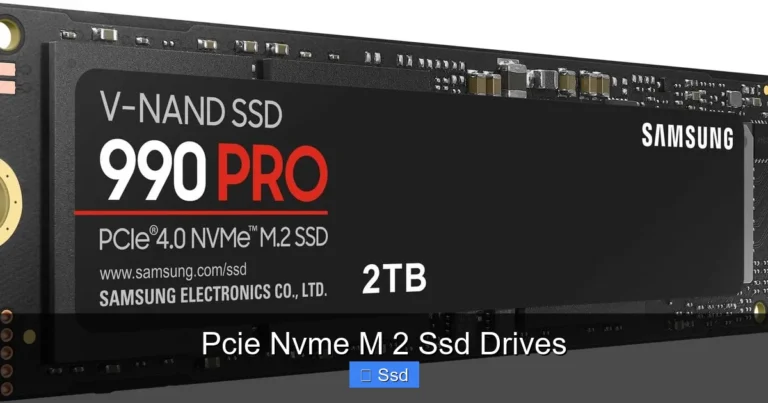
In simple terms, an M.2 PCIe NVMe SSD is a tiny, rectangular stick of flash memory that plugs directly into a dedicated slot on your motherboard. It bypasses the older, slower SATA interface and the associated cables, communicating instead over the superhighway that is the PCI Express (PCIe) bus. The “NVMe” part is the magic sauce—it’s a new communication protocol designed specifically for flash memory, unlike the older AHCI protocol designed for spinning hard drives. This eliminates layers of inefficiency, allowing the drive to speak directly and quickly to your computer’s processor.
Imagine your data is a package. A traditional HDD is like mailing it via ground transport—slow but cheap for huge loads. A SATA SSD is like a fast delivery van on city streets. An NVMe SSD is a Formula 1 car on a dedicated racetrack. That’s the scale of difference we’re talking about. It’s not just an incremental improvement; it’s a paradigm shift in how your system accesses what it needs, when it needs it.
From SATA to NVMe: Understanding the Massive Speed Leap
To truly appreciate NVMe, we need to contrast it with its predecessor, the SATA SSD. For nearly a decade, the 2.5-inch SATA SSD was the gold standard for PC performance upgrades. And it’s still great! But technology didn’t stop.
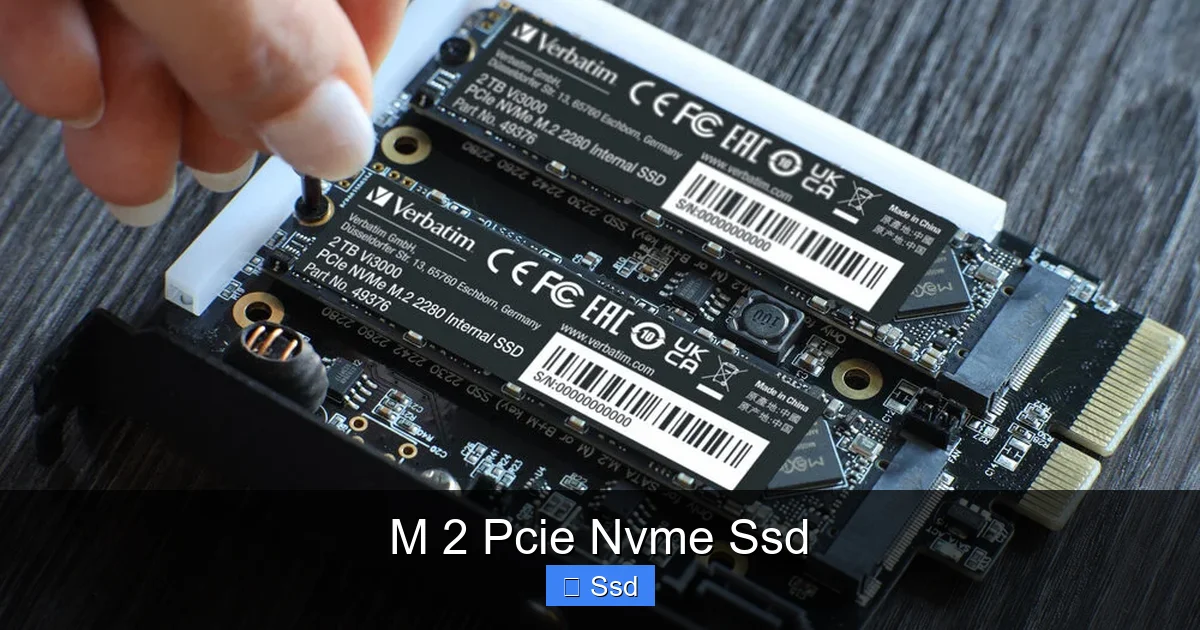
Visual guide about M 2 Pcie Nvme Ssd
Image source: verbatim-europe.com
The SATA Bottleneck
The SATA interface, version 3.0, has a theoretical maximum speed of 600 MB/s. The best SATA SSDs bump right up against that ceiling. For most everyday tasks—booting Windows, launching applications, loading a game—this feels instantaneous compared to an HDD. But when you start moving massive files, like a 100GB video project or a huge game library, that 600 MB/s ceiling becomes a visible wait.
PCIe: Opening the Floodgates
The PCIe bus, which your graphics card uses, is a different beast entirely. It offers vastly more bandwidth, measured in “lanes” (usually x4 for an M.2 SSD) and generations. Each generation roughly doubles the speed of the last.
- PCIe 3.0 x4: ~3,900 MB/s (4x the SATA limit)
- PCIe 4.0 x4: ~7,800 MB/s (8x the SATA limit)
- PCIe 5.0 x4: ~15,600 MB/s (16x the SATA limit)
NVMe is the protocol that efficiently uses all that PCIe bandwidth. It’s like having a wider, multi-lane highway (PCIe) with a streamlined, no-stop toll system (NVMe) instead of a single-lane road with a slow, manual toll booth (SATA/AHCI). The result? Sequential read/write speeds that were science fiction a decade ago.
Demystifying M.2: The Perfect Form Factor
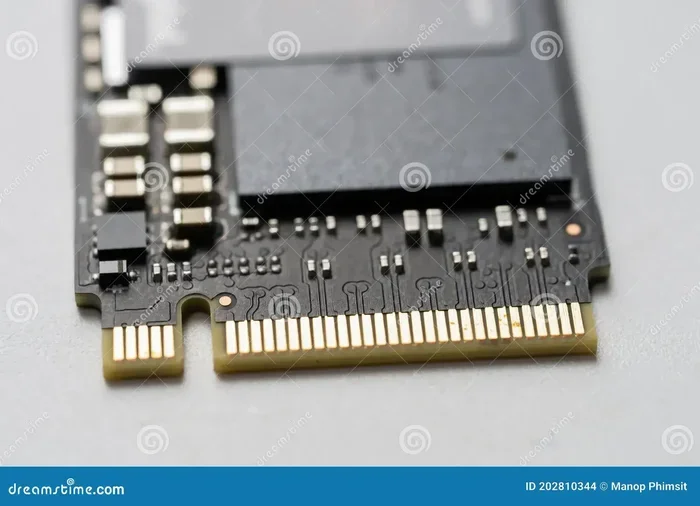
The “M.2” part of the name refers to the physical form factor and connector. It’s a specification that defines the size, shape, and mounting method of the card. This is a huge win for modern PC building.
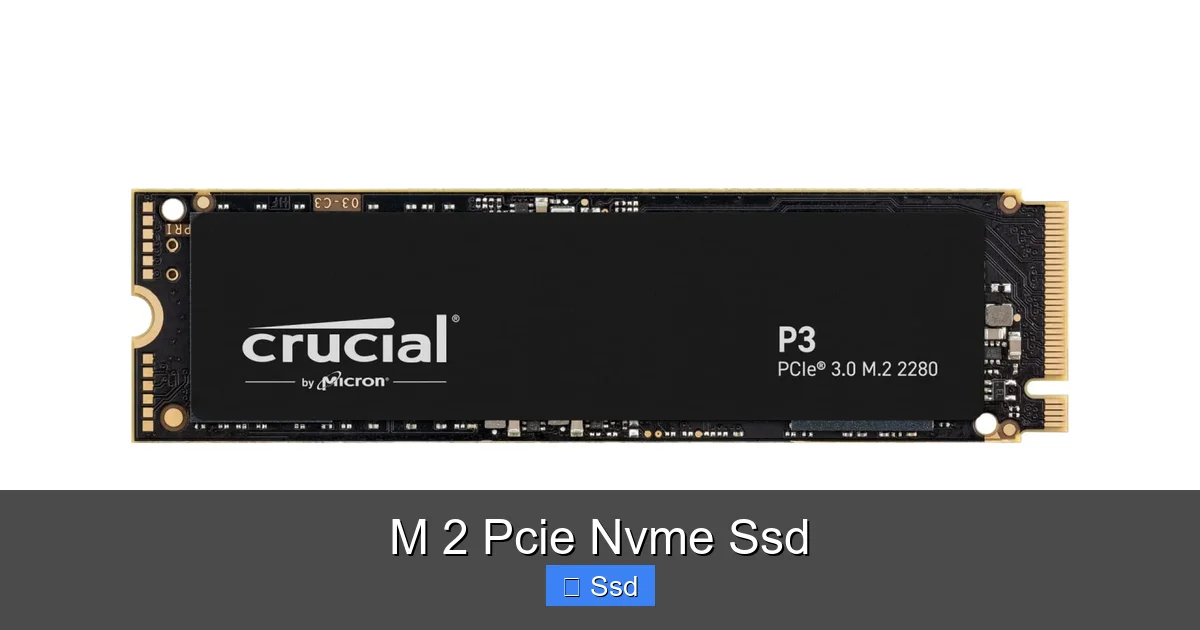
Visual guide about M 2 Pcie Nvme Ssd
Image source: cdn.wccftech.com
Sizes and Keys
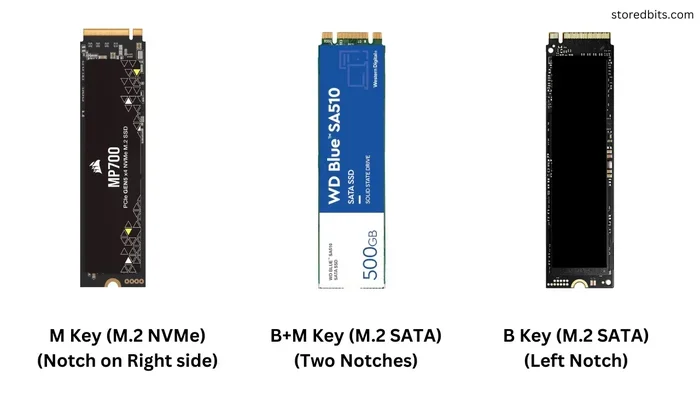
M.2 SSDs come in different lengths, measured in width and length. The most common for consumer storage is the 22mm wide by 80mm long (2280). You’ll also see 2242 (shorter) and 22110 (longer, often for enterprise). The “key” refers to the notch on the connector. For NVMe SSDs, you want a “M” key (or sometimes “M&B”) which fits into the PCIe x4 slot on your motherboard. A “B” key is typically for SATA or other devices. Always match the key and length to your motherboard’s M.2 slot specifications.
The Cable-Free Advantage
No more hunting for a spare SATA cable or a power connector from the PSU. The M.2 drive gets both power and data through the single motherboard slot. This declutters your case interior, improves airflow by removing obstacles, and makes installation a simple screw-and-go process. In small form factor (SFF) PCs like Mini-ITX builds, this space-saving is absolutely critical.
PCIe Generations: Are You Getting the Speed You Paid For?
This is the #1 area of confusion. Buying a shiny PCIe 4.0 SSD is pointless if your motherboard only supports PCIe 3.0. The connection will work, but the SSD will be capped at the older, slower generation’s speeds. It’s like putting a race car engine in a car with economy-grade tires.
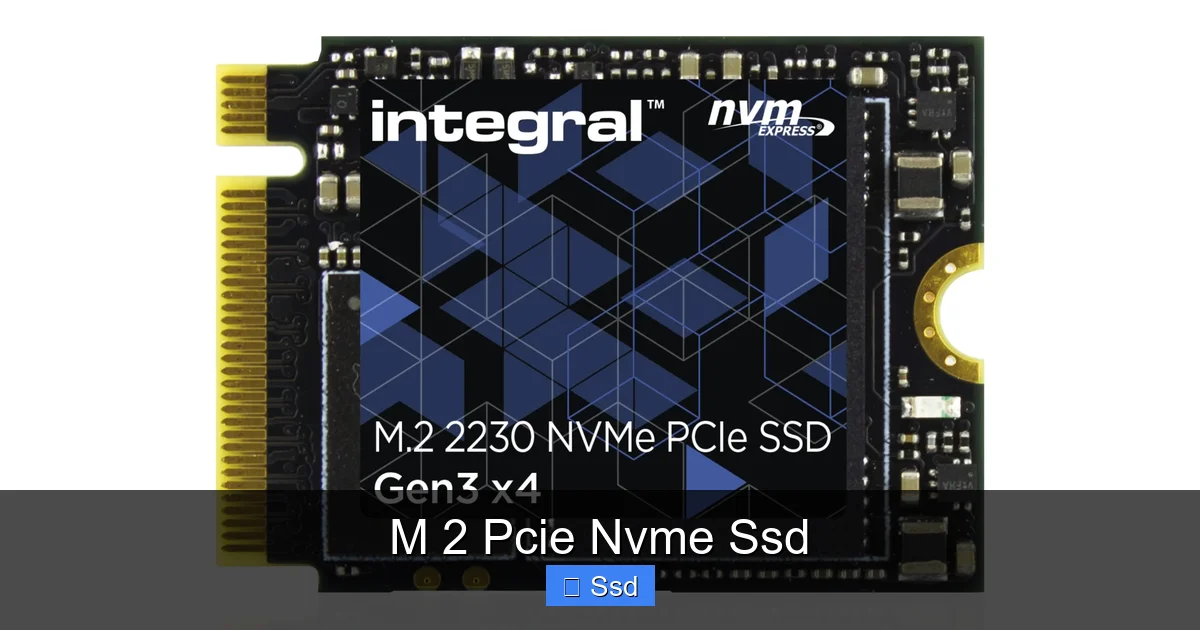
Visual guide about M 2 Pcie Nvme Ssd
Image source: integralmemory.com
Compatibility is Downward
The standard is beautifully backward and forward compatible. A PCIe 4.0 SSD will install and function perfectly in a PCIe 3.0 or 5.0 slot. A PCIe 3.0 SSD will work in a 4.0 or 5.0 slot. But the speed will always negotiate to the lowest common denominator—the generation of the motherboard slot or the drive itself, whichever is older.
How to Check Your Motherboard
Before you buy, you must check your motherboard’s manual or product page. Look for:
- Number of M.2 slots. Some boards have multiple.
- Supported PCIe Generation for each slot. (e.g., “M.2_1 supports PCIe 4.0 x4, M.2_2 supports PCIe 3.0 x4”).
- SATA Mode Support. Some slots disable adjacent SATA ports when used. Important if you have many SATA drives.
For a new build in 2024, targeting a motherboard with PCIe 4.0 support is the sweet spot for price and performance. PCIe 5.0 drives and platforms are available but command a significant premium for minimal real-world gains outside of extreme professional workloads.
Real-World Performance: What Do These Speeds Actually Mean for You?
Benchmark numbers are fun, but what matters is how the drive feels. Here’s where the NVMe advantage becomes tangible in daily use.
The Boot and Launch Advantage
This is the most noticeable win. Your operating system (Windows, macOS, Linux) loads in 5-10 seconds instead of 15-25. Applications like Chrome, Photoshop, or your favorite game launch almost instantly. That “loading…” screen becomes a relic. For competitive gamers, shaving even a second off level load times can be a psychological edge.
File Transfers and Creative Workflows
Here’s where the high sequential speeds shine. Moving a 50GB folder of footage or a massive game install? A PCIe 3.0 drive might take 3-4 minutes; a PCIe 4.0 drive can slash that to under 2 minutes. Video editors, 3D artists, and data scientists working with huge, uncompressed files will see their timelines and renders start much sooner as assets stream from storage to RAM faster than ever before.
It’s Not a Panacea: Random Reads/Writes
Don’t expect every single task to be 7x faster. The other major performance metric is 4K random read/write speed (how fast the drive handles thousands of small files). This is crucial for OS responsiveness and loading game assets. Here, all modern NVMe SSDs are excellent and already vastly superior to HDDs. The difference between a good PCIe 3.0 and PCIe 4.0 drive in random performance is often marginal (maybe 10-15%). The huge leap is in the large, sequential tasks.
Installation and Thermal Management: The Critical Steps
Slapping an M.2 drive into your PC is physically simple, but doing it right requires attention to detail.
Step-by-Step Installation
- Power Down & Unplug: Always shut down and disconnect your PC from power.
- Locate the Slot: Find the M.2 slot on your motherboard, usually near the CPU or between the PCIe slots.
- Remove the Standoff/Screw: There’s typically a small mounting screw holding a standoff in place. Remove it.
- Insert at an Angle: Hold the SSD by the edges. Insert it into the slot at a 30-degree angle, pushing gently but firmly until it clicks into place.
- Secure it Down: Lay the drive flat against the motherboard and screw it down with the previously removed screw. Do not overtighten! Snug is sufficient.
- Boot and Initialize: Enter your BIOS/UEFI to confirm the drive is detected. In your OS (Windows), use Disk Management to initialize and format the new drive.
The Heat Problem: Why Your SSD Might Slow Down
High-performance NVMe SSDs, especially PCIe 4.0 and 5.0 models, can get very hot—sometimes 70-80°C+ under sustained heavy workloads. The NAND flash memory and the controller chip need to stay cool. When they get too hot, the drive’s internal thermal protection kicks in and throttles speed to prevent damage. You paid for speed, but heat steals it back.
Solutions:
- Motherboard Heatsinks: Many modern motherboards come with large, chunky M.2 heatsinks that are often sufficient for PCIe 4.0 drives.
- Aftermarket Heatsinks: If your board’s heatsink is small or non-existent, buy an aluminum or copper heatsink that screws onto the drive’s label side (where the components are).
- Case Airflow: Ensure your case has good airflow. A fan blowing directly across the M.2 slot area can make a world of difference.
- PCIe 4.0/5.0 Drives with Built-in Heatsinks: Many manufacturers (like Samsung, WD, Sabrent) sell versions of their drives with a heatsink pre-attached. This is often the easiest and most effective solution.
Buying Guide: Choosing the Right M.2 NVMe SSD for You
The market is crowded. Here’s how to navigate it without overpaying or getting the wrong drive.
Capacity: How Much is Enough?
For a primary OS and application drive in 2024, 1TB is the new sweet spot. 500GB fills up too fast with modern games (which can be 100GB+) and software. 2TB offers great value per gigabyte if your budget allows and is ideal for a single-drive setup. For secondary storage or bulk game libraries, you might consider a larger SATA SSD or even a high-capacity HDD, as the speed benefit for pure storage is less critical.
Performance Tiers: Know What You Need
- Mainstream PCIe 3.0: (e.g., Crucial P3, WD Blue SN570). Speeds around 3,500 MB/s. Perfect for general use, office work, and gaming on a budget or older platform. Incredible value.
- High-Performance PCIe 4.0: (e.g., Samsung 980 Pro, WD Black SN850X, Sabrent Rocket 4 Plus). Speeds 7,000+ MB/s. The best choice for new builds, content creators, and enthusiasts. The price premium over PCIe 3.0 is often small.
- Enthusiast PCIe 4.0 with DRAM: Some drives use a system memory cache (HMB) instead of a dedicated DRAM cache. For most users, this is fine. But for sustained heavy writes (video capture, databases), a drive with its own DRAM cache (like the Samsung 980 Pro) can maintain speeds better.
- Cutting-Edge PCIe 5.0: (e.g., Crucial T700, WD Black SN850X). Speeds double again to 12,000-14,000 MB/s. Currently very expensive, requires a compatible motherboard (Intel 12th/13th/14th Gen or AMD Ryzen 7000 series with a PCIe 5.0 M.2 slot), and generates immense heat. Only for early adopters and specific professional workloads that can actually use the speed.
Brands and Reliability
Stick with reputable brands that use quality NAND flash (from manufacturers like Samsung, Micron, SK Hynix, Kioxia) and controllers. Look at the warranty (5 years is standard for good drives) and the TBW (Total Bytes Written) rating. A 1TB drive with a 600 TBW rating means it’s warranted to write 600 terabytes of data before it’s considered worn out. For a typical user, that’s a lifetime of use. Check professional reviews for consistent performance, especially in sustained write tests where some cheaper drives slow down dramatically.
The Future of NVMe and Storage: What’s Next?
The evolution isn’t stopping. PCIe 5.0 is here, and PCIe 6.0 is on the horizon, promising another doubling of bandwidth. But raw speed isn’t the only frontier.
Beyond the Drive: Computational Storage
The NVMe protocol has a feature called “NVMe over Fabrics” and “Zoned Namespaces” that could allow for more intelligent data management. More exciting is the concept of computational storage, where the SSD’s controller has enough processing power to perform basic operations on the data (like searching or compressing) without sending it all back to the CPU. This could revolutionize data center efficiency.
The Rise of CXL
Compute Express Link (CXL) is a new high-speed interconnect that could blur the lines between memory and storage, allowing processors to access storage with near-memory speeds. While initially for servers, this tech will eventually trickle down, potentially making our current “storage” and “memory” distinctions obsolete.
For the End User: The Takeaway
For the vast majority of us, PCIe 4.0 NVMe is more than fast enough for the next 5-7 years. The real future advancements will be in density (cheaper per-gigabyte), power efficiency (crucial for laptops), and smarter error correction to improve longevity. The “M.2 NVMe SSD” has already won. It is the default, recommended storage choice for any new desktop or laptop purchase today.
Conclusion: The Clear-Cut Winner
The M.2 PCIe NVMe SSD is no longer a luxury for enthusiasts; it’s the standard for modern computing. The combination of blistering speed, a compact and cable-free form factor, and ever-plummeting prices makes it the single most impactful upgrade you can make to an older system or the first component you should install in a new build.
Yes, you need to check compatibility. Yes, you should think about thermals. But these are simple homework assignments compared to the reward. You’re trading a few minutes of research for a transformation in your daily computing experience—a system that feels responsive, snappy, and utterly devoid of the frustrating loading waits we used to accept as normal. Whether you’re a gamer, a student, a professional, or just someone who values their time, the jump to NVMe is one you will feel every single day. Do your homework, pick a reliable 1TB (or larger) PCIe 4.0 drive from a good brand, install it, and prepare to be amazed. Your future self, waiting 5 seconds for Windows to boot instead of 20, will thank you.
Frequently Asked Questions
Can I use an M.2 NVMe SSD in an older desktop or laptop that only has a 2.5-inch SATA bay?
No, they are physically and electrically different interfaces. An M.2 NVMe SSD requires a specific M.2 slot that supports the PCIe bus. For older systems with only 2.5″ SATA bays or optical drive caddies, your best and most compatible upgrade remains a 2.5-inch SATA SSD.
Do I need a heatsink for my M.2 NVMe SSD?
It depends. For a PCIe 3.0 drive, it’s usually optional. For a PCIe 4.0 drive, it’s highly recommended, especially for sustained workloads like video editing or large file transfers. Many modern motherboards include effective M.2 heatsinks. If yours doesn’t, buying an aftermarket heatsink or a drive with one pre-installed is a smart investment to prevent thermal throttling and maintain top speeds.
Will my M.2 NVMe SSD work if my motherboard’s BIOS is old?
Sometimes. Very old motherboards (pre-2017) may not have the BIOS code to recognize NVMe drives as bootable devices. You can often update the motherboard BIOS to add support. Always check your motherboard manufacturer’s website for NVMe boot compatibility before purchasing if you have an older system. In a pinch, you can use the NVMe drive as a secondary storage drive without a BIOS update on many older boards.
Is an NVMe SSD worth it for gaming?
Absolutely, but with a nuance. The biggest gaming benefit is drastically reduced level load times. In open-world games, this means less pop-in and faster travel. For competitive multiplayer games, loading into matches faster can be a tactical advantage. However, once a game is loaded into RAM, the SSD has little impact on in-game frame rates (FPS). So, yes, it’s worth it for a smoother, more responsive experience, but don’t expect higher graphics performance.
Can I clone my old SATA SSD to a new NVMe SSD?
Yes, and it’s a common upgrade path. You’ll need cloning software (like Macrium Reflect, Samsung Data Migration, or Acronis) and either a second M.2 slot, a USB-to-M.2 adapter, or an external enclosure for the new drive. The software copies everything—OS, programs, files—so you can swap the drives and boot up exactly where you left off, but now on the faster NVMe drive.
How long will an M.2 NVMe SSD last?
Modern NAND flash memory is very durable. Consumer SSDs are typically rated for 300-1,200 TBW (Total Bytes Written) over their warranty period (usually 5 years). For a typical user writing 20-40 GB per day, it would take decades to reach that limit. The drive will likely become obsolete due to capacity or speed before it wears out. The main failure risk is the same as any electronics: power surges or manufacturing defects, which is why buying from reputable brands with good warranties matters.