1tb Pcie Nvme M.2 Ssd
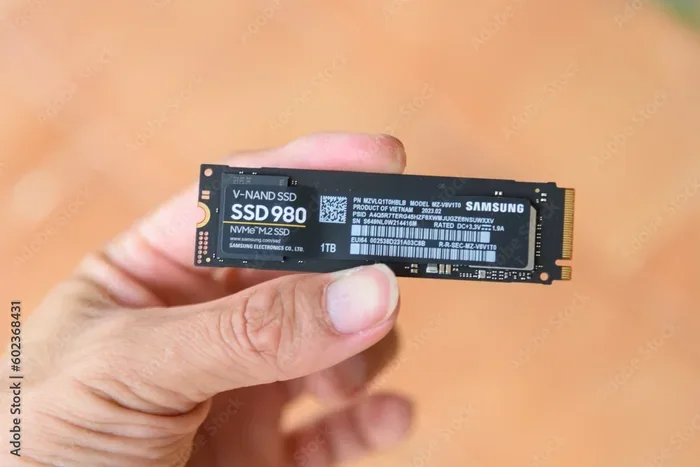
A 1TB PCIe NVMe M.2 SSD delivers blazing-fast storage speeds that transform your computer into a high-performance machine. These drives use the PCIe interface and NVMe protocol to offer read speeds up to 7000 MB/s, making them perfect for gaming, content creation, and everyday tasks. Whether you are upgrading a laptop or building a new PC, a 1TB NVMe M.2 SSD is one of the best storage investments you can make today.
If you have ever waited minutes for a game to load or watched your computer crawl while opening large files, you know how frustrating slow storage can be. A 1TB PCIe NVMe M.2 SSD changes everything. These tiny drives pack a massive punch, delivering speeds that make your whole system feel brand new.
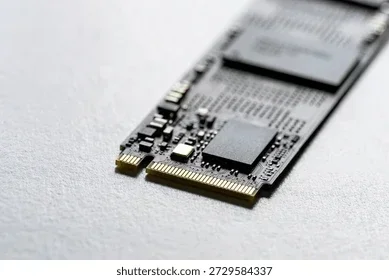
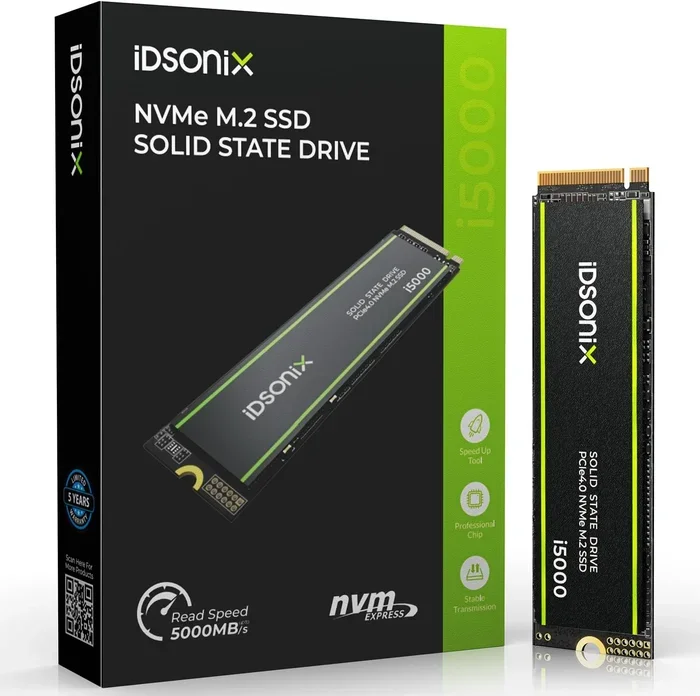
The M.2 form factor is small and sleek. It plugs directly into your motherboard without any cables. The NVMe protocol and PCIe interface work together to move data at incredible rates. With read speeds often exceeding 5000 MB/s and write speeds reaching 4000 MB/s or more, a 1TB NVMe M.2 SSD is a game changer for anyone who wants a fast computer.
Whether you are a gamer, a video editor, or someone who simply wants a snappier laptop, this guide covers everything you need to know. We will break down what makes these drives special, how to choose the right one, and why 1TB of storage hits the perfect balance between speed and capacity.
Key Takeaways
- Speed Boost: A 1TB PCIe NVMe M.2 SSD offers dramatically faster read and write speeds compared to traditional hard drives and SATA SSDs.
- Easy Installation: The M.2 2280 form factor fits directly into your motherboard slot with no cables needed.
- Perfect for Gaming: Games load faster and run smoother when installed on an NVMe M.2 drive.
- Gen4 and Gen5 Options: Newer PCIe generations push speeds even higher, but Gen3 drives still offer excellent value.
- 1TB is the Sweet Spot: 1TB gives you enough space for your operating system, games, and essential files without breaking the bank.
- Compatibility Matters: Always check if your motherboard supports NVMe M.2 drives before purchasing.
📑 Table of Contents
What Is a 1TB PCIe NVMe M.2 SSD?
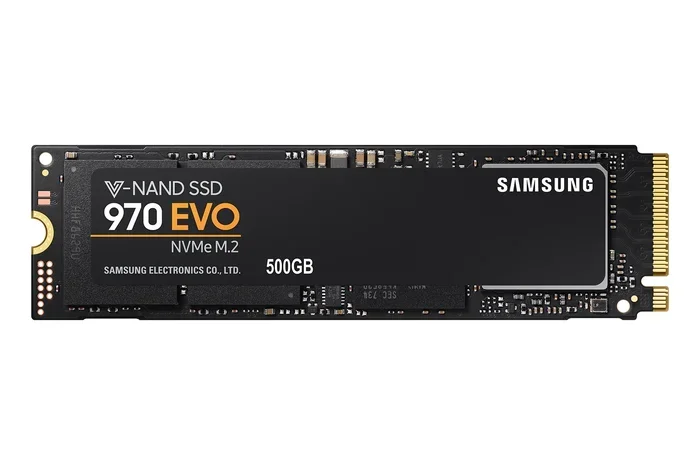
Let us start with the basics. A 1TB PCIe NVMe M.2 SSD is a type of solid state drive that uses a specific connection and protocol to achieve very high speeds. Each part of the name tells you something important about the drive.
1TB means the drive holds 1 terabyte of data. That is roughly 1000 gigabytes. This is enough space for your operating system, dozens of games, creative projects, and plenty of files.
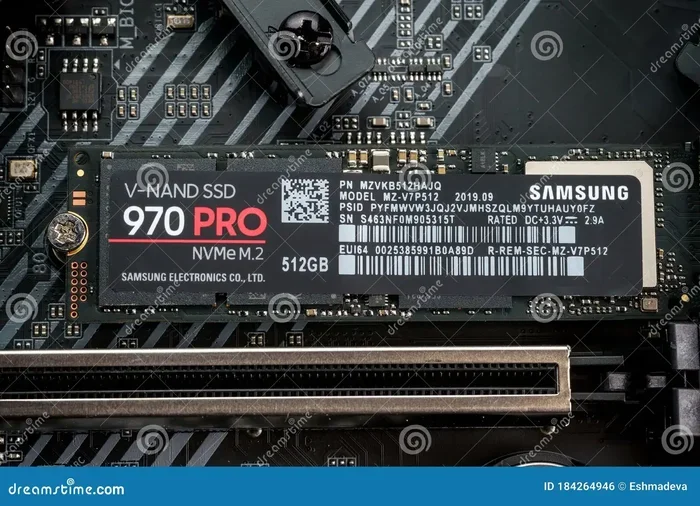
M.2 refers to the physical shape and size of the drive. It is a small rectangular stick, often called a gum stick because of its shape. The most common size is the 2280 specification, which means 22 millimeters wide and 80 millimeters long.
PCIe stands for Peripheral Component Interconnect Express. This is the bus or pathway the drive uses to communicate with your computer. PCIe is much faster than older connections like SATA.
NVMe stands for Non-Volatile Memory Express. It is a protocol designed specifically for flash storage. Unlike AHCI, which was built for older spinning hard drives, NVMe takes full advantage of the speed potential of modern NAND flash memory.
How Does It Compare to Other Drives?
To understand why a 1TB PCIe NVMe M.2 SSD is so fast, it helps to compare it to other storage options.
- Traditional HDD: A standard hard drive tops out around 150 MB/s. It uses spinning disks and mechanical parts.
- SATA SSD: A 2.5-inch SATA solid state drive maxes out at about 550 MB/s. It is much faster than an HDD but limited by the SATA interface.
- NVMe M.2 SSD: A PCIe NVMe M.2 drive can reach 7000 MB/s or more on Gen4. That is over ten times faster than a SATA SSD.
The difference in real-world use is dramatic. A game that takes 3 minutes to load on a SATA SSD might load in just 20 seconds on a 1TB NVMe M.2 SSD. Large video files transfer in seconds instead of minutes.
Why Choose a 1TB Capacity?
Storage capacity is one of the first decisions you need to make. 1TB has become the most popular choice, and for good reason. Let us look at why this capacity is the sweet spot for most users.
Enough Space for Most Needs
1TB gives you room for your Windows or macOS operating system, which takes up about 30 to 50GB. You can install 10 to 20 modern games, each ranging from 50GB to 150GB. You also have space for your applications, documents, photos, and a healthy amount of media files.
For most people, 512GB feels tight after a few months of use. 2TB drives cost significantly more. So 1TB hits a sweet spot where you get plenty of space without overspending.
Ideal for Gaming and Creative Work
Gamers benefit a lot from a 1TB PCIe NVMe M.2 SSD. Modern titles like Call of Duty, Cyberpunk 2077, and Starfield take up 100GB or more each. With 1TB, you can keep several of your favorite games installed and ready to play at a moment’s notice.
Content creators also love the 1TB size. Video editing projects with 4K footage eat up storage fast. Having a fast NVMe drive as your working drive means you can scrub through timelines smoothly and export files quickly.
How PCIe Generations Affect Speed
Not all PCIe NVMe M.2 SSDs are created equal. The PCIe generation your motherboard supports plays a huge role in the speeds you will get. Here is a simple breakdown.
| PCIe Generation | Max Bandwidth per Lane | Typical Max Read Speed (Gen3 x4) | Typical Max Read Speed (Gen4 x4) | Typical Max Read Speed (Gen5 x4) |
|---|---|---|---|---|
| PCIe 3.0 | 1 GB/s per lane | ~3500 MB/s | N/A | N/A |
| PCIe 4.0 | 2 GB/s per lane | N/A | ~7000 MB/s | N/A |
| PCIe 5.0 | 4 GB/s per lane | N/A | N/A | ~14000 MB/s |
A 1TB PCIe Gen4 NVMe M.2 SSD is currently the most popular choice. It offers excellent speeds at a reasonable price point. The Crucial P310 and Kingston NV2 are popular examples of Gen4 drives that deliver great performance for everyday use.
PCIe Gen5 drives are newer and offer even higher speeds, but they come at a premium price. For most users, Gen4 is more than enough. You will still experience blazing fast load times and quick file transfers.
Do You Need Gen4 or Gen5?
For gaming and general use, Gen4 is perfect. You will not notice a big difference between Gen4 and Gen5 in most everyday tasks. Gen5 shines in professional workloads like large-scale data processing and 8K video editing. If you are a casual user or a gamer, a Gen4 1TB NVMe M.2 SSD will serve you very well.
Top Brands and Models to Consider
The market is full of options, which can make choosing a 1TB PCIe NVMe M.2 SSD overwhelming. Here are some of the most trusted brands and models to look at.
Crucial P310
The Crucial P310 is a Gen4 NVMe drive that offers solid performance at an affordable price. It is a great entry-level option for anyone upgrading from a hard drive or SATA SSD. With sequential read speeds up to 7000 MB/s, it handles everyday tasks and gaming with ease.
Kingston NV2
The Kingston NV2 is another popular budget-friendly option. It uses a Phison E controller and delivers reliable Gen4 speeds. Many users choose this drive for laptops and desktops where they need fast storage without a big price tag.
Samsung 970 EVO Plus
The Samsung 970 EVO Plus is a Gen3 drive but still very popular. It offers excellent endurance and consistent performance. If your motherboard only supports PCIe 3.0, this is a strong choice.
Corsair MP600 Core XT
The Corsair MP600 Core XT is a solid Gen4 option with a heatsink included. It is a good pick for users who want a no-fuss installation with reliable performance and effective thermal management.
How to Install a 1TB NVMe M.2 SSD
Installing a 1TB PCIe NVMe M.2 SSD is one of the easiest upgrades you can do. You do not need cables or special tools in most cases. Here is a simple step-by-step guide.
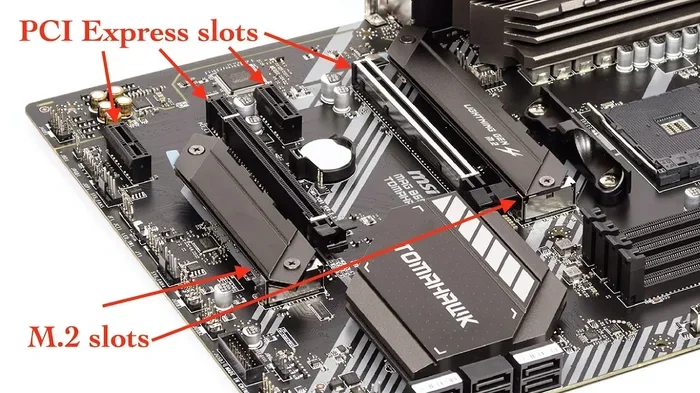
- Find the M.2 Slot: Locate the M.2 slot on your motherboard. It is usually near the CPU socket and has a small heatsink cover.
- Remove the Heatsink (if present): Unscrew the standoff or release the heatsink latch. Some motherboards come with the heatsink already removed.
- Insert the SSD: Hold the M.2 drive at a 30-degree angle and insert it into the slot. The notch on the drive should align with the key on the slot.
- Secure the Drive: Push the drive down gently and screw it into place with the small M.2 screw that came with your motherboard.
- Reinstall the Heatsink: If you removed it, put the heatsink back on and secure it with screws or the retention bracket.
- Boot and Format: Power on your PC, enter BIOS to confirm the drive is detected, then format and install your operating system or use it as a secondary drive.
Quick Tips for Installation
- Always ground yourself before touching components to avoid static damage.
- Keep the M.2 screw in a safe place. They are tiny and easy to lose.
- If your motherboard has multiple M.2 slots, check which one supports PCIe NVMe mode. Some slots support SATA only.
- Make sure your BIOS is updated to the latest version for best NVMe compatibility.
Common Mistakes to Avoid
Even with a simple upgrade like a 1TB NVMe M.2 SSD, there are a few mistakes people commonly make. Avoiding these will save you time and frustration.
- Buying the Wrong Form Factor: M.2 drives come in different lengths. The 2280 is the most common, but some laptops use 2230 or 2242. Always check your motherboard or laptop manual before buying.
- Ignoring PCIe Generation: A Gen4 drive will work in a Gen3 slot but will run at Gen3 speeds. Make sure your motherboard supports the generation you need.
- Forgetting About Thermals: High-performance NVMe drives can get hot. If your motherboard does not have a built-in heatsink, consider buying an aftermarket M.2 heatsink.
- Not Checking Compatibility: Some older systems do not support NVMe at all. Always verify NVMe support in your PC or laptop specs.
- Skipping Firmware Updates: Drive manufacturers often release firmware updates that improve performance and fix bugs. Check the manufacturer’s website after installation.
Is a 1TB PCIe NVMe M.2 SSD Worth It?
The short answer is yes. A 1TB PCIe NVMe M.2 SSD is one of the most impactful upgrades you can make to any computer. The speed difference compared to a traditional hard drive or even a SATA SSD is night and day.
For around $60 to $100, you get a drive that will make your system boot in seconds, load games almost instantly, and handle large files with ease. The 1TB capacity gives you plenty of room without costing a fortune.
Whether you are building a new gaming PC, upgrading a laptop, or creating a fast workstations storage solution, this type of drive delivers outstanding value. It is one of the best investments you can make for your computer.
If you are ready to upgrade, start by checking your motherboard for an available M.2 slot. Then pick a drive from a trusted brand like Crucial, Kingston, Samsung, or Corsair. The speed and responsiveness you gain from a 1TB NVMe M.2 SSD will make you wonder how you ever lived without it.
Do not let slow storage hold you back any longer. Make the switch to a 1TB PCIe NVMe M.2 SSD and experience your computer the way it was meant to be fast, responsive, and ready for anything.
Frequently Asked Questions
What does PCIe NVMe M.2 mean?
PCIe refers to the connection type, NVMe is the communication protocol, and M.2 is the physical form factor of the drive. Together, they describe a small, ultra-fast solid state drive that plugs directly into your motherboard.
How fast is a 1TB PCIe NVMe M.2 SSD?
Most Gen4 drives offer read speeds between 5000 and 7000 MB/s and write speeds between 3000 and 5000 MB/s. Gen3 drives are slightly slower but still much faster than traditional hard drives and SATA SSDs.
Can I use a 1TB NVMe M.2 SSD as my main drive?
Yes, absolutely. Many people use a 1TB PCIe NVMe M.2 SSD as their primary boot drive for the operating system, applications, and games. It is one of the best ways to speed up your entire system.
Do I need a heatsink for my NVMe M.2 SSD?
It depends on your workload and motherboard. For most casual and gaming use, the stock heatsink on your motherboard is enough. Heavy workloads like video rendering may benefit from an aftermarket M.2 heatsink to keep temperatures in check.
Is 1TB enough storage for gaming?
For most gamers, 1TB is the sweet spot. It can hold 10 to 20 modern games comfortably. If you play many large titles, you might eventually need more, but 1TB is a great starting point.
What is the difference between M.2 SATA and M.2 NVMe SSDs?
M.2 SATA SSDs use the SATA interface and max out at about 550 MB/s. M.2 NVMe SSDs use the PCIe interface and NVMe protocol, reaching speeds of 5000 MB/s or more. NVMe drives are significantly faster but require motherboard support.