M 2 Pcie 3.0 Nvme Ssd
The M.2 PCIe 3.0 NVMe SSD is a super-fast storage drive that fits directly into your motherboard. It uses the PCIe 3.0 interface to deliver read speeds up to 3,500 MB/s, making it perfect for gaming and content creation. This guide covers everything you need to know about M.2 PCIe 3.0 NVMe SSD drives, from compatibility and speeds to the best models on the market.
If you want to speed up your computer, the M.2 PCIe 3.0 NVMe SSD is one of the best upgrades you can make. These tiny drives pack a massive punch, delivering read speeds that make your old hard drive feel like a relic. Whether you are a gamer, a video editor, or just someone who hates waiting for files to copy, this guide will show you everything you need to know.
The M.2 PCIe 3.0 NVMe SSD uses the PCIe 3.0 interface to move data at incredible rates. Unlike traditional drives, it connects directly to the motherboard with no cables. This setup reduces latency and boosts overall system responsiveness.
In the next few minutes, you will learn what makes these drives tick, how they compare to older storage, and which models deliver the best value. Let us dive in.
Key Takeaways
- Blazing Speeds: M.2 PCIe 3.0 NVMe SSDs offer read speeds up to 3,500 MB/s, far faster than traditional hard drives.
- Compact Form Factor: The M.2 stick fits directly onto the motherboard, saving space and eliminating cables.
- Perfect for Gaming: Load times drop dramatically, making games feel instant.
- Easy Installation: Most modern motherboards have M.2 slots, and setup takes just minutes.
- Great Value: Prices have dropped, and a 1TB drive now costs very reasonable.
- Backward Compatible: PCIe 3.0 works on older boards, though you miss out on Gen4 speeds.
📑 Table of Contents
What Is an M.2 PCIe 3.0 NVMe SSD?
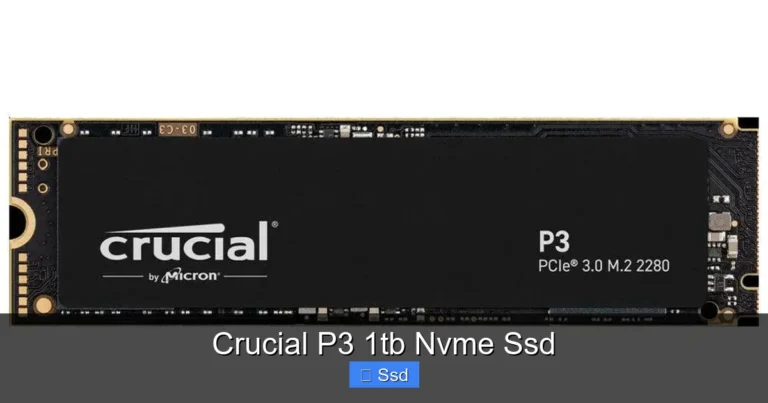
An M.2 PCIe 3.0 NVMe SSD is a solid-state drive that uses the M.2 form factor and the NVMe protocol over PCIe 3.0 lanes. The M.2 shape looks like a stick of gum. It plugs straight into a slot on your motherboard. The NVMe protocol is designed specifically for flash memory, so it communicates with the CPU much faster than older SATA commands.
The PCIe 3.0 interface provides up to 1 GB/s per lane. Since most M.2 NVMe drives use four lanes, you get a theoretical maximum of about 3.5 GB/s read speed. In real world testing, you will often see speeds between 3,000 and 3,500 MB/s. That is roughly five to six times faster than a typical SATA SSD.
Understanding the M.2 Form Factor
The M.2 module is incredibly small. It measures just 22 millimeters wide and can be 30, 42, 60, or 80 millimeters long. The most common size for desktop PCs is the 2280 format, which is 22mm by 80mm. This tiny size leaves more room for other components inside your case. NVMe M.2 SSD drives come in this compact package, making them ideal for small form factor builds.
The NVMe Protocol Explained
NVMe stands for Non-Volatile Memory Express. It is a protocol built from the ground up for flash storage. Traditional drives use AHCI, which was designed for spinning disks. NVMe takes advantage of the speed of NAND flash by using a streamlined command queue. This means less overhead and faster data transfers. When you boot your PC or open a massive file, the M.2 PCIe 3.0 NVMe SSD handles the request almost instantly.
How Does M.2 PCIe 3.0 NVMe SSD Compare to Other Drives?
To understand why the M.2 PCIe 3.0 NVMe SSD is so popular, it helps to compare it to other types of storage. There are two main comparisons to make: against SATA SSDs and against PCIe 4.0 drives.
SATA SSD vs. NVMe SSD
A SATA SSD connects through the same interface used by old hard drives. The SATA III maxes out at 600 MB/s. An M.2 PCIe NVMe SSD can be five times faster. The difference is most noticeable when you are copying large video files, loading heavy games, or running applications that read and write small files constantly. Boot times also drop from 15 seconds to around 5 seconds on a good NVMe drive.
PCIe 3.0 vs. PCIe 4.0
PCIe 4.0 doubles the bandwidth of PCIe 3.0. A PCIe 4.0 NVMe drive can reach 7,000 MB/s or more. However, PCIe 3.0 drives are still excellent for most users. They cost less and work on older motherboards. If you have a PCIe 3.0 board, buying a PCIe 4.0 drive will not give you the full speed benefit anyway. So a M.2 PCIe 3.0 NVMe SSD remains a smart choice for budget builds and upgrades.
| Feature | SATA SSD | M.2 PCIe 3.0 NVMe SSD | M.2 PCIe 4.0 NVMe SSD |
|---|---|---|---|
| Max Read Speed | ~550 MB/s | ~3,500 MB/s | ~7,000 MB/s |
| Interface | SATA III | PCIe 3.0 x4 | PCIe 4.0 x4 |
| Form Factor | 2.5 inch | M.2 2280 | M.2 2280 |
| Typical Price (1TB) | $50-$60 | $60-$80 | $90-$120 |
| Best For | Budget upgrades | Balanced performance | Max performance |
Key Benefits of Using an M.2 PCIe 3.0 NVMe SSD
Switching to a M.2 PCIe 3.0 NVMe SSD brings several real world benefits. Here are the top reasons people make the switch.
Blazing Fast Load Times
Games open in seconds instead of minutes. Large open world titles like Cyberpunk 2077 or Red Dead Redemption 2 load textures much faster. You will spend less time staring at loading screens and more time playing. The M.2 PCIe 3.0 NVMe SSD handles the random read requests that games demand.
Quick Boot and App Launches
Your Windows boot time can drop to under 10 seconds. Applications like Photoshop or Premiere Pro launch almost instantly. This is because the drive can access the small files needed to start programs with incredible speed. A PCIe 3.0 TLC NVMe M.2 SSD uses TLC NAND, which offers a great balance of speed and endurance for everyday tasks.
Energy Efficiency
NVMe drives use less power than spinning hard drives. They also produce no noise because there are no moving parts. Laptops benefit greatly from this, as battery life can improve slightly. Desktops run cooler and quieter as well.
Expert Insight
From a performance standpoint, the M.2 PCIe 3.0 NVMe SSD hits a sweet spot. You get near flagship speeds without the premium price tag of PCIe 4.0 or 5.0 drives. For 90% of users, this is all the bandwidth you will ever need.
Compatibility and Installation Tips
Before you buy a drive, you need to check a few things. Not every motherboard supports every NVMe drive, and not every slot works the same way.
Check Your Motherboard Manual
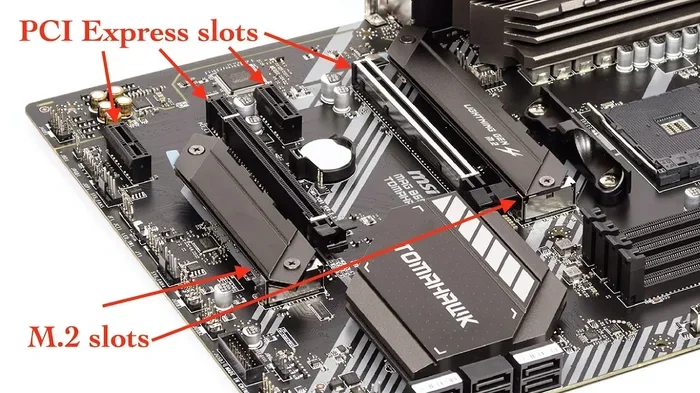
Look for M.2 slots on your motherboard. Most modern ATX and micro-ATX boards have at least one. The manual will tell you which slots support PCIe 3.0 x4 and which might run at lower speeds if you use a different slot. Some slots share bandwidth with SATA ports, so you do not want to accidentally disable a SATA drive by plugging an NVMe drive into the wrong slot.
M.2 Key Types
M.2 drives have a key notch that matches the slot. The B key supports SATA and PCIe x2. The M key supports PCIe x4, which is what you want for the fastest NVMe speeds. Most M.2 PCIe 3.0 NVMe SSD drives use the M key. They will only fit into an M keyed slot, so there is no risk of plugging it in the wrong way.
Heatsinks and Thermal Pads
NVMe drives can get hot under heavy load. Many motherboards come with a heatsink built into the M.2 slot. If yours does not, you can buy an aftermarket M.2 heatsink. A simple aluminum pad with thermal tape keeps temperatures in check. This is especially important if you are running a drive in a tight case with poor airflow.
Quick Tips for Installation
- Turn off your PC and unplug it before touching any components.
- Find the M.2 slot on the motherboard. It is usually labeled M2_1 or M2_2.
- Insert the drive at a 30 degree angle, then press it down flat and screw in the retention bolt.
- Enter your BIOS and make sure the NVMe drive is detected. Set it as the primary boot device if you are installing Windows.
- Update your NVMe driver after installation for the best performance.
Top M.2 PCIe 3.0 NVMe SSD Models to Consider
There are many great options on the market. Here are some of the most popular and reliable M.2 PCIe 3.0 NVMe SSD drives that offer excellent value.
| Model | Capacity | Read Speed | Write Speed | Key Feature |
|---|---|---|---|---|
| Samsung 970 EVO Plus | 1TB | 3,500 MB/s | 3,200 MB/s | Top notch reliability and endurance |
| Crucial P310 | 1TB | 3,200 MB/s | 2,400 MB/s | Budget friendly and consistent |
| WD Blue SN570 | 1TB | 3,500 MB/s | 2,800 MB/s | Great all around performer |
| Kingston NV2 | 1TB | 2,000 MB/s | 1,600 MB/s | Ultra affordable entry level |
| Lexar NM620 | 1TB | 2,100 MB/s | 1,800 MB/s | Good value with warranty |
The Samsung 970 EVO Plus remains a favorite because of its strong endurance rating and consistent speeds. The Crucial P310 is a fantastic budget option that still delivers fast PCIe 3.0 performance. The WD Blue SN570 balances cost and speed nicely. If you are on a tight budget, the Kingston NV2 or Lexar NM620 will still give you a huge upgrade over a hard drive.
Common Mistakes and How to Avoid Them
Even with a simple install, people sometimes make mistakes that hurt performance or cause issues. Here are the most common ones.
Mistake 1: Using the Wrong M.2 Slot. Some motherboards have M.2 slots that share bandwidth with SATA ports. If you plug an NVMe drive into one of those slots, it might run at SATA speeds or disable the SATA port entirely. Always check the manual to find the full speed PCIe x4 slot.
Mistake 2: Ignoring BIOS Settings. After installing the drive, you need to go into BIOS and make sure the NVMe drive is enabled. Some older BIOS versions default to legacy mode, which can prevent the drive from reaching full speed. Update your BIOS to the latest version for the best compatibility.
Mistake 3: Skipping Driver Updates. Windows 10 and 11 include generic NVMe drivers that work fine. However, the drive manufacturer often provides an optimized driver that can improve stability and performance. Visit the manufacturer website and download the latest NVMe driver.
Mistake 4: Overlooking Thermal Throttling. If your drive gets too hot, it will slow itself down to protect the NAND flash. This is called thermal throttling. If you notice speeds dropping during long transfers, add a heatsink or improve your case airflow.
Mistake 5: Assuming All M.2 Drives Are NVMe. Some M.2 drives use SATA and are not NVMe. They look the same but are much slower. Make sure the product title says NVMe or PCIe, not just M.2.
Final Thoughts
The M.2 PCIe 3.0 NVMe SSD is a fantastic upgrade that brings your PC into the modern age. It offers speeds that make everyday tasks feel snappier and gaming load times nearly disappear. The compact size saves space, and the prices have never been better. Whether you are building a new rig or upgrading an older machine, this type of drive should be at the top of your list.
With the right model and a simple installation, you will wonder how you ever lived with a slow hard drive. Pick a drive from the list above, follow the tips in this guide, and enjoy the speed.
Frequently Asked Questions
Is a PCIe 3.0 NVMe SSD worth it in 2024?
Absolutely. PCIe 3.0 NVMe drives still offer read speeds around 3,500 MB/s, which is more than enough for gaming, video editing, and everyday use. They cost less than PCIe 4.0 drives and work on older motherboards, making them a smart and affordable upgrade.
Can I use an M.2 NVMe SSD as a boot drive?
Yes, that is one of the best uses for an M.2 PCIe 3.0 NVMe SSD. Install Windows or your operating system on the drive, and you will enjoy boot times under 10 seconds. Just make sure your motherboard supports NVMe boot and the correct slot is selected in the BIOS.
Do I need a heatsink for an M.2 NVMe SSD?
It depends on your usage. If you do heavy file transfers or run workloads that keep the drive busy for long periods, a heatsink helps prevent thermal throttling. Many motherboards already include a basic heatsink. For most casual users, the included cooling is sufficient.
What is the difference between M.2 SATA and M.2 NVMe?
M.2 SATA drives use the SATA interface and max out at 600 MB/s. M.2 NVMe drives use the PCIe interface and the NVMe protocol, reaching speeds of 3,500 MB/s or more on PCIe 3.0. They look the same but are not interchangeable in terms of performance.
Will an M.2 PCIe 3.0 NVMe SSD fit in my laptop?
Many laptops have an M.2 slot, but you need to check the specifications. Look for support for NVMe PCIe SSDs and the correct key type (usually M key). The 2280 size is common in laptops, but some use shorter lengths like 2242. Always verify your laptop manual before purchasing.
How long does an M.2 PCIe 3.0 NVMe SSD last?
Modern NVMe drives have high endurance ratings, often measured in TBW (terabytes written). A typical 1TB PCIe 3.0 NVMe SSD can handle hundreds of terabytes of writes over its lifetime. For normal use, including gaming and daily tasks, the drive will likely last many years before wearing out.