Does Using Usb 3 0 to Usb C Converter Reduce Transfer Speed
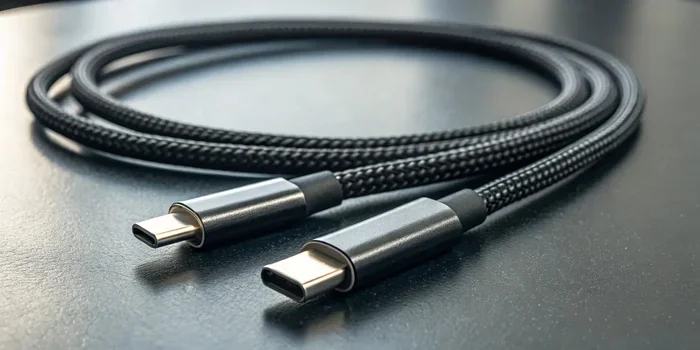
Using a USB 3.0 to USB C converter does not necessarily reduce transfer speed. The actual speed depends on the converter quality, the USB standard it supports, and your device’s capabilities. Most good USB C converters maintain full USB 3.0 speeds of up to 5 Gbps. However, cheap or faulty adapters can bottleneck your data transfer significantly.
This is a comprehensive guide about Does Using Usb 3 0 To Usb C Converter Reduce Transfer Speed.
Key Takeaways
- USB 3.0 to USB C converters can preserve full speed: Quality adapters support the full 5 Gbps USB 3.0 bandwidth without loss.
- Cheap converters are the real problem: Low-cost adapters often use inferior chips that throttle transfer speeds dramatically.
- Your device matters just as much: The fastest converter won’t help if your host port or cable is the bottleneck.
- USB C does not automatically mean faster speeds: USB C is just a connector shape, not a speed standard.
- Check for USB 3.1 and USB 3.2 support: Newer converter standards can offer even higher speeds than USB 3.0.
- Cable quality affects everything: A poor USB C cable can undo the benefits of a great converter.
[FEATURED_IMAGE_PLACEHOLDER]
Have you ever plugged in a USB 3.0 to USB C converter and wondered if it was slowing down your files? Maybe you were copying a huge video folder or backing up an external drive, and the transfer felt painfully slow. You probably started asking yourself whether that little adapter was the culprit.
This is a really common question, and honestly, the answer is not as simple as a yes or no. The truth is, a USB C converter can reduce transfer speed, but it can also keep it perfectly fine. It all comes down to the quality of the adapter, the USB standard it supports, and the devices you are using.
In this guide, we will break down exactly how USB 3.0 to USB C converters work, what speeds you should expect, and how to avoid the cheap adapters that kill your performance. Whether you are transferring large files for work or just moving photos from your camera, this article has you covered.
Understanding USB 3.0 and USB C: What Is the Difference?
Before we dive into converters, it helps to understand what each term actually means. Many people confuse USB 3.0 with USB C, but they are two very different things.
USB 3.0 Is a Speed Standard
USB 3.0 is a data transfer standard introduced back in 2008. It defines how fast data can move between devices. USB 3.0 offers a maximum theoretical speed of 5 gigabits per second, which is about 625 megabytes per second. That is ten times faster than USB 2.0.
USB 3.0 is also known as SuperSpeed USB in official branding. When you see the SS logo on a port, that means it supports USB 3.0 speeds or better. The standard has been updated over the years, with USB 3.1 and USB 3.2 offering even faster rates.
USB C Is Just a Connector Shape
USB C, on the other hand, is simply a connector type. It is the small, oval-shaped plug you see on modern laptops, phones, and tablets. USB C ports can support many different USB standards, including USB 2.0, USB 3.0, USB 3.1, USB 3.2, and even USB4 and Thunderbolt.
This is a crucial distinction. A USB C port does not automatically mean fast speeds. A device with a USB C port could be running at USB 2.0 speeds, which maxes out at 480 Mbps. That is dramatically slower than USB 3.0. So when you use a USB C adapter, the speed depends on what the port and the adapter actually support.
How Does a USB 3.0 to USB C Converter Work?
A USB 3.0 to USB C converter is a small adapter that lets you connect a USB 3.0 device to a USB C port, or vice versa. It translates the signal between the two connector types while maintaining the data transfer standard.
The Role of the Adapter Chip
Inside every converter is a small controller chip. This chip handles the conversion between the USB 3.0 Type-A connector and the USB Type-C connector. A good chip will pass through data at full USB 3.0 speeds without any reduction. A cheap chip might introduce bottlenecks or fail to negotiate the correct speed mode.
This is why brand matters a lot. Reputable adapter manufacturers use quality chips that ensure consistent data transfer rates. Budget adapters from unknown brands often cut corners on the controller, which leads to slower performance.
Backward Compatibility and Negotiation
USB standards are designed to be backward compatible. When you plug in a USB 3.0 to USB C converter, the devices on both ends negotiate the best supported speed. If your host port supports USB 3.0 and your converter supports USB 3.0, you should get full 5 Gbps speeds.
However, if either the host port or the converter only supports USB 2.0, the entire connection drops to USB 2.0 speeds. This negotiation happens automatically, which is great for convenience but can be frustrating when speeds are lower than expected.
Do USB 3.0 to USB C Converters Actually Reduce Speed?
The short answer is: sometimes, but not always. Let us look at the different scenarios where speed loss can happen and where it does not.
When Speed Is Maintained
A high-quality USB 3.0 to USB C converter will maintain full USB 3.0 speeds. In real-world testing, these adapters deliver transfer rates very close to the theoretical maximum of 5 Gbps. You can expect sustained speeds of around 400 to 500 MB/s when copying large files.
For example, if you use a USB C adapter from a trusted brand to connect an external NVMe SSD to your laptop, you will likely see blazing fast transfer speeds. Many users report that their M.2 NVMe SSD USB setups work perfectly when paired with a quality converter.
Here are the conditions where speed is fully maintained:
- The converter supports USB 3.0 or higher
- The host device port supports USB 3.0 or higher
- The cable is rated for USB 3.0 speeds
- The adapter uses a quality controller chip
- The files being transferred are large (over 1 GB)
When Speed Gets Reduced
Speed reduction happens in several common scenarios. Understanding these will help you troubleshoot slow transfers.
Cheap or counterfeit adapters are the biggest culprit. These adapters often use low-quality controller chips that cannot handle the full USB 3.0 bandwidth. Some budget adapters only support USB 2.0 speeds despite looking like USB 3.0 devices. You might pay $5 for an adapter that limits your speeds to 480 Mbps.
Cable quality matters too. A USB C cable that is not rated for SuperSpeed USB will bottleneck your connection. Many people buy a great converter but pair it with a cheap cable that only supports USB 2.0. The result is frustratingly slow transfers.
Port limitations on your devices can also cause speed drops. If your laptop has a USB C port that only supports USB 2.0, no converter in the world will give you USB 3.0 speeds through that port.
Real-World Speed Test Examples
To put this in perspective, here is what you can expect in different scenarios:
- Quality USB 3.0 to USB C converter: 400 to 500 MB/s transfer speeds
- Cheap USB 3.0 to USB C converter: 30 to 60 MB/s transfer speeds
- USB 2.0 to USB C converter: 30 to 40 MB/s transfer speeds
- USB 3.1 Gen 1 to USB C converter: 400 to 500 MB/s (same as USB 3.0)
The difference between a quality converter and a cheap one is massive. That is why investing in a reputable brand pays off, especially if you transfer large files regularly.
Factors That Affect Transfer Speed with USB Converters
Several factors determine the actual transfer speed you get when using a USB 3.0 to USB C converter. Let us break them down.
The Converter Quality
This is the single most important factor. A well-built converter with a quality controller chip will pass through data at full speed. Look for adapters from brands like Sabrent, UGREEN, or Cable Matters. These manufacturers test their products thoroughly and use proper USB 3.0 controller chips.
If you are using an external drive with a converter, consider checking out a M.2 NVMe to USB C SSD Enclosure from a reputable brand. These enclosures are designed to maintain full NVMe speeds through the USB C connection.
The Cable You Use
Never underestimate the role of your cable. A USB C cable that only supports USB 2.0 will cap your speeds at 480 Mbps, no matter how good your converter is. Look for cables that are explicitly rated for SuperSpeed USB 3.0 or higher.
Good cables have the SS (SuperSpeed) logo on them. They also tend to be thicker because they have more internal wires for data transmission. A thin, flimsy USB C cable is often the hidden bottleneck in slow transfer setups.
Your Host Device Port
The port on your computer or host device must support USB 3.0 or higher. Many modern laptops have multiple USB C ports, but not all of them are created equal. Some support USB 3.0, some support USB 3.1, and some only support USB 2.0.
Check your laptop or desktop specifications to confirm what your USB C ports actually support. This information is usually in the product manual or on the manufacturer website.
The Storage Device Itself
Even with a perfect converter and cable, your storage device has a maximum speed. A traditional hard drive will never reach USB 3.0 speeds because it cannot read or write data that fast. However, an NVMe SSD connected through a NVMe SSD to USB adapter can easily saturate a USB 3.0 connection.
When evaluating your setup, think of the chain as only as strong as its weakest link. The converter, cable, and storage device all need to support the same speed standard for optimal performance.
How to Choose the Right USB 3.0 to USB C Converter
Not all converters are created equal. Here is what to look for when shopping for a USB C adapter that will maintain your transfer speeds.
Check the USB Standard Support
Make sure the converter explicitly supports USB 3.0, USB 3.1 Gen 1, or USB 3.2 Gen 1. These all refer to the same 5 Gbps speed tier. Avoid any adapter that does not clearly state its supported USB standard.
Some converters also support USB 3.1 Gen 2 or USB 3.2 Gen 2, which offer 10 Gbps speeds. These are great if you have devices that can take advantage of the extra bandwidth. However, for most users, USB 3.0 (5 Gbps) is more than sufficient.
Look for Brand Reputation
Stick with well-known brands that have established reputations for quality. Brands like Sabrent, UGREEN, Anker, and Cable Matters consistently produce reliable USB adapters. Their products are tested for performance and durability.
When in doubt, check reviews from other users. Look for reviews that specifically mention transfer speeds. If multiple users report slow performance, that is a red flag.
Consider Build Quality
A well-built converter feels solid and sturdy. The connectors should be tight and not wobbly. The housing should be made of metal or high-quality plastic that can handle daily use.
Cheap converters often feel hollow and flimsy. They may have loose connectors that cause intermittent connection issues. These are the adapters most likely to have speed problems.
Verify Compatibility
Make sure the converter works with your specific devices. Some adapters work best with certain operating systems or device types. Check the product specifications before purchasing.
If you use an NVMe SSD with your converter, look for options that work well with M.2 NVMe SSD USB setups. The right combination of enclosure, adapter, and cable makes all the difference.
Common Mistakes That Slow Down USB Transfer Speeds
Even with a great converter, simple mistakes can tank your transfer speeds. Here are the most common ones to avoid.
Using a USB 2.0 Cable with a USB 3.0 Converter
This is the number one mistake people make. They buy a quality USB 3.0 to USB C converter but then use a USB C cable that only supports USB 2.0. The entire connection gets limited to USB 2.0 speeds, which is about one-tenth of USB 3.0.
Always check your cable specifications. Look for the SuperSpeed USB logo or confirm the cable rating in the product description. A good USB C cable costs a few extra dollars but makes a huge difference.
Plugging Into the Wrong Port
Many computers have a mix of USB ports. Some are USB 3.0, some are USB 2.0, and some are USB C with different speed capabilities. Plugging your converter into a USB 2.0 port will limit your speeds regardless of the adapter quality.
Check your computer’s ports carefully. Look for the SS logo next to the port or check your computer specifications. Use the port that supports the highest USB standard available.
Ignoring Driver and Software Updates
Sometimes slow speeds are caused by outdated drivers. Make sure your operating system and USB drivers are up to date. In Windows, you can check for driver updates through Device Manager under the Universal Serial Bus controllers section.
For NVMe SSDs connected through adapters, updating the SSD firmware can also improve performance. Check the SSD manufacturer website for the latest firmware updates.
Transferring Many Small Files Instead of Large Ones
This is not a converter mistake, but it affects perceived speed. Copying thousands of small files is always slower than copying a few large files, regardless of your USB setup. The overhead of handling each file adds up quickly.
If you need to move many small files, consider compressing them into a single archive first. This reduces the overhead and often results in faster overall transfer times.
Expert Insights and Pro Tips
Here are some expert tips to help you get the most out of your USB 3.0 to USB C converter setup.
Always Test Your Actual Speeds
Do not assume your converter is working at full speed just because it looks good. Use a free tool like CrystalDiskMark or ATTO Disk Benchmark to test your actual transfer speeds. Compare the results to the expected USB 3.0 speeds of around 500 MB/s.
If your speeds are way below that, try a different cable, a different port, or a different converter. This troubleshooting process will help you identify the exact bottleneck.
Use Powered USB Hubs for External Drives
If you are connecting an external drive through a converter, consider using a powered USB hub. Some external drives draw too much power through the USB connection alone, which can cause speed drops or connection drops.
A powered hub provides stable power to your drive while maintaining full data transfer speeds. This is especially important for high-performance NVMe SSD enclosures.
Keep Your Converter Cool
Some USB adapters can get warm during heavy data transfers. Heat can cause throttling, which reduces speeds. If your adapter feels hot to the touch, give it some airflow or consider using a converter with a metal housing that acts as a heat sink.
Conclusion
So, does using a USB 3.0 to USB C converter reduce transfer speed? The answer is that a good converter does not reduce speed at all. It passes through your data at full USB 3.0 speeds of up to 5 Gbps, giving you fast and reliable file transfers.
The real speed killers are cheap adapters, bad cables, and wrong port choices. By choosing a quality converter from a reputable brand, using a proper SuperSpeed USB cable, and plugging into the right port, you can enjoy fast transfer speeds without any headaches.
Take the time to check your setup and make sure every link in the chain supports the speeds you need. A small investment in a good USB C adapter and cable can save you hours of frustration and make your file transfers feel instant.
Whether you are backing up photos, moving video projects, or setting up an external drive for work, the right converter keeps your data flowing at full speed. Do not let a poor-quality adapter be the bottleneck in your workflow.
Frequently Asked Questions
Can a USB 3.0 to USB C converter slow down my NVMe SSD?
A quality converter will not slow down your NVMe SSD. However, a cheap converter or a USB 2.0 cable can limit speeds dramatically. Make sure your entire setup, including the converter, cable, and port, supports USB 3.0 or higher for full NVMe performance.
What is the maximum speed I should get with a USB 3.0 to USB C converter?
USB 3.0 has a theoretical maximum of 5 Gbps, which translates to about 500 MB/s in real-world transfers. Most quality converters deliver sustained speeds of 400 to 500 MB/s when connected to fast storage devices like NVMe SSDs.
Are all USB C ports the same speed?
No, USB C ports vary widely in speed. Some USB C ports only support USB 2.0 (480 Mbps), while others support USB 3.0 (5 Gbps), USB 3.1 (10 Gbps), or even USB4 (40 Gbps). Always check your device specifications to confirm what speed your USB C port actually supports.
How can I tell if my USB C cable supports SuperSpeed USB 3.0?
Look for the SuperSpeed USB logo (the letter SS) printed on the cable or its packaging. USB 3.0 cables are usually thicker than USB 2.0 cables because they have additional internal wires for data. If a cable does not show the SS logo, it likely only supports USB 2.0 speeds.
Does the length of the USB C cable affect transfer speed?
Longer cables can sometimes cause slight signal degradation, but this rarely affects USB 3.0 speeds in practical use. Cables up to about 3 feet (1 meter) work perfectly for most setups. If you need longer cables, look for active cables with built-in signal amplification to maintain full speed.
Can I use a USB 3.0 to USB C converter with a USB 2.0 device?
Yes, USB standards are backward compatible. A USB 3.0 to USB C converter will work with USB 2.0 devices, but the speeds will be limited to USB 2.0 maximum of 480 Mbps. The converter will negotiate the highest supported speed automatically between the two connected devices.