Does Any Usb Controller Work with Pc
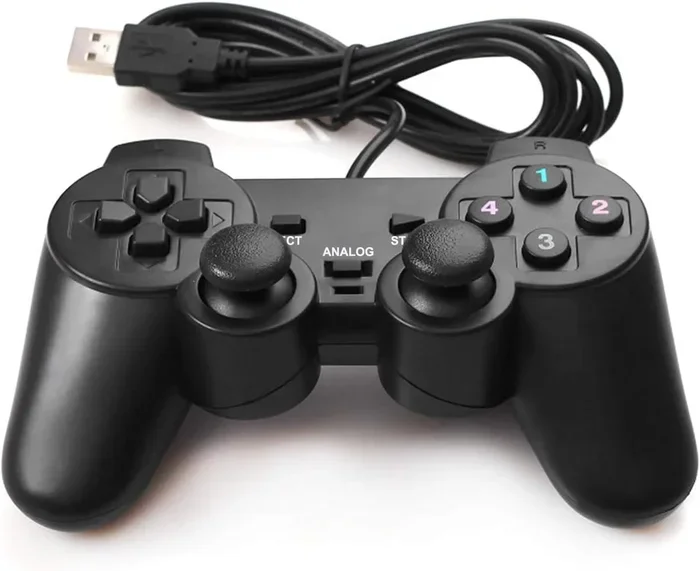
Not every USB controller works seamlessly with PC right out of the box. Compatibility depends on the controller type, operating system, and driver support. Most modern controllers offer plug-and-play functionality, but some require extra setup. This guide covers everything you need to know about USB controller compatibility with PC.
You just bought a shiny new USB controller. You plug it into your PC. And… nothing happens. Or maybe it works, but only half the buttons function. Sound familiar?
The short answer is no, not every USB controller works perfectly with PC right away. The longer answer involves compatibility, drivers, and a few simple tricks that can make any controller work. Let us break it all down for you.
If you are into PC gaming, you know that your input devices matter. A good controller can transform how you play. But finding one that works with your setup is not always straightforward. This guide will help you understand what to look for and how to get any USB controller working on your PC.
Key Takeaways
- USB Plug and Play: Many USB controllers work instantly with PC without extra software
- Driver Support Matters: Some controllers need specific drivers for full functionality
- Platform-Specific Controllers: Xbox, PlayStation, and Nintendo controllers have different PC compatibility levels
- Wired vs Wireless: Wired controllers generally offer simpler setup than wireless options
- Configuration Is Key: Proper controller configuration improves your gaming experience significantly
- Check Before Buying: Always verify controller compatibility with your PC setup before purchasing
📑 Table of Contents
What Makes a USB Controller Work With PC
When you plug a game controller into your computer, several things happen behind the scenes. Your PC needs to recognize the device. It needs the right drivers. And it needs to map the inputs correctly. Here is what you should know.
Plug and Play Controllers
Many modern USB controllers follow the USB plug and play standard. This means you can connect them and start using them immediately. Windows and most operating systems include built-in drivers for common controller types.
These controllers use standard protocols like HID (Human Interface Device). This makes them recognized instantly by your PC. You do not need to download anything extra. Just plug in and play.
Controllers That Need Drivers
Some gaming accessories require specific drivers to work properly. These are often specialized controllers with extra features. Think about controllers with programmable buttons, haptic feedback, or advanced trigger systems.
Without the right drivers, these controllers might show up as generic input devices. You will lose access to special features. The good news is that most manufacturers provide free drivers on their websites.
Popular USB Controllers and Their PC Compatibility
Not all controllers are created equal when it comes to PC compatibility. Some brands work effortlessly. Others need workarounds. Let us look at the most common types.
Xbox Controllers
Xbox controllers are the gold standard for PC gaming. Microsoft designs them with PC use in mind. The Xbox Wireless Controller works via USB with minimal setup. Most users report perfect plug-and-play performance.
The newer Xbox Elite controllers also work well with PC. They offer extra customization options. You can remap buttons and adjust triggers using the Xbox Accessories app. This makes them a top choice for serious PC gamers.
PlayStation Controllers
PlayStation controllers work with PC, but not always as smoothly. The DualShock 4 and DualSense controllers need third-party software for full functionality. Programs like DS4Windows help bridge the gap.
Once you set up the right software, PlayStation controllers work great. They offer excellent analog sticks and responsive buttons. The controller configuration process takes a few extra minutes. But the result is worth it for many players.
Nintendo Controllers
Nintendo controllers have mixed results on PC. The Pro Controller works relatively well with standard drivers. However, the Joy-Con controllers can be tricky. They often need specialized software to function properly.
If you want a Nintendo controller for PC games, the Pro Controller is your best bet. It offers a comfortable design and solid performance. Just be prepared for some setup work.
Wired vs Wireless USB Controllers for PC
Choosing between wired and wireless controllers affects your gaming experience. Each type has pros and cons for PC use. Let us compare them.
Wired Controllers
Wired controllers connect directly through USB. They offer instant recognition and zero lag. This makes them ideal for competitive PC gaming.
Wired controllers also do not need batteries. You never worry about running out of power mid-game. The downside is the cable. It can limit your movement and create clutter on your desk.
Wireless Controllers
Wireless controllers offer freedom of movement. They connect via Bluetooth or USB wireless receivers. The best wireless gaming controller options provide stable connections and low latency.
However, wireless controllers need charging. You also might experience occasional connection drops. For casual gaming, these issues are minor. For competitive play, a wired controller might be better.
Want to explore the best options? Check out our guide on the best wired controller for PC and the best wireless gaming controller for PC to find the perfect match for your setup.
How to Make Any USB Controller Work With Your PC
If you have a controller that is not working properly, do not give up. There are several steps you can take to get it working. Most issues have simple solutions.
Step 1: Try a Different USB Port
Sometimes the problem is as simple as the USB port. Try plugging your controller into a different port. USB 3.0 ports often work better than USB 2.0 ports for controllers.
If you are using a USB hub, try connecting directly to the PC. Some hubs do not provide enough power for controllers. A direct connection often solves recognition issues.
Step 2: Update Your Drivers
Outdated drivers can cause compatibility problems. Go to Device Manager and check for controller updates. Windows Update often includes the latest driver packages.
You can also visit the controller manufacturer’s website. Download the latest drivers specifically for your model. This ensures you have the most compatible version.
Step 3: Use Third-Party Software
Many controllers work better with dedicated software. Programs like Steam Input, DS4Windows, and Xbox Accessories help configure your controller. They also fix compatibility issues with older models.
Steam Input is especially useful. It works with most controllers and lets you customize button mappings. You can create profiles for different games. This greatly improves your controller support experience.
Step 4: Check Game Compatibility
Not all PC games support every controller. Some games only work with Xbox controllers. Others support multiple controller types. Always check the game’s system requirements.
Steam has a controller compatibility guide. You can check if your controller works with specific games before you buy them. This saves you from disappointment later.
Common USB Controller Problems and Solutions
Even compatible controllers can cause headaches. Here are the most common problems and how to fix them.
Controller Not Recognized
If your PC does not detect the controller, try these fixes. First, test the controller on another device. This tells you if the controller itself is faulty. Then try a different USB cable or port.
Sometimes Windows needs a manual driver update. Go to Device Manager, find the unrecognized device, and update the driver. Restarting your PC after plugging in the controller can also help.
Buttons Not Working Correctly
Misaligned button mapping is a common issue. This happens when the controller uses a different input layout than your PC expects. Controller configuration software fixes this easily.
You can also calibrate your controller through Windows settings. Go to Control Panel and find the game controller options. Use the calibration tool to adjust each input. This ensures every button and stick works correctly.
Input Lag or Delay
Input lag ruins the gaming experience. Wired controllers rarely have lag issues. Wireless controllers sometimes experience delays, especially with Bluetooth connections.
For the lowest latency, use a wired connection or a USB wireless receiver. Avoid Bluetooth for competitive gaming. If you must use Bluetooth, stay close to your PC for the best signal quality.
Expert Tips for the Best Controller Setup
Getting the most out of your USB controller takes a little effort. These expert tips will help you optimize your setup.
Always check compatibility before buying. Read reviews and manufacturer specs. Look for explicit PC support mentions. This saves you from buying a controller that will not work.
Keep your drivers updated. Manufacturers release driver updates regularly. These updates improve compatibility and fix bugs. Check for updates every few months.
Use controller software for customization. Programs like Steam Input let you create custom profiles. You can adjust sensitivity, remap buttons, and set macros. This tailoring makes your gaming experience much more enjoyable.
Consider a controller with broad support. The best generic controller for PC options work across many games and platforms. These controllers use standard protocols that PC games recognize easily.
Test your setup before important gaming sessions. Spend a few minutes checking all buttons and sticks. Make sure everything works as expected. This simple habit prevents frustration during gameplay.
Final Thoughts
So, does any USB controller work with PC? The honest answer is most do, but with varying levels of ease. Some controllers work perfectly out of the box. Others need drivers or software to function fully.
The key is to do your research before buying. Check compatibility, read reviews, and understand your needs. With the right setup, any USB controller can deliver an excellent PC gaming experience.
Remember, your controller compatibility depends on several factors. The controller type, your operating system, and the games you play all matter. Take the time to set things up properly. Your gaming experience will be much better for it.
Whether you prefer a wired controller for zero lag or a wireless controller for freedom, the right choice exists. Explore your options, follow the setup tips in this guide, and enjoy your PC games with the perfect controller.
Frequently Asked Questions
Can I use any USB game controller with my PC?
Most USB controllers work with PC, but compatibility varies. Controllers that follow standard HID protocols usually work instantly. Specialized controllers may need drivers or third-party software for full functionality.
Do I need to install drivers for a USB controller on PC?
Many modern controllers work without drivers through plug-and-play support. However, controllers with advanced features often require specific drivers. Check the manufacturer’s website for the latest driver downloads.
Why is my USB controller not working on PC?
Several issues can cause this. Try a different USB port, update your drivers, or use third-party configuration software. Sometimes the controller needs calibration through Windows settings to work properly.
Are wireless USB controllers good for PC gaming?
Wireless controllers offer convenience and freedom of movement. For the best performance, choose controllers with USB wireless receivers instead of Bluetooth. This reduces input lag and provides a more stable connection for competitive gaming.
Which controller works best with PC games?
Xbox controllers offer the best native PC support. PlayStation controllers work well with third-party software. The best choice depends on your gaming preferences and the specific games you play.
Can I use a console controller on PC for all games?
Most modern PC games support common controllers. However, some games only work with specific controller types. Always check game compatibility before purchasing a controller for PC use.
=== CONCLUSION ===
Does any USB controller work with PC? Yes, most do, but the experience varies. Understanding compatibility, drivers, and setup requirements makes all the difference. With the right approach, you can use almost any controller on your PC.
Take the time to research before buying. Choose controllers with strong PC support. Set up your device properly using the tips in this guide. Your gaming experience will improve dramatically. Happy gaming!