Do Touch Screen Monitors Need Usb

Do touch screen monitors need USB? The short answer is yes, most touch screen monitors rely on a USB connection to transmit touch input data to your computer. While some models use a single USB-C cable for both video and touch data, others may need separate ports for display and touch functionality. Understanding how touch screen monitors connect helps you set up your workspace without frustration.
You just unboxed your new touch screen monitor. You plug in the HDMI cable, turn it on, and… nothing happens when you tap the screen. Frustrating, right? This is a common experience for many people setting up a touchscreen display for the first time. The missing piece is almost always a USB connection.
Touch screen monitors are not like regular displays. They need an extra data pathway to tell your computer what your fingers are doing. That pathway is usually USB. Whether you are a designer, a gamer, or someone who just wants a more interactive workspace, understanding how touch screen monitors need USB saves you time, money, and a lot of headaches.
In this guide, we will walk through everything you need to know. We will cover the types of USB connections, why they matter, what happens if you skip the USB cable, and how to set up your monitor the right way. By the end, you will know exactly what cables to grab and why.
Key Takeaways
- USB is essential for touch input: Most touch screen monitors use USB to send touch data from the screen to your PC.
- USB-C simplifies connectivity: A single USB-C cable can handle video, touch data, and even power delivery in modern monitors.
- Not all touch screens are the same: Different touch technologies (IR, capacitive, resistive) have different USB requirements.
- You can work around USB limits: USB hubs and adapters offer flexible solutions when ports are limited.
- Setup matters: Proper driver installation and cable quality make a big difference in touch screen performance.
📑 Table of Contents
- What Is a Touch Screen Monitor and How Does It Work
- Do Touch Screen Monitors Need USB
- Types of USB Connections Used in Touch Screen Monitors
- Can You Use a Touch Screen Monitor Without USB
- Setting Up Your Touch Screen Monitor the Right Way
- Common Mistakes People Make With Touch Screen Monitors
- Touch Screen Monitors and USB: The Bottom Line
What Is a Touch Screen Monitor and How Does It Work
A touch screen monitor is a display that detects finger or stylus input directly on the screen surface. Instead of relying only on a mouse or keyboard, you can interact with your computer by tapping, swiping, or pinching the display. This technology has become popular in both home and office setups.
There are three main types of touch screen technology you will encounter:
- Resistive touch screens: These use pressure to detect input. They work with almost any object, including a gloved finger or a stylus. They are common in older or budget-friendly displays.
- Capacitive touch screens: These detect the electrical charge from your skin. They are the most responsive and are used in smartphones and modern monitors. They do not work well with regular gloves.
- Infrared (IR) touch screens: These use an array of infrared LEDs and sensors around the bezel to detect when an object breaks the light grid. They offer precise input and work with any object.
No matter which type you have, all of them need a way to send touch data to your computer. That is where USB comes in. Without it, your screen is just a dumb display showing pictures. The USB connection gives the monitor a voice to tell your PC what you are touching.
If you are exploring touch screen options for a broader setup, you might also want to check out what makes a best touch screen laptop stand out, since the core touch technology principles are very similar.
Do Touch Screen Monitors Need USB
The direct answer is yes. Almost every touch screen monitor on the market today requires a USB connection to function as a touchscreen. The USB cable carries the touch input data from the monitor’s built-in controller to your computer’s USB host controller.
Here is how it works in simple terms. When you tap the screen, the touch controller inside the monitor registers the coordinates of your touch. It then sends that data through the USB cable to your PC. Your operating system receives the data and translates it into a cursor movement or a tap action. Without the USB link, this entire process breaks.
Some people assume the HDMI or DisplayPort cable handles everything. That is not true. Those cables carry video signals only. They do not carry touch input data. So even if your picture looks perfect on the screen, the touch functionality will be dead without the USB connection.
Why the USB Connection Is Non-Negotiable
Think of it like a phone call. The HDMI cable is the video part of the conversation. It shows your computer what to display. The USB cable is the audio part. It lets your monitor tell your computer what your fingers are doing. You need both for a full conversation.
Here are the key reasons USB is essential for touch screen monitors:
- Data transmission: USB carries the touch coordinate data from the screen to your PC in real time.
- Driver communication: The USB link allows your operating system to install and communicate with the touch screen driver.
- Firmware updates: Some monitors use the USB connection to receive firmware updates that improve touch accuracy and responsiveness.
- Power for touch sensors: In some designs, the USB port provides a small amount of power to the touch sensor layer.
Skipping the USB cable means your touch screen is basically a regular monitor with a fancy surface. You will see the display, but you will not be able to interact with it using touch. This is the single most common setup mistake people make.
If you are curious about using other input devices with a touch screen setup, many users also ask about using a mouse with a touch screen setup, which is a related consideration for maximizing productivity.
Types of USB Connections Used in Touch Screen Monitors
Not all USB connections are the same. The type of USB your monitor uses affects speed, convenience, and what else you can do with the cable. Here is a breakdown of the most common USB connection types you will find on touch screen monitors.
USB Type-B (Square-Shaped Port)
This is the traditional USB port found on many touch screen monitors. It is a square-shaped connector, often labeled as USB-B or printer port. You typically get a USB-B to USB-A cable in the monitor box. One end plugs into the monitor, and the other plugs into a USB-A port on your computer.
USB-B is reliable and works well for basic touch data transmission. However, it only supports USB 2.0 speeds on most monitors. This is usually fast enough for touch input, but it may not support advanced features like built-in USB hubs on the monitor.
USB Type-C (Reversible Connector)
USB-C is the modern standard and is becoming the go-to connection for touch screen monitors. It is small, reversible, and supports much faster data transfer speeds. Many modern touch screen monitors use a single USB-C cable to handle video, touch data, and even power delivery.
This is a huge advantage. With USB-C, you only need one cable to connect your monitor to a compatible laptop or desktop. It reduces cable clutter and simplifies setup. If your computer supports USB-C with DisplayPort Alt Mode, the single cable does everything.
USB 3.0 vs USB 2.0 for Touch Screens
The version of USB matters more than you might think. Here is a quick comparison:
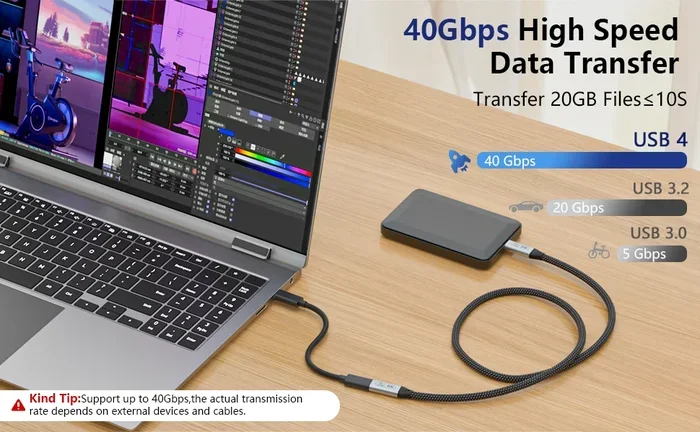
| Feature | USB 2.0 | USB 3.0 |
|---|---|---|
| Max Data Speed | 480 Mbps | 5 Gbps |
| Touch Input Performance | Good for basic use | Excellent for multi-touch |
| Power Delivery | Limited | Better for bus-powered devices |
| Common on Monitors | Older models | Newer and premium models |
For most touch screen users, USB 2.0 is perfectly fine. Touch input data is small in size and does not need high bandwidth. However, if you use multi-touch gestures or a stylus with high reporting rates, USB 3.0 provides a smoother experience with less latency.
Can You Use a Touch Screen Monitor Without USB
Technically, you can plug in a touch screen monitor without the USB cable. The display will work. You will see your desktop, videos, and apps on the screen. But the touch functionality will be completely disabled. Your finger taps will do nothing.
Some people try to get around this by using a wireless touch pen or a Bluetooth input device. While these alternatives exist, they do not replace the native touch experience. You lose the direct, intuitive interaction that makes touch screen monitors valuable in the first place.
If you find yourself in a situation where your USB ports are full, consider using a USB hub. A powered USB hub gives you extra ports without sacrificing performance. Just make sure you get a hub with enough power output, especially if you are connecting multiple devices.
When shopping for a new touch screen monitor, it is also worth comparing options and features. If you are looking for budget-friendly choices, you can explore affordable touch screen options that highlight what to look for in a quality touchscreen at a good price.
Setting Up Your Touch Screen Monitor the Right Way
Setting up a touch screen monitor is straightforward, but a few steps make the difference between a frustrating experience and a smooth one. Follow this guide to get everything working properly.
Step 1: Connect the Display Cable First
Plug in your HDMI, DisplayPort, or USB-C cable to your computer and the monitor. Turn on the monitor and make sure the display shows up on your screen. This confirms the video signal is working before you deal with the touch connection.
Step 2: Connect the USB Cable
Now plug the USB cable into the monitor and an available USB port on your computer. If your monitor came with a USB-B cable, make sure you connect the square end to the monitor and the flat end to your PC. If you are using USB-C, either end works since it is reversible.
Step 3: Install the Touch Screen Driver
Most modern operating systems like Windows 10 and 11 will automatically detect the touch screen and install a basic driver. However, for the best experience, download the latest driver from the monitor manufacturer’s website. Look for the support or downloads section and enter your model number.
After installing the driver, restart your computer. This ensures the touch drivers load correctly during boot. Once your PC is back on, try tapping the screen. You should see the cursor respond immediately.
Step 4: Calibrate the Touch Screen
Sometimes the touch input does not line up perfectly with what you see on screen. This is common, especially after the first setup. Windows has a built-in calibration tool:
- Go to Control Panel and search for “Calibrate the screen for pen or touch input.”
- Click “Calibrate” and follow the on-screen prompts.
- Tap each crosshair that appears on the screen.
- Save the calibration profile when prompted.
Calibration only takes a minute and dramatically improves accuracy. Do not skip this step.
Quick Tips for Better Touch Screen Performance
- Use a clean, dry screen. Dirt and moisture can interfere with touch detection.
- Avoid pressing too hard. Most modern screens respond to light touches.
- Keep the USB cable away from power cables to reduce interference.
- Use the original cable that came with the monitor when possible.
- Update your touch screen driver every few months for the best performance.
Common Mistakes People Make With Touch Screen Monitors
Even with the best intentions, people make avoidable mistakes when setting up touch screen monitors. Here are the most common ones and how to prevent them.
Mistake 1: Forgetting the USB cable. This is the number one issue. People unbox the monitor, connect HDMI, and wonder why touch does not work. Always check that the USB cable is plugged in before troubleshooting anything else.
Mistake 2: Using a USB hub without enough power. If you plug your monitor into an unpowered USB hub, the touch input may lag or stop working entirely. Use a powered hub or plug directly into your computer’s USB port.
Mistake 3: Skipping driver updates. Outdated drivers cause ghost touches, unresponsiveness, and calibration drift. Visit the manufacturer’s website regularly and grab the latest version.
Mistake 4: Using the wrong cable. Not all USB cables are created equal. A charging-only cable will not transmit touch data. Make sure your cable supports data transfer, not just power delivery.
Mistake 5: Ignoring screen protectors. Thick or poorly designed screen protectors can block touch input. If you use a protector, make sure it is rated for touch screen compatibility.
Touch Screen Monitors and USB: The Bottom Line
The connection between touch screen monitors and USB is simple and essential. USB is the bridge that brings your touch input to life. Without it, you are just looking at a picture. With it, you get a fully interactive display that responds to your taps, swipes, and gestures.
Whether you choose a monitor with USB-B, USB-C, or both, make sure you connect that USB cable during setup. Take the extra step to install the right driver and calibrate your screen. These small actions pay off in a much better user experience.
Touch screen technology has come a long way. From resistive screens that needed a hard press to modern capacitive displays that respond to a light touch, the experience keeps getting better. And USB remains the backbone that makes it all possible. So the next time you set up a new monitor, remember: do touch screen monitors need USB? Yes, they absolutely do. Connect it, configure it, and enjoy the interaction.
If you are building a complete workstation with a touch screen setup, remember that other peripherals matter too. The right accessories and cables make your entire experience smoother and more productive.
Frequently Asked Questions
Can I use a touch screen monitor with only an HDMI cable?
You can use the monitor as a regular display with just HDMI, but the touch functionality will not work. You must also connect the USB cable that comes with the monitor to enable touch input. Without the USB connection, your computer cannot receive touch data from the screen.
Do all touch screen monitors use USB-B cables?
No, not all touch screen monitors use USB-B. Many newer models use USB-C, which is smaller and reversible. Some monitors even use both USB-B for touch data and USB-C for video. Check your monitor’s manual to see which cable type it requires.
Can I charge my touch screen monitor through the USB connection?
In most cases, the USB connection on a touch screen monitor is for data only. It does not provide enough power to charge the monitor. Touch screen monitors typically need a separate power adapter plugged into a wall outlet. The USB port is specifically for transmitting touch input data to your computer.
What should I do if my touch screen is not responding after connecting USB?
First, make sure the USB cable is firmly plugged into both the monitor and your computer. Try a different USB port on your PC. Then check if the touch screen driver is installed correctly. You can also try uninstalling and reinstalling the driver from the manufacturer’s website. If the problem persists, test the cable with another device to rule out a faulty cable.
Does a longer USB cable affect touch screen performance?
A longer USB cable can introduce slight latency, especially if it exceeds 6 feet (about 2 meters). For the best touch response, use the shortest cable that works for your setup. If you need a longer cable, choose a high-quality, shielded USB cable to minimize signal loss and interference.
Can I connect a touch screen monitor to a USB hub?
Yes, you can connect a touch screen monitor to a USB hub, but the hub must be powered. An unpowered hub may not provide enough bandwidth for reliable touch input. A powered USB hub ensures stable data transfer and keeps your touch screen responsive at all times.
=== CONCLUSION ===
Do touch screen monitors need USB? The answer is a clear and definitive yes. The USB connection is what transforms a regular display into an interactive touchscreen experience. It carries the touch data that lets your computer understand your taps, swipes, and gestures. Without it, you are left with a beautiful but non-responsive screen.
Setting up your touch screen monitor correctly is simple. Connect the display cable first, then plug in the USB cable, install the driver, and calibrate the screen. Avoid the common mistakes that trip up most users, and you will enjoy a smooth and responsive touch experience from day one.
Remember to keep your cables in good condition, update your drivers regularly, and invest in quality accessories. Your touch screen monitor is an investment in a more intuitive and efficient way to work and play. Treat the USB connection with the respect it deserves, and it will serve you well for years to come.