Why Do Printers Not Come with Usb Cables
Printers don’t come with USB cables because manufacturers save on costs and assume you already have one. This is a common practice across the industry, and it often catches buyers off guard. Understanding printer cable types and what you need for printer setup can save you time and frustration when unboxing a new device.
You just unboxed your shiny new printer, ready to start printing documents and photos. You rip open the box, check every compartment, and then it hits you… there is no USB cable in sight. This is a situation that frustrates millions of people every year. If you have ever wondered why printers don’t come with USB cables, you are not alone. The answer involves a mix of business strategy, industry norms, and assumptions about what customers already own.
In this guide, we will walk through the real reasons behind this practice. You will learn about printer cable types, how to choose the right one, and what to do if you run into printer connection issues during setup. Whether you are setting up a home office or a small business printer, this article covers everything you need to know about printer USB cable requirements and getting your device up and running.
The good news is that solving this problem is straightforward once you know what to look for. Most people already have a compatible cable lying around, or they can pick one up for just a few dollars. Let us dive into the details so you can get back to printing without any headaches.
Understanding printer setup goes beyond just plugging in a cable. It involves knowing the right USB cable types, checking for printer compatibility, and troubleshooting when things do not work as expected. This guide breaks it all down into simple, actionable steps that anyone can follow.
Key Takeaways
- Point 1: Most printer manufacturers exclude USB cables to reduce packaging costs and keep retail prices competitive.
- Point 2: You need a USB-B to USB-A cable for most wired printers, which is different from the cables used for other devices.
- Point 3: Wireless printing options like Wi-Fi Direct and Bluetooth can eliminate the need for a USB cable entirely.
- Point 4: Using the wrong cable type is one of the most common printer connection issues and can cause setup delays.
- Point 5: Always check your printer’s port type before purchasing a USB printer cable to ensure compatibility.
- Point 6: Troubleshooting printer connectivity problems often starts with verifying the USB cable and port are working correctly.
📑 Table of Contents
Why Printers Don’t Include USB Cables
The first thing to understand is that this practice is not unique to printers. Many electronics manufacturers follow the same approach. When you buy a new monitor, external hard drive, or even some keyboards, the USB cable is often sold separately. The reasoning is simple but has several layers that are worth exploring.
The Cost-Saving Strategy Behind It
Manufacturers want to keep their retail prices as low as possible. Including a USB cable adds to the packaging cost, the shipping weight, and the overall product price. By excluding the cable, they can advertise a lower price tag, which makes the product more appealing to budget-conscious buyers. This strategy works because many consumers already have spare USB cables at home from other devices like phones, tablets, and chargers.
From a business perspective, it also reduces the risk of shipping damaged cables. USB cables are small and prone to tangling or bending during transit. A damaged cable in the box can lead to negative reviews and return requests. Leaving the cable out eliminates this problem entirely and keeps the supply chain simpler for the manufacturer.
Different Printer Models, Different Approaches
Not all printers follow the same rule. Some higher-end models do include a USB cable in the box, especially those aimed at professional users. Business-grade printers often come with all the necessary cables, including power cords and data cables. However, most consumer-grade printers, especially budget models, leave the USB cable out of the package.
If you are buying a printer specifically for printer connectivity via USB, make sure to check the box contents before purchasing. Product descriptions usually list what is included, and a quick glance at the specifications can save you from an unpleasant surprise on arrival. Always look for phrases like “cable included” or “cable not included” in the product details.
Understanding USB Cable Types for Printers
Not all USB cables are the same, and this is where many people get confused. Using the wrong cable is one of the most common reasons for printer connection issues. Let us break down the different USB cable types you need to know about so you can make the right choice.
USB-B vs USB-A: What Is the Difference?
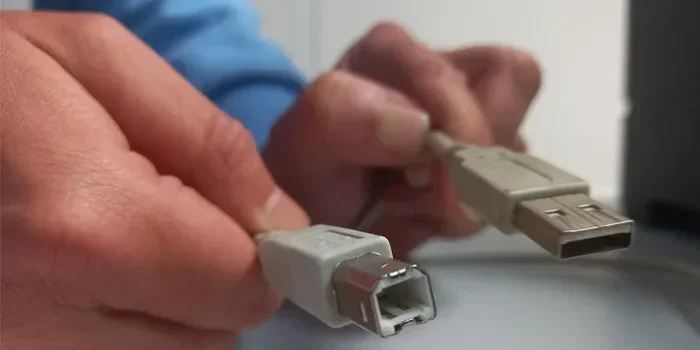
Most wired printers use a USB-B cable, which has a square-shaped connector on one end. The other end is typically a standard USB-A connector, which is the flat rectangular shape you plug into your computer. This combination is specifically designed for printer data transfer and is different from the cables used for charging phones or connecting flash drives.
If you try to use a USB-A to USB-C cable or any other combination, it simply will not work with most printers. The USB printer cable has a specific shape and pin configuration that matches the printer’s port. This is why it is important to know exactly what you need before heading to the store or clicking “Add to Cart” online.
USB-C and Wireless Alternatives
Some newer printers are starting to use USB-C ports, especially compact and portable models. These printers may require a USB-C to USB-A cable or a USB-C to USB-C cable, depending on your computer’s ports. Always check your printer’s manual or the manufacturer’s website for the exact cable specification before making a purchase.
Wireless printing has also become a popular alternative. Many modern printers support Wi-Fi Direct and Bluetooth connectivity, which means you can print from your phone, tablet, or laptop without any cables at all. However, a USB cable is still useful for initial setup and for situations where a stable wired connection is needed for large print jobs.
How to Choose the Right USB Cable for Your Printer
Selecting the correct USB printer cable is easier than most people think. A few simple checks can save you time, money, and the frustration of dealing with printer connectivity problems down the road. Here is what you need to know before you buy.
Checking Your Printer’s Port Type
Start by looking at the back of your printer. Locate the USB port and note its shape. A square-ish port with a slightly beveled edge is a USB-B port, which is the standard for most printers. If the port is oval or reversible, you are dealing with a USB-C port instead.
Once you know the port type, you can purchase the matching cable. A USB-B to USB-A cable is the most common choice for traditional printers. For newer models with USB-C ports, you will need a different cable. Make sure to buy from a reputable brand to avoid printer troubleshooting headaches caused by cheap, low-quality cables that may not deliver consistent data transfer.
Cable Length and Quality Considerations
When it comes to cable length, longer is not always better. A cable that is too long can cause signal degradation, leading to slower transfer speeds or intermittent connection drops. For most home setups, a 6-foot to 10-foot cable works perfectly. If your printer is sitting far from your desk, consider a shorter, high-quality cable or a powered USB hub to maintain a strong signal.
Cable quality matters more than people realize. A poorly made cable can cause data transfer errors, incomplete print jobs, or even damage to your printer’s port over time. Look for cables that are certified and have good shielding. Spending a few extra dollars on a quality printer cable purchase is worth it compared to dealing with frustrating connection problems every time you want to print.
If you have ever dealt with USB connectivity problems, like when a USB mouse not working on your laptop is a sign of a broader USB connectivity issue, the same troubleshooting principles apply to printers. The root cause is often the same: a faulty cable, a loose connection, or a driver problem that prevents the device from being recognized.
Common USB Connection Problems and Fixes
Even with the right cable, you may run into issues during printer setup. Knowing how to troubleshoot common problems can save you a lot of time and stress. Here are some of the most frequent printer connection issues and how to fix them quickly.
Troubleshooting USB Cable Issues
If your computer does not recognize the printer after plugging in the cable, start with the basics. Try a different USB port on your computer. Sometimes the port you are using may not be delivering enough power or may be malfunctioning. Also, try a different cable altogether, as cables can develop internal damage that is not visible from the outside.
If you have ever encountered issues where a laptop USB mouse not working was the problem, you know how frustrating it can be when a USB device simply refuses to connect. The same frustration applies to printers. Try plugging the cable into a different port, checking for loose connections, and restarting both devices. A simple restart of both the printer and computer can resolve many basic connectivity hiccups.
Another common issue is driver problems. When you connect a printer via USB, your computer needs the correct driver to communicate with it. If the driver is outdated or missing, the printer will not show up on your system. Visit the printer manufacturer’s website to download the latest driver for your specific model. This is one of the most overlooked steps in printer troubleshooting and is often the fix that solves the problem.
When the Cable Works but the Printer Does Not
Sometimes the cable is fine, but the printer still does not respond. In this case, the issue may be with the printer itself or with your computer’s settings. Try restarting both the printer and your computer. A simple reboot can resolve many printer connection issues without any advanced troubleshooting.
If restarting does not help, check your computer’s device manager. On Windows, you can access this by right-clicking the Start button and selecting Device Manager. Look for your printer under “Print Queues” or “Other Devices.” A yellow warning icon indicates a driver problem that needs attention. On Mac, check System Preferences under Printers and Scanners to see if the printer is listed and properly configured.
For more guidance on USB device troubleshooting, you might find it helpful to understand why a mouse might not be connecting to your laptop, as the underlying USB communication principles are very similar between devices. The troubleshooting steps overlap significantly, and applying the same logic to your printer can help you isolate the problem faster.
Wireless Printing Options as USB Alternatives
If dealing with cables does not sound appealing, you are in luck. Modern printers offer several wireless options that can completely replace the need for a USB cable. These alternatives are especially convenient for home offices and shared workspaces where running a cable across the room is impractical.
Wi-Fi Direct and Bluetooth Printing
Wi-Fi Direct allows your printer to create its own wireless network, so you can print directly from your devices without needing a router. This is incredibly useful when you want to print from a laptop or phone in a different room. Bluetooth printing works similarly but has a shorter range, making it better suited for close-proximity printing tasks like printing a single page from your phone.
Most printers that support wireless connectivity include setup instructions in the manual. The process usually involves pressing a button on the printer to enable Wi-Fi Direct, then selecting the printer from your device’s print menu. Once paired, you can print without plugging in any cables at all. This is a huge convenience for casual printing needs.
Setting Up Wireless Printing
To set up wireless printing, start by connecting your printer to your home Wi-Fi network. This is typically done through the printer’s control panel or a companion app on your phone. Once connected, your computer should automatically detect the printer when you try to print a document.
Keep in mind that wireless printing relies on a stable network connection. If your Wi-Fi signal is weak in the area where your printer sits, you may experience delays or failed print jobs. In these cases, a USB cable connection can provide a more reliable alternative for important print tasks where you need guaranteed results.
It is also worth noting that some wireless printers still include a USB port for direct computer connections. This gives you the flexibility to switch between wireless and wired printer setup depending on your needs. Having both options available is a great advantage and gives you more control over your printer connectivity in different situations.
Final Thoughts and Recommendations
The fact that printers do not come with USB cables is a minor inconvenience that is easy to solve. Now that you understand the reasons behind this practice and know what cable to look for, you can avoid the frustration that catches so many people off guard when they open a new printer box.
Before buying a new printer, take a moment to check what is included in the box. If a USB cable is not listed, make sure you have one ready. A USB-B to USB-A cable works for most standard printers, while newer models may require a USB-C alternative. Investing in a quality cable from the start will make your printer installation smoother and more reliable from day one.
Remember that wireless options are always available if you prefer to skip cables altogether. But having a reliable USB cable on hand is still one of the best ways to ensure a stable and fast connection, especially for large print jobs or when you need consistent printer compatibility with your computer. A spare cable in your office drawer is a small investment that pays off big time.
Take the time to understand your printer’s port type, buy the right cable, and keep a spare in your office drawer. These small steps can make a big difference in your day-to-day printing experience and help you avoid unnecessary printer troubleshooting sessions that eat into your valuable time.
Frequently Asked Questions
Can I use any USB cable for my printer?
No, not all USB cables work with printers. Most printers require a USB-B to USB-A cable, which has a square connector on one end and a flat rectangular connector on the other. Using the wrong cable type will not damage your printer but it will not work either. Always check your printer’s manual or port type before purchasing a replacement cable.
What type of USB cable does a printer use?
The standard printer USB cable is a USB-B to USB-A cable. The USB-B end plugs into the printer, and the USB-A end plugs into your computer. Some newer printers use USB-C ports, which require a USB-C to USB-A or USB-C to USB-C cable. Always verify your printer’s port type before buying a cable to ensure proper printer compatibility.
Can I print without a USB cable?
Yes, many modern printers support wireless printing through Wi-Fi, Wi-Fi Direct, or Bluetooth. You can print from your phone, tablet, or laptop without any cables at all. However, a USB cable is still useful for the initial setup process and for situations where a stable wired connection is needed for large or important print jobs.
Why does my printer not show up when I connect it via USB?
There are several possible reasons. First, try a different USB port on your computer or a different cable altogether. Second, make sure the printer is powered on and in a ready state. Third, check if your computer needs a driver update. Outdated or missing drivers are one of the most common causes of printer connection issues and are easy to fix by downloading the latest driver from the manufacturer’s website.
How long should my printer USB cable be?
A 6-foot to 10-foot cable is ideal for most home and office setups. Cables that are too long can cause signal degradation and slower print speeds. If your printer is far from your computer, consider using a shorter, high-quality cable or a powered USB hub to maintain a strong and reliable connection without signal loss.
Can I use a USB hub with my printer?
Yes, you can use a USB hub, but it is best to use a powered hub rather than an unpowered one. Printers need a stable data connection and sufficient power, which a powered hub can provide more reliably. If you experience connection issues through a hub, try connecting the printer directly to your computer’s USB port to rule out the hub as the source of the problem.