Will Usb 3 0 Work on Older Computers
USB 3.0 can work on older computers, but compatibility depends on your hardware, ports, and operating system. You may need drivers, adapters, or a simple plug-and-play fix to get USB 3.0 devices running. This guide covers everything you need to know about USB 3.0 compatibility with older machines.
You just bought a shiny new USB 3.0 device, and you are excited to use it. But then you look at your older computer and wonder, will USB 3.0 work on older computers? The short answer is yes, in most cases. But the full story has some important details you should know before you plug anything in.
USB 3.0 compatibility with older machines depends on a few things. Your motherboard, your USB ports, your operating system, and even the cables you use all play a role. This guide walks you through everything step by step. By the end, you will know exactly what to expect and how to get the best results.
Key Takeaways
- USB 3.0 devices can work on older computers: Most older systems support USB 3.0 through backward-compatible ports or adapters.
- Check your ports first: Blue-colored USB ports usually mean USB 3.0, while black or white ports are likely USB 2.0.
- Drivers may be required: Older operating systems sometimes need updated drivers to recognize USB 3.0 devices.
- Speed depends on the port: A USB 3.0 device plugged into a USB 2.0 port will work but run at slower speeds.
- Adapters and hubs help bridge the gap: USB 3.0 to USB 2.0 adapters and powered hubs solve most compatibility issues.
- Front panel ports may differ: Internal front panel USB headers on older PCs might not support USB 3.0 speeds.
📑 Table of Contents
- What Is USB 3.0 and Why Does It Matter?
- Will USB 3.0 Work on Older Computers?
- Drivers and Software: What You Need to Know
- Common Problems and How to Fix Them
- Do You Need a USB 3.0 Adapter for an Older Computer?
- USB 3.0 vs. USB 2.0: A Quick Comparison
- Tips for Getting the Best USB 3.0 Performance on Older Computers
- When to Consider Upgrading Your Computer Instead
- Final Thoughts
What Is USB 3.0 and Why Does It Matter?
USB 3.0 is the third major version of the Universal Serial Bus standard. It was released in 2008 and brought big improvements over USB 2.0. The most noticeable difference is speed. USB 3.0 can transfer data at up to 5 gigabits per second. That is about ten times faster than USB 2.0, which tops out at 480 megabits per second.
But speed is not the only upgrade. USB 3.0 also offers better power delivery. Devices charge faster and work more efficiently. This matters for external hard drives, flash drives, and even peripherals like keyboards and mice.
How to Spot a USB 3.0 Port
Looking at your computer for a USB 3.0 port is easy. Most USB 3.0 ports have a blue insert inside the connector. Some also have the letters “SS” printed nearby, which stands for SuperSpeed. If your port is black or white, it is likely a USB 2.0 port.
Here is a quick way to tell the difference:
- Blue interior: Almost always USB 3.0
- Black or white interior: Likely USB 2.0
- “SS” label: Confirms USB 3.0 SuperSpeed
- No color coding: Check your computer manual or specs online
Will USB 3.0 Work on Older Computers?
The good news is that USB 3.0 works on most older computers with some caveats. USB 3.0 was designed with backward compatibility in mind. This means a USB 3.0 device can plug into a USB 2.0 port and still function. However, it will only run at USB 2.0 speeds. You will not get the full 5 Gbps benefit.
But what if your computer is really old? What if it has USB 1.1 ports or no USB ports at all? That is where things get tricky. Let us break it down by scenario.
Scenario 1: Your Computer Has USB 2.0 Ports
This is the most common situation for older computers. A USB 3.0 device will work just fine on a USB 2.0 port. Your external drive will still read and write files. Your USB 3.0 flash drive will still store data. The only trade-off is speed.
For everyday tasks like moving documents or charging a phone, USB 2.0 speeds are still usable. But if you are transferring large video files or backing up huge folders, you will notice the slowdown. A 10GB file that takes 30 seconds on USB 3.0 could take several minutes on USB 2.0.
Scenario 2: Your Computer Has No USB Ports
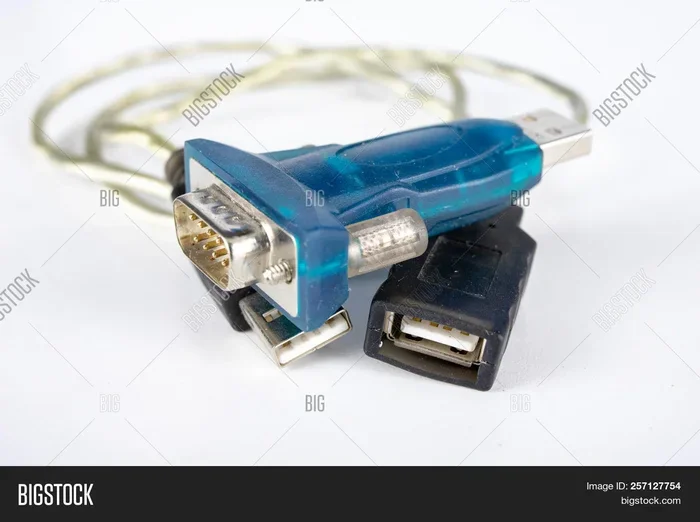
Some very old desktops and laptops lack USB ports entirely or only have a few outdated ones. In this case, you can use a USB 3.0 adapter that plugs into a PCIe slot or uses an available port like parallel or serial. These adapters add modern USB 3.0 ports to older machines.
Just make sure your computer’s operating system supports the adapter. Most adapters work with Windows 7 and later. If you are running something much older, you may run into driver issues.
Scenario 3: Your Computer Has USB 3.0 Ports Already
Some older computers from around 2010 and later already have USB 3.0 ports. If yours does, you are in luck. Just plug in your device and go. No extra setup needed in most cases.
Check your computer manual or look up the model number online to confirm. Many people do not realize their older machine already supports USB 3.0.
Drivers and Software: What You Need to Know
One of the biggest questions about USB 3.0 on older computers is drivers. Do you need to install something? The answer depends on your operating system.
Modern versions of Windows, macOS, and Linux usually include built-in USB 3.0 drivers. When you plug in a USB 3.0 device, the system recognizes it automatically. But older operating systems may not have these drivers pre-installed.
Windows XP and Windows Vista
If you are still running Windows XP or Vista, you may need to manually install USB 3.0 drivers. These older systems were released before USB 3.0 became standard. Your motherboard manufacturer likely offers drivers on their website. Go to the support page for your specific model, download the USB 3.0 driver, and install it.
Keep in mind that Windows XP is no longer supported by Microsoft. Using it with newer USB 3.0 devices can pose security risks. Consider upgrading your operating system if possible.
Windows 7 and Windows 8
Windows 7 and 8 generally support USB 3.0 out of the box. However, installing the latest drivers from your motherboard manufacturer can improve stability and performance. These updates often fix bugs that affect USB device recognition and data transfer speeds.
macOS and Linux
macOS has supported USB 3.0 for many years. If your Mac is old enough to need this question, check Apple’s compatibility list. Linux distributions also support USB 3.0, but some niche distros may need manual driver installation.
Common Problems and How to Fix Them
Even when USB 3.0 works on older computers, you may run into issues. Here are the most common problems and how to solve them.
Device Not Recognized
If your computer does not recognize a USB 3.0 device, the first thing to check is the port. Try a different USB port. If that does not work, try the device on another computer. This helps you figure out if the problem is with the device or the computer.
Next, check your drivers. Open Device Manager on Windows and look for any yellow warning icons. A missing or outdated driver is often the culprit. Right-click the device and select “Update Driver.”
Slow Transfer Speeds
If your USB 3.0 device works but is slow, you might be plugged into a USB 2.0 port. Check the port color. Also, make sure you are using a proper USB 3.0 cable. Some cables only have USB 2.0 wiring inside, even if they look like USB 3.0 cables.
Another cause of slow speeds is a lack of power. Some USB ports on older computers do not supply enough current for high-power devices. Use a powered USB hub if you notice this issue.
Intermittent Disconnects
If your device keeps disconnecting and reconnecting, the USB port may be loose or damaged. Try cleaning the port with compressed air. Also, check if the issue happens on multiple ports. If it does, the problem might be with the device itself or its drivers.
USB 3.0 Device Not Working After Windows Update
Sometimes a Windows update can break USB 3.0 support. This is rare but does happen. Roll back the update or reinstall the USB 3.0 drivers from your manufacturer’s website. This usually fixes the problem quickly.
Do You Need a USB 3.0 Adapter for an Older Computer?
A USB 3.0 adapter is one of the best ways to add USB 3.0 support to an older computer. These adapters come in several forms. PCIe cards plug into desktop motherboards. USB 3.0 Express cards work in laptop expansion slots. And some adapters use existing ports to add new functionality.
When shopping for an adapter, look for a few key features. Make sure the adapter supports USB 3.0 speeds, not just USB 2.0. Check that your operating system is compatible. And read reviews to confirm the adapter works reliably with older hardware.
Some adapters are plug-and-play and need no installation. Others require you to install drivers first. Always follow the manufacturer’s instructions for the best results.
Internal vs. External Adapters
Internal adapters, like PCIe cards, offer better performance because they connect directly to the motherboard. External adapters, like USB 3.0 to Ethernet or USB 3.0 to SATA adapters, are more portable and easier to set up. Choose based on your needs and how often you plan to use the adapter.
USB 3.0 vs. USB 2.0: A Quick Comparison
Understanding the difference between USB 3.0 and USB 2.0 helps you set realistic expectations. Here is a simple comparison table.
| Feature | USB 2.0 | USB 3.0 |
|---|---|---|
| Max Speed | 480 Mbps | 5 Gbps |
| Port Color | Black or White | Blue |
| Power Output | 500 mA | 900 mA |
| Backward Compatible | No | Yes |
| Year Released | 2000 | 2008 |
| Cable Wiring | 4 pins | 9 pins |
As you can see, USB 3.0 is a significant upgrade. But the backward compatibility feature means your older computer does not become obsolete overnight. You can still use modern devices, even if you do not get the full speed benefits.
Tips for Getting the Best USB 3.0 Performance on Older Computers
Want to squeeze every bit of speed out of your USB 3.0 device on an older machine? Follow these practical tips.
- Always plug into a blue USB port. This ensures you are using a USB 3.0 port, not a USB 2.0 port.
- Use the cable that came with your device. Cheap or old cables may not support USB 3.0 speeds.
- Keep your drivers updated. Visit your motherboard or computer manufacturer’s website for the latest USB 3.0 drivers.
- Avoid USB hubs without power. Unpowered hubs can limit power delivery and slow down your devices.
- Check for background processes. Other programs using the USB bus can slow down transfers. Close unnecessary applications during large file transfers.
- Restart your computer after installing new drivers. This ensures the system fully recognizes the USB 3.0 hardware.
When to Consider Upgrading Your Computer Instead
Sometimes, fighting compatibility issues is not worth the effort. If your computer is more than 10 years old, it may be time to consider an upgrade. Newer computers come with USB 3.0 and even USB 3.1 or USB 3.2 built in. They also offer better security, faster processors, and more RAM.
That said, adding a simple PCIe USB 3.0 card to an older desktop can breathe new life into the machine. It is a cost-effective way to enjoy modern USB speeds without buying a whole new system.
Just remember that your mouse won’t work on laptop or other peripheral issues are often simpler than you think. Before spending money on a new computer, try the fixes mentioned in this guide. You might be surprised at how much better your older machine can perform.
Final Thoughts
USB 3.0 can absolutely work on older computers. Whether you have a machine from 2005 or 2012, there is a good chance you can use modern USB 3.0 devices. The key is understanding your hardware, checking your ports, and installing the right drivers when needed.
Most of the time, it is as simple as plugging in and going. When it is not, a driver update or a cheap adapter usually solves the problem. Do not let an older computer stop you from enjoying the speed and convenience of USB 3.0.
Take a few minutes to check your ports, update your drivers, and try your device. You will be surprised how well older computers handle modern USB 3.0 peripherals. With the right setup, your old machine can still keep up with today’s demands.
Frequently Asked Questions
Can I use a USB 3.0 flash drive on an old laptop?
Yes, in most cases you can. Older laptops with USB 2.0 ports will still recognize and use USB 3.0 flash drives. The device will work normally, but file transfers will be limited to USB 2.0 speeds. For simple file storage and small transfers, this is perfectly fine.
Do I need special drivers for USB 3.0 on Windows 7?
Windows 7 includes built-in USB 3.0 support for most systems. However, installing the latest drivers from your motherboard manufacturer can improve performance and fix recognition issues. Check the manufacturer’s website for your specific model and download the appropriate driver.
Why does my USB 3.0 device show up as USB 2.0 in Device Manager?
This usually happens when the device is plugged into a USB 2.0 port instead of a USB 3.0 port. Check the port color and look for the blue insert or “SS” label. Also, make sure your USB 3.0 drivers are properly installed. If the drivers are missing, Windows may default to USB 2.0 mode.
Can a USB 3.0 external hard drive damage an older computer?
No, a USB 3.0 external hard drive will not damage an older computer. USB 3.0 is designed to be backward compatible and safe. The device will simply draw power within the limits of the port it is connected to. If your port cannot supply enough power, the drive may not mount, but it will not cause harm.
What is the difference between USB 3.0 and USB 3.1 or USB 3.2?
USB 3.1 and USB 3.2 are newer versions of the USB standard with faster speeds. USB 3.1 can reach 10 Gbps, and USB 3.2 can reach 20 Gbps. However, USB 3.0 devices still work on computers with USB 3.1 or 3.2 ports because of backward compatibility. The device will simply operate at USB 3.0 speeds.
Will a USB 3.0 adapter work on a computer with no USB ports?
Yes, a USB 3.0 adapter can add USB 3.0 ports to a computer that has no USB ports or only old ones. PCIe cards work for desktops, while ExpressCard adapters work for some laptops. Make sure the adapter is compatible with your computer’s expansion slots and your operating system before purchasing.
=== CONCLUSION ===
USB 3.0 works on older computers more often than you might expect. Backward compatibility is built into the standard, so your modern devices can connect to legacy machines without major issues. Whether you need a driver update, a simple adapter, or just a different port, the solutions are straightforward and affordable.
Take the time to check your ports, update your drivers, and try a few simple fixes. You will likely find that your older computer handles USB 3.0 devices just fine. Do not let age hold you back from using the peripherals and storage devices you need.