Why Is My Usb Ethernet Not Working
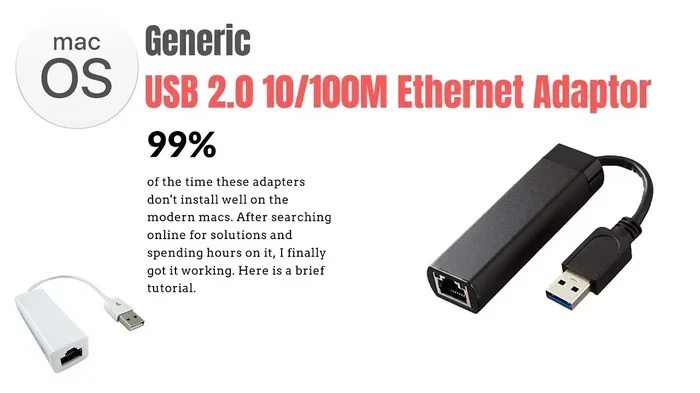
Your USB Ethernet adapter may fail to work due to driver issues, faulty cables, or incompatible settings. This guide covers the top reasons and proven fixes to restore your wired internet connection quickly.
There’s nothing more frustrating than plugging in your USB Ethernet adapter and watching it fail to work. You’re sitting there trying to get a stable wired internet connection, but your USB Ethernet just won’t cooperate. Whether you’re working from home, gaming, or setting up a desktop replacement, a non-functioning network adapter can throw your entire day off track.
The good news? Most USB Ethernet problems are easy to fix. You don’t need to be a tech expert. In this guide, we’ll walk you through the real reasons your USB Ethernet adapter might not be working and give you clear, step-by-step solutions. By the end, you’ll know exactly what to check and how to get your wired internet connection back up and running.
Let’s dive into the most common causes and fixes for USB Ethernet not working issues. We’ve covered everything from simple cable swaps to driver updates, so you can troubleshoot with confidence.
Key Takeaways
- Driver issues are the #1 cause: Outdated or corrupted Ethernet adapter drivers are the most common reason for USB Ethernet failures.
- Check your USB port first: A loose or damaged USB port can prevent your adapter from being recognized.
- Power management can interfere: Windows may shut down your USB device to save power, causing connection drops.
- Compatibility matters: Not every USB Ethernet adapter works with every laptop or operating system.
- Try a different cable or port: Simple hardware swaps often solve the problem in minutes.
- Know when to replace: If your adapter is old or physically damaged, a new one may be the best solution.
📑 Table of Contents
- Common Reasons Why Your USB Ethernet Is Not Working
- How to Fix USB Ethernet Connection Problems
- USB Ethernet Adapter Not Detected? Here’s What to Do
- When to Replace Your USB Ethernet Adapter
- USB Ethernet vs. Built-in Ethernet: Which Is Better?
- Expert Tips to Keep Your USB Ethernet Running Smoothly
- Conclusion
Common Reasons Why Your USB Ethernet Is Not Working
Before you start fixing anything, it helps to understand what’s actually going wrong. Several factors can cause your USB Ethernet adapter to fail. Let’s break them down one by one so you can pinpoint the exact issue.
Faulty USB Port or Cable Issues
A damaged or loose USB port is one of the simplest explanations. If the port is dusty, bent, or worn out, your adapter might not make proper contact. The same goes for a frayed or bent Ethernet cable. Even a small break in the wire can kill your wired internet connection completely.
Here’s what to check right away:
- Try a different USB port on your laptop
- Swap the Ethernet cable with a known working one
- Look for visible damage on the adapter or cable
- Clean the USB port with compressed air
Sometimes the problem is as simple as a loose connection. Give the adapter a gentle push and see if the status light comes on. If you’ve ever dealt with USB device issues before, you know how similar the troubleshooting can be across different peripherals.
Driver Problems
Your operating system needs the right Ethernet adapter driver to communicate with your USB Ethernet device. If the driver is outdated, corrupted, or missing, your adapter simply won’t work. This is one of the most common reasons people search for USB network adapter troubleshooting tips online.
Common driver-related symptoms include:
- The adapter shows up as “Unknown Device” in Device Manager
- You see a yellow warning triangle next to the network adapter
- Your LAN connection problems started right after a Windows update
- The adapter worked yesterday but not today
Drivers are the bridge between your hardware and software. When that bridge breaks, nothing works. The good news is that driver fixes are usually quick and painless.
Adapter Compatibility Issues
Not every USB Ethernet adapter works with every laptop. Some adapters are designed specifically for USB 3.0 and won’t function properly in a USB 2.0 port. Others may not be fully compatible with your operating system, especially older versions of Windows or certain Linux distributions.
Before purchasing an adapter, always check these specs:
- USB version compatibility (2.0, 3.0, or USB-C)
- Operating system support
- Driver availability for your OS version
- Maximum speed supported by the adapter
Buying the wrong adapter is an easy mistake to make. Always double-check the product listing before you buy, and look for models that explicitly list your laptop or operating system as supported.
How to Fix USB Ethernet Connection Problems
Now that you know the common causes, let’s get into the fixes. These steps are ordered from simplest to most advanced, so start at the top and work your way down. Most people find that one of the first three steps solves the problem.
Check Your USB Port and Cable
This is your first line of defense. Start by unplugging the adapter and plugging it into a different USB port. If you’re on a laptop, try ports on both sides. Avoid USB hubs for testing — plug directly into the laptop itself.
Next, swap the Ethernet cable. Borrow one from another device if possible. A bad cable is a surprisingly common culprit behind Ethernet cable not working situations. Even brand-new cables can be defective right out of the box.
Quick Tip: If your adapter has a status LED light, check whether it turns on when you plug it in. No light usually means no power or no connection, which points to a port or cable problem rather than a software issue.
Also, try cleaning the USB port with a can of compressed air. Dust and lint can build up inside the port and prevent a solid connection. This is something most people overlook, but it makes a real difference.
Update or Reinstall Your Network Driver
Updating your Ethernet adapter driver is one of the most effective fixes. Here’s how to do it on Windows:
- Right-click the Start button and select Device Manager
- Expand the “Network adapters” section
- Right-click your USB Ethernet adapter
- Select “Update driver” and choose “Search automatically”
- If that doesn’t work, select “Uninstall device” and restart your laptop
When Windows restarts, it will automatically reinstall the driver. This often resolves network connection issues caused by corrupted driver files. It’s a simple fix that many people skip.
If you’re comfortable downloading drivers manually, visit the adapter manufacturer’s website. Look for the latest driver that matches your exact model number and operating system version. Generic Windows drivers sometimes work, but manufacturer-specific drivers are always better.
Adjust Network Adapter Settings
Sometimes the issue isn’t the hardware — it’s the settings. Your network adapter settings may have been changed accidentally or by a software update. Here’s what to check:
- Go to Control Panel > Network and Sharing Center > Change adapter settings
- Right-click your Ethernet adapter and select “Properties”
- Make sure “Internet Protocol Version 4 (TCP/IPv4)” is checked
- Ensure your IP address is set to “Obtain an IP address automatically”
If your IP settings were changed to static and the static address is no longer valid, your connection will drop. Switching back to automatic usually fixes this fast. This happens more often than you’d think, especially after system updates.
USB Ethernet Adapter Not Detected? Here’s What to Do
When your USB Ethernet adapter not detected situation happens, it can feel like the adapter is dead. But don’t throw it away just yet. There are several things you can try before giving up.
Device Manager Troubleshooting
Device Manager is your best friend for diagnosing detection problems. Open it by right-clicking the Start button and selecting Device Manager. Look for your adapter under “Network adapters” or “Other devices.”
If you see it under “Other devices” with a yellow triangle, the driver is missing or corrupted. Right-click it, select “Update driver,” and let Windows search for a match. If your mouse not showing up on your laptop follows a similar pattern, the detection issue is usually driver-related in both cases.
You can also try clicking “Action” > “Scan for hardware changes” at the top of Device Manager. This forces Windows to re-detect connected USB devices. It’s a quick trick that solves the problem more often than you might expect.
Power Management Settings
Windows has a feature called “USB Selective Suspend” that turns off USB devices to save power. While this is great for battery life, it can accidentally shut down your Ethernet adapter. Here’s how to disable it:
- Open Control Panel and go to Power Options
- Click “Change plan settings” next to your active plan
- Select “Change advanced power settings”
- Expand “USB settings” and then “USB selective suspend setting”
- Set it to “Disabled” for both On Battery and Plugged In
- Click OK and restart your computer
This simple change can stop your adapter from being powered down when your laptop goes to sleep or becomes idle. It’s a hidden setting that catches a lot of people off guard.
Common Mistakes That Cause USB Ethernet Failures
Before you spend money on a new adapter, make sure you haven’t fallen into one of these common traps:
- Using a USB hub without power: Unpowered hubs can’t supply enough current for Ethernet adapters. Always plug directly into the laptop.
- Ignoring Windows updates: Some updates change network settings or remove drivers. Check for updates if your adapter stopped working after a restart.
- Using the wrong cable: Not all Ethernet cables are the same. A Cat5 cable might not support the speeds your adapter needs.
- Forgetting to restart: A simple restart after making changes can resolve many detection and connection issues.
- Assuming it’s broken: Many people replace their adapter too quickly. Try all software fixes before buying a new one.
Avoiding these mistakes can save you time and money. Most USB Ethernet not working situations are caused by simple, fixable issues rather than actual hardware failure.
When to Replace Your USB Ethernet Adapter
Not every problem can be fixed with software. If you’ve tried all the steps above and your USB Ethernet still won’t work, it might be time for a new adapter. Here are the signs that replacement is the right move:
- The adapter is physically damaged — cracked housing, bent connector, or burnt smell
- It works on one device but not another, pointing to a hardware failure
- The adapter is more than 3-4 years old and uses older USB 2.0 technology
- You’ve tried multiple cables and ports with no success
- The adapter overheats or shuts off randomly during use
When buying a replacement, look for a USB 3.0 Ethernet adapter or a USB-C model if your laptop supports it. These offer much faster speeds and better reliability than older adapters. Brands like TP-Link, UGREEN, and Amazon Basics make reliable options at reasonable prices.
USB Ethernet vs. Built-in Ethernet: Which Is Better?
Many people wonder whether a USB Ethernet dongle is as good as a built-in Ethernet port. The answer depends on your needs. Here’s a quick comparison:
| Feature | USB Ethernet Adapter | Built-in Ethernet |
|---|---|---|
| Speed | Up to 1 Gbps (USB 3.0 models) | Up to 1 Gbps or 2.5 Gbps |
| Portability | Highly portable, plug and play | Not portable, built into laptop |
| Reliability | Good, but depends on adapter quality | Excellent, no extra hardware |
| Driver Needs | Sometimes requires driver updates | Usually plug and play |
| Cost | $10-$30 for most models | Included with laptop |
For most users, a USB 3.0 Ethernet adapter works just as well as built-in Ethernet. The main advantage of a built-in port is that it never needs a driver update or extra dongle. But if your laptop doesn’t have an Ethernet port, a USB adapter is the only option — and a good one works great.
Intermittent disconnections are also common with USB adapters, just like when your mouse keeps stopping on your laptop during important tasks. Using a powered USB hub can help stabilize the connection and reduce dropouts.
Expert Tips to Keep Your USB Ethernet Running Smoothly
Once you get your USB Ethernet adapter working, you’ll want to keep it running smoothly. Here are some expert-backed tips that make a real difference:
- Keep your drivers updated: Check for driver updates once a month, especially after major Windows updates. An outdated driver can cause slow speeds or disconnections.
- Use a short, high-quality cable: Longer cables lose signal strength. A 3-foot cable is ideal for most setups and reduces the chance of LAN connection problems.
- Avoid USB hubs for the adapter: Plug the adapter directly into your laptop for the most stable power supply and connection.
- Store the adapter properly: When not in use, keep it in a protective case. Dust and debris in the USB connector can cause intermittent issues.
- Restart your router too: Sometimes the problem isn’t the adapter — it’s the router. A quick router restart can resolve connection drops that look like adapter failures.
Expert Insight: If you’re experiencing persistent internet connection troubleshooting issues, try connecting the adapter to a different computer. This simple test tells you whether the problem is with the adapter itself or with your laptop’s USB port or settings.
Following these tips regularly can extend the life of your adapter and prevent most common issues before they start. A little maintenance goes a long way toward keeping your wired internet connection stable and fast.
Conclusion
A USB Ethernet adapter not working is a common problem, but it’s almost always fixable. Start with the basics — check your cable, try a different port, and update your drivers. Most of the time, one of these simple steps solves the problem.
If the adapter is old, damaged, or incompatible, don’t hesitate to replace it. A new USB 3.0 Ethernet adapter costs very little and delivers excellent performance. The key is to troubleshoot methodically, one step at a time, rather than guessing.
Now that you know the causes and fixes, you’re equipped to handle almost any USB Ethernet not working situation. Get back online and get back to work — you’ve got this.
Frequently Asked Questions
Why is my USB Ethernet adapter not showing up on my laptop?
This usually happens because of a missing or corrupted driver, a faulty USB port, or a power management setting. Start by checking Device Manager and trying a different USB port. If the adapter still doesn’t appear, update or reinstall the driver through Device Manager.
Can a USB Ethernet adapter work on any laptop?
Most USB Ethernet adapters work on any laptop with a USB port. However, you need to make sure the adapter is compatible with your operating system and that you have the right USB version. USB 3.0 adapters work best on USB 3.0 ports but can function on USB 2.0 with reduced speeds.
How do I update the driver for my USB Ethernet adapter?
Open Device Manager, expand Network adapters, right-click your USB Ethernet adapter, and select “Update driver.” Choose “Search automatically for drivers.” If Windows can’t find a new driver, visit the manufacturer’s website and download the latest version manually.
Why does my USB Ethernet connection keep dropping?
Intermittent disconnections are often caused by power management settings, a loose USB connection, or a faulty cable. Try plugging the adapter directly into your laptop instead of a hub, disable USB selective suspend in Power Options, and replace the Ethernet cable if it’s old or damaged.
Is a USB Ethernet adapter slower than a built-in Ethernet port?
Not necessarily. A good USB 3.0 Ethernet adapter can match the speed of a built-in port. The main differences are portability and the need for a driver. USB 2.0 adapters will be slower, so always choose a USB 3.0 or USB-C model for the best performance.
What should I do if none of the fixes work?
If you’ve tried all the troubleshooting steps and your adapter still doesn’t work, the adapter may be defective. Test it on a different computer to confirm. If it fails on multiple devices, replace it with a new one. A quality USB 3.0 Ethernet adapter costs between $10 and $30.