Why Is My Usb Headset Not Connecting
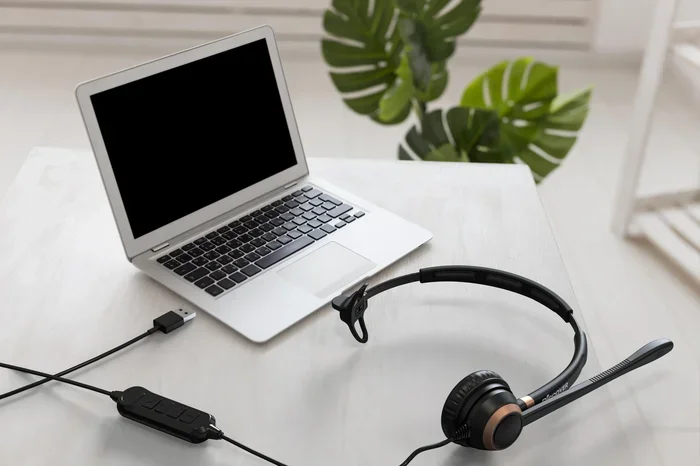
A USB headset not connecting is a common frustration, but the fix is often simpler than you think. Whether your headset is not showing up, has no sound, or keeps disconnecting, this guide walks you through every possible cause and solution. You will learn how to check drivers, ports, and settings to get your headset working again quickly.
You plug in your USB headset and nothing happens. No sound. No recognition. No mic input. It is incredibly frustrating, especially when you need audio for a call, a game, or a work meeting. The good news is that this problem is very common and usually easy to fix.
In this guide, we will walk through every reason your USB headset not connecting might be happening and give you clear, step-by-step solutions. From simple cable checks to driver updates, we cover it all. By the end, you will know exactly what to do to get your headset back up and running.
Whether you use your headset for gaming, remote work, or casual listening, a reliable USB audio connection matters. Let us dive into the fixes.
Key Takeaways
- Check Your USB Port First: A faulty or loose USB port is the most common reason a headset fails to connect.
- Update or Reinstall Audio Drivers: Outdated or corrupted drivers are a leading cause of USB headset recognition problems.
- Try a Different Device: Plugging your headset into another computer helps determine if the issue is with the headset or your laptop.
- Disable USB Power Saving Settings: Windows may turn off USB devices to save power, causing connection drops.
- Inspect the Cable and Connector: Damaged cables or dirty ports can prevent a proper connection every time.
📑 Table of Contents
- Common Reasons Why Your USB Headset Is Not Connecting
- How to Fix Your USB Headset Connection
- USB Headset Not Showing Up on Windows
- Headset Connects but Has No Sound or Mic
- When to Replace Your USB Headset
- Quick Tips to Prevent USB Headset Connection Problems
- Expert Insight: Why USB Headsets Are So Sensitive
- Key Takeaways
Common Reasons Why Your USB Headset Is Not Connecting
Before you start troubleshooting, it helps to understand what might be causing the problem. Several issues can prevent a USB headset from being recognized by your computer. Here are the most common culprits.
Faulty or Dirty USB Port
Your USB port might be loose, dusty, or damaged. Over time, lint and debris build up inside the port and block the connection. If the port is physically damaged, the headset simply will not be detected.
Outdated or Corrupted Audio Drivers
Drivers are the software that tells your computer how to communicate with your headset. If a driver is outdated, corrupted, or missing, your computer will not recognize the device. This is one of the most frequent causes of USB headset not connecting issues.
USB Power Management Settings
Windows has a feature that turns off USB devices to save power. Sometimes it mistakenly shuts down your headset. This can cause the headset to disconnect randomly or fail to connect at all.
Damaged Cable or Connector
A frayed or bent USB cable will not deliver a stable connection. If the cable is damaged, the headset may work intermittently or not at all. This is especially common with headsets that get frequent travel or bending.
Compatibility Issues
Some USB headsets work better with certain operating systems. If your headset is older or designed for a different platform, it might not be fully compatible with your current setup.
How to Fix Your USB Headset Connection
Now that you know the common causes, let us go through the fixes one by one. Start with the simplest solution and work your way down the list.
Step 1: Unplug and Replug the Headset
It sounds too simple, but this works more often than you would think. Remove the USB connector from your computer, wait about ten seconds, and plug it back in firmly. Make sure the connector clicks into place fully. Try a different USB port on your computer as well. Sometimes the port you are using is simply not working properly.
If your USB ports seem to be causing broader issues, you might want to check this guide on why your USB mouse is not working on your laptop, since the troubleshooting steps are very similar for any USB device.
Step 2: Check the USB Cable and Connector
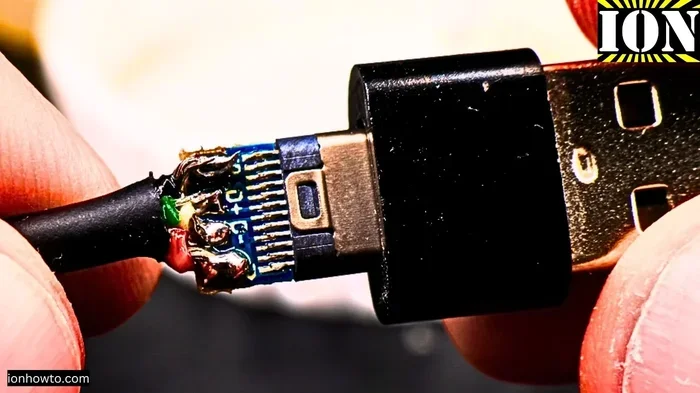
Inspect the USB cable for any visible damage. Look for fraying, bent pins, or discoloration near the connector. Try using a different USB cable if you have one available. Also, clean the USB port gently with compressed air to remove any dust or debris that might be blocking the connection.
Step 3: Update Your Audio Drivers
Outdated drivers are a top reason for headset connection problems. Here is how to update them on Windows:
- Right-click the Start button and select Device Manager.
- Expand the “Audio inputs and outputs” section.
- Right-click your headset and select “Update driver.”
- Choose “Search automatically for drivers.”
- Follow the on-screen instructions to complete the update.
If updating does not work, try uninstalling the driver and restarting your computer. Windows will automatically reinstall a fresh driver when it boots back up.
Step 4: Disable USB Selective Suspend
This Windows feature can interfere with USB headset connections. Here is how to turn it off:
- Open the Control Panel and go to Power Options.
- Click “Change plan settings” next to your active power plan.
- Select “Change advanced power settings.”
- Find “USB settings” and expand it.
- Expand “USB selective suspend setting” and set it to “Disabled.”
- Click OK and restart your computer.
Step 5: Test Your Headset on Another Device
This is a great troubleshooting trick. Plug your headset into a different computer or laptop. If it works there, the problem is with your original computer’s settings or ports. If it does not work on any device, the headset itself might be faulty.
USB Headset Not Showing Up on Windows
If your headset is completely invisible to your computer, there are a few specific things to check. First, go to Settings > System > Sound and look at the output and input devices. Your headset should appear in both lists if it is properly connected.
If it does not appear, open Device Manager and look for any devices with a yellow warning icon. This indicates a driver problem. You can also try the “Scan for hardware changes” option at the top of Device Manager to force Windows to detect the device again.
Sometimes a USB hub or extension cable can cause detection issues. Plug the headset directly into your computer’s built-in USB port instead of through a hub. This eliminates the hub as a potential source of the problem.
Headset Connects but Has No Sound or Mic
If your headset shows up but you cannot hear anything or your microphone is not working, the issue is likely a settings problem rather than a hardware one.
Go to Settings > System > Sound. Under “Output,” make sure your headset is set as the default device. Do the same for “Input” under your microphone settings. Also check the volume mixer by right-clicking the speaker icon in your taskbar and making sure the headset volume is not muted or turned all the way down.
For microphone issues, go to Settings > Privacy > Microphone and make sure “Allow apps to access your microphone” is turned on. This setting is often overlooked and can silently block mic functionality.
When to Replace Your USB Headset
Not every connection problem can be fixed with software tweaks. If you have tried every solution in this guide and your headset still does not work, it may be time for a replacement. Here are signs that your headset has reached the end of its life:
- The USB connector is physically broken or bent.
- The headset works on other devices but never works on yours, even after a full driver reinstall.
- You hear crackling or static that does not go away with any settings change.
- The headset disconnects randomly every few minutes despite trying multiple USB ports.
- The microphone has completely stopped picking up sound even after driver updates.
When buying a new headset, look for one with good compatibility with your operating system and a sturdy cable. A warranty is also a nice feature to have in case you run into connection issues down the road.
Quick Tips to Prevent USB Headset Connection Problems
Prevention is always easier than troubleshooting. Here are some simple habits that can keep your USB headset working smoothly:
- Plug and unplug gently. Never force the connector into the port. A bent connector can ruin the headset.
- Keep your ports clean. Use compressed air to blow out dust from USB ports every few weeks.
- Update drivers regularly. Set a reminder to check for driver updates once a month.
- Avoid cheap USB hubs. They can cause power and connection issues with audio devices.
- Store your headset properly. Coil the cable loosely and avoid tight bends that can damage the internal wires.
Expert Insight: Why USB Headsets Are So Sensitive
USB headsets are essentially small computers on their own. They have built-in audio processors and sometimes even their own firmware. This makes them more sensitive to connection issues than simple analog headsets. A tiny disruption in the USB data signal can cause the headset to disconnect or fail to be recognized entirely.
This is also why the fixes in this guide focus heavily on drivers, power settings, and port health. The headset relies on a stable digital connection, and even a small glitch in that chain can break the entire audio experience.
Key Takeaways
- Start Simple: Always try unplugging and replugging your headset first before moving to complex fixes.
- Check Your Ports: A dirty or damaged USB port is the number one cause of connection failures.
- Keep Drivers Updated: Outdated audio drivers are a leading cause of USB headset recognition problems.
- Test on Another Device: This quick step tells you whether the problem is with the headset or your computer.
- Adjust Power Settings: Disabling USB selective suspend can prevent random disconnections.
- Know When to Replace: If all else fails, a new headset may be the most practical solution.
A USB headset not connecting does not have to ruin your day. Most of the time, the fix is a quick driver update, a different USB port, or a simple cable check. By following the steps in this guide, you should be able to identify and resolve the issue in just a few minutes.
If your headset still gives you trouble after trying everything, it might be a hardware problem that no software fix can resolve. In that case, reaching out to the manufacturer for support or investing in a replacement is the best path forward. Keep these tips in mind, and your next headset connection experience should be smooth and hassle-free.
Frequently Asked Questions
Why does my USB headset keep disconnecting randomly?
This is usually caused by USB power management settings or a loose connection. Try disabling USB selective suspend in your power settings and make sure the headset connector is fully seated in the port. If the problem continues, test the headset on another computer to rule out a hardware issue.
Can a faulty USB cable cause my headset to stop working?
Absolutely. A damaged or frayed USB cable can interrupt the data and power signals needed for your headset to function. Inspect the cable carefully and try a replacement cable if you notice any visible wear or damage.
Do I need to install drivers for my USB headset?
Most modern USB headsets work plug-and-play on Windows and macOS without needing manual driver installation. However, if your headset is not recognized, updating or reinstalling the audio driver through Device Manager can often resolve the issue.
Why is my USB headset connected but there is no sound?
This is usually a default device setting problem. Go to Settings > System > Sound and make sure your headset is set as the default output device. Also check the volume mixer to ensure the headset volume is not muted.
Will a USB hub cause my headset to not connect?
Yes, USB hubs can sometimes cause power or bandwidth issues that prevent your headset from connecting properly. For the best results, plug your headset directly into a built-in USB port on your computer.
How do I know if my USB headset is broken or just a software issue?
The easiest way to tell is to test the headset on another device. If it works on a different computer, the issue is with your original computer’s settings or ports. If it fails on every device, the headset itself is likely faulty and may need to be replaced.