Which Usb Port Is Fastest
So, which USB port is fastest? The answer depends on the port type and version, but USB-C with USB 3.2 Gen 2×2 or Thunderbolt 3/4 leads the pack. USB 2.0 is the slowest, while USB 3.1 Gen 2 and USB 3.2 Gen 2 offer excellent speeds for most users. This guide breaks down every port type so you can pick the fastest option for your setup.
Have you ever plugged in a flash drive or external hard drive and waited forever for files to copy? That frustrating wait often comes down to one thing: the USB port you are using. Not all USB ports are created equal, and some are dramatically faster than others.
Whether you are backing up photos, transferring video files, or charging your laptop, knowing which USB port is fastest can save you time and frustration. In this guide, we break down every major USB port type, compare their speeds, and help you figure out the best choice for your needs. Let us dive in.
Key Takeaways
- USB-C is the fastest mainstream port: It supports the latest USB standards and delivers top-tier data transfer speeds.
- USB 2.0 is the slowest: With speeds capped at 480 Mbps, it is fine for basic tasks but not for large file transfers.
- Thunderbolt 3 and 4 outperform standard USB: These protocols offer up to 40 Gbps, making them ideal for professionals.
- USB-A ports are older but still common: USB 3.0 and USB 3.1 USB-A ports can still deliver solid speeds up to 10 Gbps.
- Your device must support the speed: A fast port won’t help if your device or cable limits the connection.
- USB 3.1 Gen 2 and USB 3.2 Gen 2 are great middle-ground options: They offer 10 Gbps speeds and wide device compatibility.
📑 Table of Contents
Understanding USB Port Types
Before we talk about speed, it helps to understand the different USB port types you will encounter. The shape and design of a port often tell you what generation it belongs to. Here are the most common ones you will see on computers, laptops, and peripherals today.
USB Type-A
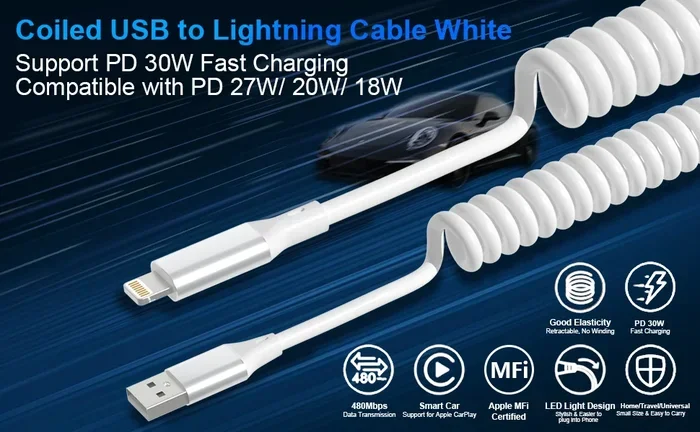
The classic rectangular USB port is the USB-A connector. You have probably used hundreds of these. They are found on almost every desktop computer, laptop, and charger. USB-A ports come in several versions, including USB 2.0, USB 3.0, and USB 3.1. The color of the port often gives you a clue. Blue ports usually mean USB 3.0 or faster, while black or white ports are typically USB 2.0.
USB Type-C
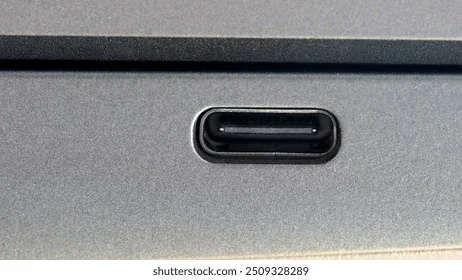
USB-C is the modern, oval-shaped connector that is replacing older port types. It is smaller, reversible, and supports much faster data transfer rates. USB-C is the fastest USB port type available on most consumer devices today. You will find it on newer laptops, smartphones, tablets, and external drives.
USB Type-B and Mini-USB
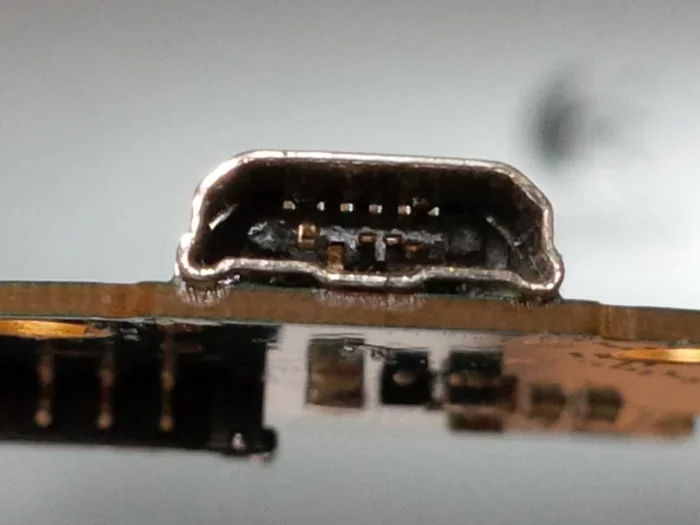
You will still see USB-B and Mini-USB ports on some printers, older devices, and specialized equipment. These are not designed for speed and are becoming increasingly rare. If your goal is fast data transfer, these are not the ports you want to use.
USB Speed Standards Explained
Now that you know the port types, let us talk about data transfer speed. The USB standard determines how fast information moves between your device and the port. Here is a clear breakdown of the major USB speed standards.
USB 2.0
USB 2.0 is the oldest standard still in wide use. It has a maximum theoretical speed of 480 Mbps, which is about 60 megabytes per second. In real-world use, you will see transfer speeds closer to 30 to 40 MB/s. USB 2.0 is fine for keyboards, mice, and small file transfers, but it struggles with large files like videos or backups.
USB 3.0 (USB 3.2 Gen 1)
USB 3.0, also called USB 3.2 Gen 1, offers speeds up to 5 Gbps, or about 625 MB/s. This is roughly ten times faster than USB 2.0. Most modern USB-A ports with a blue insert support this standard. It handles large file transfers smoothly and is great for external hard drives and flash drives.
USB 3.1 (USB 3.2 Gen 2)
USB 3.1 Gen 2 doubles the speed to 10 Gbps, or about 1,250 MB/s. This is the sweet spot for many users. It delivers excellent performance for external SSDs, M.2 NVMe SSD enclosures, and high-speed peripherals. If you are using a M.2 NVMe SSD to USB 3.1 adapter, you can expect very fast transfer speeds for your storage needs.
USB 3.2 Gen 2×2
USB 3.2 Gen 2×2 pushes the limit further with 20 Gbps speeds. This standard uses two lanes of 10 Gbps each. It is less common but found on some high-end motherboards and laptops. If you need the fastest USB-C speeds without going to Thunderbolt, this is the standard to look for.
Thunderbolt 3 and Thunderbolt 4
Thunderbolt 3 and Thunderbolt 4 use the USB-C connector but offer much higher performance. Both deliver up to 40 Gbps of bandwidth. Thunderbolt 4 also supports video output and charging through a single cable. These are the absolute fastest ports available on consumer devices today. If you want the fastest possible connection, look for a Thunderbolt 3 or Thunderbolt 4 port.
USB-C vs USB-A: Which Is Faster?
The short answer is USB-C is faster, but the full picture is a bit more nuanced. The port shape itself does not determine speed. Instead, it is the USB standard inside the port that matters. However, USB-C was designed to support the newest and fastest standards, which gives it a clear advantage.
A USB-A 3.1 port can deliver 10 Gbps, which is the same as a USB-C 3.1 port. But here is the key difference: USB-C can support USB 3.2 Gen 2×2 (20 Gbps) and Thunderbolt (40 Gbps), while USB-A cannot go beyond 10 Gbps. So if you are choosing between devices, always prefer USB-C when speed matters.
For example, if you are using an external SSD for video editing, a M.2 NVMe to USB-C SSD enclosure will give you blazing-fast transfer speeds that a USB-A connection simply cannot match.
How to Find the Fastest USB Port on Your Device
Not sure which port on your laptop or desktop is the fastest? Here is a simple step-by-step approach to find out.
Step 1: Check the Port Color and Symbol
Look closely at each port. Blue ports usually indicate USB 3.0 or USB 3.1. Red or yellow ports may indicate USB 3.2 or a sleep-and-charge feature. Some ports have a lightning bolt symbol, which means they support Thunderbolt. A SS logo (SuperSpeed) means USB 3.0 or faster.
Step 2: Check Your Device Specifications
Look up your device model online or check the manufacturer’s website. The specifications will list which USB standards each port supports. This is the most reliable way to know your port speed.
Step 3: Use a Speed Test Tool
You can also test your ports directly. Plug in a fast external drive and use a disk speed test tool to measure real-world transfer rates. This tells you what your port can actually deliver, not just what it claims on paper.
Step 4: Consider Your Cables
A fast port means nothing if your cable is the bottleneck. Always use high-quality cables that match your port’s standard. A USB 2.0 cable plugged into a USB 3.1 port will limit your speed to USB 2.0 levels.
Common Mistakes That Slow Down Your USB Speeds
Even with the fastest port, poor habits can drag your speeds down. Here are the most common mistakes to avoid.
- Using a USB hub without its own power: Passive hubs split bandwidth and slow everything down.
- Using the wrong cable: Cheap or old cables may not support the speed of your port.
- Plugging into the wrong port: Not all ports on a laptop are the same speed. Some are USB 2.0 even on newer models.
- Ignoring driver updates: Outdated USB drivers can limit performance on Windows and Mac.
- Using a slow storage device: A fast port paired with a slow hard drive will only go as fast as the drive.
One mistake many people make is assuming every USB-C port is equally fast. Some laptops have USB-C ports that only support USB 2.0 or USB 3.0. Always double-check the specifications before assuming you are getting the fastest speed possible.
Quick Tips for Maximum USB Speed
Want to get the most out of your USB connections? Follow these simple tips.
- Always use USB 3.0 or newer ports for file transfers and external drives.
- Choose USB-C over USB-A whenever your devices support it.
- Invest in quality cables that are rated for the speed standard you need.
- Keep your drivers and firmware updated for the best performance.
- Use a powered USB hub if you need to connect multiple high-speed devices.
- Format external drives as NTFS (Windows) or APFS (Mac) for optimal transfer speeds.
- Avoid long cables over 3 feet for the fastest data transfer, as signal loss increases with length.
If you are building a fast external storage setup, consider using a high-quality NVMe SSD to USB adapter with a USB-C connection. This combination gives you near-internal SSD speeds through a portable setup. Similarly, a SanDisk Extreme Portable 2TB External USB-C NVMe SSD is a great example of a device built to take full advantage of fast USB-C ports.
Which USB Port Is Fastest? The Final Verdict
After looking at all the options, here is the clear ranking from fastest to slowest:
- Thunderbolt 4 (40 Gbps) – The absolute fastest USB-compatible port available.
- Thunderbolt 3 (40 Gbps) – Matches Thunderbolt 4 in speed and widely available.
- USB 3.2 Gen 2×2 (20 Gbps) – The fastest standard USB port, found on select devices.
- USB 3.1 Gen 2 / USB 3.2 Gen 2 (10 Gbps) – Excellent speed for most users and devices.
- USB 3.0 / USB 3.2 Gen 1 (5 Gbps) – Solid performance for everyday tasks.
- USB 2.0 (480 Mbps) – Only suitable for basic peripherals and small files.
If you want the fastest experience today, look for a USB-C port with Thunderbolt 3, Thunderbolt 4, or USB 3.2 Gen 2×2 support. For most everyday users, a USB 3.1 Gen 2 USB-C port provides more than enough speed for external drives, backups, and media transfers.
The bottom line is simple: USB-C is the fastest USB port type, and the newer the USB standard it supports, the faster your transfers will be. Always match your port, cable, and device capabilities to get the best possible speeds.
Understanding which USB port is fastest empowers you to make smarter choices about your peripherals, storage, and workflow. Take a few minutes to check your ports today, and you will notice the difference in every file transfer you make.
Frequently Asked Questions
Is USB-C faster than USB-A?
USB-C can be faster, but it depends on the USB standard it supports. USB-C was designed to handle the newest and fastest protocols, including USB 3.2 Gen 2×2 and Thunderbolt. A USB-A port is limited to 10 Gbps at most, while USB-C can reach 40 Gbps with Thunderbolt.
Can I get Thunderbolt speeds from a regular USB-C port?
No, you cannot. Thunderbolt requires both a Thunderbolt-compatible port and a Thunderbolt cable. A regular USB-C port without Thunderbolt support will be limited to standard USB speeds, even if the cable is capable of higher bandwidth.
Does the cable matter as much as the port?
Yes, the cable matters a lot. A cheap or old cable can limit your speeds regardless of how fast your port is. Always use cables rated for the speed standard you need, especially for USB 3.1 and USB 3.2 connections.
What is the fastest USB port for external SSDs?
The fastest option is a Thunderbolt 3 or Thunderbolt 4 USB-C port. These deliver up to 40 Gbps, which is more than enough for even the fastest NVMe SSDs. A USB 3.1 Gen 2 USB-C port at 10 Gbps is also excellent for most external SSDs.
Are all USB-C ports the same speed?
No, they are not. USB-C is just a connector shape. Some USB-C ports only support USB 2.0 (480 Mbps), while others support USB 3.2 Gen 2×2 (20 Gbps) or Thunderbolt 4 (40 Gbps). Always check your device specifications to know what your USB-C port can actually do.
Do I need a special adapter to get the fastest USB speeds?
Not necessarily, but the right adapter helps. If your laptop has USB-C but your drive uses USB-A, a quality adapter can preserve speed. However, cheap adapters may limit performance. Look for adapters that explicitly support the USB standard you need for the best results.