Why Wont My Iphone Read My Usb
Your iPhone wont read USB when there is a problem with the cable, port, software, or accessories involved. This guide walks you through every common cause and the exact steps to fix it. You will learn how to restore your iPhone USB connection quickly and prevent the issue from coming back.
Key Takeaways
- Cable and connector damage is the most common reason an iPhone wont read USB.
- Software settings like the trust prompt and iOS updates can block USB connections.
- Hardware issues such as a bent Lightning connector or damaged USB port need professional attention.
- Simple fixes like restarting, resetting settings, and trying a different cable solve most problems.
- Knowing when to seek help saves time and prevents further damage to your device.
- Prevention tips like using certified cables and keeping ports clean reduce future issues.
📑 Table of Contents
Why Your iPhone Wont Read USB
There is nothing more frustrating than plugging your iPhone into a computer or charger and realizing it simply will not respond. Whether you are trying to transfer photos, back up data, or just charge your device, a failed USB connection brings everything to a halt. The good news is that this problem is usually fixable with a few simple steps.
When your iPhone wont read USB, the cause typically falls into one of four categories. These are cable problems, software glitches, hardware damage, or accessory incompatibility. Each of these areas has clear signs and straightforward solutions that we will walk through in detail. By the end of this guide, you will know exactly what to check and how to get your iPhone connected again.
USB connectivity issues are not unique to iPhones. Many users face similar problems with other USB devices. For instance, if you have ever dealt with a situation where a USB mouse not working on your laptop, you already understand how annoying device recognition failures can be. The troubleshooting mindset is the same across all devices. You check the cable first, then the port, then the software. We will follow that same logical path here.
Understanding How iPhone USB Connectivity Works
Your iPhone uses a Lightning connector or, on newer models, a USB-C port to communicate with other devices. When you plug in a cable, the iPhone and the host device (like a computer) need to establish a handshake. This process involves power delivery, data communication, and trust authentication. If any part of this chain fails, your iPhone will not read the USB connection.
The USB connection relies on several components working together. The cable itself must be intact. The connector pins must be clean and undamaged. The USB port on your computer or charger must be functioning. And the iPhone’s software must be in a state that allows external communication. When one of these links breaks, the whole connection drops.
When the Problem Started Matters
Timing is a big clue when troubleshooting. Did the issue start right after an iOS update? Did it begin after you dropped your phone or yanked the cable out forcefully? Did it happen suddenly with no obvious cause? Answering these questions helps narrow down the root cause. A sudden onset often points to a software issue. Gradual degradation usually means physical wear on the cable or port.
Think about whether the problem affects all USB connections or just one specific setup. If your iPhone reads USB fine with a different computer but not your current one, the issue is likely with the first computer’s port or settings. If it fails everywhere, the cable or iPhone itself is the likely culprit. This kind of isolation helps you focus your efforts where they matter most.
Check Your Cable and Connector First
The cable is the most common culprit when an iPhone wont read USB. Cables endure a lot of daily wear. They get bent, stepped on, wrapped tightly, and pulled out by the cord instead of the connector. Over time, this physical stress causes internal wire damage that may not be visible from the outside.
Inspect the Lightning Connector
Take a close look at the connector that plugs into your iPhone. Shine a light into the port and check for lint, dust, or debris. Even a small amount of pocket lint can block the connection. Use a wooden toothpick or a soft brush to gently clean it out. Never use metal objects, as these can damage the delicate pins inside.
Next, examine the connector for any bent or broken pins. The Lightning connector has several small metal contacts. If even one is bent or corroded, the connection will fail. You may also notice fraying near the base of the cable where it bends the most. This is a sign of internal wire damage. A cable that looks fine on the outside can still have broken internal wires.
Here is a quick tip. If your cable works for charging but not for data transfer, the data pins inside may be damaged while the power pins are still intact. This is a common and telltale sign of partial cable failure. Try a different cable to confirm this theory.
Try a Different USB Cable
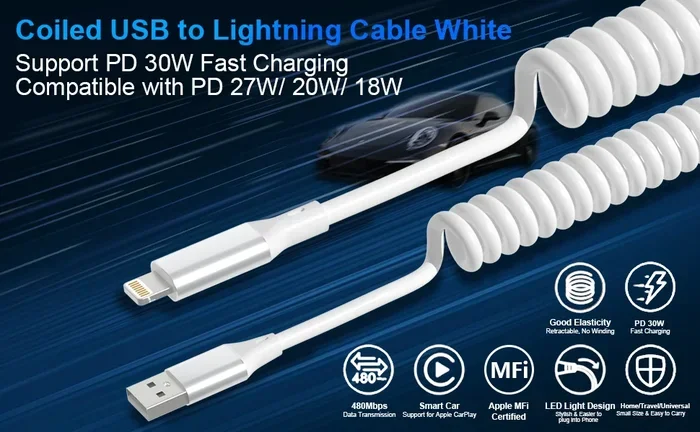
The fastest way to rule out cable issues is to grab another cable and test it. Use an Apple-certified cable whenever possible. Cheap, uncertified cables often lack the proper wiring for data transfer. They may charge your phone slowly or not at all. They also tend to fail faster than quality cables.
When choosing a replacement cable, look for MFi certification. This stands for Made for iPhone and guarantees the cable meets Apple’s safety and performance standards. A certified Lightning cable or USB-C cable ensures reliable data transfer and safe charging speeds.
Keep in mind that the USB end of the cable matters too. Try plugging the cable into a different USB port on your computer. A loose or damaged port on the computer side can also cause connection failures. If you use a USB hub, try connecting directly to the computer instead. Sometimes the hub is the weak link in the chain.
Common Cable Mistakes to Avoid
- Using damaged cables even if they still charge sometimes.
- Forcing the connector into a port that does not fit smoothly.
- Ignoring lint buildup in the iPhone port.
- Using non-certified accessories that do not support data transfer.
- Wrapping cables too tightly which causes internal wire fatigue over time.
Software and Settings That Block USB
If your cable is in good shape, the next most common cause is a software or settings issue. iPhones have several built-in features that control how they interact with USB devices and computers. When these settings get stuck or misconfigured, your iPhone will refuse to communicate over USB.
The Trust This Computer Prompt
When you connect your iPhone to a new computer for the first time, a prompt appears asking if you trust this computer. If you accidentally tap Deny or if the prompt times out, your iPhone will block the USB connection. This is a security feature designed to protect your data.
To fix this, simply disconnect the cable and reconnect it. A new trust prompt should appear. Unlock your iPhone and tap Trust when the message shows up. Enter your passcode if prompted. This re-establishes the trusted connection between your iPhone and the computer.
If the trust prompt does not appear at all, try the following steps. First, restart both your iPhone and your computer. This clears temporary glitches in the USB communication stack. Then reconnect the cable and wait a few seconds for the prompt to appear. If it still does not show up, the issue may be deeper and we will address that below.
Update Your iOS
Outdated software can cause all sorts of connectivity problems. Apple regularly releases iOS updates that fix bugs and improve compatibility with accessories. If your iPhone is running an older version of iOS, it may not properly communicate with newer computers or USB hubs.
To check for updates, go to Settings, then General, and tap Software Update. If an update is available, connect to Wi-Fi and install it. Keep in mind that major updates can sometimes introduce new bugs. If you recently updated and the USB problem started right after, you may need to wait for a patch or roll back if possible.
Check Your iPhone Settings
Your iPhone has a specific setting that controls USB accessories. Go to Settings, then Privacy, and tap USB Accessories. Make sure the toggle is turned on. This allows your iPhone to communicate with USB devices when locked. If this setting is off, your iPhone may not respond to USB connections at all.
Another setting to check is the Low Power Mode. When your battery is very low, Low Power Mode can disable certain USB functions to conserve energy. Turn off Low Power Mode and try connecting your iPhone again. This simple step resolves the issue more often than people expect.
Hardware Problems to Consider
Sometimes the issue is physical damage that no software fix can resolve. Hardware problems require careful diagnosis and sometimes professional repair. Before jumping to conclusions, make sure you have ruled out all the software and cable issues described above.
Damaged USB Port on iPhone
The Lightning or USB-C port on your iPhone can become damaged over time. This happens from regular use, dust accumulation, or accidental drops. A bent port will not make proper contact with the cable connector. You may notice that the cable feels loose or wobbly when plugged in.
Signs of a damaged port include intermittent connections, the cable falling out easily, or the iPhone not recognizing the cable at all. If you notice any of these symptoms, stop forcing the cable in. Further insertion can make the damage worse. A port replacement requires specialized tools and should be done by a qualified technician.
It is worth noting that dust and lint are the biggest enemies of charging ports. Many people carry their phones in pockets alongside loose change and fabric fibers. Over weeks and months, this debris builds up and blocks the port. Regular cleaning with a soft brush can prevent this problem from escalating into a hardware failure.
Faulty USB Adapter or Hub
If you use a USB adapter or hub to connect your iPhone, the adapter itself could be the problem. Cheap adapters often lack the proper chipsets to handle iPhone data transfer. They may work for charging but fail when you try to sync or transfer files.
Try connecting your iPhone directly to a computer USB port without any adapter. If the connection works, the adapter is the issue. Replace it with a high-quality adapter from a reputable brand. Apple’s own USB-C to Lightning cable and adapter are reliable choices that work consistently.
When Other USB Devices Work but Your iPhone Does Not
Here is a useful diagnostic trick. If your computer’s USB ports work fine with other devices like a mouse or a flash drive, but your iPhone still will not connect, the problem is likely specific to your iPhone or its cable. Conversely, if nothing works on a particular USB port, the port itself may be faulty.
Some users have noticed that when their mouse stops working on a laptop, it is often the same USB port or cable issue affecting other devices. The same diagnostic logic applies here. Test multiple devices on the same port to isolate the problem.
Step by Step Fixes for iPhone USB Issues
Now that you understand the common causes, here is a systematic approach to fixing the problem. Work through these steps in order. Most users find that the issue is resolved within the first few steps.
Step 1: Restart Your iPhone
A simple restart clears temporary software glitches that can interfere with USB communication. To restart, press and hold the side button until the power slider appears. Slide to power off, wait 30 seconds, then turn it back on. Try connecting your iPhone to the USB device again after it restarts.
Step 2: Try a Different Cable and Port
Swap out your current cable for a known working one. Plug it into a different USB port on your computer or try a different wall adapter. This eliminates both cable and port issues in one step. If the connection works with the new cable, you have your answer.
Step 3: Update iOS and Computer Software
Make sure your iPhone is running the latest version of iOS. Also check that your computer has the latest operating system updates and the most recent version of iTunes or Finder. Outdated software on either end can cause compatibility issues that block USB connections.
Step 4: Reset All Settings
If the problem persists, try resetting all settings on your iPhone. Go to Settings, then General, then Transfer or Reset iPhone, and tap Reset All Settings. This does not delete your data. It simply resets network settings, keyboard dictionaries, and other configuration values to their defaults. After the reset, try connecting via USB again.
Step 5: Put iPhone in Recovery Mode
Recovery mode is a deeper troubleshooting step. It allows your computer to communicate with your iPhone even when the normal connection fails. The process varies slightly depending on your iPhone model. Connect your iPhone to your computer, then follow the specific key combination for your model to enter recovery mode. Your computer should detect the device and offer options to update or restore.
Be cautious with this step. Restoring your iPhone erases all data and returns it to factory settings. Only use this option as a last resort and make sure you have a recent backup. If recovery mode does not detect your iPhone at all, the hardware is likely the problem and you should move to professional repair.
When to Seek Professional Help
Not every USB issue can be fixed at home. Some problems require professional diagnosis and repair. Knowing when to stop troubleshooting and seek help saves you time and prevents further damage to your device.
Signs of Hardware Failure
Watch for these warning signs that point to a hardware problem. Your iPhone does not respond to any USB connection no matter which cable or computer you use. The charging port is visibly damaged or bent. Your iPhone gets unusually hot when you plug in a cable. You hear crackling or feel a loose sensation when inserting the connector. Any of these signs suggest internal damage that needs professional attention.
Apple Store vs Third Party Repair
If you need port repair or replacement, you have two main options. Apple authorized service providers use genuine parts and follow strict repair procedures. They also preserve your warranty if you still have one. Third party repair shops are often cheaper and faster but vary widely in quality. Choose a reputable shop with certified technicians and good reviews.
Before visiting a repair center, back up your iPhone data. A hardware repair sometimes requires a full restore, and you do not want to lose your photos, messages, or apps. Use iCloud or a computer backup to secure your data before handing over your device.
Preventing Future USB Connection Problems
Prevention is always better than cure. A few simple habits can keep your iPhone USB connection working smoothly for years. Start by using only Apple-certified cables and adapters. These accessories are tested to meet safety and performance standards. They also tend to last longer than cheap alternatives.
Keep your charging port clean. A quick inspection and gentle cleaning once a week can prevent lint buildup from becoming a serious problem. Avoid pulling cables out by the cord. Always grip the connector and pull straight out. This reduces stress on both the cable and the port. Store your cables loosely coiled rather than tightly wound. Tight winding creates internal wire fatigue that leads to eventual failure.
Finally, keep your iPhone updated. Software updates often include fixes for connectivity bugs. Staying current means fewer surprises when you plug in your cable. These small habits add up and keep your USB connection reliable day after day.
Conclusion
Dealing with an iPhone that wont read USB can be a real headache, but the vast majority of these problems have simple solutions. Start with the basics. Check your cable, clean your port, and update your software. These steps resolve the issue for most users. If the problem is deeper, the step by step fixes in this guide will help you narrow it down. And when all else fails, professional repair is always an option.
The key is to work through the troubleshooting process systematically. Do not skip steps. Each elimination brings you closer to the root cause. With patience and the right approach, you will have your iPhone USB connection working again in no time. Apply what you have learned here and you will be better equipped to handle this problem if it ever comes back.
Frequently Asked Questions
Why does my iPhone say USB device is not supported?
This message usually appears when you are using an incompatible USB accessory or an uncertified cable. Apple devices require accessories that meet specific standards. Try using an Apple-certified cable and a different USB port. If the message persists, the accessory itself may not be compatible with your iPhone model.
Can a dirty charging port cause USB connection issues?
Yes, absolutely. Dust, lint, and debris can block the connector pins and prevent a proper connection. Even a small amount of pocket lint can cause intermittent or complete connection failure. Clean your port gently with a wooden toothpick or a soft-bristled brush. Avoid metal objects that could damage the pins.
Does Low Power Mode affect USB data transfer on iPhone?
It can. When Low Power Mode is active, your iPhone may restrict certain USB functions to conserve battery. This can interfere with data transfer and device recognition. Turn off Low Power Mode and try connecting your iPhone again. You can find this setting in Settings, then Battery.
How do I know if my iPhone USB port is damaged?
Signs of a damaged port include loose cable fit, intermittent connections, and the cable falling out easily. If your iPhone does not recognize any cable or only works when held at a specific angle, the port is likely damaged. A visual inspection may also reveal bent or broken pins inside the port.
Will resetting my iPhone fix USB connection problems?
Resetting all settings often resolves USB issues caused by software glitches. This process does not delete your data. It simply restores system settings to their defaults. Go to Settings, then General, then Transfer or Reset iPhone, and tap Reset All Settings. After the reset, reconnect your iPhone via USB and check if the problem is resolved.
How long does iPhone USB port repair take?
Most port repairs take between 30 minutes and an hour at a qualified repair shop. Apple authorized service centers may take longer due to scheduling and part availability. Third party shops often offer same day service. Always back up your data before any hardware repair, as the process may require a full device restore.