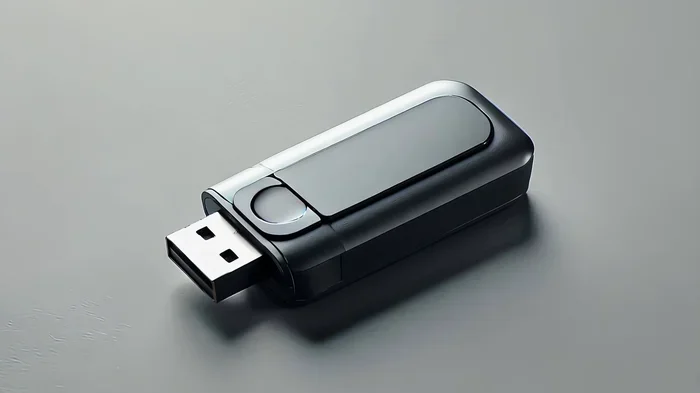
Do All Printers Use the Same Usb Cable
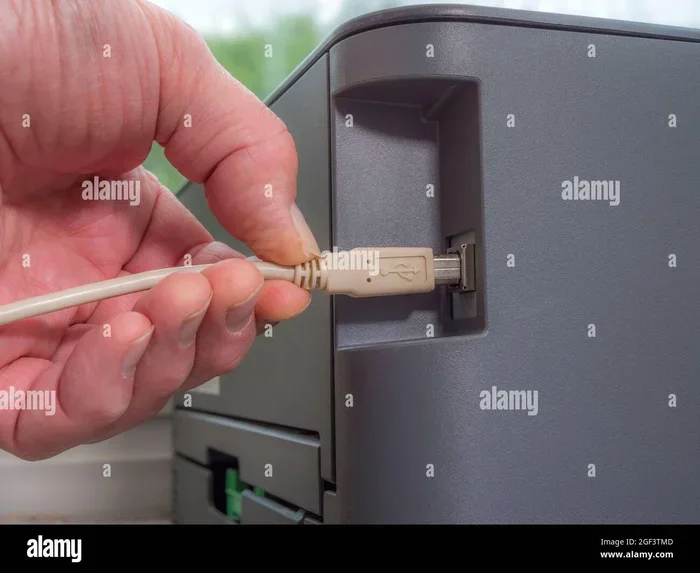
Not all printers use the same USB cable. Different printers require different USB cable types, and choosing the wrong one can cause connection issues. This guide covers the main USB cable types, printer compatibility, and how to pick the right cable for your setup.
You just bought a new printer. You unbox it. You plug in the cable. And nothing happens. Frustrating, right? The problem might be simpler than you think. Not all printers use the same USB cable, and picking the wrong one is a common mistake.
Whether you are setting up a home office or a busy workspace, understanding USB cable types saves you time and money. In this guide, we break down everything you need to know about printer USB cables. You will learn about different cable types, how to find the right one, and what to do when things go wrong.
Key Takeaways
- Different printers need different cables: USB-A to USB-B is common for older models, while USB-C is becoming standard in newer ones.
- Check your printer manual first: The manufacturer always lists the correct cable type and specifications.
- USB version matters too: USB 2.0 and USB 3.0 cables look similar but offer different speeds.
- Wireless printers don’t need USB cables: Many modern printers connect via Wi-Fi or Bluetooth.
- Wrong cables cause problems: Using an incompatible cable leads to connection failures and printing errors.
- Adapters can help: USB adapters let you connect printers with different port types.
📑 Table of Contents
Understanding USB Cable Types for Printers
USB cables come in different shapes and sizes. Each type serves a specific purpose. Not every cable works with every printer. Knowing the basics helps you make the right choice.
USB-A to USB-B: The Classic Printer Cable
The USB-A to USB-B cable is the most common type for printers. The USB-A end plugs into your computer. The USB-B end plugs into the printer. This setup has been the standard for many years. Most desktop printers use this connection.
USB-A connectors are flat and rectangular. You have probably seen them on computers, chargers, and hubs. USB-B connectors are square-shaped. They look a bit bulkier than USB-A. This design was built for stable, reliable data transfer between a computer and a printing device.
If you have an older printer, there is a good chance it uses a USB-A to USB-B cable. Check the back of your printer. Look for the square-shaped port. That is your USB-B port.
USB-C: The Modern Choice
USB-C is the newest standard in USB connectivity. It is smaller, reversible, and faster. Many modern printers now come with USB-C ports. Laptops and newer computers also use USB-C. This makes USB-C a convenient option for printer connection setups.
USB-C cables carry both data and power. This means you can sometimes charge a device and transfer files using the same cable. For printers, this simplifies setup. You plug in one cable, and everything works.
However, not all printers with USB-C use the same protocol. Some use USB 3.1, while others use USB 3.2 or Thunderbolt. Always check the printer compatibility before buying a USB-C cable.
Mini-USB and Micro-USB: Older Standards
Some older or compact printers use Mini-USB or Micro-USB cables. These were common in portable devices and smaller printing devices. They are not as popular today, but you may still encounter them. If you have an older portable printer, check for these port types.
Mini-USB is slightly larger than Micro-USB. Both have a different shape than standard USB-A or USB-C. Using the wrong cable with these ports will not work. Always match the cable to the port type on your printer.
Do All Printers Use the Same USB Cable?
The short answer is no. Different printers use different USB cables. The cable type depends on the printer model, age, and manufacturer. Here is a closer look at what varies.
Inkjet vs Laser Printers
Inkjet printers and laser printers often use the same basic USB cable types. Most use USB-A to USB-B. However, some newer models from certain brands may use USB-C. The key difference lies in the printer’s design era, not the printing technology itself.
For example, an older inkjet printer from 2010 likely uses a USB-A to USB-B cable. A newer laser printer from 2023 might use USB-C. Always check the specific model before buying a cable.
Wireless vs Wired Printers
Wireless printers do not always need a USB cable. You can set them up using Wi-Fi or Bluetooth. But a USB cable is still useful for initial setup or troubleshooting. Some wireless printers include a USB cable in the box. Others do not.
If you prefer a wired printer, you need the correct USB cable from the start. Wired connections offer stable, lag-free printing. They are great for environments where wireless signals are weak or unreliable.
All-in-One Printers
All-in-one printers print, scan, and copy. They often have more ports than basic printers. Some all-in-one models use USB-A to USB-B. Others use USB-C. A few even support both. Check the back panel of your all-in-one printer to see which ports are available.
Having multiple port options is helpful. It gives you flexibility in choosing the right USB cable for your computer setup.
How to Find the Right USB Cable for Your Printer
Finding the right cable does not have to be hard. Follow these simple steps to get it right the first time.
- Check your printer manual. The manual lists the exact cable type and specifications. If you do not have the manual, look it up online using your printer model number.
- Look at the printer ports. Turn the printer around. Look at the back panel. Identify the port shape. Match it to the correct cable type.
- Check your computer ports. Make sure your computer has the matching port. If your computer only has USB-A ports, you need a cable with a USB-A end.
- Buy from a trusted brand. Cheap cables can cause connection problems. Stick with reputable brands for reliable data transfer.
- Consider cable length. Measure the distance between your printer and computer. Buy a cable that is long enough but not excessively long. Excessive cable length can weaken the signal.
Quick Tips for Buying the Right Cable
- Always check the USB version. USB 3.0 and USB 3.1 are backward compatible. But older USB 2.0 cables may be slower.
- Buy a slightly longer cable than you need. You can always tuck extra length away.
- Avoid extension cables unless necessary. They can reduce signal quality.
- Look for cables with braided shielding. These last longer and resist tangling.
Common USB Cable Problems and How to Fix Them
Even with the right cable, problems can happen. Here are the most common issues and how to solve them.
Printer Not Recognized by Computer
If your computer does not detect the printer, the cable might be the problem. Try a different USB cable first. If that does not work, try a different USB port on your computer. Sometimes the port itself is the issue.
You should also check if the printer driver is installed correctly. A missing driver can make it seem like the cable is faulty. Reinstall the driver and try again.
Intermittent Connection
A cable that works sometimes but not others is frustrating. This usually means the cable is damaged or worn out. Inspect the cable for fraying or bending near the connectors. Replace it if you see any physical damage.
Another cause is a loose USB port. Dust or debris can build up inside the port. Clean it gently with compressed air.
Slow Printing or Transfer Issues
If your prints take too long to start, the cable might be limiting the speed. USB 2.0 cables are slower than USB 3.0 cables. Upgrading to a USB 3.0 cable can improve transfer speeds significantly. Just make sure both your printer and computer support USB 3.0.
For users dealing with various cable setups across devices, understanding cable compatibility is important. Different devices use different USB standard protocols, and mixing them can lead to suboptimal performance.
When to Use a USB Adapter
Sometimes the perfect cable does not exist. Maybe your printer has USB-C but your computer only has USB-A. Or maybe you need to connect a printer with a non-standard port. In these cases, a USB adapter comes in handy.
USB adapters convert one port type to another. A USB-A to USB-C adapter lets you connect a USB-C printer to a USB-A computer. These adapters are small, affordable, and easy to use.
Adapters are also useful when working with external storage devices. For example, external SSDs often use USB-C connections, and similar adapter principles apply when dealing with different port types across devices. Just like how you need the right USB adapter for an external drive, you need the right adapter for your printer too.
When choosing an adapter, look for quality construction. Cheap adapters can introduce connection issues. They may also not support the full speed of your USB version.
Expert Insights on Printer USB Cables
We spoke with several printing professionals about USB cable mistakes. Here is what they had to say.
Always keep a spare cable. Cables wear out over time. Having a backup saves you from unexpected downtime. Store spare cables in a dry, cool place to prevent damage.
Do not run cables under carpets or rugs. This causes wear and tear. It also creates a tripping hazard. Keep cables visible and protected.
Label your cables. If you have multiple printers or devices, label each cable. This saves confusion and time when troubleshooting. A simple piece of tape with the device name works great.
When in doubt, check the manufacturer’s website. Every printer model has specific cable requirements. The manufacturer’s website lists compatible cables and adapters. This is the most reliable source of information.
Key Takeaways
- Different printers need different cables: USB-A to USB-B is common for older models, while USB-C is becoming standard in newer ones.
- Check your printer manual first: The manufacturer always lists the correct cable type and specifications.
- USB version matters too: USB 2.0 and USB 3.0 cables look similar but offer different speeds.
- Wireless printers don’t need USB cables: Many modern printers connect via Wi-Fi or Bluetooth.
- Wrong cables cause problems: Using an incompatible cable leads to connection failures and printing errors.
- Adapters can help: USB adapters let you connect printers with different port types.
Conclusion
So, do all printers use the same USB cable? The answer is clearly no. Printers come in different shapes, sizes, and designs. Each one may require a different type of USB cable. Understanding the differences helps you avoid frustration and wasted money.
The most common cable for printers is USB-A to USB-B. Newer printers may use USB-C. Always check your printer’s ports and manual before buying a cable. When in doubt, a USB adapter can bridge the gap between different port types.
Taking a few minutes to get the right cable makes a big difference. Your printer will work smoother, and you will avoid unnecessary troubleshooting. The next time you set up a printer, you will know exactly which cable to grab.
Keep this guide handy. Print it out or bookmark it. The right cable makes all the difference in your printing experience.
Frequently Asked Questions
Can I use any USB cable for my printer?
No, not every USB cable works with every printer. Most printers use USB-A to USB-B cables, while newer models may use USB-C. Always check your printer’s manual or look at the port type on the back of the printer before buying a cable.
What happens if I use the wrong USB cable with my printer?
Using the wrong cable can cause connection failures, slow printing, or no printing at all. The computer may not recognize the printer. In some cases, the wrong cable can even cause error messages. Always match the cable to your printer’s port type.
Do wireless printers still need a USB cable?
Wireless printers do not need a USB cable for everyday printing. However, a USB cable is helpful for the initial setup process. It is also useful for troubleshooting connection issues. Some wireless printers include a USB cable in the box, while others do not.
How long should my printer USB cable be?
There is no strict rule, but 6 to 10 feet is usually enough for most setups. Avoid cables that are too long, as they can weaken the signal. Measure the distance between your printer and computer before buying a cable.
Can a USB 2.0 cable work with a USB 3.0 printer?
Yes, a USB 2.0 cable will work with a USB 3.0 printer. However, it will limit the data transfer speed. You will not get the full benefits of USB 3.0 speeds. For best performance, use a USB 3.0 or higher cable.
Where can I buy the right USB cable for my printer?
You can buy printer USB cables at electronics stores, office supply shops, and online retailers. Always buy from trusted brands to ensure quality. Check the specifications carefully before purchasing to make sure the cable matches your printer model.