Why Does My Samsung Tv Say No Signal Hdmi

When your Samsung TV displays a no signal HDMI error, it usually means the TV isn’t receiving data from the connected device. This frustrating problem can stem from loose cables, wrong input settings, or compatibility issues between your devices. In this guide, we walk you through proven solutions that get your screen back up and running quickly.
There’s nothing more annoying than sitting down to watch your favorite show and seeing that dreaded no signal message on your Samsung TV. The screen goes dark, and all you see is a blinking HDMI icon or a plain black screen with text that reads “No Signal HDMI.” You know the device is on. You know the cable is plugged in. So why won’t it work?
The good news is that this problem is almost always fixable. Whether you’re using a streaming box, a gaming console, a laptop, or a Blu-ray player, the HDMI no signal issue on Samsung TVs has a handful of common causes. In this article, we’ll walk you through every possible reason and show you exactly how to fix each one.
We’ll start with the simplest solutions and work our way up to more advanced troubleshooting steps. By the end, you’ll have a clear picture of what’s going wrong and how to get your Samsung TV displaying content again. No technical degree required.
Key Takeaways
- Check Your Cable Connection First: A loose or damaged HDMI cable is the most common cause of the no signal error on Samsung TVs.
- Select the Correct Input Source: Your TV might be looking at the wrong input, which is an easy fix most people overlook.
- Update Your TV Firmware: Outdated software can cause HDMI handshake failures and signal loss.
- Try a Different HDMI Port: A faulty port on your TV or source device can trigger the no signal message.
- Adjust Resolution and Refresh Rate Settings: Mismatched output settings between your device and TV often cause signal drops.
- Reseat or Replace the HDMI Cable: Sometimes simply unplugging and replugging the cable solves the problem entirely.
📑 Table of Contents
What Does “No Signal HDMI” Mean on a Samsung TV?
When your Samsung TV shows a no signal HDMI message, it means the TV is connected to an HDMI port but isn’t receiving any data from the source device. Think of it like a phone call where the line is connected but nobody is speaking. The connection exists, but the communication isn’t happening.
Several things can break this communication. The HDMI cable itself might be damaged. The port on your TV or your source device could be faulty. Your TV might be set to the wrong input. Or there could be a compatibility issue between the devices you’ve connected. Understanding the root cause helps you fix the problem faster.
Common Devices That Trigger This Error
The no signal error isn’t picky about who causes it. Here are some common devices that users connect via HDMI to their Samsung TVs:
- Streaming devices like Roku, Apple TV, or Amazon Fire Stick
- Gaming consoles including PlayStation and Xbox
- Laptops and desktop computers
- Blu-ray and DVD players
- Soundbars with HDMI ARC support
- Cable boxes and satellite receivers
No matter which device you’re using, the troubleshooting steps are largely the same. Let’s dive into the fixes.
Why Does My Samsung TV Say No Signal HDMI?
This is the big question, and the answer isn’t always obvious. The no signal HDMI error can come from problems on the TV side, the source device side, or the cable connecting them. Let’s break down each possible cause so you can narrow down what’s happening in your specific situation.
Loose or Damaged HDMI Cable
The number one culprit in most cases is a simple cable problem. If the HDMI cable isn’t firmly seated in the port, the TV can’t read the signal. Over time, cables wear out, especially if they’re bent, pinched, or pulled frequently. A damaged cable might still look fine on the outside but have broken internal wires that prevent data from passing through.
Try unplugging the cable from both ends and plugging it back in firmly. You should feel a slight click when the connector locks into place. If the cable looks frayed, bent at a sharp angle, or damaged in any way, replace it. A new HDMI cable is cheap and often solves the entire problem.
Wrong Input Source Selected
It sounds silly, but your Samsung TV might simply be looking at the wrong input. Modern Samsung TVs have multiple HDMI ports, and if you’ve plugged your device into HDMI 2 but the TV is set to HDMI 1, you’ll see that no signal message. This is one of the most overlooked causes.
To fix this, press the Source or Input button on your Samsung remote. A list of available inputs will appear. Navigate to the HDMI port where your device is actually connected and select it. The screen should come back to life if the cable and device are working properly.
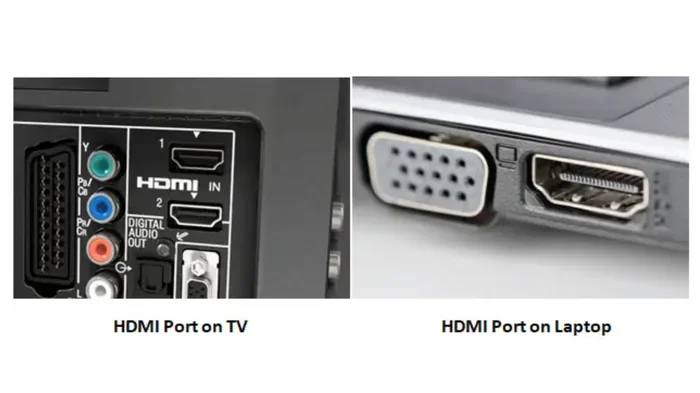
HDMI Port Issues
Sometimes the problem isn’t the cable but the port itself. HDMI ports can wear out over time, especially if you’re constantly plugging and unplugging devices. Dust and debris can also accumulate inside the port and prevent a proper connection. A bent pin inside the port can also cause signal loss.
Try plugging your HDMI cable into a different port on your Samsung TV. If the signal comes back on a different port, the original port might be damaged. You can also try plugging the cable into your source device’s other HDMI output if it has one.
Resolution or Refresh Rate Mismatch
Your source device might be outputting a signal that your Samsung TV can’t handle. This often happens when you connect a computer or gaming console to a TV and the resolution settings don’t match. For example, if your PC is set to output 4K at 120Hz but your TV only supports 4K at 60Hz, the TV might display a no signal error.
To fix this, change the output resolution on your source device to a setting your TV supports. If you can’t see your TV screen to adjust settings, connect the device to a different display first, change the resolution, and then switch back to your Samsung TV.
Firmware or Software Issues
Samsung regularly releases firmware updates for its TVs that fix bugs and improve compatibility. If your TV’s software is outdated, it might not communicate properly with newer devices. An HDMI handshake failure — where the TV and source device can’t agree on a connection format — is a common result of outdated firmware.
Go to Settings, then Support, and select Software Update on your Samsung TV. If an update is available, install it and restart the TV. This simple step often resolves stubborn HDMI signal issues.
Step-by-Step Fixes for Samsung TV No Signal HDMI
Now that you know the common causes, let’s walk through the fixes in order from simplest to most advanced. Follow these steps one at a time and test your TV after each one.
Step 1: Check the Cable Connection
Unplug the HDMI cable from both your Samsung TV and the source device. Inspect the cable ends for any visible damage. Plug the cable back in firmly, making sure it clicks into place on both sides. This quick check solves the problem more often than you’d think.
Step 2: Switch to the Correct Input
Press the Source button on your Samsung remote. Scroll through the list of available inputs until you find the HDMI port your device is connected to. Select it and wait a few seconds for the signal to establish.
Step 3: Try a Different HDMI Cable
If reseating the cable doesn’t work, swap it out for a different one. Use a high-quality cable that supports the bandwidth you need. For 4K content, look for a cable rated for HDMI 2.0 or higher. A cheap or old cable might not handle the data load properly.
Step 4: Try a Different HDMI Port
Move the cable to another HDMI port on your TV. If the signal appears on a different port, the original port may be faulty. You can use that working port for your device going forward.
Step 5: Power Cycle Your Devices
Turn off your Samsung TV and the source device completely. Unplug both from the wall outlet and wait at least 30 seconds. Plug them back in and turn them on. This power cycle resets the HDMI connection and often clears temporary glitches that cause signal loss.
Step 6: Update Your TV Firmware
Navigate to Settings, then Support, then Software Update on your Samsung TV. Install any available updates. Restart the TV and check if the no signal error is resolved. Keeping your firmware current helps prevent compatibility issues with newer devices.
Step 7: Reset the Source Device Display Settings
If the source device is a computer or gaming console, reset its display output settings to default. On a Windows PC, go to Display Settings and change the resolution to 1080p. On a console, check the video output settings in the system menu. This ensures the device sends a signal your TV can read.
Step 8: Factory Reset Your Samsung TV
If nothing else works, a factory reset can clear deep software issues that interfere with HDMI connectivity. Go to Settings, then General, then Reset. Enter your PIN (the default is usually 0000) and confirm. Note that this will erase all your custom settings, so you’ll need to set up your TV again afterward.
How to Prevent Samsung TV HDMI Signal Issues
Once you’ve got your Samsung TV working again, you’ll want to keep it that way. Prevention is always easier than troubleshooting. Here are some simple habits that help maintain a stable HDMI connection.
First, always plug in and unplug HDMI cables gently. Forceful insertion can damage the port or the cable connector over time. Second, use high-quality cables from reputable brands. Cheap cables might save a few dollars but often can’t handle the bandwidth needed for 4K or high refresh rate content. Third, keep your TV firmware updated. Samsung pushes regular updates that improve HDMI compatibility.
Fourth, avoid running HDMI cables near heat sources or power cables. Electromagnetic interference from power cords can degrade the HDMI signal, especially with longer cable runs. Finally, if you’re using an HDMI splitter or extender, make sure it supports the resolution and version of your setup. A low-quality splitter can introduce signal loss and cause the no signal error.
One often overlooked factor is the length of your HDMI cable. Standard cables work great up to about 15 feet. Beyond that, signal degradation becomes a real problem. If you need a longer run, consider an active HDMI cable or an HDMI extender that boosts the signal over a longer distance.
When to Contact Samsung Support
Most HDMI no signal issues resolve with the steps above. But sometimes the problem points to a hardware issue that needs professional attention. If you’ve tried every fix and the no signal error persists, it’s time to reach out to Samsung support.
Here are signs that you might have a hardware problem:
- The HDMI port on your TV is physically damaged or loose
- Multiple cables and devices all show the same no signal error on the same port
- Your TV has recently experienced a power surge or electrical issue
- The TV’s HDMI ports work intermittently or only when the cable is positioned a certain way
Samsung’s customer support team can help diagnose whether the issue is with the TV’s internal HDMI board or another component. They can also arrange for repairs or replacements if your TV is still under warranty.
Final Thoughts
Seeing a no signal HDMI message on your Samsung TV is frustrating, but it’s almost never a sign of a serious problem. In most cases, a loose cable, wrong input selection, or outdated firmware is to blame. The fixes in this guide are simple and don’t require any special tools or technical skills.
Start with the basics — check your cable, select the right input, and power cycle your devices. Move on to firmware updates and display settings if those don’t work. And remember, a new HDMI cable costs very little and is always worth trying. With patience and a systematic approach, you’ll have your Samsung TV displaying your favorite content again in no time.
Don’t let the no signal error ruin your evening. Work through these steps calmly and methodically. You’ve got this.
Frequently Asked Questions
Why does my Samsung TV say no signal when I plug in HDMI?
The most common reason is a loose or faulty HDMI cable connection. Unplug the cable from both ends, inspect it for damage, and plug it back in firmly. Also make sure your TV is set to the correct input source that matches the HDMI port you’re using.
How do I fix the no signal error on my Samsung TV HDMI port?
Start by trying a different HDMI cable and switching to another HDMI port on your TV. If that doesn’t work, power cycle both your TV and the source device by unplugging them for 30 seconds. Updating your TV firmware through Settings can also resolve the issue.
Can a bad HDMI cable cause no signal on Samsung TV?
Yes, absolutely. A damaged or low-quality HDMI cable is one of the leading causes of the no signal error. Even if the cable looks fine on the outside, internal wires can be broken. Replacing the cable with a new high-quality one often fixes the problem immediately.
Why does my Samsung TV lose HDMI signal randomly?
Intermittent signal loss usually points to a loose cable connection, a worn-out HDMI port, or an overheating device. Make sure all connections are firm and try a different cable. If the problem persists, the HDMI port on your TV or source device may need professional inspection.
What HDMI cable do I need for 4K Samsung TV?
For 4K content on your Samsung TV, use an HDMI cable rated for HDMI 2.0 or higher. If you want to enjoy 4K at 120Hz, look for an HDMI 2.1 certified cable. These cables have the bandwidth needed to handle high-resolution video without signal drops.
Does updating Samsung TV firmware fix HDMI issues?
Yes, firmware updates often include fixes for HDMI compatibility and handshake problems. Go to Settings, select Support, then Software Update, and install any available updates. Restart your TV after updating to see if the no signal error is resolved.