Why Is My Hdmi on My Ps4 Not Working
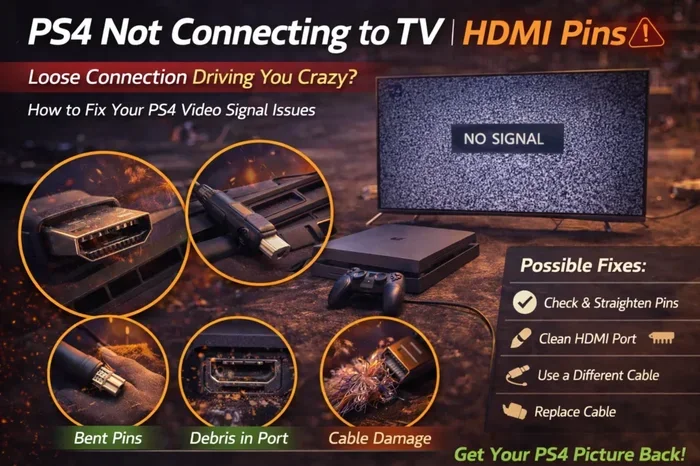
Why Is My Hdmi On My Ps4 Not Working is a common frustration for gamers. The most frequent causes include a faulty HDMI cable, loose port connection, incorrect TV input, or display settings mismatch. This guide walks you through every proven fix step by step, so you can get your PS4 display back up and running quickly.
This is a comprehensive guide about Why Is My Hdmi On My Ps4 Not Working.
Key Takeaways
- Check your cable first: A damaged or worn HDMI cable is the number one cause of display issues on PS4.
- Reseat the connection: Simply unplugging and replugging the HDMI cable into both the PS4 and TV can solve the problem.
- Verify your TV input: Switching to the correct HDMI input port on your TV often fixes the “no signal” error.
- Reset display settings: Safe Mode lets you restore default resolution and output settings on your PS4.
- Inspect the port: Bent or damaged HDMI ports on either device may need professional repair.
- Try a different cable or port: Eliminating variables helps pinpoint the exact cause fast.
[FEATURED_IMAGE_PLACEHOLDER]
Why Is My Hdmi On My Ps4 Not Working
You settle in for a gaming session. You turn on your PS4. And then… nothing. Your TV stays dark. The screen shows no signal. It is incredibly frustrating, especially when you just want to jump into your favorite game. The question why is my HDMI on my PS4 not working comes up more often than you might think.
The good news is that most HDMI problems on a PS4 are easy to fix. You do not need to be a tech expert. In most cases, the solution takes just a few minutes. This guide covers every common cause and every proven fix. Whether your PS4 shows a black screen, a flashing signal, or no display at all, you will find the answer here.
We will go through cable checks, port inspections, TV settings, and deeper troubleshooting steps. By the end, you will know exactly what to do. Let us get your gaming setup working again.
Common Reasons Your HDMI Is Not Working on PS4
Before you start swapping cables or tearing things apart, it helps to understand what is actually going wrong. Several common issues can cause your PS4 HDMI to fail. Knowing the root cause saves you time and effort.
Faulty or Damaged HDMI Cable
The most common reason is a bad HDMI cable. Over time, cables wear out. They get bent, pinched, or frayed. Even a small break inside the wire can stop the signal from reaching your TV. If you have tried other fixes and nothing works, the cable itself is often the culprit.
HDMI cables also degrade with heavy use. Plugging and unplugging them repeatedly wears out the connectors. Cheap cables are especially prone to this problem. A faulty HDMI cable will cause a “no signal” message or a blank screen every single time.
Loose or Dirty HDMI Connections
Sometimes the problem is simpler than you think. The HDMI cable might not be fully seated in the port. Even a millimeter of loose contact can break the connection. Dust and lint can also build up inside the port over time. This debris blocks the signal and causes intermittent or total display failure.
A loose connection is one of the sneakiest causes. Your PS4 might have worked fine yesterday, and today it just will not display anything. Before assuming something is broken, try pushing the cable in firmly on both ends.
Wrong TV Input or Source
It sounds obvious, but it happens all the time. Your TV might be set to the wrong input source. If your HDMI cable is plugged into HDMI Port 2 on your TV, but your TV is showing the input from HDMI Port 1, you will see nothing. This is one of the first things to check when your PS4 HDMI is not working.
Modern TVs have multiple HDMI ports. It is easy to lose track of which one you are using. Some TVs also label their ports differently (like ARC or eARC), which can add confusion. Always double-check that your TV is on the correct input.
PS4 Display Settings Mismatch
Your PS4 stores display settings from the last time it worked. If those settings do not match your current TV, you will get a blank screen. This often happens after a TV firmware update or when you switch to a new display. The PS4 might be outputting a resolution or refresh rate your TV does not support.
For example, if your PS4 is set to output 4K but your TV only supports 1080p, the two devices cannot agree on a signal. The result is a black screen or no signal at all. PS4 display settings mismatch is a surprisingly common cause of HDMI problems.
HDMI Port Damage on PS4 or TV
Physical damage to the HDMI port is another possibility. On the PS4 side, the port can become loose or bent from regular use. On the TV side, the same thing can happen. A damaged port will not make a proper connection, no matter how good your cable is.
Port damage usually happens gradually. You might notice the cable needs to be held at a certain angle to work. Or the connection becomes intermittent. If you suspect port damage, inspect both ends carefully with a flashlight. Look for bent pins, discoloration, or physical warping.
How to Troubleshoot Your HDMI Connection Step by Step
Now that you know the common causes, let us walk through the fixes. Follow these steps in order. Each one addresses a different potential problem. Most people find the solution within the first three steps.
Step 1: Power Cycle Your PS4 and TV
Start with the simplest fix. Turn off your PS4 completely. Do not just put it in rest mode. Unplug it from the wall. Then turn off your TV as well. Unplug the TV from the power outlet.
Wait at least 60 seconds. This gives both devices time to fully discharge. Then plug your TV back in first and turn it on. After that, plug in your PS4 and power it up. This basic reset often clears temporary glitches that cause HDMI handshake failures.
Step 2: Reseat the HDMI Cable
Unplug the HDMI cable from your PS4. Then unplug it from your TV. Inspect both ends of the cable. Look for bent pins, dirt, or damage to the connector.
Plug the cable back in firmly on both sides. You should feel a slight click when it seats properly. Do not force it. If the cable does not fit snugly, the port or connector might be damaged.
Step 3: Try a Different HDMI Port on Your TV
If reseating the cable does not work, switch to a different HDMI port on your TV. Most modern TVs have three or four HDMI ports. Plug your PS4 into a different one and change the TV input accordingly.
This test tells you whether the original port is the problem. If the PS4 works on the new port, you know the first port is faulty. If it still does not work, the problem is likely the cable or the PS4 itself.
Step 4: Try a Different HDMI Cable
This is one of the most effective troubleshooting steps. Grab another HDMI cable if you have one available. Swap it in and see if the display comes back.
If you do not have a spare cable, try using the one with another device, like a Blu-ray player or a streaming stick. This helps you determine whether the cable is bad. A different HDMI cable often solves the problem instantly.
While you are troubleshooting connectivity issues, you might also encounter problems with other peripherals. For example, if your mouse is not working on your laptop, similar troubleshooting principles apply, such as checking connections and ports.
Step 5: Check Your TV Input Settings
Use your TV remote to cycle through the input sources. Make sure you are on the exact HDMI port where your PS4 is connected. Some TVs label ports as HDMI 1, HDMI 2, and so on. Others use names like “Game Console” or “Streaming.”
Try each input one by one. Wait a few seconds on each one to see if a signal appears. Sometimes the TV takes a moment to detect a new device. Be patient and go through all available ports.
Step 6: Adjust PS4 Resolution and Display Settings
If your PS4 boots but still shows no picture, the display settings might be to blame. Boot your PS4 into Safe Mode. This is a special startup option that lets you change core settings.
To enter Safe Mode, turn off your PS4 completely. Then hold down the power button. You will hear two beeps: one when you first press, and another about seven seconds later. Connect your controller with a USB cable and press the PS button.
From the Safe Mode menu, select “Change Resolution.” Set it to 480p, which is the most basic resolution. This should work with almost any TV. Once you get a picture, you can adjust the settings back up to your preferred resolution.
When the HDMI Cable Is the Problem
A bad HDMI cable causes more display problems than people realize. It is the first thing you should check, and often the first thing to replace. Here is how to tell if your cable is the issue.
Signs Your HDMI Cable Is Failing
- Intermittent display: The picture comes and goes randomly.
- No signal at all: Your TV shows “No Signal” or a blank screen.
- Flickering or static: The image shimmers or shows horizontal lines.
- Color distortion: Colors look washed out or wrong.
- Audio works but no video: You can hear the game but see nothing on screen.
If you notice any of these signs, replace your HDMI cable. Do not try to repair a damaged cable. A new cable is inexpensive and solves the problem reliably. Look for cables rated for high speed and 4K support if you use a PS4 Pro.
Choosing the Right HDMI Cable for PS4
Not all HDMI cables are the same. The original PS4 uses standard HDMI 1.4. The PS4 Pro supports HDMI 2.0 for 4K output. Make sure your cable matches your console.
For the original PS4, any decent high-speed HDMI cable will work. For the PS4 Pro, look for an “Ultra High Speed” or “HDMI 2.0” rated cable. Avoid ultra-cheap cables from unknown brands. They often fail to deliver a stable signal.
If you are also dealing with peripheral connectivity issues on other devices, like a USB mouse not working on your laptop, the same principle applies, you want to make sure your cables and connections are in good shape.
PS4 HDMI Port Issues and How to Fix Them
Sometimes the problem is not the cable. It is the port itself. Both the PS4 and your TV have HDMI ports that can wear out or get damaged over time.
Identifying a Damaged PS4 HDMI Port
Look closely at the HDMI port on the back of your PS4. Use a flashlight to get a good view. A healthy port should have straight, shiny pins. If you see any bent, broken, or missing pins, the port is damaged.
You might also notice that the port feels loose. When you insert the cable, it wiggles or does not stay in place. This is a clear sign of physical wear. A loose port will cause constant connection problems.
What to Do About a Damaged Port
If your PS4 HDMI port is damaged, you have a few options. First, try using the port on the opposite side if your TV has multiple ports. This bypasses the damaged port entirely.
For a damaged PS4 port, you can try a HDMI adapter. An adapter plugs into the existing port and provides a new connection point. This is not a permanent fix, but it can get you back to gaming quickly.
If the port is truly broken, you may need professional repair. Sony service centers can replace the port. This is usually affordable and takes just a few days. You can also find a local electronics repair shop that handles HDMI port replacements.
Preventing Port Damage in the Future
You can take simple steps to protect your HDMI ports. Never force a cable into the port. Always insert it straight and gently. Avoid yanking the cable out. Instead, grip the connector and pull it straight out.
Keep your PS4 in a ventilated area where the cables are not under tension. Avoid stepping on or pinching the HDMI cable. These small habits add up and extend the life of your ports significantly.
TV and Display Settings That Cause HDMI Problems
Your TV and display settings play a big role in HDMI performance. Many people overlook these settings and blame the cable or console instead.
HDMI Handshake Issues
An HDMI handshake is the process where your PS4 and TV negotiate a connection. They agree on resolution, refresh rate, and audio format. Sometimes this handshake fails, and you get a blank screen.
Handshake failures are common after a firmware update on either device. They also happen when you unplug and replug the cable while both devices are powered on. The fix is simple: power down both devices completely, wait a few seconds, and power them back up in the right order. Start with the TV, then the PS4.
Resolution and Refresh Rate Conflicts
Your PS4 and TV must agree on display settings. If your PS4 tries to output a resolution or refresh rate your TV cannot handle, the connection fails. This is especially common with older TVs or when you switch to a new display.
The safest fix is to boot into Safe Mode and set the resolution to 480p. This is universally compatible with all TVs. From there, you can gradually increase the resolution until you find the sweet spot for your display.
CEC and HDMI-CEC Settings
CEC (Consumer Electronics Control) lets devices control each other over HDMI. For example, it lets your TV remote turn on your PS4. While useful, CEC can sometimes cause conflicts that disrupt your HDMI connection.
Try turning off CEC on your TV. The setting might be called “HDMI Control,” “Bravia Sync,” “Anynet+,” or something similar depending on your TV brand. Disabling CEC can resolve stubborn HDMI issues that nothing else fixes.
Expert Tips for a Reliable HDMI Connection
Once you get your HDMI working again, you want to keep it that way. These expert tips help you maintain a stable connection and avoid future problems.
Keep Your Cables Organized
Tangled cables put stress on the connectors. Use cable ties or Velcro straps to keep your HDMI cables neat. Avoid running them under heavy furniture where they can get pinched. A well-organized setup lasts longer.
Update Your PS4 Firmware
Sony regularly releases firmware updates that fix bugs and improve compatibility. Keep your PS4 updated to the latest software version. Updates often address HDMI handshake problems and display glitches.
Use High-Quality Cables
Invest in a good HDMI cable from a reputable brand. You do not need to spend a fortune, but avoid the cheapest options. A quality cable provides a stable signal and lasts longer. Look for cables with gold-plated connectors for the best conductivity.
Sometimes HDMI issues overlap with broader connectivity problems. If you are also experiencing issues where your mouse is not showing up on your laptop, similar troubleshooting principles like checking connections, ports, and device recognition apply across the board.
When to Seek Professional Help
Most HDMI problems are easy to fix at home. But some situations call for professional assistance. If you have tried every step in this guide and still have no display, it is time to get expert help.
Signs that you need professional repair include physical damage to the port, a PS4 that will not power on at all, or persistent problems that survive every troubleshooting step. A certified technician can diagnose the issue accurately and perform repairs safely.
Do not try to open your PS4 yourself unless you have experience. Opening the console can void your warranty and risk causing additional damage. Professional repair is almost always the safer choice.
Conclusion
Why Is My Hdmi On My Ps4 Not Working is a question many gamers face, but the answer is usually simpler than you think. Start with the basics. Check your cable, reseat your connections, and verify your TV input. From there, move on to display settings and Safe Mode fixes. Most HDMI problems are resolved with these straightforward steps.
Keep your cables in good condition and your firmware up to date to prevent future issues. A little regular maintenance goes a long way. If you have followed every step and still have problems, do not hesitate to seek professional repair. Your PS4 deserves a reliable connection, and with the right approach, you will be back to gaming in no time.
Frequently Asked Questions
Why does my PS4 show no signal on HDMI?
A “no signal” error usually means the HDMI cable is loose, damaged, or connected to the wrong TV input. Try reseating the cable, switching to a different HDMI port on your TV, or using a new cable. These simple steps fix the problem in most cases.
Can a bad HDMI cable damage my PS4?
No, a bad HDMI cable will not damage your PS4. It can only disrupt the display signal. However, a faulty cable can cause frustration and make it seem like something is seriously wrong with your console. Replacing the cable is always the first step.
How do I fix HDMI handshake problems on my PS4?
Power off both your PS4 and TV completely. Unplug them from the wall. Wait 30 seconds. Plug in your TV first and turn it on, then power on your PS4. This sequence ensures a clean HDMI handshake between the two devices.
What HDMI cable do I need for PS4 Pro?
For PS4 Pro, you need an Ultra High Speed HDMI cable rated for HDMI 2.0 or higher. This supports 4K resolution and higher refresh rates. Standard HDMI cables work fine for the original PS4.
Why does my PS4 HDMI work sometimes but not other times?
Intermittent HDMI issues are usually caused by a loose cable connection or a partially damaged port. The cable might not be making full contact, or the port pins could be bent. Try a different cable or port to confirm the cause.
Is it safe to use an HDMI adapter with my PS4?
Yes, using an HDMI adapter is generally safe. It can help if your PS4 HDMI port is damaged or if you need to connect to a display without a standard HDMI input. Just make sure the adapter is from a reputable brand to avoid signal quality issues.