Whirring Laptop Noise
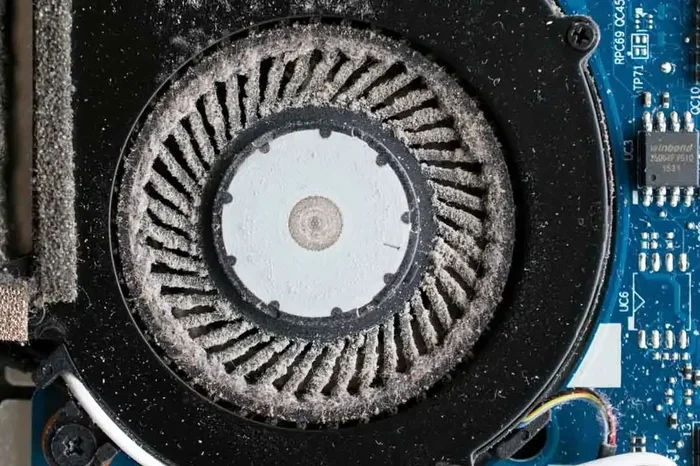
A whirring laptop noise can be annoying, but it usually signals a simple fix. This guide covers the most common causes of laptop fan noise, from dust buildup to overheating and hardware strain. You will learn how to diagnose the problem, apply quick fixes, and prevent future noise issues with easy step-by-step tips.
You are working on an important project, and suddenly you hear a loud whirring laptop noise. It sounds like a tiny helicopter sitting on your desk. Your first thought might be panic, but take a breath. In most cases, a noisy laptop fan is not a sign of disaster. It is your laptop telling you something. The good news is that you can usually fix it yourself without spending a lot of money.
This guide walks you through every angle of laptop fan noise. You will learn what causes the sound, how to fix it, and how to stop it from coming back. Whether you use your laptop for study, work, or gaming, this article has you covered. Let us get into it.
Key Takeaways
- Dust and debris are the #1 cause of whirring laptop noise and can be fixed with simple cleaning.
- Overheating forces your laptop fans to spin faster, creating louder noise than normal.
- Software issues like high CPU usage can make your laptop fan work harder than needed.
- Hardware upgrades such as adding more RAM can reduce strain and lower fan noise.
- Regular maintenance keeps your laptop cool and quiet for years to come.
- Loud fan noise is not always dangerous, but persistent sounds deserve attention.
- External cooling pads offer an easy and affordable way to reduce whirring sounds.
📑 Table of Contents
- What Causes a Whirring Laptop Noise?
- How to Fix a Whirring Laptop Noise
- How Power Usage Affects Laptop Fan Noise
- Preventing Whirring Laptop Noise in the Future
- When to Seek Professional Help
- Expert Insights on Laptop Fan Noise
- Quick Tips to Silence Your Laptop Right Now
- Common Mistakes People Make with Laptop Noise
- Final Thoughts
What Causes a Whirring Laptop Noise?
Before you fix a problem, you need to understand it. A whirring laptop noise almost always comes from the internal fan. The fan spins to keep your laptop cool. When something forces the fan to work harder, the noise gets louder. Here are the most common reasons your laptop makes that annoying sound.
Dust and Debris Buildup
Dust is the silent enemy of every laptop. Over time, tiny particles build up inside the vents and around the fan blades. This forces the fan to spin faster to push air through the blocked openings. The result is a loud and constant laptop fan noise. Even a thin layer of dust can cause noticeable fan speed changes.
If you live in a dusty environment or have pets, this problem hits even harder. Fur and small particles sneak into the laptop through the air vents. They stick to the fan and heat sink. Within a few months, your once-quiet laptop starts sounding like a jet engine.
Overheating
Overheating is one of the biggest reasons for a noisy laptop fan. When your laptop runs hot, the fan ramps up to cool things down. But why does the laptop overheat in the first place? Several factors play a role:
- Heavy workloads like video editing or gaming push the processor hard.
- Blocked vents from using the laptop on a bed or couch.
- Old thermal paste that no longer transfers heat efficiently.
- High room temperatures that make cooling harder.
If you have ever noticed your laptop getting hot and loud at the same time, overheating is the likely culprit. In severe cases, it can even lead to serious hardware issues. If you are worried about this, check out our article on can a laptop explode from overheating to understand the risks better.
High CPU Usage from Software
Sometimes the problem is not physical, it is digital. When your laptop runs many programs at once, the processor works harder. This creates more heat, which makes the fan spin faster. Even background apps you do not notice can eat up processing power. Things like antivirus scans, software updates, or browser tabs with heavy content all add up.
The laptop fan noise in this case comes and goes. It gets louder when you open demanding apps and quieter when you close them. If you notice this pattern, your software habits are likely the cause.
Hardware Strain from Heavy Tasks
Running demanding software puts a lot of stress on your laptop’s components. The CPU and GPU generate significant heat during intense tasks. Your fan has to work overtime to keep temperatures safe. This is especially true for gaming laptops or machines used for video editing and 3D rendering.
If your laptop has lots of RAM, it can handle more tasks at once without straining. However, even high-performance machines can get noisy under heavy loads. Understanding what your laptop can handle helps you manage the noise better.
How to Fix a Whirring Laptop Noise
Now that you know the causes, let us look at the fixes. Most of these solutions are simple and do not require any technical skills. You can start with the easiest fix and work your way down the list.
Fix 1: Clean the Vents and Fan
The first step is always cleaning. Grab a can of compressed air and gently blow out the dust from the vents. Hold the fan blades steady while you do this. If the fan spins freely while you blow air, it can damage the motor.
For a deeper clean, you may need to open the laptop casing. This is easier than it sounds, especially if you have a RAM upgrade guide for your model. Just make sure you power off the laptop and unplug it first. Use a soft brush to gently remove dust from the fan and heat sink.
Quick Tip: Clean your laptop vents every 3 to 6 months. This simple habit prevents most fan noise problems before they start.
Fix 2: Adjust Fan Speed Settings
Many laptops let you control the fan speed through software. Windows has a built-in power plan setting that can help. You can also download free tools like SpeedFan or your laptop manufacturer’s utility app. These tools let you set a quieter fan profile for everyday tasks.
Keep in mind that lowering the fan speed too much can cause overheating. Find a balance that keeps your laptop cool without making too much noise. If the whirring laptop noise only happens during heavy tasks, this is a great fix.
Fix 3: Reduce CPU Load
If software is causing the noise, fix the software. Open your task manager and look for programs using too much processing power. Close the ones you do not need. You might be surprised how many background apps run without your knowledge.
Here is a simple checklist to reduce CPU load:
- Close unused browser tabs and apps.
- Disable startup programs you do not need.
- Scan for malware that might be running hidden processes.
- Update your software to the latest versions for better performance.
These small changes can make a big difference in both performance and noise levels.
Fix 4: Use a Cooling Pad
A cooling pad is one of the easiest and most affordable ways to reduce laptop fan noise. These flat platforms sit under your laptop and have built-in fans that push cool air upward. They take the pressure off your laptop’s own cooling system.
Look for a cooling pad with adjustable fan speeds and a size that matches your laptop. Even a basic model can lower internal temperatures by several degrees. This means your laptop fan does not have to work as hard, and the noise drops significantly.
Fix 5: Replace the Thermal Paste
If your laptop is a few years old, the thermal paste between the CPU and the heat sink may have dried out. Thermal paste helps transfer heat away from the processor. When it degrades, heat builds up and the fan spins faster.
Replacing the thermal paste is a bit more involved, but it is very effective. You can find thermal paste online or at electronics stores for a few dollars. Just make sure you follow a guide specific to your laptop model. If you are not comfortable doing this yourself, a local repair shop can help for a small fee.
Fix 6: Upgrade Your Hardware
Sometimes the best fix is upgrading your laptop’s components. More RAM means your laptop can handle tasks without overworking the processor. A faster, more efficient processor generates less heat for the same workload. Both upgrades can significantly reduce laptop fan noise over time.
When you add more memory, your laptop runs smoother and cooler. If you are wondering how much RAM you really need, check out our article on laptop with lots of ram for helpful guidance on choosing the right setup.
How Power Usage Affects Laptop Fan Noise
Many people do not realize that how much power your laptop uses affects how loud the fan gets. When your laptop draws more electricity, it generates more heat. The fan has to spin faster to keep everything cool. This is especially noticeable when your laptop is plugged in and running demanding tasks.
When you are on battery power, your laptop often throttles performance to save energy. This means less heat and quieter fans. When you plug in, the full power flows, and the fan may kick in more often. Understanding this connection helps you manage your expectations and your noise levels.
If you want to learn more about how power usage works, read our article on how much power does a laptop use when plugged in. It explains the relationship between power draw and heat generation in simple terms.
Preventing Whirring Laptop Noise in the Future
Fixing the noise is great, but preventing it from coming back is even better. A few simple habits can keep your laptop running quietly for years.
Keep Your Laptop on Hard Surfaces
Never use your laptop on soft surfaces like beds, pillows, or blankets. These block the air vents and trap heat. Instead, always place your laptop on a hard, flat surface. A desk, table, or even a book works well. Good airflow is the simplest way to prevent overheating and fan noise.
Keep Your Software Updated
Software updates often include performance improvements that reduce the strain on your processor. Outdated software can cause unnecessary CPU usage, which leads to more heat and louder fans. Make sure your operating system, drivers, and apps are always up to date.
Monitor Your Laptop Temperatures
Use free temperature monitoring tools to keep an eye on your laptop’s internal heat. If you notice temperatures climbing during normal use, take action early. Clean the vents, adjust fan settings, or reduce your workload. Catching the problem early prevents loud noise and protects your hardware.
Limit Startup Programs
Too many programs launching at startup put a constant load on your processor. This keeps your fan running at higher speeds even when you are not doing anything heavy. Go to your task manager, navigate to the startup tab, and disable programs you do not need right away. Your laptop will run cooler and quieter.
Consider a Laptop with Better Cooling
If your laptop is old and the noise will not go away no matter what you do, it might be time for an upgrade. Newer laptops have better cooling systems and more efficient processors that run quieter. If you are looking for a machine with strong performance and low noise, check out options with lots of RAM and efficient cooling designs.
High-RAM laptops handle multitasking with ease, which means less strain on the processor. This translates to lower heat and quieter fans during everyday use. For ideas on what to look for, explore our guide on laptop with lots of ram to find the right fit for your needs.
When to Seek Professional Help
Most whirring laptop noise issues can be fixed at home. But some situations call for professional help. If your laptop makes a grinding or clicking sound, the fan might be physically damaged. A broken fan cannot cool your laptop properly, which can lead to serious overheating.
Also, if you notice your laptop shutting down unexpectedly, the cooling system is failing. Do not ignore these signs. Continuing to use a laptop with a broken fan can damage the CPU and other components. A repair technician can replace the fan or address other internal issues safely.
Remember, a loud laptop fan noise is not always dangerous, but it is always worth investigating. Early action saves you money and extends the life of your machine.
Expert Insights on Laptop Fan Noise
Many people think a loud laptop fan means something is broken. That is not always true. Fans are designed to speed up when the laptop gets warm. This is normal behavior. The key is knowing what is normal and what is not.
Here are a few expert tips to keep in mind:
- Normal fan noise is a soft hum that speeds up during heavy tasks.
- Abnormal fan noise includes grinding, clicking, or constant loud whirring even during light use.
- Laptop age matters. Older laptops naturally have dustier internals and weaker fans.
- Room temperature plays a big role. Hot environments make fans work harder.
Understanding these patterns helps you decide when to take action and when to just accept the noise. Most of the time, a little maintenance goes a long way.
Quick Tips to Silence Your Laptop Right Now
Need a quick fix right now? Try these simple steps that take less than five minutes:
- Close all unnecessary apps and browser tabs.
- Move your laptop to a hard, flat surface.
- Use compressed air to blow out the vents.
- Set your power plan to balanced or power saver mode.
- Elevate the back of your laptop with a stand or a book for better airflow.
These quick wins can noticeably reduce whirring laptop noise without any tools or technical knowledge. Try them the next time your laptop starts sounding like a small airplane.
Common Mistakes People Make with Laptop Noise
When dealing with a noisy laptop, people often make mistakes that make the problem worse. Here are the most common ones to avoid:
- Ignoring the noise. Small problems grow into big, expensive repairs if you ignore them.
- Using a vacuum cleaner. Vacuums create static electricity that can damage laptop components. Always use compressed air.
- Blocking the vents. Placing your laptop on your lap or a pillow blocks airflow and increases heat.
- Running too many programs. Multitasking heavily without closing old apps keeps the CPU hot and the fan loud.
- Opening the laptop without unplugging it. Always power off and disconnect your laptop before cleaning or opening it.
Avoiding these mistakes keeps your laptop running smoothly and quietly for much longer.
Final Thoughts
A whirring laptop noise is frustrating, but it is almost always fixable. The most common causes are dust buildup, overheating, and heavy software loads. With a little cleaning, some software adjustments, and better usage habits, you can bring the noise down to a whisper. Prevention is just as important as fixing. Regular maintenance keeps your laptop cool, quiet, and performing its best.
Do not let a noisy fan ruin your workflow or your peace of mind. Try the fixes in this guide, and your laptop will thank you. A quiet laptop is a happy laptop, and a happy laptop makes your life so much easier.
Frequently Asked Questions
Why does my laptop make a whirring noise when I move it?
A loose fan blade or a small piece of debris inside the laptop can cause a whirring sound when you move it. This usually means something is caught in the fan or the fan mount is loose. Open the back panel gently and check for any visible debris or damage.
Is it normal for a laptop fan to be loud during gaming?
Yes, it is normal. Gaming pushes the CPU and GPU hard, which generates a lot of heat. The fan spins faster to cool the laptop. However, if the noise is unbearable or happens during light tasks, you may have a dust or overheating issue that needs attention.
Can a cooling pad really reduce laptop fan noise?
Yes, a cooling pad helps by providing extra airflow to your laptop. This lowers the internal temperature, so your laptop fan does not have to work as hard. Even a basic cooling pad can make a noticeable difference in noise levels during heavy use.
How often should I clean my laptop to prevent fan noise?
You should clean your laptop vents every 3 to 6 months. If you use your laptop in a dusty area or have pets, clean it more often. Regular cleaning prevents dust buildup that forces the fan to spin faster and louder.
Should I be worried if my laptop fan is always loud?
Constant loud fan noise is not always dangerous, but it is a sign that something needs attention. It usually means your laptop is overheating or the fan is working harder than it should. Check for dust buildup, close heavy apps, and monitor temperatures to find the cause.
Can I replace my laptop fan myself?
Yes, many laptop fans can be replaced at home with basic tools and a guide specific to your model. However, if you are not comfortable opening your laptop, a professional repair shop can do it for a reasonable cost. Always make sure your laptop is powered off and unplugged before any repair work.