Sgin Laptop Problems
Sgin laptops can face several common problems like overheating, slow performance, battery drain, and freezing. This guide walks you through each issue with clear fixes you can do at home. You will learn how to troubleshoot hardware and software problems, when to upgrade components like RAM or SSD, and how to prevent future issues. Whether you are a student or a professional, these tips will keep your Sgin laptop running smoothly.
Sgin laptops offer solid value for budget-conscious users who need a reliable machine for work or study. However, like any laptop brand, they come with their own set of challenges. Many users report issues that range from minor annoyances to serious performance drops.
If you own a Sgin laptop and have been struggling with unexpected problems, you are not alone. This guide covers the most frequent Sgin laptop problems and gives you practical fixes you can try today. We will walk through each issue step by step so you can get back to using your laptop without frustration.
Understanding what goes wrong with your device is the first step toward solving it. Let us dive into the most common problems and their solutions.
Key Takeaways
- Overheating is the most common Sgin laptop problem and can be fixed with cleaning and cooling pads.
- Slow performance often comes from insufficient RAM or a full storage drive that needs upgrading.
- Battery drain issues can be solved by adjusting settings and checking for power-hungry background apps.
- Freezing and crashing are usually software-related and can be fixed with driver updates and malware scans.
- Upgrading to an M.2 NVMe SSD can dramatically improve your Sgin laptop speed and responsiveness.
- Regular maintenance prevents most laptop problems and extends the life of your device.
- Knowing when to seek professional help saves time and money on complex hardware failures.
📑 Table of Contents
Common Sgin Laptop Problems You Should Know About
Sgin laptops are popular for their affordability and decent performance. But they are not immune to problems. Many users experience similar issues that can slow down their work or even make the laptop unusable. Knowing what to look for helps you act fast before small issues become big repairs.
Here are the most reported problems among Sgin laptop users. These issues cover both hardware and software areas. Some are easy to fix at home, while others may need a bit more technical know-how.
Overheating and Excessive Heat
Overheating tops the list of Sgin laptop problems. When your laptop gets too hot, it slows down, shuts off randomly, or makes loud fan noises. This happens because dust builds up inside the vents and blocks airflow. The cooling system cannot work properly, and the internal temperature rises fast.
Another reason for overheating is running too many programs at once. Heavy apps like video editors or games push the processor hard. Without proper cooling, the laptop overheats within minutes. Placing the laptop on soft surfaces like beds or couches makes this worse because the fabric blocks the bottom vents.
Some users have even asked, can a laptop explode from overheating? While that is extremely rare, excessive heat can damage internal components over time. It is important to address overheating early before it causes permanent harm to your Sgin laptop.
Slow Performance and Freezing
Slow performance is the second most common complaint. Users notice that their Sgin laptop takes forever to open apps or load web pages. The cursor freezes, and the whole system becomes unresponsive. This is frustrating, especially when you are working on something important.
Several things cause slow performance. A full hard drive is a major culprit. When your storage is nearly full, the system struggles to swap files and run background processes. Running too many startup programs also eats up valuable memory and processing power.
Insufficient RAM is another big factor. Many budget Sgin laptops come with only 8GB of RAM or less. When you open several browser tabs and apps, the memory fills up quickly. The laptop starts using your storage as virtual memory, which is much slower. This causes the freezing and lagging you experience.
Battery Draining Too Fast
Battery problems are very common with Sgin laptops. Some users find that their battery drops from 100 percent to 20 percent in just an hour or two. Others notice the battery does not charge fully anymore after a few months of use.
Background apps are often the reason for fast battery drain. Programs that run in the background keep your processor active even when you are not using them. Bright screen settings, unused Bluetooth, and Wi-Fi connections also drain the battery faster than normal.
Over time, lithium-ion batteries lose their capacity. This is natural and happens with every laptop. But if your battery drops too quickly or swells, it could be a defective battery that needs replacement. Do not ignore swelling batteries because they can become a safety hazard.
Blue Screen of Death and Random Crashes
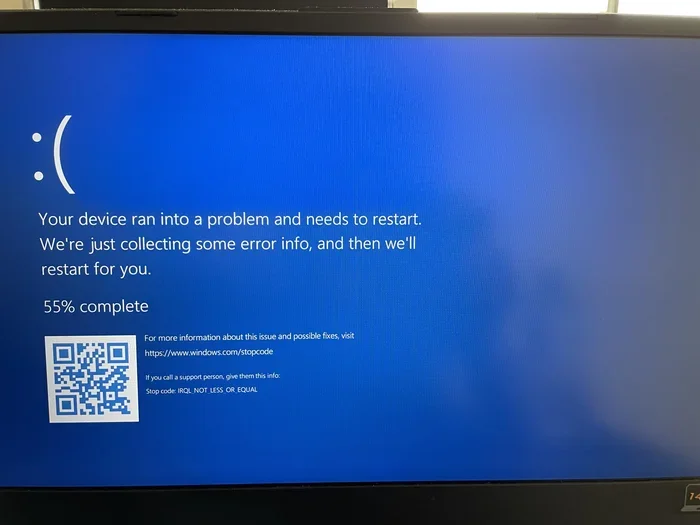
The blue screen of death, or BSOD, is a scary experience for any laptop user. It happens when Windows encounters a critical error and shuts down to protect your hardware. Sgin laptops are not exempt from this problem.
Driver conflicts are a leading cause of BSOD. When you update Windows but do not update your drivers, old drivers can clash with new system files. Faulty RAM modules can also trigger random crashes and blue screens. Running a memory diagnostic tool helps you check if your RAM is working correctly.
Malware and viruses can cause crashes too. Harmful software runs in the background and consumes system resources. It can also corrupt important system files, leading to frequent shutdowns and error messages.
Keyboard and Trackpad Issues
Some Sgin laptop users report keyboard problems. Keys may stick, respond slowly, or stop working altogether. Trackpad issues include unresponsiveness, cursor jumping, or gestures not working as expected. These problems can make everyday tasks like typing and navigating very difficult.
Dust and debris under keys cause sticking. Spilled liquids can damage the keyboard circuit board permanently. Trackpad problems often come from outdated drivers or disabled touchpad settings in Windows.
How to Fix Sgin Laptop Problems Step by Step
Now that you know the common problems, let us look at how to fix them. Most of these solutions are simple and do not require any special tools or technical skills. You can start with the easiest fixes and work your way up.
Fix Overheating with These Simple Steps
Start by cleaning the air vents. Use a can of compressed air to blow out dust from the vents and fan area. Do this every few months to keep airflow clear. You can also use a small brush to gently remove dust from the exhaust fan.
Elevate your laptop on a stand or cooling pad. This allows air to flow underneath and helps the fans cool the system more effectively. Never use your Sgin laptop on soft surfaces like pillows or blankets. Hard, flat surfaces work best for heat dissipation.
Check your task manager for programs that use too much CPU. Close apps you are not using. Limit the number of browser tabs open at one time. These small changes reduce the heat your laptop generates.
Speed Up a Slow Sgin Laptop
If your laptop is slow, start by disabling unnecessary startup programs. Open Task Manager, go to the Startup tab, and disable apps you do not need right when Windows boots. This alone can make a big difference in boot time and overall speed.
Free up disk space by deleting temporary files and unused programs. Windows has a built-in storage cleaner that makes this easy. You can also move large files to an external drive or cloud storage.
Consider upgrading your RAM if you have 8GB or less. A ram upgrade for my laptop is one of the most effective ways to improve performance. More RAM lets your laptop handle multiple apps without slowing down. Check your Sgin laptop model to see what type of RAM it supports.
Another powerful upgrade is replacing your old storage drive with an M.2 NVMe SSD for laptop. This type of drive is much faster than a traditional hard drive. It loads programs, boots Windows, and transfers files in seconds. Upgrading to an M.2 NVMe SSD for laptop can make an old Sgin laptop feel brand new.
Solve Battery Drain Problems
First, check which apps are using the most battery. Go to Settings, then Battery, and look at the battery usage list. Close or uninstall apps that drain power in the background. Many apps continue running even after you close their windows.
Lower your screen brightness to a comfortable level. Turn off Bluetooth and Wi-Fi when you are not using them. Use the Battery Saver mode in Windows to extend your battery life during the day.
If your battery is old and swollen, replace it. A swollen battery is a safety risk and should be handled carefully. Contact Sgin support or a certified repair shop for battery replacement.
Stop Blue Screens and Crashes
Update your Windows drivers regularly. Go to Device Manager and check for any devices with a yellow warning icon. Right-click and select Update Driver. Keeping drivers current prevents many crashes and conflicts.
Run the Windows Memory Diagnostic tool to check your RAM. Type “Windows Memory Diagnostic” in the Start menu and follow the prompts. If the tool finds errors, you may need to replace your RAM stick.
Scan your laptop for malware using a trusted antivirus program. Remove any threats you find. A clean system runs more stable and crashes less often.
Fix Keyboard and Trackpad Problems
For sticky keys, clean between the keys with compressed air or a soft brush. If a liquid spill damaged the keyboard, you may need a replacement. Check Sgin support for compatible keyboard parts.
For trackpad issues, update your touchpad driver. Go to Device Manager, find the touchpad device, and update the driver. You can also check Settings, Devices, Touchpad, and make sure the touchpad is enabled and configured correctly.
When to Upgrade Your Sgin Laptop Hardware
Sometimes fixing individual problems is not enough. If your Sgin laptop is several years old, hardware upgrades can bring it back to life. Knowing which components to upgrade gives you the best return on your investment.
Upgrade Your Storage to an SSD
Upgrading to an SSD is the single best improvement you can make. An M.2 NVMe SSD for laptop is the fastest and most common upgrade option. It replaces your old hard drive and makes everything faster. Windows boots in seconds, apps open instantly, and file transfers are lightning quick.
Before buying an SSD, check your laptop specifications. Confirm the interface type and form factor your Sgin laptop supports. Most modern Sgin laptops use the M.2 NVMe format, which is compact and easy to install.
You can install the SSD yourself by following a guide on how to install M.2 NVMe SSD in laptop. The process is straightforward and requires only a screwdriver. If you are not comfortable doing it yourself, a local repair shop can help for a small fee.
Add More RAM for Better Multitasking
If you often run multiple apps at once, more RAM will help. Check how much RAM your Sgin laptop currently has and how much it can support. Many Sgin laptops support up to 16GB or 32GB of RAM depending on the model.
A ram upgrade for my laptop is simple and affordable. You just need to open the back panel, locate the RAM slot, and insert the new module. Make sure to ground yourself to avoid static damage. If you are unsure, watch a tutorial specific to your Sgin laptop model.
For users who work with large files, video editing, or programming, upgrading both RAM and storage together gives the best results. A laptop with SSD and 16GB RAM configuration provides smooth performance for almost any task.
Upgrade Your Processor for Heavy Workloads
Processor upgrades are trickier because they are often soldered to the motherboard. Not all Sgin laptops allow CPU upgrades. Check your model specifications before buying a new processor. In most cases, you are limited to the processor that came with your laptop.
If you need more processing power, your best option is to upgrade RAM and storage first. These upgrades often provide noticeable improvements without replacing the CPU. For demanding tasks, consider whether a new laptop would be a better investment.
Preventing Future Sgin Laptop Problems
Prevention is always better than repair. A few simple habits can keep your Sgin laptop healthy and problem-free for years. These tips help you avoid the most common issues we discussed above.
- Clean your laptop regularly. Use compressed air to remove dust from vents every two to three months. This prevents overheating and keeps the fans working efficiently.
- Keep your software updated. Install Windows updates and driver updates as soon as they are available. Updates fix bugs and improve compatibility.
- Use a surge protector. Power surges can damage your laptop’s motherboard and battery. A surge protector absorbs excess voltage and keeps your device safe.
- Avoid eating or drinking near your laptop. Spills cause some of the most expensive laptop repairs. Keep liquids at a safe distance from your keyboard.
- Monitor your battery health. Check battery health in Windows settings. Replace the battery if it degrades significantly. Do not ignore swelling.
- Use a cooling pad for heavy tasks. If you game or edit videos, a cooling pad helps maintain safe temperatures during long sessions.
- Back up your data regularly. Use cloud storage or an external drive. This protects your files if your laptop ever fails or needs a factory reset.
When to Seek Professional Repair
Some Sgin laptop problems need professional attention. If you have tried all the fixes above and the issue persists, it is time to see a technician. Hardware failures like a damaged motherboard, broken screen, or faulty charging port require expert tools and knowledge.
Check if your Sgin laptop is still under warranty. Many problems are covered by the manufacturer’s warranty, which means repairs are free or discounted. Contact Sgin support to file a warranty claim before paying for repairs out of pocket.
For issues that are not covered by warranty, compare repair costs with the price of a new laptop. Sometimes it makes more sense to invest in a newer model, especially if repair costs exceed half the price of a replacement.
Conclusion
Sgin laptop problems are common but mostly fixable with the right knowledge and tools. Overheating, slow performance, battery drain, and crashes can all be addressed with simple troubleshooting steps. Regular maintenance and timely upgrades keep your laptop running at its best.
Upgrading your storage to an M.2 NVMe SSD for laptop and adding more RAM through a ram upgrade for my laptop are two of the most impactful changes you can make. These upgrades breathe new life into older Sgin laptops and make everyday tasks faster and smoother.
Remember to clean your laptop, keep software updated, and monitor battery health. These small habits prevent most common problems from developing. If an issue is beyond your skill level, do not hesitate to seek professional help. With the right care, your Sgin laptop will serve you well for many years to come.
Frequently Asked Questions
Why does my Sgin laptop keep overheating?
Overheating usually happens because dust blocks the air vents or the cooling fans are not working properly. Cleaning the vents with compressed air and using a cooling pad can fix this. Make sure you never use your laptop on soft surfaces that block airflow.
How can I speed up my slow Sgin laptop?
Start by disabling unnecessary startup programs and freeing up disk space. Upgrading your RAM and replacing your old hard drive with an M.2 NVMe SSD will make the biggest difference. These upgrades are affordable and easy to do at home.
Is it worth upgrading a Sgin laptop instead of buying a new one?
Yes, if your laptop is less than five years old. Upgrading the RAM and SSD can make an older Sgin laptop feel much faster. However, if the repair costs are too high or the laptop is very old, a new one might be a better choice.
How long should a Sgin laptop battery last?
A Sgin laptop battery typically lasts two to four hours on a full charge depending on usage. Over time, battery capacity decreases. If your battery lasts less than an hour or swells, it is time to replace it for safety and performance.
Can I fix blue screen errors on my Sgin laptop myself?
Yes, most blue screen errors are caused by outdated drivers or faulty RAM. Update your Windows drivers, run a memory diagnostic, and scan for malware. If these steps do not work, a technician can help diagnose deeper hardware issues.
What should I do if my Sgin laptop keyboard stops working?
First, check if the touchpad toggle key was accidentally pressed. Update your keyboard driver through Device Manager. If keys are physically stuck, clean them carefully. For liquid damage or complete failure, you will need a keyboard replacement from a repair shop.