Laptop Restarts on Its Own
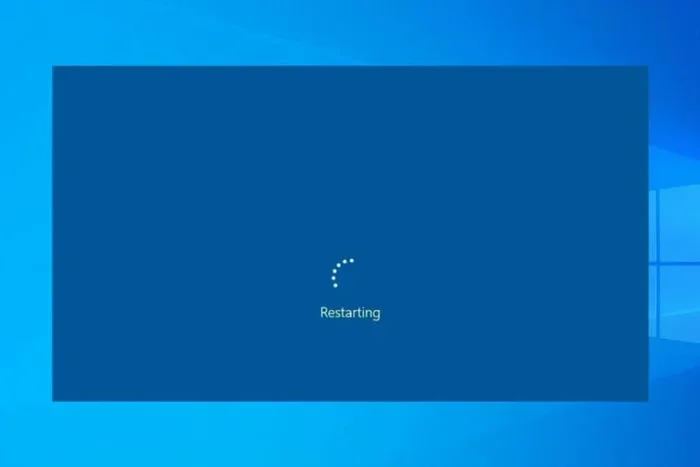
A laptop that restarts on its own can be frustrating and alarming. This guide breaks down every common cause — from overheating and outdated drivers to RAM problems and malware — and gives you clear, step-by-step fixes. You will learn how to diagnose the issue quickly and apply the right solution to keep your laptop stable and reliable.
Key Takeaways
- Overheating is the #1 cause: Dust buildup and poor ventilation force your laptop to shut down unexpectedly.
- Outdated drivers and Windows updates often trigger random restarts: Keeping software current prevents most issues.
- Faulty RAM can cause your laptop to restart without warning: A simple memory check can reveal this problem.
- Malware and viruses may force your system to reboot: A full antivirus scan is essential.
- Power settings and BIOS issues are overlooked culprits: Adjusting these can stop unexpected reboots.
- Most fixes are free and easy to do at home: You do not need to be a tech expert.
📑 Table of Contents
Why Does My Laptop Restart on Its Own?
There is nothing more annoying than working on your laptop and having it suddenly restart on its own. You lose unsaved work, your apps crash, and you are left wondering what went wrong. This problem is more common than you might think, and it can happen for many different reasons.
Sometimes the fix is simple, like cleaning out dust or updating a driver. Other times, it points to a deeper hardware issue. Either way, understanding the root cause is the first step to solving it. In this guide, we walk you through every possible reason your laptop keeps restarting and show you exactly how to fix it.
Common Signs Your Laptop Is About to Restart Randomly
Before your laptop restarts, it often gives warning signs. Watch for these clues:
- The screen freezes for a few seconds before rebooting
- Your laptop feels unusually hot to the touch
- You hear strange clicking or grinding sounds
- Error messages appear before the restart
- Programs crash right before the reboot happens
If you notice any of these, do not ignore them. They are your laptop trying to tell you something is wrong. The sooner you act, the less damage you will face.
Top 7 Reasons Your Laptop Restarts on Its Own
1. Overheating
Heat is the biggest enemy of any laptop. When your laptop overheats, it will restart automatically to protect itself from damage. This is actually a safety feature built into your hardware. But it becomes a real problem when it happens constantly.
Dust clogs the fans and vents over time. Your laptop works harder, gets hotter, and eventually shuts down without warning. People who use their laptops on beds or couches are especially prone to this issue because the fabric blocks the airflow.
Here is what you can do about it:
- Clean the vents with compressed air every month
- Use a cooling pad for extra airflow
- Never block the bottom vents while working
- Avoid using your laptop on soft surfaces like beds
- Check that the internal fan is spinning properly
If cleaning the vents does not help, the fan itself might be broken. Replacing a fan is usually affordable and easy to do.
2. Faulty or Failing RAM
Your laptop’s memory plays a huge role in its stability. When RAM starts to fail, your system becomes unstable and may restart without any warning. This is one of the most overlooked causes of random reboots.
You can check your RAM using Windows built-in tools. Simply search for “Windows Memory Diagnostic” in your start menu and run it. The tool will test your memory and tell you if there are any errors. If it finds problems, you likely need to replace the RAM stick.
Many people wonder whether they should upgrade their RAM instead of replacing it. If your laptop supports more memory, adding RAM can actually fix stability issues and improve performance at the same time. You can learn more about how to upgrade RAM on your laptop with our detailed guide.
3. Outdated or Corrupted Drivers
Drivers are the software that lets your laptop communicate with its hardware. When a driver becomes outdated or corrupted, it can cause your laptop to crash and restart at the worst possible moments.
Graphics card drivers are the most common offenders. If your laptop restarts while you are gaming or watching a video, a bad GPU driver is probably the cause. Here is how to fix it:
- Open Device Manager by right-clicking the Start button
- Look for any devices with a yellow warning icon
- Right-click and select “Update driver”
- Restart your laptop and check if the problem continues
You can also visit your laptop manufacturer’s website and download the latest drivers directly. This is often more reliable than using Windows Update alone.
4. Windows Update Problems
Windows updates are meant to improve your system, but sometimes they cause the opposite effect. A bad update can trigger automatic laptop reboot loops that are very hard to break out of.
If your laptop started restarting right after a Windows update, try rolling back the update. Go to Settings, then Update & Security, then Windows Update. Click “View update history” and select “Uninstall updates.” Remove the most recent update and see if your laptop stabilizes.
It is also a good idea to pause updates for a while if you are in the middle of important work. This gives you time to check if a new update is causing problems before it installs automatically.
5. Malware and Viruses
Not many people think about malware when their laptop restarts randomly, but malicious software can absolutely cause this problem. Some viruses are designed to force your system to reboot or crash repeatedly.
Run a full system scan using a trusted antivirus program. Windows Defender comes built into Windows 10 and 11 and works well for most users. Make sure to update your antivirus definitions before running the scan.
If the scan finds anything suspicious, follow the removal steps your antivirus software recommends. After cleaning the infection, restart your laptop normally and check if the problem is gone.
6. Power Supply Issues
Your laptop’s power supply can also be the reason behind random restarts. If the battery is old and cannot hold a charge, or if the charger is damaged, your laptop may lose power suddenly and reboot.
Here is a quick test to check if your power supply is the problem:
- Remove the battery (if removable) and run the laptop on charger only
- Try using the laptop on battery with the charger disconnected
- Check if the charger cable is frayed or damaged
- Try a different charger if you have one available
If the restarting stops when you change the power source, you have found your culprit. Replacing a charger or battery is usually inexpensive and solves the problem completely.
7. BIOS and System Settings
Your laptop’s BIOS controls the most basic functions of your hardware. Sometimes a wrong BIOS setting or an outdated BIOS version can cause unexpected laptop shutdowns and restarts.
To access your BIOS, restart your laptop and press the correct key (usually F2, F10, or Delete) during startup. Look for any settings related to power management or fan control. If you are not sure what to change, it is safest to reset the BIOS to default settings.
You should also check if there is a BIOS update available from your laptop manufacturer. Updating the BIOS can fix many stability issues, but be careful — only update if you are comfortable with the process.
How to Diagnose What Is Causing Your Laptop to Restart
Figuring out the exact cause can feel overwhelming, but it does not have to be. Follow this simple diagnostic checklist to narrow down the problem:
- Check your laptop temperature. Use a free tool like HWMonitor to see if your CPU or GPU is running too hot.
- Review the Event Viewer. Type “Event Viewer” in the Windows search bar and look for critical errors around the time of the restart.
- Run a memory test. Use Windows Memory Diagnostic to check if your RAM is working properly.
- Scan for malware. Run a full antivirus scan to rule out malicious software.
- Check your power source. Test with and without the battery to isolate power issues.
- Boot into Safe Mode. If your laptop does not restart in Safe Mode, a software driver or program is likely the cause.
By working through this list, you can usually find the root cause within an hour. Most people are surprised at how simple the fix turns out to be.
Quick Tips to Prevent Laptop Restarting
Once you fix the problem, you want to make sure it does not come back. Here are some easy habits that keep your laptop running smoothly:
- Keep your laptop on a hard, flat surface for proper airflow
- Update your drivers and Windows regularly
- Run antivirus scans at least once a week
- Avoid overloading your system with too many programs
- Clean the inside of your laptop every 3 to 6 months
- Replace old batteries and chargers promptly
- Create a system restore point before making any changes
These small habits save you a lot of headaches in the long run. Prevention is always easier than fixing a problem after it happens.
When to Seek Professional Help
Most causes of laptop restarting can be fixed at home. But some situations call for professional help. If you have tried all the steps above and your laptop still restarts randomly, it could be a deeper hardware issue.
Problems with the motherboard, a failing hard drive, or a damaged power circuit are not easy to fix yourself. Take your laptop to a trusted repair shop if you notice any of these signs:
- Burning smell coming from the laptop
- Visible damage to the circuit board
- The laptop restarts even in Safe Mode
- You hear unusual clicking sounds from the hard drive
- The screen shows blue screen errors repeatedly
A professional technician can run advanced diagnostics and replace faulty components safely. Do not try to open the motherboard yourself unless you have experience — one wrong move can cause more damage.
Final Thoughts
A laptop that restarts on its own is almost always fixable. The key is to stay calm and work through the possible causes one by one. Start with the simple fixes like cleaning dust and updating drivers, then move on to more advanced checks like memory tests and BIOS updates.
Most of the time, the problem comes down to overheating, faulty RAM, or software issues. These are all things you can handle with basic tools and a little patience. If the problem persists, do not hesitate to seek professional help.
Remember, your laptop is a significant investment. Taking care of it with regular maintenance and timely updates will keep it running smoothly for years to come. Share this guide with anyone you know who is dealing with random laptop restarts — it could save them a lot of frustration.
Frequently Asked Questions
Why does my laptop restart when I am not using it?
This usually happens because of overheating or power settings. Your laptop might be set to automatically update and restart during idle hours. Check your Windows active hours settings to prevent this. Also, make sure your laptop is not overheating even when idle by checking the temperature with a monitoring tool.
Can a virus cause my laptop to restart on its own?
Yes, malware can absolutely cause random restarts. Some viruses are specifically designed to crash and reboot your system repeatedly. Run a full antivirus scan immediately if you suspect your laptop is infected. Windows Defender is a great built-in option that handles most threats effectively.
How do I know if my RAM is causing the restarts?
Use the Windows Memory Diagnostic tool to test your RAM. If the tool finds errors, your memory is likely failing. You can also try removing one RAM stick at a time to see if the restarts stop. Faulty RAM often causes blue screens and random reboots during intensive tasks.
Is it safe to update my BIOS to fix restarting issues?
Yes, BIOS updates can fix stability issues, but they should be done carefully. Only update if you have a stable internet connection and your laptop is plugged in. A failed BIOS update can brick your laptop, so follow the manufacturer’s instructions exactly.
How often should I clean my laptop to prevent restarts?
You should clean the exterior vents every month and do a deeper internal cleaning every 3 to 6 months. If you use your laptop in a dusty environment or on soft surfaces, clean it more frequently. Regular cleaning prevents dust buildup that leads to overheating and unexpected restarts.
What should I do if my laptop keeps restarting in a loop?
A restart loop often points to a software or driver conflict. Boot into Safe Mode by pressing F8 or Shift during startup. From there, uninstall recent updates or drivers that might be causing the problem. If Safe Mode does not help, you may need to perform a system restore or seek professional repair.