Do I Need Hdmi for Streaming
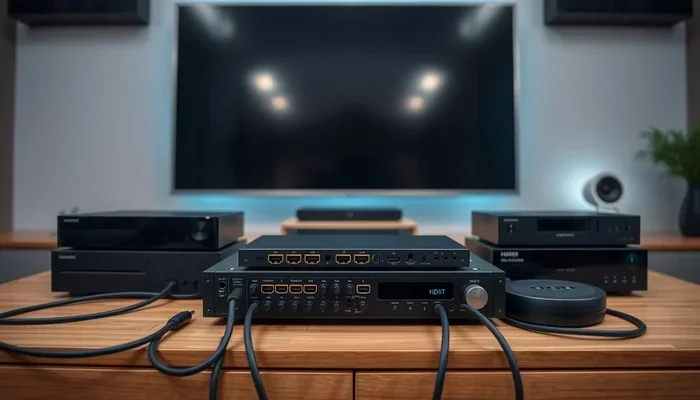
Do you need HDMI for streaming? The short answer is: it depends on your setup. Most modern streaming devices use HDMI for the best quality, but you have options. Whether you are using a streaming stick, a gaming console, or a laptop, there are ways to get your content on screen without a traditional HDMI cable. This guide breaks down every scenario so you can make the right choice for your streaming setup.
Streaming has become the way most people watch their favorite shows, movies, and live content. Whether you are binge-watching on a weekend or hosting a movie night, getting the right connection matters. One question comes up a lot: do you really need HDMI for streaming? The answer is not as simple as yes or no.
HDMI cables are everywhere in modern entertainment setups. They carry both audio and video through a single cable. That makes them incredibly convenient. But not everyone has an HDMI port available, and not every streaming situation requires one. Let us walk through everything you need to know about HDMI for streaming and whether it is the right choice for you.
Key Takeaways
- HDMI is the standard: Most streaming devices rely on HDMI for high-quality audio and video output.
- Alternatives exist: You can stream without HDMI using USB-C, Wi-Fi, or wireless casting options.
- HDMI ARC is a bonus: It lets audio travel back to your sound system, improving your setup.
- Your needs vary: The right choice depends on your TV, streaming device, and what you watch.
- Quality matters: HDMI supports 4K and higher resolutions that other cables may not match.
- Setup simplicity: HDMI plug-and-play makes it the easiest option for most users.
📑 Table of Contents
- What Is HDMI and Why Does It Matter for Streaming?
- Do You Actually Need HDMI for Streaming?
- HDMI Alternatives for Streaming Without HDMI
- How to Choose the Right HDMI Cable for Streaming
- Setting Up Your Streaming Device with HDMI
- Common HDMI Streaming Mistakes to Avoid
- Expert Insights on HDMI and Streaming
- Conclusion
What Is HDMI and Why Does It Matter for Streaming?
HDMI stands for High-Definition Multimedia Interface. It is a cable standard that sends both video and audio signals through one connection. This is a big deal because older setups needed separate cables for sound and picture. HDMI combines them into a single, simple plug.
When you are streaming content from a device like a Roku, Fire Stick, Apple TV, or a gaming console, HDMI is the most common way to connect. It supports high resolutions including 4K and even 8K on newer versions. The latest HDMI 2.1 standard also supports higher frame rates, which matters for smooth gaming and fast-moving video.
How HDMI Carries Both Audio and Video
One of the biggest advantages of HDMI is its ability to carry uncompressed audio and video simultaneously. This means fewer cables, less clutter, and a simpler setup. When you plug in an HDMI cable, you get a clean signal with no need for extra audio wires. For streaming, this is ideal because it keeps things easy.
Most streaming devices come with an HDMI output built in. The Fire TV Stick, Chromecast with Google TV, and Apple TV 4K all use HDMI as their primary connection method. If your TV has an available HDMI port, this is usually the best path forward.
HDMI ARC: A Game Changer for Audio
HDMI ARC stands for Audio Return Channel. It allows your TV to send audio back through the same HDMI cable to a soundbar or home theater system. This is super useful if you want better sound without running extra cables. When you are streaming, HDMI ARC lets you control everything with one remote in many cases.
If you are building a streaming setup at home, look for the ARC label on your TV and sound system ports. Not all HDMI ports support ARC, so check before you buy a cable.
Do You Actually Need HDMI for Streaming?
Here is where it gets interesting. HDMI is the most common way to stream, but it is not the only way. Whether you need it depends on your equipment, your TV, and what kind of streaming you are doing. Let us break this down.
If you have a modern smart TV with built-in apps like Netflix, YouTube, or Disney Plus, you might not need any external device at all. In that case, you do not need HDMI because the streaming happens directly on the TV. But if you are using a separate streaming box or stick, HDMI is almost always required for the best experience.
When HDMI Is Essential
There are situations where HDMI is pretty much non-negotiable. If you want to stream in 4K quality or at high frame rates, HDMI is the way to go. Wireless options and older cables simply cannot match the bandwidth that HDMI provides for top-tier resolution and smooth playback.
Also, if you are using a gaming console like a PlayStation or Xbox for streaming services, HDMI is the standard output. These consoles are designed to work best with HDMI connections. Trying to use alternatives will likely result in lower quality or missing features.
When HDMI Is Not Necessary
There are plenty of cases where you can stream without HDMI. Many laptops and tablets can connect to a TV wirelessly through screen mirroring or casting. If you only watch standard definition content or your TV is older, you might get by with an alternative connection like composite cables or even a USB-C to VGA adapter.
For casual viewers who do not care about 4K or surround sound, going without HDMI is perfectly fine. The streaming quality will still be good, just not as sharp or immersive.
HDMI Alternatives for Streaming Without HDMI
Not every TV has HDMI ports, and not every streaming situation calls for one. Fortunately, there are several alternatives that let you stream content to your screen. Some of these options work surprisingly well for everyday use.
Wireless Streaming Options
Wireless streaming has come a long way. Technologies like Miracast, AirPlay, and Chromecast let you send content from your phone, tablet, or laptop directly to your TV without any cables. You just need both devices to be on the same Wi-Fi network.
For those wondering about wireless streaming quality, it has improved significantly. You can now stream 1080p content with minimal lag. However, 4K wireless streaming can be hit or miss depending on your Wi-Fi strength and the devices involved.
USB-C and DisplayPort Connections
Many modern laptops and tablets use USB-C or DisplayPort outputs. These can connect to a TV with the right adapter. A USB-C to HDMI adapter is a popular and affordable solution. It lets you turn any USB-C device into a streaming source without needing a native HDMI port.
DisplayPort to HDMI adapters work similarly and are common in desktop setups. If you are using a streaming setup with a PC, these adapters give you flexibility without buying a new device.
Older Connection Types
Older TVs may only have composite, component, or SCART inputs. These analog connections can still work with streaming devices if you use the right adapters. The trade-off is lower image quality and no audio through the cable. You would need separate audio cables, which adds complexity to your setup.
For older TVs, an HDMI converter box can bridge the gap. These boxes take an HDMI signal and convert it to older formats. They are a great way to breathe new life into an older television for streaming purposes.
How to Choose the Right HDMI Cable for Streaming
If you decide HDMI is the right choice for your setup, picking the right cable matters. Not all HDMI cables are created equal. The wrong one can limit your streaming quality or cause connection issues.
Understanding HDMI Cable Versions
HDMI cables come in different versions that support different features. Standard HDMI cables handle 1080p content just fine. High Speed HDMI cables support 4K at 30Hz. Premium High Speed cables handle 4K at 60Hz and even HDR content. And the newest Ultra High Speed cables support 4K at 120Hz and 8K resolution.
For most streaming, a Premium High Speed HDMI cable is the sweet spot. It handles everything current streaming devices throw at it without breaking the bank. You do not need to spend a fortune on the most expensive cables for excellent results.
Cable Length and Signal Quality
Longer HDMI cables can sometimes lose signal quality, especially with 4K content. For most living room setups, a 6-foot or 10-foot cable works perfectly. If you need a longer run, look for cables with built-in signal boosters or consider using an HDMI extender.
Cheap cables from unknown brands can be unreliable. Stick with reputable brands and look for the HDMI certification labels on the packaging. A good cable ensures you get the full streaming quality your device is capable of producing.
Setting Up Your Streaming Device with HDMI
Getting started with HDMI streaming is straightforward. Most devices follow a similar setup process. Here is a quick walkthrough for a typical streaming setup.
- Find an available HDMI port on your TV.
- Connect one end of the HDMI cable to your streaming device.
- Plug the other end into the TV port.
- Switch your TV input to the correct HDMI channel.
- Follow the on-screen setup instructions for your device.
- Connect to Wi-Fi and sign in to your streaming apps.
That is it. In just a few minutes, you are up and running. The beauty of HDMI is its plug-and-play simplicity. You do not need technical skills or special tools to get started.
Tips for the Best Streaming Experience
To get the most out of your HDMI streaming setup, keep a few tips in mind. Make sure your HDMI cable is certified for the resolution you want. Update your streaming device firmware regularly. Place your router close to your TV for the best wireless performance if you also use casting. And use HDMI ARC if you want to connect a soundbar or external speakers for better audio.
For those who also game and stream, a good HDMI setup makes a huge difference. Check out our guide on the best laptop for live streaming if you are looking to upgrade your streaming rig.
Common HDMI Streaming Mistakes to Avoid
Even with a simple setup, people make mistakes that hurt their streaming experience. Being aware of these pitfalls can save you frustration and money.
- Buying the wrong cable version: Not all HDMI cables support 4K or HDR. Check what your device needs before you buy.
- Ignoring HDMI port labels: Some TV HDMI ports support ARC or eARC while others do not. Using the wrong port means missing audio features.
- Using a damaged cable: Frayed or bent cables cause signal drops and poor picture quality. Replace them when you notice issues.
- Overlooking firmware updates: Streaming devices need updates for the best performance and compatibility with newer HDMI standards.
- Assuming wireless is always better: Wireless streaming is convenient but HDMI still delivers the most reliable and highest quality connection.
Avoiding these mistakes keeps your streaming setup running smoothly and ensures you get the best picture and sound every time you watch.
Expert Insights on HDMI and Streaming
From a technical standpoint, HDMI remains the gold standard for streaming connections. Industry experts consistently recommend HDMI over wireless or older cable options for the best combination of quality, reliability, and ease of use. The bandwidth capabilities of modern HDMI cables far exceed what wireless solutions can deliver right now.
As streaming services continue to push higher resolutions and better audio formats, HDMI keeps pace. Newer versions like HDMI 2.1 are designed for the future of content. If you are investing in a streaming setup today, HDMI is still the safest and most future-proof choice.
That said, technology evolves quickly. Wireless streaming standards are improving, and new connection types may emerge. For now, HDMI is the backbone of home streaming and will be for years to come.
Conclusion
So, do you need HDMI for streaming? In most cases, yes. HDMI provides the best combination of video quality, audio support, and ease of use. It is the standard connection for nearly every streaming device on the market today. But if your situation calls for it, there are viable alternatives that can get your content on screen without an HDMI cable.
The key is knowing your setup and your needs. If you want the highest quality and simplest experience, go with HDMI. If you have an older TV or prefer a wireless approach, explore the alternatives we discussed. Either way, you can enjoy your favorite shows and movies with the right setup.
Take a moment to check your current equipment and decide what works best for you. A small investment in the right cable or adapter can transform your streaming experience and bring your content to life on the big screen.
Frequently Asked Questions
Can I stream without an HDMI cable?
Yes, you can stream without HDMI using wireless options like AirPlay, Chromecast, or Miracast. You can also use USB-C to HDMI adapters or older cable types with converters. The quality may vary depending on your method and equipment.
Do all smart TVs have HDMI ports?
Most modern smart TVs come with at least two HDMI ports. Some budget or older models may have fewer or none at all. Check the back or side of your TV to see what ports are available before buying a streaming device.
Does HDMI cable quality affect streaming performance?
Yes, the HDMI cable version matters. A certified Premium High Speed cable supports 4K streaming and HDR. Using an old or cheap uncertified cable may limit your resolution or cause connection issues during playback.
What is the difference between HDMI and HDMI ARC?
Standard HDMI carries video and audio from your device to the TV. HDMI ARC adds the ability to send audio back from the TV to a sound system or soundbar. This is useful for streaming setups where you want better sound without extra cables.
Can I use a USB-C to HDMI adapter for streaming?
Absolutely. USB-C to HDMI adapters are widely available and affordable. They work great with laptops, tablets, and phones that support video output. Just make sure your device supports video output over USB-C before purchasing an adapter.
Is wireless streaming as good as HDMI?
Wireless streaming has improved a lot but still cannot match HDMI for consistent quality and reliability. HDMI provides a stable, high-bandwidth connection that handles 4K and HDR without compression or lag. Use wireless for convenience and HDMI for the best quality.