Why Is Displayport to Hdmi Not Working
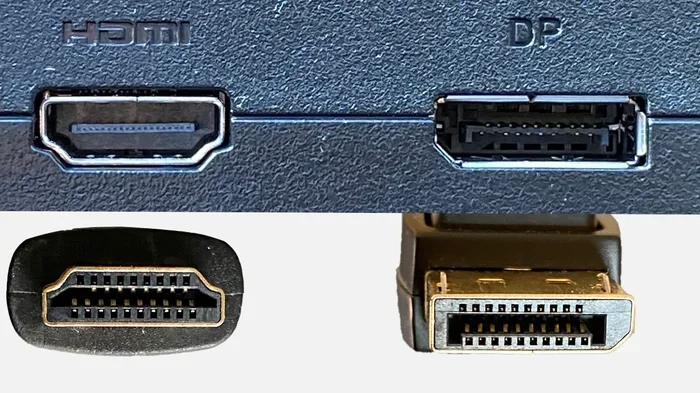
DisplayPort to HDMI not working is a common frustration that affects many users trying to connect external monitors or TVs. The problem usually stems from adapter incompatibility, cable issues, or incorrect display settings on your laptop or PC. This guide walks you through every major cause and practical fix so you can get your screen up and running quickly. You will learn how to identify whether you need an active or passive adapter, check your cable quality, and adjust your operating system settings correctly.
This is a comprehensive guide about Why Is Displayport To Hdmi Not Working.
Key Takeaways
- Adapter Type Matters: Using a passive adapter when your GPU requires active conversion is the most common reason DisplayPort to HDMI fails.
- Check Your Cable First: Damaged or low-quality cables are responsible for a surprising number of connection problems.
- Display Settings Can Cause Issues: Incorrect resolution, refresh rate, or output settings often prevent a proper signal from reaching your HDMI display.
- Driver Updates Help: Outdated graphics drivers frequently cause compatibility issues with DisplayPort to HDMI adapters.
- Audio May Need Separate Attention: DisplayPort to HDMI connections sometimes handle audio differently, requiring manual configuration.
- Hardware Compatibility Is Key: Not all GPUs and monitors play nicely together, especially with older DisplayPort or HDMI versions.
[FEATURED_IMAGE_PLACEHOLDER]
Why Is DisplayPort to HDMI Not Working
You plug in your DisplayPort to HDMI adapter, and nothing happens. No picture. No signal. Just a blank screen staring back at you. It is incredibly frustrating, especially when you are trying to get work done or set up a home theater system. The good news is that this problem is usually easy to fix once you know what to look for.
There are several reasons why your DisplayPort to HDMI connection might fail. Sometimes it is a simple cable issue. Other times, it is a deeper compatibility problem between your graphics card and the adapter. This guide covers every major cause and gives you clear steps to troubleshoot and resolve the issue.
Whether you are using a laptop, a desktop PC, or a dedicated graphics workstation, the principles below apply. You will learn how to diagnose the problem fast and get back to using your external monitor or TV without wasting hours on guesswork.
Common Reasons Why DisplayPort to HDMI Fails
Before you start buying new cables or adapters, it helps to understand what is actually going wrong. Most failures fall into a few clear categories. Let us walk through each one so you can narrow down the cause quickly.
Passive vs Active Adapter Confusion
This is the number one reason people deal with DisplayPort to HDMI not working. A passive adapter simply changes the shape of the connector. It does not convert the signal. Your graphics card outputs a DisplayPort signal, and the passive adapter just reshapes it for the HDMI port.
Here is the problem: some GPUs, especially those from AMD and some Intel integrated graphics, output a DisplayPort signal that is not compatible with HDMI without conversion. You need an active adapter in these cases. An active adapter has built-in circuitry that converts the signal properly.
If you are using a passive adapter and your GPU requires active conversion, nothing will work no matter how good your cable is. Always check your graphics card specifications to see whether you need an active or passive adapter.
Damaged or Low-Quality Cables
A bad cable can cause all kinds of headaches. You might get a flickering screen, no signal at all, or a display that works for a few minutes and then goes black. Cables wear out over time, especially if you bend them frequently or store them improperly.
Cheap cables are especially problematic. They may not support the bandwidth needed for higher resolutions or refresh rates. If your DisplayPort to HDMI cable is old or was included with a cheap adapter, try replacing it with a high-quality certified cable. Look for cables that support the HDMI version and bandwidth your setup requires.
Incorrect Display Settings on Your PC
Sometimes the adapter and cable are perfectly fine, but your computer is not sending the right signal. Windows and macOS both have display settings that control how your graphics card outputs video. If the resolution or refresh rate is set too high for your HDMI display to handle, you may get no picture at all.
For example, if you set your output to 4K at 144Hz but your HDMI monitor only supports 4K at 60Hz, the connection can fail. Dropping the resolution or refresh rate in your display settings often fixes this immediately.
Outdated or Corrupt Graphics Drivers
Your graphics card drivers act as the bridge between your operating system and your hardware. When those drivers are outdated, corrupted, or incompatible with a new adapter, strange things happen. Your DisplayPort to HDMI connection might work one day and fail the next.
Updating your GPU drivers is one of the simplest and most effective fixes. Visit the website of your GPU manufacturer, whether that is NVIDIA, AMD, or Intel, and download the latest drivers for your specific model. After installing, restart your computer and check if the connection works.
Active vs Passive Adapters Explained
Understanding the difference between active and passive adapters is critical to solving DisplayPort to HDMI not working issues. Many people buy the wrong type without realizing it, and then they blame the cable or the monitor.
A passive adapter does not change the signal. It only changes the connector shape. Think of it like a plug adapter for a wall outlet. It does not change the electricity flowing through it. Passive adapters work fine when your GPU supports dual-mode DisplayPort, which means it can output an HDMI-compatible signal directly.
An active adapter has a chip inside that actually converts the DisplayPort signal into an HDMI signal. This is necessary when your GPU does not support dual-mode or when you are connecting to an older HDMI display. Active adapters usually require external power, either through a USB port or a power cable.
Here is a quick way to tell which one you need. If your GPU has DisplayPort 1.2 or higher with dual-mode support, a passive adapter will likely work. If you are not sure, or if a passive adapter fails, try an active adapter instead. It is a cheap and easy test.
How to Check If Your GPU Supports Dual-Mode
Check your graphics card specifications on the manufacturer website. Look for terms like “DisplayPort++” or “dual-mode DisplayPort.” If those terms appear, a passive adapter should work. If they do not, you need an active adapter. This single check solves the problem for a huge number of users who deal with DisplayPort to HDMI connection issues.
Troubleshooting Your DisplayPort to HDMI Cable
If your adapter is the right type, the next thing to check is your cable. Cable problems are surprisingly common and easy to overlook. Let us go through the steps to diagnose and fix cable-related issues.
Start by inspecting the cable ends. Look for bent pins, frayed wiring, or bent connector shells. Even a slightly bent pin can prevent a solid connection. Next, try unplugging and replugging both ends firmly. Sometimes the connection is just loose.
Try a different cable if you have one available. This is the fastest way to rule out a bad cable. If the new cable works, you know the old one was the problem. If neither cable works, the issue is likely the adapter or your PC settings.
Cable Length and Signal Quality
Longer cables can weaken the signal, especially at higher resolutions. If you are using a cable longer than 6 feet, signal degradation becomes a real concern. A shorter, high-quality cable often solves mysterious DisplayPort to HDMI no signal problems. If you must use a long cable, look for one with built-in signal amplification.
Fixing Display Settings and Resolution Conflicts
Sometimes your hardware is perfectly fine, but your computer is just not sending the right output. This section covers the display settings you should check to resolve DisplayPort to HDMI not working issues.
Adjusting Resolution and Refresh Rate
Right-click on your desktop and open your display settings. Look for the resolution and refresh rate options. If your external HDMI monitor is not showing up at all, try lowering the resolution to 1080p and the refresh rate to 60Hz. This combination works with virtually every HDMI display and adapter on the market.
Once the display shows up at lower settings, you can gradually increase the resolution and refresh rate to find what your setup supports. This step-by-step approach helps you identify whether the problem is a settings mismatch or something more serious.
Checking Display Detection in Windows
Go to your display settings and click the “Detect” button if your external monitor is not showing up. Sometimes Windows simply does not recognize the new display right away. Clicking detect forces the system to search for connected displays. If your monitor still does not appear, try a different HDMI port on your display or a different USB port for your active adapter’s power supply.
Audio Problems with DisplayPort to HDMI Connections
One issue that catches many people off guard is audio. You get a working video signal, but no sound comes through your HDMI connection. This happens because DisplayPort handles audio and video differently than HDMI in some cases.
First, check your default audio output device in your operating system sound settings. Make sure your HDMI display is selected as the audio output device, not your speakers or headphones. On Windows, right-click the speaker icon in your taskbar and select your HDMI output.
If you still get no audio, try unplugging and replugging the adapter. Some systems need a fresh connection to recognize the audio device. Updating your audio drivers can also help, especially if you recently updated your graphics drivers and the audio driver got left behind.
When to Replace Your Adapter or Cable
Sometimes the fix is simple: your adapter or cable is just too old or damaged to work properly anymore. Here are some signs that it is time for a replacement.
- Your adapter works intermittently, connecting sometimes and failing other times
- You notice flickering or static on the screen that gets worse over time
- The adapter gets unusually hot during use
- You have tried multiple cables and the problem persists
- Your adapter is several years old and does not support newer HDMI or DisplayPort standards
When shopping for a new adapter, look for one that supports the HDMI version your monitor or TV uses. For most modern setups, an adapter that supports HDMI 2.0 or higher will give you the best results. Avoid adapters that look flimsy or lack brand recognition. A quality adapter from a reputable brand will save you from a lot of frustration.
Expert Tips to Prevent Future Connection Issues
Once you get your DisplayPort to HDMI connection working, you want to keep it that way. These expert tips help you avoid problems in the future.
- Always buy adapters and cables from reputable brands. Cheap knockoffs are the biggest cause of mysterious connection failures.
- Keep your graphics drivers up to date. Set a reminder to check for updates once a month.
- Store your cables coiled loosely, never tightly wound. Tight winding damages the internal wiring over time.
- When unplugging your adapter, grip the connector body, not the cable. Pulling on the cable weakens the connection point.
- If you use a laptop, make sure it is plugged into power when using an active adapter. Some adapters draw power from the laptop and can drain your battery or cause instability on battery power alone.
Following these simple habits keeps your connections stable and your displays working reliably. Most connection problems are preventable with the right equipment and a little care.
Conclusion
DisplayPort to HDMI not working is almost always caused by one of a handful of common issues. Whether it is the wrong type of adapter, a bad cable, incorrect display settings, or outdated drivers, the fix is usually straightforward once you know what to check. Start with the simplest explanations, like cable connections and display settings, and work your way up to more complex causes like adapter type and driver updates.
The key takeaway is to match your adapter type to your GPU’s capabilities. A passive adapter works with dual-mode DisplayPort GPUs, while non-dual-mode GPUs need an active adapter. Get that right, and most problems disappear. Pair that with a quality cable and up-to-date drivers, and your DisplayPort to HDMI connection will be reliable for years to come.
Do not let a blank screen ruin your productivity or your entertainment. Use the steps in this guide to diagnose and fix the problem today. Once your external display is working again, you will wonder why you ever worried about it.
Why Is My USB Mouse Not Working On My Laptop?
If you are dealing with connectivity issues on your laptop, you might also encounter problems with USB devices like a mouse. Just like with DisplayPort to HDMI not working, a USB mouse can stop responding for reasons like driver issues, port problems, or hardware incompatibility. Check out this guide on why your USB mouse might not be working on your laptop for troubleshooting tips that apply to many peripheral connection problems.
Why Is Mouse Not Showing On Laptop?
Sometimes when external devices fail to connect, it is easy to assume the worst. If your mouse is not appearing on your laptop screen, similar troubleshooting steps apply. Whether it is a USB device or a display connection, the root causes often overlap. Learn more about why your mouse might not be showing on your laptop and how to bring it back online quickly.
Why Is My Mouse Not Connecting To My Laptop?
Connection failures are frustrating regardless of the device. If you have experienced the same helpless feeling when your DisplayPort to HDMI adapter fails as you have when a mouse will not connect, you are not alone. This article on why your mouse is not connecting to your laptop walks through the same diagnostic approach that works for display connections too.
Frequently Asked Questions
Do I need an active or passive DisplayPort to HDMI adapter?
It depends on your graphics card. If your GPU supports dual-mode DisplayPort (also called DisplayPort++), a passive adapter works. If it does not, you need an active adapter with built-in signal conversion. Check your GPU specifications to be sure.
Why does my DisplayPort to HDMI adapter work sometimes but not others?
This usually points to a loose connection, a damaged cable, or an overheating adapter. Try reseating both ends of the cable and check if the adapter feels hot to the touch. Intermittent failures are often caused by worn-out cables or faulty adapter hardware.
Can I use a DisplayPort to HDMI cable instead of an adapter?
Yes, DisplayPort to HDMI cables are available and work the same way as an adapter with a cable attached. They are convenient for permanent setups. Make sure the cable supports the resolution and refresh rate you need.
Why is there no sound when I use DisplayPort to HDMI?
Check your default audio output device in your sound settings and make sure your HDMI display is selected. Some systems need you to unplug and replug the adapter before they recognize the HDMI audio output.
Does cable length affect DisplayPort to HDMI performance?
Yes, longer cables can weaken the signal, especially at higher resolutions. Keep your cable under 6 feet for best results. If you need a longer run, use a cable with signal amplification or add an active repeater.
How do I update my graphics drivers to fix DisplayPort to HDMI issues?
Visit your GPU manufacturer website, download the latest driver for your specific model, and install it. Restart your computer after the update. Fresh drivers often resolve compatibility issues with adapters and external displays.
Frequently Asked Questions
What is Why Is Displayport To Hdmi Not Working?
Why Is Displayport To Hdmi Not Working is an important topic with many practical applications.