How to Check Motherboard Damage from Gpu the Ultimate Guide with Tips from My Personal Experience
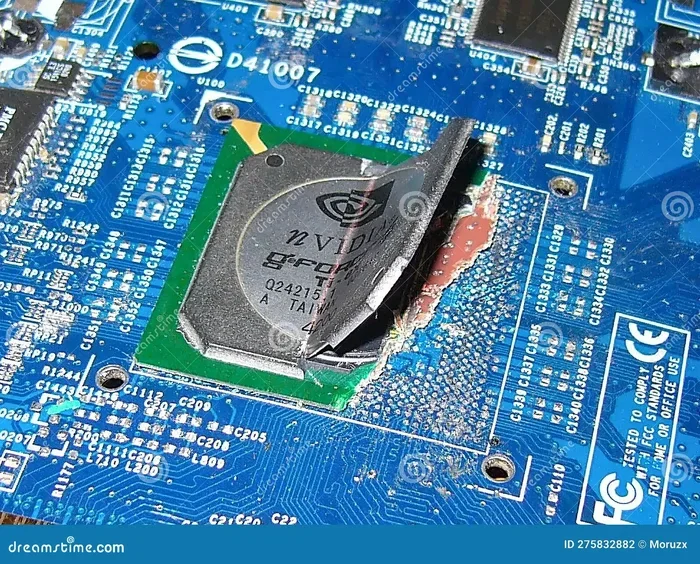
Checking motherboard damage from a GPU is essential for every PC user. A faulty graphics card can fry your motherboard’s PCIe slot, capacitors, and power circuits. In this guide, you will learn the visual signs, diagnostic steps, and personal tips to identify and prevent GPU-related motherboard damage before it becomes a costly repair.
Key Takeaways
- Visual Inspection Matters: Burn marks, bulging capacitors, and melted ports are clear signs of GPU damage to the motherboard.
- System Symptoms Are Clues: Random crashes, display artifacts, and failure to POST often point to motherboard damage from the GPU.
- Diagnostic Tools Help: Software monitoring and POST beep codes can reveal hidden damage early.
- Prevention Saves Money: Proper GPU installation, power management, and cooling reduce the risk of motherboard damage significantly.
- Professional Help Is Sometimes Needed: Severe damage may require a technician or motherboard replacement.
📑 Table of Contents
- How to Check Motherboard Damage from GPU: The Ultimate Guide
- Why Does GPU Damage Affect the Motherboard?
- Common Symptoms of Motherboard Damage from GPU
- How to Physically Inspect Your Motherboard for GPU Damage
- Software and Diagnostic Methods to Detect Damage
- My Personal Experience and Lessons Learned
- Prevention Tips to Protect Your Motherboard from GPU Damage
- When to Seek Professional Help
- Conclusion
How to Check Motherboard Damage from GPU: The Ultimate Guide
Your GPU and motherboard work together every single day. They share power. They exchange data. And when something goes wrong with your graphics card, the motherboard often takes the hit first. I learned this the hard way after a GPU surge fried my PCIe slot. That experience pushed me to study exactly how to check motherboard damage from GPU failures. This guide covers everything I wish I knew back then.
Whether you are a gamer, a content creator, or a casual user, understanding GPU-related motherboard damage can save you hundreds of dollars. You will learn what to look for, how to diagnose the problem, and what steps to take next. Let us dive right in.
Why Does GPU Damage Affect the Motherboard?
The GPU connects directly to the motherboard through the PCIe slot. It draws significant power from the PSU through dedicated cables. When something goes wrong with the graphics card, the damage can travel backward through that connection. Here is why this happens.
Power Surges and Voltage Spikes
A GPU that draws too much power can overload the motherboard’s voltage regulation modules. These tiny circuits manage power delivery to every component. When they fail, the damage spreads. I have seen cases where a faulty GPU caused the entire VRM section on the motherboard to burn out.
Short Circuits
If your GPU has a damaged component inside, it can create a short circuit. This sends an unexpected electrical current through the PCIe slot and into the motherboard traces. Even a brief short can permanently damage sensitive circuits on the board.
Overheating and Thermal Damage
GPUs run hot. Without proper cooling, heat builds up and radiates onto nearby motherboard components. Over time, this thermal stress weakens solder joints and degrades capacitors. Your motherboard can suffer silent damage that shows up weeks or months later.
Common Symptoms of Motherboard Damage from GPU
Before you open your PC case, your system will often tell you something is wrong. Here are the most common symptoms I have encountered and seen reported online.
Random System Crashes and Freezes
If your PC shuts down or freezes during heavy GPU tasks like gaming or video rendering, this is a red flag. The motherboard may be struggling to deliver stable power to the GPU. Frequent crashes under load often indicate deeper hardware problems.
Display Artifacts and Glitches
Strange lines, flickering colors, or random shapes on your screen are classic signs. These artifacts can mean the GPU itself is failing or that the PCIe slot on the motherboard is damaged. I always check both possibilities before replacing any part.
Failure to POST or Boot
When you turn on your PC and nothing happens, that is terrifying. No display output, no beep codes, no fans spinning properly. This complete failure to POST often points to severe motherboard damage. A dead GPU can prevent the entire system from initializing.
Burning Smell or Visible Damage
If you smell something burning near your PCIe slot, stop using the PC immediately. A burning smell means something is overheating or melting. Visible scorch marks or discolored areas on the motherboard are signs of serious electrical damage.
USB and Peripheral Malfunctions
Your motherboard controls many functions beyond just the GPU. If USB ports stop working, audio fails, or your mouse behaves erratically after a GPU issue, the motherboard may be affected. I once had a case where a GPU problem caused my system to fail to recognize the RAM properly, which led me down a rabbit hole of troubleshooting.
How to Physically Inspect Your Motherboard for GPU Damage
Visual inspection is your first and most important diagnostic step. You do not need expensive tools. Just a good light, a magnifying glass, and a careful eye. Here is exactly what to look for.
Step 1: Power Down and Unplug Everything
Before you touch anything, turn off your PC. Unplug the power cable. Remove the battery if you are working on a laptop. Static electricity can cause additional damage, so consider wearing an anti-static wrist strap.
Step 2: Remove the GPU
Carefully unscrew and remove your graphics card from the PCIe slot. If you have trouble, check your motherboard manual for the proper removal procedure. I always recommend checking how to safely remove components before pulling anything out. Gentle pressure and patience are your best friends here.
Step 3: Examine the PCIe Slot
Look closely at the PCIe slot where your GPU sat. You are searching for these specific signs:
- Burn marks or discoloration on the slot edges
- Bent or broken pins inside the slot
- Melted or warped plastic around the connector
- Scorch lines running along the motherboard traces
Any of these signs means your motherboard has suffered electrical damage from the GPU. Even if the slot looks normal from the outside, internal trace damage may still exist.
Step 4: Check the Capacitors
Capacitors are small cylindrical components near the PCIe slot and power delivery areas. Look for:
- Bulging tops instead of flat surfaces
- Leaking fluid around the base
- Cracks or crusty residue
Damaged capacitors are a clear indicator of power regulation failure. This often results from GPU-related power issues. When capacitors fail, they can cascade damage to other motherboard components.
Step 5: Inspect the VRM Area
The Voltage Regulation Module area is usually near the CPU socket but can also be affected by GPU power draw. Look for:
- Discoloration or dark spots on the PCB
- Lifted pads where components connect
- Warpped or damaged MOSFETs
The VRM handles power delivery for your CPU, but a GPU power surge can ripple through the entire power system. I have personally seen VRM components damaged after a GPU short circuit.
Software and Diagnostic Methods to Detect Damage
Not all motherboard damage is visible. Sometimes the damage is internal and hidden from sight. Software diagnostics can help you uncover these hidden problems.
Check System Logs for Errors
Windows Event Viewer and Linux system logs record hardware errors. Look for entries related to PCIe errors, power management failures, or driver crashes. Frequent PCIe bus errors often indicate a damaged slot or connection.
Use GPU Monitoring Software
Tools like GPU-Z and HWiNFO can show you voltage readings, temperature data, and error counts. If your GPU reports irregular voltage output, it may be feeding unstable power back through the PCIe slot to the motherboard.
Run Memory Diagnostics
GPU damage can sometimes corrupt memory operations. I recommend running Windows Memory Diagnostic or MemTest86. If you get consistent errors, the motherboard’s memory controller may be damaged. This is something I noticed after my GPU incident affected my system’s RAM performance and stability.
Listen for POST Beep Codes
If your motherboard has a speaker connected, listen carefully during boot. Different beep patterns indicate different hardware failures. Continuous beeps or no beeps at all often point to motherboard or GPU issues. Check your motherboard manual for the specific beep code meanings.
Try the GPU in Another System
This is one of the best diagnostic steps. Install your GPU in a known-working motherboard. If the second system also shows problems, your GPU is the culprit. If the second system works fine, your original motherboard may be damaged.
My Personal Experience and Lessons Learned
I want to share a real story from my own experience because it taught me more than any guide ever could. A few years ago, I installed a new high-end GPU in my mid-range system. Everything worked fine for about two weeks. Then one evening, my screen went black and I smelled something electrical.
I opened the case and found the PCIe slot was slightly discolored. The GPU itself had one burnt-out power module. I replaced the GPU, thinking the problem was solved. But the system kept crashing and displaying artifacts. After weeks of troubleshooting, I discovered the motherboard’s PCIe slot had sustained internal damage.
That experience taught me three critical lessons:
- Always inspect after any electrical incident. Even if the system seems to work, hidden damage can linger.
- Do not reuse a GPU that caused a system failure. A damaged GPU can destroy a new motherboard too.
- Check your power supply. An inadequate or failing PSU is often the root cause of GPU-related motherboard damage.
These lessons saved me from repeating the same expensive mistake. I now check every component carefully before and after installation.
Prevention Tips to Protect Your Motherboard from GPU Damage
Prevention is always better than cure. Here are practical steps you can take to protect your motherboard from GPU-related damage.
Use a Quality Power Supply
Your PSU is the heart of your PC’s power delivery. A cheap or underpowered PSU can send irregular voltage to your GPU and motherboard. Invest in a reliable unit from a reputable brand. Look for at least an 80 Plus Gold rating.
Ensure Proper GPU Seating
A loose GPU can cause intermittent connection issues that lead to arcing and heat buildup. Make sure your graphics card is firmly seated in the PCIe slot. The retention clip should click into place securely.
Monitor Temperatures Regularly
Keep an eye on your GPU temperatures using monitoring software. Temperatures above 85 degrees Celsius under load are a warning sign. Clean your fans and heatsinks regularly to maintain proper airflow.
Use a Surge Protector or UPS
Power surges are one of the leading causes of GPU and motherboard damage. A quality surge protector or uninterruptible power supply can absorb voltage spikes before they reach your components.
Handle Components with Care
When installing or removing your GPU, hold it by the edges. Avoid touching the contacts or circuitry. Static discharge from your hands can damage sensitive components on both the GPU and motherboard.
Keep Your System Clean
Dust buildup restricts airflow and causes overheating. Blow out dust from your case, fans, and components every few months. A clean system runs cooler and lasts longer.
When to Seek Professional Help
Not all motherboard damage is repairable at home. Here are situations where professional help is the smart choice:
- Visible burn damage across multiple motherboard components
- Lifted traces or damaged PCB layers that require specialized repair equipment
- Persistent system failures even after replacing the GPU
- Warranty considerations where DIY repair might void your coverage
A qualified technician can perform board-level repairs that go beyond simple visual inspection. They have the tools and expertise to trace damaged circuits and replace individual components. If you are not comfortable opening your PC or diagnosing hardware issues, there is no shame in seeking professional help.
Sometimes the cost of repair exceeds the value of the motherboard. In those cases, replacement becomes the most practical option. I always weigh repair costs against the price of a new board before making a decision.
Conclusion
Checking motherboard damage from your GPU does not have to be overwhelming. Start with a careful visual inspection. Look for burn marks, bulging capacitors, and discolored slots. Use software diagnostics to uncover hidden issues. And most importantly, learn from personal experience like I did.
Your GPU and motherboard are deeply connected. Damage to one often affects the other. By understanding the warning signs and taking preventive steps, you can protect your investment and keep your system running smoothly. The key is to act quickly when you notice symptoms. Early detection saves money, time, and frustration.
Take the time to inspect your hardware regularly. Stay proactive about cooling and power delivery. Your motherboard will thank you with years of reliable performance.
Frequently Asked Questions
Can a bad GPU damage a motherboard?
Yes, a faulty GPU can absolutely damage a motherboard. Power surges, short circuits, and overheating from a malfunctioning graphics card can harm the PCIe slot, VRM circuits, and other motherboard components. Always remove a problematic GPU immediately to prevent further damage.
How do I know if my PCIe slot is damaged?
Signs of a damaged PCIe slot include burn marks, discoloration, bent pins, and the GPU not being recognized by the system. You may also experience random crashes or display artifacts. Visual inspection and diagnostic software can help confirm slot damage.
What causes GPU-related motherboard damage?
The most common causes are power surges from a failing PSU, short circuits within the GPU, overheating due to poor cooling, and improper GPU seating. A low-quality or inadequate power supply is often the hidden culprit behind GPU-related motherboard failures.
Is motherboard damage from a GPU covered by warranty?
This depends on your warranty terms and the cause of damage. Most manufacturers exclude damage caused by third-party components or power issues. Check your warranty documentation carefully and contact the manufacturer for specific guidance on GPU-related damage claims.
Can I still use my PC if the motherboard has minor GPU damage?
It is not recommended. Even minor damage can worsen over time and cause cascading failures. A damaged PCIe slot or VRM may work intermittently but can fail completely when you least expect it. Address the issue promptly to avoid losing your entire system.
How can I prevent GPU damage to my motherboard?
Use a quality power supply with proper wattage, ensure your GPU is firmly seated, monitor temperatures regularly, use a surge protector, and keep your system clean. These simple preventive steps significantly reduce the risk of GPU-related motherboard damage.