How to Install an Ssd in Your Pc Complete Step by Step Guide
Our guide walks you through how to install an SSD in your PC with clear, simple steps. You will learn what tools you need, how to physically install the drive, and how to set it up for the best performance. This guide covers both NVMe and SATA SSDs so you can upgrade your storage with confidence.
Upgrading your PC with a new solid state drive is one of the best things you can do. Whether you are tired of slow boot times or need more storage space, installing an SSD in your PC can transform your experience. This guide breaks everything down into easy, bite sized steps.
A solid state drive, or SSD, works much faster than an old hard disk drive. Your PC will feel like new again. Games load quicker. Programs open instantly. And your whole system runs smoother. The best part? You do not need to be a tech expert. This step by step guide makes it easy for anyone.
We will cover everything from the tools you need to the final setup. By the end, you will know exactly how to install an SSD in your PC and get it running right away. Let us get started.
Key Takeaways
- Easy Upgrade: Installing an SSD in your PC is simpler than you think and takes under 30 minutes.
- Big Performance Boost: An SSD makes your PC boot faster and apps load in seconds.
- Two Main Types: NVMe and SATA SSDs offer different speeds and fit different slots on your motherboard.
- No Tech Degree Needed: With the right guide and a few basic tools, anyone can do this.
- Data Safety Matters: Always back up your files before swapping in a new drive.
- Setup Is Key: Properly initializing and formatting your new SSD ensures it works flawlessly.
📑 Table of Contents
Why You Should Install an SSD in Your PC
Before we dive into the steps, let us talk about why an SSD upgrade matters so much. Your old hard drive has moving parts inside. It spins and clicks while it reads data. An SSD has no moving parts. It uses flash memory instead. This means faster speeds and better reliability.
Here are some real benefits you will notice right away:
- Faster boot times: Your PC starts in seconds instead of minutes.
- Quicker app launches: Programs open almost instantly.
- Better file transfer speeds: Moving large files takes a fraction of the time.
- Improved gaming performance: Games load faster and run smoother.
- More durability: No moving parts means less chance of damage.
If you have been putting off a storage upgrade, now is the perfect time. An SSD is the single biggest improvement you can make to an older PC. Trust us, once you switch, you will never go back to a slow hard drive.
What You Need Before You Start
Getting ready is the first step. You do not need fancy tools or special skills. Just gather a few things and you are good to go.
Tools and Materials
- A Phillips head screwdriver — this is the only tool you really need.
- Your new SSD — make sure it is the right type for your PC.
- A USB drive or external hard drive (optional) — for backing up data.
- A small tray or bowl — to keep your screws safe.
- An anti static wrist strap (optional) — it helps protect your components.
Choosing the Right SSD
Not all SSDs are the same. There are two main types you should know about. NVMe SSDs plug into an M 2 slot on your motherboard. They are super fast and compact. SATA SSDs connect through a wider cable and are a bit slower but still much faster than old hard drives.
Check your motherboard manual to see what slots you have. If your PC has an M 2 slot, an NVMe drive is the way to go. For most people, a 500GB or 1TB SSD hits the sweet spot between price and storage.
Back Up Your Data
This is an important step many people skip. Before you open your PC case, back up your important files. You can use a USB drive, an external hard drive, or cloud storage. While the installation process is safe, it is always better to be careful with your data.
Step by Step Guide to Install an SSD in Your PC
Now for the fun part. Follow these steps carefully and you will have your new SSD up and running in no time.
Step 1: Power Down and Unplug Your PC
Turn off your computer completely. Do not just put it to sleep. Shut it down fully. Then unplug the power cable from the back of the unit. This is a safety first rule. You do not want any power running through the system while you work inside.
Press and hold the power button for about five seconds after unplugging. This drains any leftover electricity from the components. It is a small step that makes a big difference for safety.
Step 2: Open Your PC Case
Most desktop cases have side panels that slide off or twist loose. Lay your PC on a flat surface with the open side facing you. Use your Phillips screwdriver to remove any screws holding the panel in place.
Once the panel is off, set it aside gently. You should now see all the internal components of your PC. Take a moment to get familiar with the layout. Find your motherboard, power supply, and existing drives.
Step 3: Locate the M 2 Slot or SATA Bay
This is where you need to know what type of SSD you bought. Look for a thin horizontal slot on your motherboard. It is called an M 2 slot. It is usually labeled on the board itself. If you have a SATA SSD, look for an empty drive bay or a spare SATA port.
Many modern motherboards have multiple M 2 slots. Check your motherboard manual to find the best one. Some slots run at different speeds, so pick the one that supports the fastest transfer rate for your drive.
Step 4: Install the SSD
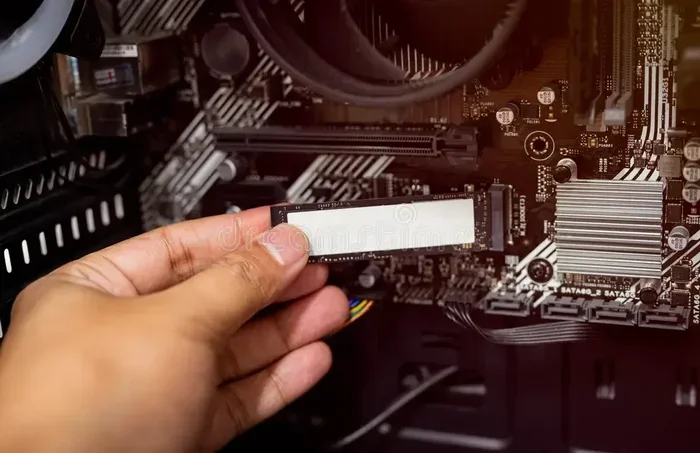
For an NVMe M 2 SSD, gently insert the drive at a 30 degree angle into the M 2 slot. Push it down firmly until it sits flat. Then use the small screw that came with your motherboard to secure the drive in place. Do not overtighten. Just snug is fine.
For a SATA SSD, slide it into an empty drive bay and secure it with screws. Then connect a SATA data cable from the drive to your motherboard. Also connect a SATA power cable from your power supply. Make sure both connections are firm and secure.
If you are unsure about which slot or bay to use, check out our detailed guide on how to install an M 2 NVMe SSD in a PC for more visual tips and guidance.
Step 5: Close the Case and Reconnect
Once the SSD is secured, put the side panel back on. Reconnect the power cable. Plug in your monitor, keyboard, and mouse. You are now ready to power on your PC.
Press the power button and let your PC boot up. If everything went well, you should see your new drive recognized in the system. If you do not see it yet, do not worry. We will set it up in the next section.
Setting Up Your New SSD
Physical installation is only half the battle. You also need to set up the drive so your PC can use it properly. This part is just as important.
Initialize the Drive
When you first connect a new SSD, Windows may ask you to initialize it. If it does not, you can do it manually. Right click the Start button and select Disk Management. You will see your new drive listed there, usually as unallocated space.
You will get a prompt asking you to initialize the disk. Choose GPT (GUID Partition Table) for modern systems. This is the standard for most PCs today. Click OK and let it do its thing.
Format and Partition the Drive
After initialization, you need to format the drive and create a partition. Right click on the unallocated space and select New Simple Volume. Follow the on screen prompts. You can choose the drive letter and format it as NTFS for Windows.
Once formatted, your new SSD is ready to use. You can now move files, install programs, or even set it as your main boot drive. If you want to clone your old drive onto the new one, use a cloning tool like Macrium Reflect or Clonezilla.
For detailed instructions on getting a new SSD ready, check out our guide on how to set up a new NVMe SSD. It covers formatting, partitioning, and more in depth.
Optimize Your SSD for Best Performance
After setup, there are a few things you can do to get the most out of your SSD. Enable TRIM in Windows. This helps the drive maintain its speed over time. Go to Settings, then System, then Storage, and turn on Storage Sense. This keeps your drive running smoothly.
Also, avoid filling your SSD to 100 percent. Leave at least 10 to 15 percent free space. This gives the drive room to manage data efficiently. And do not worry about defragmenting your SSD. Unlike old hard drives, SSDs do not need it. In fact, Windows automatically disables defrag for SSDs.
Common Mistakes to Avoid
Even with a great guide, mistakes can happen. Here are some common errors to watch out for.
- Forgetting to back up data: Always save your important files first. It takes a few minutes and saves you a lot of stress.
- Overtightening screws: SSDs do not need a tight grip. Snug is enough. Too much force can damage the drive or motherboard.
- Using the wrong slot: Not all M 2 slots support NVMe speeds. Check your motherboard manual to avoid slow performance.
- Skipping the initialization step: A new drive will not work properly without being initialized and formatted first.
- Forgetting to connect power: For SATA SSDs, both data and power cables must be connected. Missing either one means the drive will not work.
Take your time and follow each step carefully. Rushing through the process is the number one cause of problems. Slow and steady gets the job done right.
When to Seek Professional Help
Most people can handle an SSD installation without any issues. But sometimes, things do not go as planned. If your PC does not recognize the new drive after following all the steps, do not panic. Double check your connections first. Make sure the drive is seated properly and all cables are firm.
If you still have trouble, it may be worth consulting a professional. Some PC repair shops will install an SSD for a reasonable fee. And if you are working on a laptop, the process can be trickier. Our guide on how to install an NVMe SSD in a PC offers extra tips for those tricky situations.
Final Thoughts
Installing an SSD in your PC is one of the most rewarding upgrades you can make. It is affordable, it is fast, and the results are immediate. Your PC will feel faster, smoother, and more responsive than it has in years.
Follow the steps in this guide carefully and you will be up and running in under 30 minutes. Remember to back up your data, handle your components gently, and take your time. Once your new SSD is up and running, you will wonder why you did not do it sooner.
Upgrading your storage is a small investment with huge returns. Your PC will thank you every single day. Now go ahead and give your computer the speed boost it deserves.
Frequently Asked Questions
Can I install an SSD myself or do I need a professional?
Absolutely, you can install an SSD yourself. The process is straightforward and only requires a basic screwdriver. Most people complete the installation in under 30 minutes with no professional help needed.
What is the difference between NVMe and SATA SSDs?
NVMe SSDs connect directly to the motherboard through an M 2 slot and offer much faster speeds. SATA SSDs use a wider cable connection and are slower but still significantly faster than old hard drives. For most users, NVMe is the better choice.
Do I need to format a new SSD before using it?
Yes, a new SSD needs to be initialized and formatted before you can use it. Windows will usually prompt you to do this. If it does not, you can use the Disk Management tool to initialize and format the drive manually.
Can I keep my old hard drive and add the SSD alongside it?
Yes, you can absolutely keep your old hard drive and add an SSD at the same time. Many people use the SSD for their operating system and programs while keeping the old drive for storage. This gives you the best of both worlds.
How long does it take to install an SSD in a PC?
The physical installation takes about 10 to 15 minutes. Setting up and formatting the drive adds another 10 to 15 minutes. So plan for about 30 minutes total from start to finish.
Will installing an SSD erase my existing data?
No, installing a new SSD does not erase your existing data. Your old drive stays untouched. However, if you plan to clone your old drive onto the new SSD, you should back up your data first just to be safe.
=== CONCLUSION ===
Installing an SSD in your PC is easier than you think and one of the best upgrades you can make. With just a screwdriver and this guide, you can transform your computer’s speed and performance. Follow each step carefully, back up your data, and enjoy the incredible difference a solid state drive makes. Your PC is about to feel brand new again.