How to Check Ram on Pc

Learning how to check RAM on your PC is quick and easy. You can use built-in Windows tools like Task Manager and System Information, or check your physical RAM sticks directly. This guide walks you through every method so you can find your memory details in minutes.
Your PC’s RAM plays a huge role in how fast everything runs. Whether you are gaming, editing videos, or just browsing the web, memory matters a lot. But do you actually know how much RAM your PC has? Many people use their computers every day without ever checking this simple detail. The good news is that checking your RAM is super easy. You do not need to be a tech expert to do it.
In this guide, we will show you every way to check RAM on PC. You will learn quick methods using built-in Windows tools. We will also cover how to physically inspect your RAM sticks. By the end, you will know exactly what is inside your machine. Let us get started!
Key Takeaways
- Task Manager: The fastest way to see how much RAM your PC is using right now.
- System Information: Gives you detailed specs like RAM type and speed.
- Command Prompt: A powerful method that shows exact memory details in seconds.
- Physical Check: Opening your PC case lets you see and count your actual RAM sticks.
- Third-Party Tools: Apps like CPU-Z provide deep RAM diagnostics and speed info.
- Regular Checks: Monitoring your RAM helps keep your PC running smooth and fast.
📑 Table of Contents
- Why Checking Your RAM Matters
- Method 1: Use Task Manager to Check RAM
- Method 2: Check RAM Using System Information
- Method 3: Use Command Prompt for Detailed RAM Info
- Method 4: Physically Check Your RAM Sticks
- Method 5: Use Third-Party Tools for Deep RAM Analysis
- How to Check RAM on a Laptop vs Desktop PC
- Common RAM Problems and How to Fix Them
- How Much RAM Do You Actually Need?
- Conclusion
Why Checking Your RAM Matters
Before we dive into the methods, let us talk about why this matters. RAM is your computer’s short-term memory. It handles everything you do right now. When you open too many programs, your RAM gets full. This makes your PC slow and laggy. Knowing your RAM amount helps you understand your PC’s limits.
Here are a few reasons you should check your memory regularly:
- Performance issues: Low RAM causes slow startups and freezing.
- Upgrade planning: You need to know your current RAM before adding more.
- Compatibility checks: Different programs need different amounts of memory.
- Troubleshooting: Finding out if RAM is the problem saves time.
- Gaming: Modern games need at least 8GB to 16GB of memory to run well.
If your PC feels sluggish, checking your RAM is the first step. It takes only a few minutes and can reveal a lot about your system’s health.
Method 1: Use Task Manager to Check RAM
The easiest and fastest way to check RAM on PC is through Task Manager. Every Windows PC has this tool built in. It shows you real-time memory usage and other useful details.
Step-by-Step Guide
- Press Ctrl + Shift + Esc on your keyboard. This opens Task Manager directly.
- Click on the Performance tab at the top.
- Select Memory from the left sidebar.
- Look at the top-right corner. You will see your total RAM listed there.
Task Manager also shows you how much RAM you are using right now. The graph at the bottom moves in real time. If it stays near the top, your PC needs more memory. This is a great quick check you can do anytime.
Quick Tip: You can also right-click your taskbar and select Task Manager. This is the fastest way to open it.
What the Numbers Mean
Task Manager shows several pieces of RAM information. The In Use number tells you how much memory is active. The Available number shows free memory. The Committed number includes memory that is reserved. Together, these numbers give you a clear picture of your PC’s memory health.
Method 2: Check RAM Using System Information
Task Manager gives you a quick overview. But if you want detailed specs, System Information is the way to go. This tool shows your RAM type, speed, and total capacity. It is perfect when you want to know exactly what kind of memory your PC has.
How to Open System Information
- Press the Windows key on your keyboard.
- Type System Information in the search bar.
- Click on the app when it appears.
- Look for the Installed Physical Memory (RAM) section.
Here you will find the total amount of RAM installed. The tool also shows you the manufacturer and part number in some cases. This is very helpful when you want to upgrade your PC RAM later.
Expert Insight: System Information also shows your page file size. This is virtual memory your PC uses when physical RAM runs low. If your page file is very large, you might need more physical memory.
Checking RAM Speed and Type
System Information gives you the basics. But for RAM speed and type details, you may want a third-party tool. We will cover that in Method 5. For now, System Information is enough to answer the question, “How much RAM do I have?”
Method 3: Use Command Prompt for Detailed RAM Info
Command Prompt might sound scary, but it is actually very simple. This method gives you precise details about your memory. It works on all versions of Windows.
Step-by-Step Instructions
- Press Windows key + R to open the Run dialog.
- Type cmd and press Enter.
- In the black window, type wmic memorychip get capacity, speed, manufacturer and press Enter.
The screen will display your RAM details in a clean table format. You will see the capacity in bytes, the speed in MHz, and the manufacturer name. You can convert the capacity to GB by dividing by 1,073,741,824.
This method is especially useful when you want to check each individual RAM stick. If you have two sticks installed, Command Prompt will list both separately. This helps you spot any mismatches or problems.
Quick Tip: You can also type systeminfo in Command Prompt. This gives you a full system report that includes your RAM amount.
Method 4: Physically Check Your RAM Sticks
Sometimes the best way to check RAM is to look at it directly. This method works great if you want to know how many sticks you have or if you are planning an upgrade. Just make sure your PC is turned off and unplugged before you open the case.
How to Open Your PC Safely
- Shut down your PC completely.
- Unplug the power cable from the wall.
- Press the power button for 5 seconds to drain any remaining power.
- Open the side panel of your PC case.
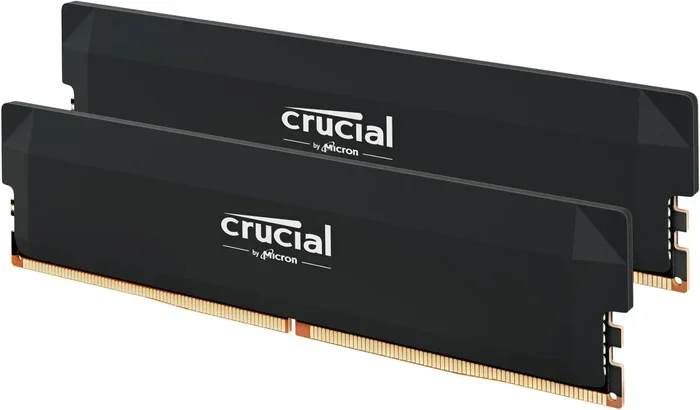
Once inside, look for the long rectangular sticks plugged into the motherboard. These are your RAM modules. They usually have metal heatsinks on top. You can count them and check the labels printed on each stick.
The label will show the capacity (like 8GB), the type (like DDR4), and the speed (like 3200MHz). Writing this down is a great idea before you buy any upgrades.
Common Mistake: Do not touch the gold connectors on the RAM sticks. Oils from your fingers can cause connection problems. Hold the sticks by the edges only.
What to Look For on Your RAM Sticks
When you inspect your physical RAM, pay attention to these details:
- Capacity: How much memory each stick holds (4GB, 8GB, 16GB, etc.).
- Type: DDR3, DDR4, or DDR5. Each type is different and not interchangeable.
- Speed: Measured in MHz. Higher numbers mean faster memory.
- Slots used: Count how many slots are filled and how many are empty.
This information is gold when you want to upgrade RAM on your PC. You will know exactly what to buy and where to put it.
Method 5: Use Third-Party Tools for Deep RAM Analysis
Built-in Windows tools are great, but third-party apps give you even more detail. These tools can show your RAM timings, XMP profiles, and real-time performance data. They are free and very easy to use.
CPU-Z: The Best Free RAM Checker
CPU-Z is one of the most popular free tools for checking RAM. It gives you deep technical details in a clean interface. Here is how to use it:
- Download CPU-Z from the official website.
- Install and open the app.
- Click on the Memory tab to see RAM type, size, and speed.
- Click on the SPD tab to see details for each RAM slot.
CPU-Z shows you things that Windows tools cannot. You can see the exact RAM timings, the column address bits, and the row address bits. This is incredibly useful when you are troubleshooting memory issues or choosing compatible RAM.
Expert Insight: If you are planning to check RAM compatibility before buying new sticks, CPU-Z is your best friend. It tells you exactly what your motherboard supports.
Other Useful Tools
Besides CPU-Z, there are other great tools you can try:
- HWiNFO: Provides extremely detailed hardware sensors and memory data.
- Speccy: A clean and simple tool that shows all your PC specs including RAM.
- Task Manager (alternative view): The Performance tab in Windows 11 has improved a lot.
Each tool has its strengths. CPU-Z is best for deep specs. Speccy is best for a quick overview. HWiNFO is best for advanced monitoring.
How to Check RAM on a Laptop vs Desktop PC
The methods we covered work for both desktops and laptops. However, there are a few differences worth noting. Laptops often have limited RAM slots. Many modern laptops have RAM soldered directly to the motherboard. This means you cannot upgrade them.
If you are checking RAM on a laptop, the same Windows tools apply. You can use Task Manager, System Information, and Command Prompt just like on a desktop. For more details on laptop-specific RAM checks, you can also read our guide on how to check RAM on a laptop.
Desktops, on the other hand, usually have 2 to 4 RAM slots. This makes upgrading much easier. You can add more sticks or replace old ones. If you want to learn about upgrading, check out our article on how to upgrade RAM on a laptop for step-by-step guidance.
Before buying new RAM, always check what your system supports. You can use the tools we discussed to find your current RAM type and speed. This ensures you buy the right compatible RAM for your machine.
Common RAM Problems and How to Fix Them
Sometimes checking your RAM reveals a problem. Here are the most common issues and simple fixes:
PC Runs Slowly
If your PC feels slow, your RAM might be maxed out. Open Task Manager and check the memory usage. If it stays above 90%, you need more memory. Adding an extra RAM stick can make a huge difference.
Blue Screen Errors
Blue screens can be caused by faulty RAM. Run the Windows Memory Diagnostic tool to check for errors. Type Windows Memory Diagnostic in the Start menu and follow the prompts. Your PC will restart and test your memory.
RAM Not Recognized After Upgrade
If you added new RAM but your PC does not see it, try reseating the sticks. Pull them out gently and push them back in firmly. Also, make sure the sticks are in the correct slots. Check your motherboard manual for the proper slot configuration.
How Much RAM Do You Actually Need?
The right amount of RAM depends on what you do. Here is a simple breakdown:
- 4GB: Basic tasks like web browsing and word processing.
- 8GB: Good for everyday use and light gaming.
- 16GB: Great for gaming, photo editing, and multitasking.
- 32GB: Ideal for video editing, 3D rendering, and heavy workloads.
If you find your current RAM is not enough, you can always add more. Just make sure your motherboard has free slots. And always match the type and speed of your existing RAM for the best results.
For more help with RAM upgrades, you might want to read our guide on how to install more RAM on my laptop or learn about checking RAM compatibility before making a purchase.
Conclusion
Checking your RAM on PC is something everyone should know how to do. It takes just a few minutes and can solve many performance mysteries. Whether you use Task Manager, System Information, Command Prompt, or a third-party tool, each method gives you valuable insights into your system’s memory.
Remember, your RAM is the backbone of your PC’s performance. Keeping an eye on it helps you stay ahead of problems. If your PC is running slow, check your memory first. A simple upgrade might be all you need to breathe new life into your machine.
Now that you know how to check RAM on PC, you have the power to take control of your system. Try each method and see what you find. You might be surprised by what you learn about your own computer!
Frequently Asked Questions
How do I check how much RAM I have on my PC?
Press Ctrl + Shift + Esc to open Task Manager, then click the Performance tab and select Memory. You will see your total RAM right away. You can also search for System Information in the Start menu for a detailed view.
Can I check RAM speed on my PC?
Yes! Task Manager shows basic speed info under the Memory tab. For detailed speed and timings, download a free tool like CPU-Z. It gives you exact speed, timings, and type information for each RAM stick.
What is the difference between physical RAM and virtual memory?
Physical RAM is the actual memory sticks inside your PC. Virtual memory is a file on your hard drive that Windows uses when physical RAM runs low. You can check virtual memory in System Properties under Advanced settings.
How often should I check my PC’s RAM?
There is no need to check it daily. However, it is a good idea to check when your PC starts running slow or before you plan any upgrades. A quick check every few months can help you stay on top of your system’s health.
Can I mix different RAM sticks in my PC?
You can, but it is not ideal. Mixing different brands, sizes, or speeds can cause compatibility issues. If possible, use matching RAM sticks for the best performance and stability.
Is 8GB of RAM enough for gaming?
8GB is the minimum for most modern games. However, 16GB is recommended for a smoother experience. Games are becoming more demanding, and extra RAM helps with multitasking while gaming.