How to Boot Your Pc in Safe Mode Step by Step
Booting your PC in Safe Mode is one of the easiest ways to fix stubborn computer problems. This step-by-step guide covers Windows and Mac methods so you can get your system running smoothly again. Whether you are dealing with errors, malware, or slow performance, Safe Mode gives you the control you need to diagnose and resolve issues fast.
Your computer suddenly acts strange. Programs crash. The screen shows errors you have never seen before. It can feel scary and frustrating. But there is a simple built-in tool that can help you figure out what is going wrong. It is called Safe Mode, and it is one of the most powerful troubleshooting features on any PC.
Booting your PC in Safe Mode starts your computer with only the most essential drivers and services running. This means no extra software, no background programs, and no third-party tools getting in the way. It strips everything down to the basics so you can see what is really causing the problem. In this guide, we walk you through every step clearly and simply. You will learn how to enter Safe Mode on both Windows and Mac, when to use it, and how to get back to normal mode afterward.
Whether you are a complete beginner or someone who has fixed computers before, this guide has something for you. We keep things short, practical, and easy to follow. No confusing jargon. No long technical walls. Just clear steps that actually work. Let us dive right in.
Key Takeaways
- Safe Mode loads only basic drivers: This makes it easier to find and fix problems without interference from third-party software.
- Multiple methods exist for Windows: You can use Settings, Advanced Startup, or System Configuration to enter Safe Mode on any Windows PC.
- Mac Safe Mode works differently: Holding the Shift key during startup is the simplest way to boot a Mac in Safe Mode.
- Safe Mode is great for cleanup: Use it to remove junk files, uninstall problematic software, or run virus scans safely.
- Exiting Safe Mode is just as easy: A simple restart usually takes you back to normal mode.
📑 Table of Contents
- What Is Safe Mode and Why Should You Use It?
- How to Boot a Windows PC in Safe Mode Step by Step
- How to Boot a Mac in Safe Mode Step by Step
- When Should You Boot Your PC in Safe Mode?
- How to Exit Safe Mode and Return to Normal Boot
- Common Mistakes to Avoid When Using Safe Mode
- Expert Tips for Using Safe Mode Effectively
- Final Thoughts
What Is Safe Mode and Why Should You Use It?
Safe Mode is a special startup state for your computer. When your PC boots in Safe Mode, it only loads the absolute minimum software needed to run. This includes core Windows or macOS files and basic drivers for your keyboard, mouse, and display. Everything else stays turned off.
Think of it like this. Imagine your PC is a busy restaurant. Normal mode is when all the chefs, servers, and staff are working. Safe Mode is like closing the restaurant to customers and keeping only the manager on duty. It is quiet, simple, and much easier to handle problems. You can clean up, fix broken things, and figure out what went wrong without the chaos of everything else running.
Here are the main reasons you might need to boot your PC in Safe Mode:
- Fix startup errors: If your PC won’t start normally, Safe Mode lets you access your system and undo recent changes.
- Remove malware or viruses: Many malicious programs cannot run in Safe Mode, making it safer to scan and clean your system.
- Uninstall problematic software: If a new program is causing crashes, Safe Mode lets you remove it without interference.
- Roll back drivers: A bad driver update can break your PC. Safe Mode makes it easier to undo that change.
- Run system cleanup: You can use Safe Mode to remove junk files that might be slowing down your PC. Check out our guide on how to remove junk files from PC for more tips.
- Fix mouse or trackpad issues: Sometimes a frozen or misbehaving mouse points to a driver problem that Safe Mode can help you diagnose. If your mouse stops working, you can try fixing your mouse on your laptop once you are in Safe Mode.
The bottom line is simple. Safe Mode gives you a clean slate. It removes the noise so you can focus on fixing what actually matters.
How to Boot a Windows PC in Safe Mode Step by Step
Windows offers several ways to enter Safe Mode. Which method you use depends on whether your PC starts normally or not. We cover all the main methods below so you can pick the one that works best for your situation.
Method 1: Use Settings (When Your PC Starts Normally)
This is the easiest way if your computer turns on fine but you want to enter Safe Mode for troubleshooting. Follow these steps:
- Click the Start button in the bottom left corner of your screen.
- Click the Settings gear icon.
- Go to System and then click Recovery.
- Under the Advanced startup section, click Restart now.
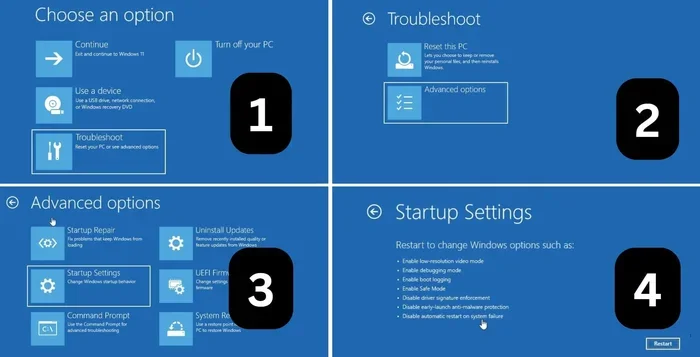
- Your PC will restart and show a blue screen with options.
- Choose Troubleshoot, then Advanced options.
- Click Startup Settings and then Restart.
- After the restart, you will see a list of options. Press F4 for Safe Mode, F5 for Safe Mode with Networking, or F6 for Safe Mode with Command Prompt.
That is it. Your PC will now boot in Safe Mode. You will see “Safe Mode” written in the corners of your screen.
Method 2: Use System Configuration (msconfig)
If you want a quicker way to boot into Safe Mode next time your PC starts, the System Configuration tool works great. Here is how:
- Press Windows Key + R to open the Run dialog box.
- Type msconfig and press Enter.
- Click on the Boot tab at the top.
- Check the box that says Safe boot.
- Choose Minimal for basic Safe Mode or Network if you need internet access.
- Click Apply and then OK.
- Restart your PC. It will now boot in Safe Mode.
Important tip: Remember to go back into msconfig after you are done troubleshooting and uncheck the Safe boot option. Otherwise, your PC will keep starting in Safe Mode every time.
Method 3: Use Advanced Startup (When Your PC Won’t Start Normally)
If your PC crashes during startup or gets stuck on the loading screen, you can still access Safe Mode. This method uses the Advanced Startup options:
- Force your PC to shut down by holding the power button for 10 seconds.
- Turn it back on and let it start up normally.
- When you see the Windows logo, force shutdown again by holding the power button.
- Repeat this process three times total.
- On the fourth start, Windows will enter the Automatic Repair screen.
- Choose Troubleshoot then Advanced options.
- Go to Startup Settings and click Restart.
- Press F4 to boot in Safe Mode.
This method is a lifesaver when your PC refuses to start normally. It forces Windows to open the recovery environment so you can fix things from there.
Method 4: Use the Login Screen (When You Cannot Access Settings)
If you can log in but Settings is not working, try this approach:
- Hold down the Shift key on your keyboard.
- While holding Shift, click the Power icon in the login screen.
- Click Restart.
- Your PC will restart into the Advanced Startup menu.
- Follow steps 5 through 9 from Method 3 above.
This is a handy trick when nothing else seems to work. Holding Shift during restart always brings up the Advanced Startup options.
How to Boot a Mac in Safe Mode Step by Step
If you use a Mac, the process is a bit different but just as simple. Apple uses a slightly different approach to Safe Mode, which they call Safe Boot. Here is how to do it on both Intel and Apple Silicon Macs.
For Intel Macs
- Shut down your Mac completely.
- Press the power button to turn it on.
- Immediately press and hold the Shift key.
- Keep holding Shift until you see the login screen appear.
- Log in with your username and password.
- You will see “Safe Boot” appear in the menu bar at the top of the screen.
For Apple Silicon Macs (M1, M2, M3, M4)
- Shut down your Mac.
- Press and hold the power button until you see “Loading startup options.”
- Select your startup disk.
- Hold down the Shift key and click Continue in Safe Mode.
- Log in when prompted.
Once in Safe Mode on your Mac, you will notice a few things. The screen might look slightly different. Some features like Wi-Fi may be limited. And your Mac will run slower than normal because it is only loading essential system files. This is completely normal and exactly what you want when troubleshooting.
While in Safe Mode on your Mac, you can do things like uninstall apps that are causing problems, run disk cleanup, or check for issues with your startup disk. If you have been dealing with slow performance, clearing out junk files can really help. Our guide on removing junk files from your PC has useful tips that apply to keeping your Mac clean too.
When Should You Boot Your PC in Safe Mode?
Not every computer problem requires Safe Mode. Knowing when to use it saves you time and effort. Here are the situations where booting into Safe Mode makes the most sense:
- Your PC keeps crashing on startup: If Windows freezes or shows a blue screen every time you turn it on, Safe Mode lets you access your system to fix the issue.
- You suspect malware or a virus: Safe Mode prevents most malicious software from running, giving you a safer environment to run antivirus scans.
- A recent update broke your system: If things worked fine before a Windows update and now they do not, Safe Mode lets you undo or roll back that update.
- Your mouse or trackpad is acting weird: Sometimes driver conflicts cause your mouse to freeze, jump around, or stop working entirely. Safe Mode helps you isolate whether it is a driver issue. You can learn more about disabling your mouse in laptop settings as part of the troubleshooting process.
- You need to clean up disk space: Safe Mode prevents many background programs from running, making it easier to delete large or unnecessary files.
- A program won’t uninstall normally: Some applications resist removal in normal mode. Safe Mode removes the interference and lets you uninstall them cleanly.
The key is to use Safe Mode as a diagnostic tool. It is not something you need to use every day. But when your PC is acting up, it is one of the first and best places to start.
How to Exit Safe Mode and Return to Normal Boot
Once you have fixed your problem, you will want to get back to normal mode. The good news is this is usually very simple.
For Windows, the easiest way is to just restart your PC. In most cases, a normal restart will take you back to regular mode. If you used the msconfig method earlier, make sure you go back into System Configuration, uncheck the Safe boot option, and restart.
For Mac, simply restart your computer normally. Hold down the power button and select Restart. Your Mac will boot back into regular mode without Safe Boot.
If your PC keeps booting in Safe Mode even after a restart, double-check your msconfig settings. You may have forgotten to uncheck the Safe boot box. Also, make sure no third-party software is forcing Safe Mode on startup.
Common Mistakes to Avoid When Using Safe Mode
Even though Safe Mode is straightforward, people do make mistakes that can cause problems. Here are some common ones to watch out for:
- Forgetting to exit Safe Mode: If you do not uncheck Safe boot in msconfig, your PC will keep starting in Safe Mode every time. Always go back and turn it off after you are done.
- Thinking Safe Mode fixes everything: Safe Mode helps you diagnose problems. It does not fix them by itself. You still need to take action once you identify the issue.
- Ignoring error messages: If you see an error in Safe Mode, write it down or take a screenshot. That error message often contains the exact clue you need to fix the problem.
- Not having a backup: Before making big changes in Safe Mode, make sure your important files are backed up. Use an external drive or cloud storage.
- Skipping the normal boot test: After fixing something in Safe Mode, always restart normally to confirm the problem is truly resolved.
Avoiding these simple mistakes will save you a lot of headaches and keep your PC running smoothly.
Expert Tips for Using Safe Mode Effectively
Here are some pro tips that can make your Safe Mode experience much smoother:
- Use Safe Mode with Networking when you need internet: If you need to download a driver or antivirus update, choose the networking option. It loads the basic network drivers so you can still get online.
- Create a restore point before troubleshooting: This gives you a safety net. If something goes wrong, you can restore your system to the way it was before.
- Run a full virus scan in Safe Mode: Many viruses hide from normal scans. Safe Mode exposes them so your antivirus can do a thorough job.
- Check your Event Viewer logs: In Safe Mode, open Event Viewer to look at system logs. These logs often point directly to the source of your problem.
- Keep your drivers updated: Many Safe Mode issues are caused by outdated or corrupted drivers. Updating them after troubleshooting can prevent the problem from coming back.
These small steps can make a big difference. They turn a frustrating experience into a smooth and successful repair process.
Final Thoughts
Booting your PC in Safe Mode is one of the simplest yet most powerful skills you can learn. It gives you a clear, distraction-free environment to diagnose and fix problems. Whether you are dealing with crashes, malware, driver issues, or just a slow computer, Safe Mode puts you in the driver’s seat.
The steps in this guide cover everything you need. From Windows methods like Settings, msconfig, and Advanced Startup to the Mac Safe Boot process, you now have a complete toolkit. Use these steps whenever your PC acts up, and you will be surprised how many problems you can solve on your own.
Remember, Safe Mode is not something to be afraid of. It is a built-in friend that is always there to help. The next time your computer gives you trouble, do not panic. Just boot in Safe Mode and start troubleshooting. You have got this.
Frequently Asked Questions
What is the difference between Safe Mode and Safe Mode with Networking?
Safe Mode loads only the basic drivers needed for Windows to run. It does not include network drivers, so you cannot access the internet. Safe Mode with Networking adds the basic network drivers, allowing you to connect to Wi-Fi or Ethernet. Use the networking version when you need to download updates or drivers while troubleshooting.
Can Safe Mode remove viruses from my PC?
Safe Mode itself does not remove viruses. However, it creates a safer environment for antivirus scans because many malware programs cannot run in Safe Mode. This allows your antivirus software to detect and remove threats more effectively. Always run a full system scan while in Safe Mode for the best results.
Why does my PC keep booting in Safe Mode automatically?
This usually happens if the Safe boot option is still checked in System Configuration (msconfig). Open msconfig, go to the Boot tab, uncheck Safe boot, and restart your PC. It can also happen if Windows detects a startup problem and automatically enters Safe Mode to protect your system.
Is Safe Mode the same as Recovery Mode?
No, they are different. Safe Mode is a stripped-down version of your operating system that loads minimal drivers. Recovery Mode is a special environment that provides tools to repair or restore your system. You often use Safe Mode to access Recovery Mode when your PC will not start normally.
How long does it take to boot in Safe Mode?
Safe Mode usually boots faster than normal mode because it loads fewer drivers and services. On most PCs, it takes about 30 to 60 seconds. If your PC takes much longer in Safe Mode, there may be a deeper issue that needs further investigation.
Do I need any special software to boot in Safe Mode?
No. Safe Mode is a built-in feature of both Windows and macOS. You do not need to download any third-party tools or software. Everything you need is already included in your operating system, and you can access it using the steps in this guide.
=== CONCLUSION ===
Booting your PC in Safe Mode is a simple, effective way to take control of your computer when things go wrong. You now know multiple methods for both Windows and Mac, understand when to use Safe Mode, and have learned how to avoid common mistakes. Keep this guide handy for the next time your PC gives you trouble. With these steps, you can troubleshoot like a pro and get your system back to normal in no time.