What Is a Usb Flash Drive for Password Resets
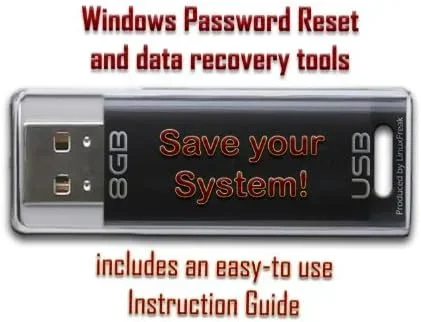
A USB flash drive for password resets is a handy tool that lets you regain access to your laptop when you forget your login password. It works by creating a bootable reset disk on a USB stick that triggers the password recovery process. This simple method can save you hours of frustration and keep your data safe.
Losing access to your laptop can feel like a nightmare. You sit down, type your password, and nothing works. Maybe you forgot it after a long day. Maybe your kids changed something. Whatever the reason, being locked out of your own computer is stressful. That is where a USB flash drive for password resets comes in. It is one of the simplest and most effective tools you can have in your tech toolkit.
Think of a password reset USB like an insurance policy. You hope you never need it, but you will be really glad it exists when things go wrong. A USB flash drive stores a small recovery environment that lets you reset your login password without losing your files. In this guide, we will walk you through everything you need to know. We will cover what it is, how it works, how to make one, and why it matters for your computer security.
Key Takeaways
- A USB flash drive acts as a reset disk: It stores the tools needed to recover or reset your forgotten laptop password.
- It works with Windows systems: Most built-in password reset tools rely on a USB drive to restore access to your user account.
- Creating one is simple and free: You only need a blank USB stick and a few minutes to set it up before you ever need it.
- It prevents data loss: Instead of reinstalling your operating system, a reset USB lets you keep all your files intact.
- You should create it proactively: Making a password reset USB before you forget your password is the smartest move you can make.
- It complements other security measures: A reset USB works alongside strong passwords and account recovery options for full protection.
📑 Table of Contents
- What Is a USB Flash Drive for Password Resets?
- How Does a Password Reset USB Drive Work?
- How to Create a Password Reset USB Drive
- When Should You Use a Password Reset USB?
- Common Mistakes to Avoid with Password Reset USBs
- Expert Tips for Using a USB Flash Drive for Password Resets
- Frequently Asked Questions
- Conclusion
What Is a USB Flash Drive for Password Resets?
A USB flash drive for password resets is a portable storage device loaded with special software that helps you recover or reset a forgotten password. When you cannot log into your laptop, you plug this USB stick into your computer. The system boots from the drive instead of your hard drive. This gives you access to password recovery tools built into Windows or third-party applications.
The process is different from just unlocking your screen. A password reset USB actually changes or clears the password stored in your system. This means you can create a new password and log back in as if nothing happened. Your files, folders, and settings stay exactly where they are.
Most people use this tool with Windows operating systems. Windows has a built-in feature called the “Create a password reset disk” wizard. It works with USB flash drives and has been available for many years. Mac computers use a slightly different approach, but the idea is the same. You prepare a recovery option before you ever need it.
Why Is It Called a Reset Disk?
The term “reset disk” comes from the early days of Windows. Back then, you would use a floppy disk to store recovery data. Today, we use USB flash drives instead. The concept stays the same. You create a small file on the drive that holds encrypted password recovery information. This file is tied to your specific user account. When you need it, the system reads that file and lets you set a new password.
Some people also call it a password recovery USB or a bootable reset drive. No matter what you call it, the purpose is identical. It gives you a second chance when you get locked out of your own computer.
How Does a Password Reset USB Drive Work?
Understanding how a USB flash drive for password resets works helps you trust the process. It also helps you troubleshoot if something goes wrong. The basic idea is straightforward, but there are some important details to know.
When you create a password reset disk, Windows generates a special file on your USB drive. This file contains a key that is linked to your user account. The key is encrypted, which means it is scrambled for security. Only the correct recovery process can unscramble it.
Here is what happens when you need to reset your password:
- You plug the USB flash drive into your locked laptop.
- You restart the computer and boot from the USB drive.
- The recovery environment loads from the drive.
- The system detects your user account and the reset file.
- You follow the on-screen prompts to create a new password.
- You remove the USB drive and log in with your new password.
What Happens to Your Files?
This is one of the biggest concerns people have. The good news is that a password reset USB does not delete anything. Your personal files, documents, photos, and applications stay exactly where they are. The reset process only changes the password associated with your user account. Everything else on your hard drive remains untouched.
Think of it like changing the lock on your front door. The house stays the same. Only the key changes. That is all a password reset does. It gives you a new way to prove who you are so you can get back inside.
How to Create a Password Reset USB Drive
Creating a USB flash drive for password resets is easier than most people think. You do not need to be a tech expert. The whole process takes about five to ten minutes. Here is exactly what you need to do.
First, plug a blank USB flash drive into your laptop. Make sure it has at least 4GB of storage space. A larger drive works too, but you do not need anything fancy. A small 8GB or 16GB USB stick is perfect for this task.
Next, go to the Control Panel on your Windows computer. Type “password” in the search bar and select “Create a password reset disk.” This launches the Forgotten Password Wizard. Follow the on-screen instructions and choose your USB drive as the target location.
The wizard will write the recovery data to your USB stick. Once it finishes, label the drive clearly. Store it in a safe place. You do not want to lose it or forget where you put it.
Can You Use Any USB Flash Drive?
Yes, you can use most USB flash drives for this purpose. The drive does not need to be high-speed or expensive. Any standard USB 2.0 or USB 3.0 flash drive will work. What matters most is that the drive is blank or has data you do not need. The password reset process will format the drive, which erases everything on it.
If your laptop has limited RAM, that does not affect the reset process at all. The password reset happens at the system level, before your operating system fully loads. Whether you have 4GB of RAM or 16GB of RAM, the reset USB works the same way.
When Should You Use a Password Reset USB?
Knowing when to use your USB flash drive for password resets is just as important as knowing how to make one. Here are the most common situations where this tool saves the day.
You forgot your password completely. This is the obvious one. You try every password you can think of, and nothing works. Instead of panicking, you grab your reset USB and get back in within minutes.
Your laptop locks you out after too many failed attempts. Windows has a security feature that temporarily locks your account after several wrong password guesses. A reset USB bypasses this lockout and lets you set a fresh password.
You bought a used laptop and cannot access the previous owner’s account. If you purchased a secondhand computer, the previous user may still have an account tied to it. A reset USB can help you take full control of the system.
You need to access your laptop after a system crash. Sometimes a corrupted operating system prevents normal login. Booting from a reset USB can help you bypass the login screen and repair your system.
Is It the Same as a System Restore?
No, a password reset USB is different from a system restore. A system restore rolls your computer back to an earlier point in time. It can fix software problems but does not directly help with forgotten passwords. A password reset USB specifically targets your login credentials. It is a focused tool for a specific problem.
That said, both tools are valuable for maintaining your laptop. Having both a reset USB and a system restore point gives you strong protection against different types of problems. It is part of a solid strategy for investing in your laptop’s longevity and keeping it running smoothly.
Common Mistakes to Avoid with Password Reset USBs
Even though creating a password reset USB is simple, people still make mistakes. Here are the most common ones and how to avoid them.
Using the wrong type of USB drive. Some people try to use a USB hub or a corrupted drive. Always use a direct, working USB flash drive. If the drive has errors, the reset file may not write correctly.
Forgetting to update the reset disk. If you change your password, you should create a new reset disk. The old one becomes outdated. Think of it like changing the batteries in your smoke detector. You update it when things change.
Losing the USB drive. If you lose the drive, you lose your reset option. Store it somewhere safe and memorable. Some people keep it on their keychain. Others store it in a desk drawer.
Not testing the reset drive. It is a good idea to test your reset USB once every few months. This ensures the file on the drive is still intact and the process still works. You do not want to discover a problem when you are already locked out.
Confusing a password reset USB with a Windows installation USB. These are two different things. A Windows installation USB reinstalls your operating system. A password reset USB only changes your login password. Make sure you label your drives clearly so you do not mix them up.
What If You Did Not Create a Reset Disk?
If you did not create a password reset USB before getting locked out, do not worry. You still have options. You can use your Microsoft account online to reset your password. You can also use third-party password recovery tools. However, these methods are often more complicated and may not work in every situation. This is exactly why creating a reset disk ahead of time is so important.
Expert Tips for Using a USB Flash Drive for Password Resets
Here are some pro tips that make the whole process smoother and more effective.
Keep your USB drive small and portable. A tiny 8GB flash drive fits easily in your wallet or laptop bag. You can carry it with you wherever you go. This way, you always have a backup plan if you ever get locked out away from home.
Encrypt your USB drive. Since a password reset USB contains sensitive recovery data, protect it with encryption. You can use BitLocker or a third-party tool to add a layer of security. This ensures that if someone finds your drive, they cannot misuse it.
Label your drives clearly. Write “Password Reset” on the drive with a marker. This prevents confusion with other USB sticks you might have. When you are in a panic because you are locked out, you do not want to be digging through a pile of unlabeled drives.
Create a reset drive for every user account. If multiple people use the same laptop, each account should have its own reset disk. This gives every user a way to recover their own password independently.
Pair your reset USB with strong password habits. A reset USB is a safety net, not a replacement for good password practices. Use strong, unique passwords for your laptop. Consider using a password manager to keep track of them. This way, you rarely need the reset drive at all.
Check your laptop specs before creating the drive. The amount of RAM and your processor type do not affect the reset process directly, but knowing your system helps with overall troubleshooting. If you are unsure about your laptop’s specifications, check how much RAM your laptop has before you get started.
Frequently Asked Questions
Can I use a USB flash drive for password resets on a Mac?
Apple Mac computers do not use the same built-in password reset disk tool as Windows. However, you can still use a USB flash drive for recovery purposes on a Mac. You would typically use macOS Recovery Mode by holding Command and R during startup. A USB flash drive can also be used to reinstall macOS or create a bootable recovery environment. The process is different from Windows but serves a similar purpose.
Do I need internet access to use a password reset USB?
No, you do not need internet access to use a password reset USB. The recovery process runs entirely from the USB drive and your local system. This is one of the biggest advantages of having a reset disk. Even if your laptop has no internet connection, you can still reset your password and regain access.
Will creating a password reset USB slow down my laptop?
No, creating a password reset USB will not slow down your laptop at all. The process only writes a small file to the USB drive. It does not affect your system performance, RAM usage, or hard drive speed. Your laptop will continue to run exactly as it did before.
How many times can I use a password reset USB?
You can use a password reset USB multiple times, as long as the reset file on the drive remains intact. However, if you change your password, you should create a new reset disk. The old file becomes linked to the previous password and may not work after you update your credentials.
Can I use a password reset USB on a different computer?
A password reset USB is tied to your specific user account on a specific computer. It will not work on a different laptop or for a different user account. Each computer needs its own reset disk created specifically for that system and user profile.
Is a USB flash drive for password resets safe from hackers?
A password reset USB is generally safe, but it does contain sensitive recovery data. If someone gains physical access to your USB drive, they could potentially use it to reset your password. To stay safe, store the drive securely, label it clearly, and consider encrypting it with a tool like BitLocker. Keeping your USB drive in a safe place is just as important as keeping your password safe.
Conclusion
A USB flash drive for password resets is one of the simplest yet most valuable tools you can have for your laptop. It gives you peace of mind knowing that a forgotten password will not lock you out of your own computer. The process of creating one takes just a few minutes, and it costs nothing more than a blank USB stick you probably already have at home.
Take a few minutes right now to create your password reset USB. Store it in a safe and accessible place. Label it clearly. Test it once in a while to make sure it still works. This small act of preparation can save you from hours of frustration and potential data loss down the road. Your future self will thank you the day you forget your password and realize you have a simple, reliable way back in.
Stay prepared, stay secure, and never let a forgotten password ruin your day again.