What Is Timer Resolution on Windows

Timer resolution on Windows refers to how precisely your system measures time intervals. A lower timer resolution means your laptop can handle tasks more accurately and efficiently. Understanding this setting helps you boost performance, reduce power usage, and keep your system running smoothly.
Have you ever wondered why your laptop sometimes feels sluggish when you are gaming or editing video? One hidden setting that can make a big difference is timer resolution on Windows. It might sound technical, but it is actually quite simple. In this guide, we will break down exactly what timer resolution means, why it matters, and how you can adjust it to get the most out of your system.
Whether you are a casual user or a power user, understanding Windows timer resolution can help you squeeze better performance from your laptop. Let us dive in and explore everything you need to know.
Key Takeaways
- Timer resolution controls how finely Windows measures time: Smaller intervals mean better precision for apps and games.
- The default timer resolution is usually 15.6 milliseconds: This works fine for most everyday tasks but may hold back demanding applications.
- You can check your current timer resolution using free tools: Tools like TimerTool and ClockRes make this process simple.
- Lowering the timer resolution can improve gaming and audio performance: It reduces latency and helps your system respond faster.
- Setting the resolution too low may increase power consumption: Balance precision with battery life on laptops.
- Windows 10 and Windows 11 handle timer resolution slightly differently: Modern versions manage timers more efficiently by default.
📑 Table of Contents
- What Is Timer Resolution on Windows?
- Why Does Timer Resolution Matter?
- Default Timer Resolution vs. Custom Timer Resolution
- How to Check Your Current Timer Resolution
- How to Change Timer Resolution on Windows
- Common Mistakes When Adjusting Timer Resolution
- Expert Tips for Optimizing Timer Resolution
- Timer Resolution and Laptop Battery Life
- How Timer Resolution Relates to Overall System Performance
- Conclusion
What Is Timer Resolution on Windows?
Timer resolution refers to the smallest unit of time that your operating system can measure. Think of it like the ticks on a clock. The more ticks per second, the more precise your system can track time. On Windows, the default timer period is usually set to 15.6 milliseconds. This means your system checks for tasks about 64 times every second.
For most everyday activities like browsing the web or typing documents, this works perfectly fine. But when you are running demanding applications like games or audio software, that 15.6-millisecond gap can cause noticeable delays. A high resolution timer reduces this gap, allowing your system to respond more quickly and accurately.
How Does the Windows Timer Work?
Windows uses something called a system clock to keep track of time. This clock sends out periodic interrupts, which are basically signals that tell the processor to check what needs to be done next. The timer frequency determines how often these interrupts happen.
Here is a simple way to think about it. Imagine you are waiting for a bus that arrives every 15 minutes. You check the stop every 15 minutes. Now imagine the bus comes every minute instead. You can catch it much faster if you are standing closer to the stop. That is essentially what a lower timer resolution does for your laptop. It lets your system check for tasks more often, reducing delays.
When you look at timer resolution Windows 10 or timer resolution Windows 11, the basic concept stays the same. However, newer versions of Windows have improved how they manage timers in the background, making them more efficient without you needing to tweak anything.
Why Does Timer Resolution Matter?
You might be wondering why you should care about something as technical as timer precision. The answer is simple: it affects how smoothly your laptop performs. Here are some key areas where timer resolution makes a real difference.
Gaming Performance
If you are a gamer, timer accuracy is crucial. Games rely on precise timing to calculate movement, physics, and input responses. When your timer resolution is set too high (meaning longer intervals), your game may experience input lag. This is the delay between pressing a button and seeing the action on screen.
By reducing the timer interval, you give your system more opportunities to process game commands quickly. This can lead to smoother gameplay, better frame consistency, and a more responsive experience overall.
Audio and Video Production
If you work with audio or video, timer resolution becomes even more important. Audio editing software needs to process sound waves with extreme precision. A poor clock resolution can cause audio glitches, crackling, or sync issues between video and audio tracks.
Similarly, video editors rely on accurate timing to ensure smooth playback and precise cuts. Setting your multimedia timer to a lower resolution helps these applications run without interruptions.
System Responsiveness
Even if you are not a gamer or a content creator, better timer resolution can make your laptop feel snappier. Applications open faster, multitasking feels smoother, and your system handles background tasks more efficiently. This is especially noticeable on laptops with good ram and solid-state storage, where the processor can really shine when given precise timing instructions.
For more on how your laptop’s memory affects overall performance, check out what amount of RAM is good on a laptop to make sure your system is fully optimized.
Default Timer Resolution vs. Custom Timer Resolution
Windows comes with a default timer resolution of 15.6 milliseconds. This setting works well for most users and helps conserve battery life. However, some applications and games perform better when the timer resolution is lowered to 1 millisecond or even less.
Here is a quick comparison to help you understand the difference:
- Default Resolution (15.6 ms): Good for everyday tasks. Saves battery. Works well for browsing, office work, and light media consumption.
- Custom Low Resolution (1 ms): Better for gaming, audio production, and high-performance tasks. Uses more power, which can reduce battery life on laptops.
The key takeaway is that there is a trade-off. Lower timer resolution gives you better performance but uses more energy. On a desktop computer, this is rarely a problem. But if you are using a laptop on battery power, you may want to switch back to the default resolution when you are not running demanding applications.
It is also worth noting that some programs temporarily lower the timer resolution on their own when they need extra precision. Once you close those programs, Windows usually returns to the default setting. This is one reason why understanding timer resolution Windows 11 behavior is helpful.
How to Check Your Current Timer Resolution
Checking your current timer resolution is easy and free. You do not need to be a tech expert to do it. Here are the steps you can follow.
Using TimerTool
TimerTool is a simple and free utility made by Microsoft. It shows you the current timer period your system is using. Here is how to use it:
- Download TimerTool from the Microsoft website or a trusted source.
- Open the application on your laptop.
- Look at the displayed value, which shows the current resolution in milliseconds.
- If it shows 15.6 ms, you are using the default setting.
- If it shows a lower number, an application has already adjusted it for you.
Using ClockRes
Another popular tool is ClockRes, which is part of the Sysinternals suite. It provides a quick readout of your system’s timer frequency. The process is similar to TimerTool, and both tools give you reliable results.
For more tips on keeping your laptop running at its best, you may also want to read about what is a good idle GPU temperature to ensure your graphics card is not working harder than it needs to.
How to Change Timer Resolution on Windows
If you decide that lowering your timer resolution will benefit your workflow, there are a few ways to do it. Let us walk through the most common methods.
Method 1: Use a Third-Party Tool
The easiest way to change your timer resolution is by using a dedicated tool. Programs like TimerTool and ISLC (Intelligent Standby List Cleaner) let you set a custom resolution with just a few clicks. These tools are safe, widely used, and do not require advanced technical knowledge.
Simply install the tool, open it, and set your desired resolution. Most users find that setting it to 1 millisecond provides a good balance between performance and system stability.
Method 2: Adjust Settings Through Applications
Some applications, especially games and audio software, have built-in settings that adjust the timer resolution automatically. For example, many games have a setting for timer precision in their configuration files or graphics settings. Check the documentation or settings menu of your favorite apps to see if this option is available.
Method 3: Use Power Plan Settings
Windows power plans can also influence how your system handles timers. Switching to a High Performance power plan may cause Windows to use a lower timer resolution automatically. This is a simple way to improve responsiveness without installing extra software.
Keep in mind that changing your power plan affects more than just timers. It can change how fast your laptop cools, how much battery it uses, and how loud the fans get. For related tips on managing your laptop’s components, check out what temperature does GPU fan turn on to learn about managing your graphics card’s thermal settings.
Common Mistakes When Adjusting Timer Resolution
While adjusting your timer resolution can improve performance, there are some common mistakes you should avoid.
- Setting the resolution too low: Going below 1 millisecond can cause system instability. Stick to 1 ms or slightly above for safe results.
- Forgetting to reset after gaming: If you lower the resolution for a game, remember to switch it back afterward. This saves battery and prevents unnecessary wear on your system.
- Ignoring battery impact: On laptops, a lower timer resolution uses more power. If you are working on battery, keep the default setting unless you need the extra performance.
- Using untrusted tools: Always download timer adjustment tools from official or trusted sources. Sketchy software can harm your system.
Another mistake people make is confusing timer resolution with other system settings like sleep resolution or power management timers. These are related but different concepts. Timer resolution specifically controls how often the system checks for tasks, while sleep resolution controls how deeply your processor can rest when idle.
Expert Tips for Optimizing Timer Resolution
Want to get the most out of your timer precision? Here are some expert tips to help you optimize your settings.
- Monitor your timer resolution regularly: Use TimerTool or ClockRes to check your current setting from time to time. Some background apps may change it without you noticing.
- Close unnecessary apps before gaming: Background applications can interfere with your timer settings and reduce performance.
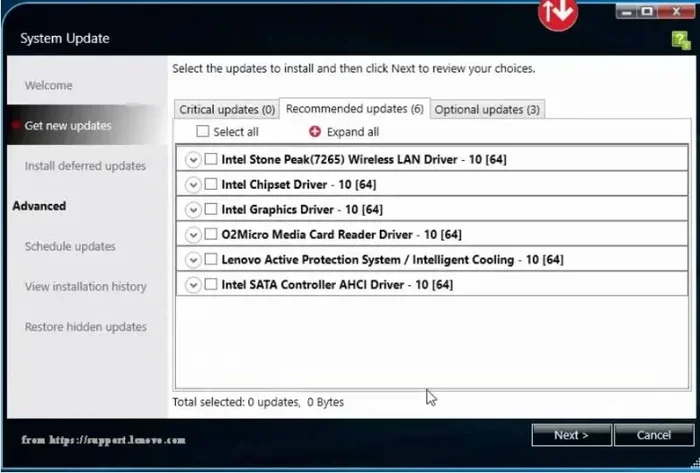
- Update your drivers: Outdated graphics and audio drivers can affect how your system handles timing. Keep everything up to date for the best results.
- Use a solid-state drive: SSDs dramatically reduce load times and help your system respond faster overall. For more on storage upgrades, check out what is the biggest NVMe SSD to find the right storage option for your laptop.
- Balance performance and battery life: If you are on a laptop, use a low timer resolution only when you need it. Switch back to the default setting when you are doing light work.
These small adjustments can add up to a noticeable improvement in how your laptop feels during daily use. The beauty of tweaking timer resolution is that it costs nothing and takes just a few minutes to set up.
Timer Resolution and Laptop Battery Life
If you use a laptop, battery life is always a concern. The good news is that you do not have to choose between performance and battery health. The key is to be intentional about when you adjust your timer period.
When you are plugged in and working on a demanding task like gaming or video editing, lowering the timer resolution makes perfect sense. But when you are on the go and need every ounce of battery, keep the default 15.6 ms setting. Your laptop will thank you with extra hours of usage.
Some advanced users even create power plan profiles specifically for different scenarios. One profile for gaming with a low timer resolution, and another for general use with the default setting. This way, you get the best of both worlds without having to manually change settings every time.
How Timer Resolution Relates to Overall System Performance
Timer resolution is just one piece of the puzzle when it comes to system performance. It works hand in hand with other components like your processor, RAM, and storage drive. For a truly optimized laptop, you need all of these elements working together.
For instance, having good RAM ensures your system can handle multiple tasks without slowing down. Pairing that with a well-tuned timer resolution means your processor can switch between tasks more efficiently. Together, these settings create a smoother and more responsive experience.
To learn more about choosing the right memory for your laptop, visit what is the RAM on a laptop for a detailed guide on RAM types and configurations.
Think of it this way. Timer resolution is like the precision of a chef’s knife. A sharper knife does not make you a better cook, but it does make the process faster and more enjoyable. Similarly, a better timer frequency does not replace a good processor or fast storage, but it helps everything work together more seamlessly.
Conclusion
Timer resolution on Windows is a powerful but often overlooked setting that can significantly impact your laptop’s performance. Whether you are a gamer, a content creator, or just someone who wants a smoother computing experience, understanding and adjusting your Windows timer resolution is well worth the effort.
The default 15.6 ms setting works fine for most tasks, but lowering it to 1 ms can give you a noticeable boost in gaming, audio production, and overall system responsiveness. Just remember to balance performance with battery life, especially on laptops. Use trusted tools to check and adjust your settings, and always switch back to the default when you do not need the extra precision.
With the tips and insights in this guide, you now have everything you need to take control of your timer resolution and get the most out of your Windows laptop. Try it out and see the difference for yourself!
Frequently Asked Questions
What is the default timer resolution on Windows?
The default timer resolution on Windows is 15.6 milliseconds. This setting works well for most everyday tasks and helps conserve battery life on laptops. Most users do not need to change this setting unless they are running demanding applications like games or audio software.
Can changing timer resolution damage my laptop?
No, changing your timer resolution will not damage your laptop. However, setting it too low (below 1 millisecond) can cause system instability or increased power usage. Stick to 1 millisecond for the best balance of performance and safety.
Do I need to install special software to change timer resolution?
Yes, you will need a third-party tool like TimerTool or ClockRes to change your timer period. These tools are free, safe, and widely used. Windows does not include a built-in option to manually adjust timer resolution.
Does timer resolution affect battery life?
Yes, a lower timer resolution uses more power because your processor checks for tasks more frequently. On laptops, this can reduce battery life. It is best to use a lower resolution only when you are plugged in and running demanding applications.
Is timer resolution the same as sleep resolution?
No, they are different. Timer resolution controls how often the system checks for tasks, while sleep resolution controls how deeply your processor can rest when idle. Both affect performance and power usage, but they serve different purposes.
Should I change my timer resolution for gaming?
Yes, lowering your timer resolution to 1 millisecond can improve gaming performance by reducing input lag and making your system more responsive. Just remember to switch back to the default setting when you are done gaming to save battery and maintain system stability.
=== INTERNAL LINKS ===
For more information on laptop components and performance, check out these related articles:
- What Amount of RAM Is Good on a Laptop
- What Is a Good Idle GPU Temperature
- What Is the RAM on a Laptop
=== SEO TITLE ===
What Is Timer Resolution on Windows
=== META TITLE ===
What Is Timer Resolution on Windows? Guide & Tips
=== URL SLUG ===
timer-resolution-on-windows