What Is a Cell on a Computer
A cell on a computer is the basic unit of a spreadsheet where data is stored. It sits at the intersection of a row and column and has its own unique address called a cell reference. This guide covers everything from cell basics to practical tips for everyday use.
Have you ever opened a spreadsheet and wondered what that little box is called? Every time you click on a single box in Excel or Google Sheets, you are selecting a cell. But what is a cell on a computer exactly? It is one of the most basic building blocks of any spreadsheet program. Understanding this simple concept opens the door to working with data, formulas, and organizing information like a pro.
A cell on a computer is the small rectangular box where a row and a column meet inside a spreadsheet. Think of it like a tiny container that holds one piece of information. Whether it is a number, a word, or a formula, every cell has its own unique address. This address is called a cell reference, and it helps you find and use data quickly.
In this guide, we will break down everything you need to know about cells. You will learn what they are, how they work, and why they matter. We will also cover practical tips that make working with cells easier and faster. By the end, you will feel confident navigating any spreadsheet or worksheet.
Key Takeaways
- A cell on a computer is the smallest unit in a spreadsheet where a row and column meet.
- Every cell has a unique address known as a cell reference, made up of a column letter and row number.
- Cells can hold numbers, text, dates, formulas, and boolean values like TRUE or FALSE.
- There are three types of cell references: relative, absolute, and mixed, each useful in different scenarios.
- Spreadsheet cells are different from memory cells in your computer’s RAM, though both store information.
- Using keyboard shortcuts and formatting tools makes working with cells much faster and more efficient.
- Understanding cells is the foundation for mastering any spreadsheet software like Excel or Google Sheets.
📑 Table of Contents
Understanding What A Cell On A Computer Really Is
A cell on a computer is the smallest unit in a spreadsheet. It is the box you see when you look at a worksheet inside any spreadsheet software. Each cell can hold one value at a time. That value can be text, a number, a date, or even a cell formula that calculates something automatically.
Cells are organized in a grid format. The grid has columns that run vertically and rows that run horizontally. Where a column and a row cross, a cell is born. This grid layout makes it easy to arrange and read data in a structured way. Think of it like a table drawn on a piece of paper, but much bigger and far more powerful.
How Cells Are Named
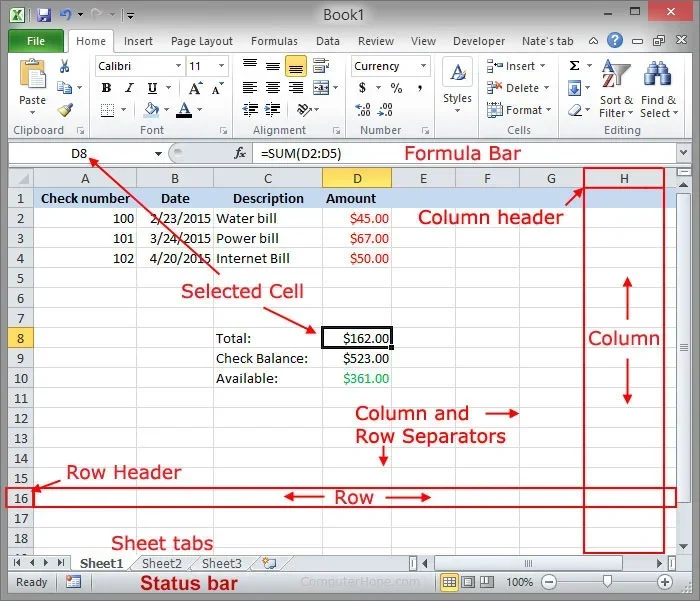
Every cell has a unique name based on its position. The column letter comes first, followed by the row number. For example, the cell at the top-left corner is always A1. The cell directly below it is A2. The cell to the right of A1 is B1. This naming system is called a cell reference or cell address.
Cell references make it easy to point to specific data. When you write a formula, you use cell references to tell the computer which cells to use. This is one of the most powerful features of any spreadsheet tool. If you want to learn more about using spreadsheets, you can check out this Is Excel Easy To Learn A Guide For Beginners guide for extra help.
What Does A Cell Hold?
A cell can store many types of data. Here are the most common ones:
- Numbers: These are values used for math, like 100 or 3.14.
- Text: Also called labels, these are words or phrases like “Name” or “Date.”
- Dates: Special values that represent days, months, and years.
- Formulas: These are calculations that update automatically when you change other cells.
- Boolean values: These are simply TRUE or FALSE values used in logic.
Each cell can only hold one type of value at a time. However, you can format the cell to display the value in different ways, such as currency, percentages, or custom colors. This is part of cell formatting, and it helps make your data easier to read and understand.
How Cells Work Inside A Spreadsheet
Understanding how cells work is the key to using spreadsheets effectively. A spreadsheet is made up of thousands of cells arranged in a grid. Each cell is independent but can also connect to other cells through formulas and references. A single workbook can contain many worksheets, and each worksheet is filled with cells waiting to hold your data.
The Active Cell
The active cell is the cell that is currently selected. You can tell which cell is active because it has a bold border around it. The name of the active cell also shows up in the name box at the top-left corner of the screen. Any data you type will go into the active cell.
Clicking on any cell makes it the active cell. You can also use your keyboard arrow keys to move between cells. This makes data entry fast and easy once you get the hang of it. The active cell is the starting point for almost every action you take in a spreadsheet.
The Formula Bar
The formula bar is the long bar at the top of the spreadsheet window. When you click on a cell, its content appears in the formula bar. If the cell contains a formula, you will see the formula itself, not just the result. The formula bar is where you edit cell content or write new formulas.
Using the formula bar is essential for working with cell formulas. It gives you a clear view of what is inside each cell. This is especially helpful when your spreadsheet gets complex and you need to trace how data flows between cells. The formula bar is your best friend when debugging a tricky workbook.
Types Of Cell References You Need To Know
Cell references come in different types. Knowing the difference helps you build better spreadsheets and avoid common mistakes. Each type of reference behaves differently when you copy a formula to other cells. Understanding these types is a big step toward becoming a spreadsheet pro.
Relative Cell References
A relative cell reference changes when you copy a formula to a new location. For example, if you have the formula =A1+B1 in cell C1 and copy it down to C2, it becomes =A2+B2. The references adjust based on the relative position of the cells. This is the default reference type in most spreadsheet software.
Relative references are great for building tables where you want the same calculation to apply across many rows or columns. They save you from rewriting formulas over and over. Just make sure your data layout is consistent so the references point to the right places.
Absolute Cell References
An absolute cell reference stays the same no matter where you copy the formula. You create an absolute reference by adding a dollar sign before the column letter and row number. For example, $A$1 always refers to cell A1, even if you copy the formula to a different cell. This is very useful when you want to reference a single fixed value in many formulas.
Think of absolute references as anchors. They lock onto a specific cell address and do not move. This is especially helpful when you are multiplying a column of numbers by one fixed value, like a tax rate or a constant.
Mixed Cell References
A mixed reference has either an absolute column or an absolute row, but not both. For example, $A1 keeps the column fixed but lets the row change. A1$1 keeps the row fixed but lets the column change. Mixed references are handy for building tables and grids where you need partial locking.
Mixed references take a little practice to get comfortable with. But once you understand them, they unlock powerful ways to build dynamic spreadsheets. They are especially useful when creating multiplication tables or cross-tabulated data sets.
Common Cell Operations You Should Know
Once you understand what a cell is and how references work, you can start performing common operations. These are the everyday tasks that make spreadsheets useful for work and personal projects. Mastering these operations will save you a lot of time and frustration.
Entering Data Into Cells
To enter data, simply click on a cell and start typing. Press Enter to confirm and move down one cell. Press Tab to confirm and move right one cell. You can also click on the formula bar to edit what is already in a cell. Double-clicking a cell also lets you edit its content directly in place.
Quick tip: Use the arrow keys on your keyboard to move between cells quickly. This makes data entry much faster when you are filling in large amounts of information. You can also use the fill handle, which is the small square at the bottom-right corner of a cell, to drag and copy data across multiple cells.
Formatting Cells
Formatting makes your spreadsheet look clean and easy to read. You can change the font, size, color, and background of any cell. You can also add borders, align text, and adjust column width and row height. Proper cell formatting helps others understand your data at a glance.
Formatting does not change the actual data inside the cell. It only changes how the data looks. This is important to remember because formatted cells can still be used in calculations and formulas just like any other cell. You can also apply conditional formatting to automatically change colors based on cell values.
Merging And Unmerging Cells
Merging cells combines two or more cells into one larger cell. This is useful for creating headers that span across multiple columns. To merge cells, select the cells you want to combine and use the merge option in the formatting toolbar. Keep in mind that merging can sometimes cause issues with sorting and filtering.
If your spreadsheet needs to be processed by a program or shared with others, it is best to use merged cells sparingly. Unmerging is just as easy and restores the original separate cells. Always save a backup before merging large ranges of cells.
Deleting And Clearing Cells
There is a difference between deleting a cell and clearing a cell. Deleting a cell removes the cell itself and shifts the surrounding cells to fill the gap. Clearing a cell removes only the content but keeps the cell in place. Use clear when you just want to remove data. Use delete when you want to restructure your layout.
Be careful when deleting cells in the middle of a data set. It can shift your references and break your formulas. Always double-check your workbook after making structural changes to make sure everything still works correctly.
Cells And Computer Memory
While a spreadsheet cell holds data in a visible grid, your computer also has its own kind of cells at the hardware level. The RAM on a laptop is made up of tiny memory cells that store data temporarily while your computer is running. Each of these memory cells holds a small amount of information that the processor can access very quickly.
When you open a spreadsheet with thousands of cells, your computer loads that data into its RAM. The role of RAM is to provide fast, temporary storage for active tasks. Without enough memory, your spreadsheet might slow down or even crash when you have too many open files. Understanding how your laptop’s memory works can help you troubleshoot performance issues.
If you ever need to upgrade your laptop memory, you can learn more about how to change RAM on a laptop to keep your machine running smoothly. More memory means your computer can handle larger spreadsheets and more open programs at the same time.
How Spreadsheet Cells Differ From Memory Cells
It is important to know that spreadsheet cells and computer memory cells are very different things. Spreadsheet cells are part of a software program that organizes data visually. Memory cells are physical hardware components built into your computer. One holds your data in a format you can see and edit. The other holds data temporarily for the processor to use at lightning speed.
Both types of cells serve the same basic purpose, though. They store information that can be retrieved and used when needed. Whether it is a number in cell B5 or a piece of data in your laptop’s memory, cells are everywhere in computing. The word “cell” simply means a small unit that holds something of value.
Tips For Working With Cells Efficiently
Working with cells becomes much faster once you learn a few shortcuts and best practices. These tips will help you save time and reduce errors in your spreadsheets. Try incorporating a few of these habits into your daily workflow.
- Use keyboard shortcuts: Ctrl+C copies, Ctrl+V pastes, and Ctrl+Z undoes. These shortcuts work with cells just like they do anywhere else on your computer.
- Name your ranges: Instead of referencing A1:A100 every time, give that range a name like “SalesData.” It makes formulas much easier to read and manage.
- Use autofill: Click and drag the small square at the bottom-right corner of a cell to copy data or fill a series automatically across your worksheet.
- Freeze panes: Freeze the top row or first column so you can always see your headers while scrolling through large spreadsheets.
- Use conditional formatting: This feature automatically changes the color of a cell based on its value. It is great for highlighting important data at a glance.
- Protect your cells: Lock specific cells so they cannot be edited by mistake. This is especially useful when sharing a workbook with colleagues.
These small habits add up over time. The more you practice working with cells, the more natural it will feel. Soon you will be building complex spreadsheets with ease. The key is to start simple and gradually explore more advanced features as you grow comfortable.
Final Thoughts On What A Cell On A Computer Is
A cell on a computer is a simple yet powerful concept. It is the building block of every spreadsheet and a fundamental part of how we organize data. From the tiny memory cells inside your laptop’s RAM to the visible cells in Excel, the idea of a cell is everywhere in computing.
Now that you understand what a cell on a computer is, how they work, and how to use them effectively, you are well on your way to becoming a confident spreadsheet user. Start practicing with real data and explore the many features that cells offer. The more you work with them, the more you will discover how versatile and essential they truly are.
Remember, every expert started as a beginner. Do not be afraid to experiment with your spreadsheets. Make mistakes, learn from them, and keep building your skills. A solid understanding of the humble cell is the first step toward mastering any spreadsheet software and becoming more productive with your data.
Frequently Asked Questions
What Is The Difference Between A Cell And A Cell Range?
A single cell is one box in a spreadsheet, like A1. A cell range is a group of cells selected together, like A1:A10. Cell ranges are useful when you want to apply a formula or formatting to multiple cells at once. You can select a range by clicking and dragging across the cells you want to include.
Can A Cell Hold More Than One Value?
No, a single cell can only hold one value at a time. That value can be a number, text, date, or formula. If you need to store multiple pieces of information, you can use multiple cells next to each other or split the data across different cells in the same row.
How Do I Reference A Cell From Another Sheet?
To reference a cell from another sheet, you use the sheet name followed by an exclamation mark and the cell address. For example, =Sheet2!A1 pulls the value from cell A1 on Sheet2. This is very useful when your data is spread across multiple worksheets in the same workbook.
What Is The Maximum Number Of Cells In A Spreadsheet?
In modern spreadsheet programs like Microsoft Excel, a single worksheet can hold over 17 billion cells. That is more than 16,000 columns and over 1 million rows. In practice, most people never come close to using all of them. Google Sheets has similar limits but may perform differently with very large data sets.
Are Cells In Spreadsheets The Same As Cells In Computer Hardware?
No, they are very different. Spreadsheet cells are software-based units that hold visible data in a grid. Hardware cells are physical components in your computer’s memory chips that store data temporarily. The word “cell” is used in both contexts but refers to entirely different things.
Can I Delete A Cell Without Losing My Data?
Yes, you can clear a cell to remove its content while keeping the cell itself. You can also delete a cell and choose to shift the surrounding cells left or down instead of losing data. Always use the clear option first if you are unsure, as it is reversible and non-destructive.