What Is the Tab Key on a Keyboard
The tab key is a small but powerful key on your keyboard that moves the cursor to the next tab stop or input field. It helps you navigate forms, indent text, and switch between clickable items on screen. Whether you are typing documents, browsing the web, or working in spreadsheets, the tab key saves you time and boosts productivity.
The tab key sits quietly in the upper left area of your keyboard. You may have pressed it a hundred times without really thinking about what it does. Yet this little key plays a big role in how you work on a computer every single day.
Whether you are filling out a web form, writing an essay, or moving through a spreadsheet, the tab key helps you get from one point to the next quickly. It is one of those keys that most people take for granted until they try to work without it. In this guide, we will break down everything you need to know about the tab key on a keyboard.
We will cover where it is located, what it does, how to use it with shortcuts, and why it matters for everyday computing. By the end, you will see the tab key in a whole new light. Let us dive in.
Key Takeaways
- Tab Key Basics: The tab key moves your cursor forward to the next tab stop or input field on screen.
- Shift + Tab Goes Backward: Holding shift while pressing tab moves the cursor backward, which is useful for correcting entries in forms.
- Text Indentation: The tab key creates indents in word processors, making documents look clean and professional.
- Browser and Form Navigation: Pressing tab lets you jump between clickable items like links, buttons, and form fields without using a mouse.
- Laptop Keyboard Layout: The tab key is located above the caps lock key on most laptop keyboards, including laptop input devices and standard layouts.
- Customizable Tab Stops: You can adjust tab stops in word processing software to control exactly where text aligns on the page.
📑 Table of Contents
Where Is the Tab Key on a Keyboard?
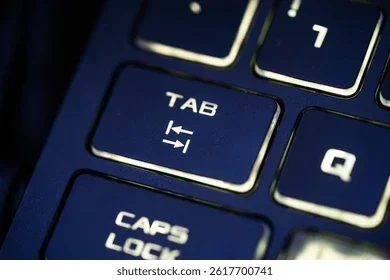
The tab key is easy to find on most keyboards. On a standard full-size keyboard, it sits above the caps lock key on the left side. You will recognize it by the two arrows pointing right, with a gap in the middle. On laptop keyboards, the tab key is usually smaller but in the same general position.
Tab Key on Different Keyboard Types
Not all keyboards look the same, but the tab key is almost always in a similar spot. Here is where you can find it on common keyboard types:
- Full-Size Keyboards: The tab key is a wide rectangular key above caps lock. It spans about one and a half spaces on the left side.
- Laptop Keyboards: The tab key is smaller on laptops due to the compact layout. It is still above the caps lock key and usually has the same two-arrow symbol.
- Compact and Mechanical Keyboards: Even on smaller keyboards, the tab key retains its position above caps lock, though it may be a different size depending on the design.
If you are ever unsure, look for the key with the right-pointing arrows and a gap. That is your tab key. It is one of the few keys that has stayed in the same spot across decades of keyboard design.
What Does the Tab Key Do?
The main job of the tab key is to move the cursor forward by a set distance. This distance is called a tab stop. Think of tab stops like markers on a ruler. When you press the tab key, the cursor jumps to the next marker.
Moving the Cursor and Navigating Forms
When you are filling out a form on a website, pressing tab moves you from one field to the next. You do not need to click each box with a mouse. This is a huge time saver. The same works in many software applications. You can jump between buttons, menus, and input fields just by pressing tab repeatedly.
For example, imagine you are logging into a website. You type your username, press tab, and the cursor jumps to the password field. Press tab again, and the login button becomes highlighted. One simple key does all that work for you.
Indenting Text in Documents
In word processors like Microsoft Word or Google Docs, the tab key creates an indent at the beginning of a paragraph. This is especially useful for writing essays, reports, or any document that needs a clean, structured look. A single press of the tab key can move your text inward by half an inch or more, depending on your settings.
You can also use the tab key to create lists. Press tab to create a sub-item under a main point. This makes your writing organized and easy to read. Many people use the tab key daily for this exact purpose without even realizing it.
Switching Between Browser Tabs
Here is something that confuses many people. The tab key on your physical keyboard is different from the browser tabs you see on your screen. However, there is a connection. When you press Ctrl + Tab on your keyboard, you switch to the next browser tab. This is a keyboard shortcut that combines the tab key with the control key.
So while the tab key itself moves the cursor on the page, combining it with other keys gives you even more power. We will cover these shortcuts in more detail below.
Tab Key Shortcuts and Combinations
The real magic of the tab key happens when you combine it with other keys. These keyboard shortcuts can speed up your work dramatically. Here are the most useful combinations you should know.
Shift + Tab: The Reverse Move
Holding down the shift key while pressing tab moves the cursor backward. This is incredibly handy when you are filling out a form and realize you need to go back and fix something. Instead of clicking back with your mouse, just hold shift and press tab. The cursor jumps to the previous field.
This shortcut works in almost every application that supports tab navigation. It is one of the simplest yet most overlooked shortcuts on the keyboard layout.
Ctrl + Tab: Switch Between Tabs
As mentioned earlier, pressing Ctrl + Tab switches you to the next open tab in your web browser. This works in Chrome, Firefox, Edge, and most other browsers. To go backward, use Ctrl + Shift + Tab.
If you are someone who keeps many browser windows open, this shortcut is a game changer. It keeps your hands on the keyboard and your workflow smooth. You never have to reach for the mouse just to switch between tabs.
Alt + Tab: Switch Between Windows
Alt + Tab is one of the most famous shortcuts in computing. It lets you switch between open windows on your desktop. Hold down the alt key and press tab to see a preview of all your open windows. Release both keys, and you jump to the selected window.
This is different from browser tab switching, but it uses the same tab key concept. You are moving through a list of items, just like moving through form fields or browser tabs.
Using the Tab Key for Productivity
The tab key is not just a navigation tool. It is a productivity booster. Once you start using it intentionally, you will wonder how you ever worked without it. Here are some practical ways to use the tab key to get more done.
Faster Form Filling
Online forms are everywhere. Whether you are signing up for a new account, filling out a tax form, or entering shipping details, the tab key helps you move through fields quickly. Instead of clicking each box, just type and press tab. Your fingers stay on the keyboard, and you finish forms in a fraction of the time.
Here is a quick tip: when you reach the last field in a form, pressing tab often highlights the submit button. Just press enter to complete the form. This entire process can be done without ever touching a mouse.
Better Document Formatting
In word processing, the tab key helps you create consistent formatting across your document. You can set custom tab stops to control exactly where text aligns. This is especially useful for creating tables, lists, and structured documents without using the space bar over and over.
For example, if you are creating a simple price list, you can set a tab stop at the 4-inch mark. Type the item name, press tab, and the price starts right at the mark. This keeps everything aligned and professional looking.
Navigating Spreadsheets
If you use Excel or Google Sheets, the tab key moves you one cell to the right. This makes entering data into spreadsheets much faster. You can type a value, press tab, and move to the next cell without reaching for the mouse.
Combine this with the enter key, which moves you down one cell, and you have a quick way to fill in entire rows of data. Many spreadsheet users rely on the tab key as their primary navigation tool.
Tab Key vs. Other Navigation Keys
The tab key is not the only way to move around on a computer. Let us compare it to some other common navigation methods to see where it shines.
- Mouse or Touchpad: The mouse or laptop mouse gives you precise control over where the cursor goes. But it requires you to take your hands off the keyboard. The tab key keeps your hands in typing position.
- Arrow Keys: Arrow keys move the cursor one step at a time. They are great for fine adjustments but slow for moving across long documents or forms.
- Space Bar: The space bar moves the cursor forward one space at a time. It works for small adjustments but is not efficient for jumping between fields or tab stops.
- Enter Key: The enter key moves the cursor down to the next line. It is useful for submitting forms and creating new lines but does not move you sideways.
Each navigation method has its place. But the tab key fills a unique niche. It moves the cursor in large, meaningful jumps that match how forms, documents, and web pages are structured. No other key does exactly what the tab key does.
Common Tab Key Problems and Solutions
Like any key on your keyboard, the tab key can sometimes cause problems. Here are the most common issues and how to fix them.
Tab Key Not Working
If the tab key stops responding, the first thing to check is whether your keyboard is clean. Dust and debris can get under the keys and prevent them from working properly. Try gently cleaning around the tab key with compressed air.
If cleaning does not help, the key may be physically stuck or damaged. On a laptop, you can try connecting an external keyboard to see if the tab key works there. If it does, the issue is with your laptop keyboard specifically. If it does not, the problem may be with your software or settings.
Tab Key Creates Too Much Space
Sometimes pressing the tab key inserts a large amount of space that does not line up with your text. This usually happens when tab stops are not set correctly in your document software. You can fix this by adjusting the tab stops in your word processor. In Microsoft Word, you can find tab stop settings under the paragraph or ruler options.
Tab Key Opens Unexpected Menus
In some applications, pressing tab can open menus or highlight items you did not intend to select. This is because the application is using tab for its own navigation system. To fix this, you can usually adjust the accessibility or keyboard settings in the application to change how tab navigation behaves.
Expert Tips for Mastering the Tab Key
Want to get even better at using the tab key? Here are some expert tips that will level up your keyboard skills.
- Practice tab navigation daily. Try filling out web forms using only the keyboard. Avoid the mouse entirely. You will get faster with practice.
- Learn the tab order. Most forms and applications follow a logical tab order. Understanding this order helps you predict where the cursor will jump next.
- Use custom tab stops. In word processing, take a few minutes to set up custom tab stops for your documents. It saves time and creates better formatting.
- Combine with other keys. The real power of the tab key comes from combining it with Ctrl, Alt, and Shift. Memorize the key combinations that matter most to your workflow.
- Check your laptop settings. Some laptops have settings that change how the tab key behaves. Go to your keyboard settings and make sure the tab key is set to your preferred behavior.
The tab key is a small key with a big impact. Once you start using it intentionally, you will notice how much faster and smoother your computing experience becomes. It is one of the simplest yet most powerful tools on your laptop keyboard.
Conclusion
The tab key on a keyboard is one of the most important and underappreciated keys you will ever use. It helps you navigate forms, indent text, switch between browser tabs, and move through applications with speed and ease. From the moment you start typing a document to the moment you submit an online form, the tab key works quietly in the background to make your life easier.
By understanding what the tab key does and how to use it effectively, you can work faster and smarter. Combine it with shortcuts like Shift + Tab, Ctrl + Tab, and Alt + Tab, and you unlock a whole new level of keyboard efficiency. Whether you are a student, a professional, or just someone who uses a computer every day, mastering the tab key is a small change that makes a big difference.
So the next time you sit down at your keyboard, pay attention to that little key in the upper left. Press it a few times. Explore what it does. You might be surprised at how much you have been missing. The tab key is waiting to make your computing experience better. All you have to do is use it.
Frequently Asked Questions
What is the tab key used for on a keyboard?
The tab key moves the cursor forward to the next tab stop or input field. It is used for navigating forms, indenting text in documents, and switching between browser tabs when combined with the Ctrl key. It is one of the most useful keys for keyboard navigation.
Where is the tab key located on a laptop keyboard?
On a laptop keyboard, the tab key is located above the caps lock key on the left side of the keyboard. It is usually smaller than on a full-size keyboard but has the same two-arrow symbol. You can find it in the same position across most laptop models.
How do you use Shift + Tab?
Holding the shift key while pressing tab moves the cursor backward to the previous field or tab stop. This is useful when filling out forms and you need to go back and correct an entry. It works in almost every application that supports tab navigation.
Can the tab key be customized on a laptop?
Yes, you can customize how the tab key behaves in many applications and operating systems. You can adjust tab stops in word processors, change keyboard shortcuts in your settings, and even remap keys using third-party software. The options depend on your specific laptop and software.
Why does the tab key not work in some applications?
Some applications use the tab key for their own navigation system, which can override the default behavior. This is common in games, certain web apps, and specialized software. You can usually find settings in the application to adjust or disable this behavior.
Is the tab key the same on all keyboard layouts?
The tab key is present on virtually all keyboard layouts, including QWERTY, AZERTY, and QWERTZ. Its position above the caps lock key remains consistent across most layouts, though the key cap symbol and size may vary slightly depending on the keyboard design.