What Is Wasapi and Windows Audio
WASAPI stands for Windows Audio Session API, and it is the core audio engine built into Windows that handles all sound on your laptop. Understanding what WASAPI and Windows Audio are helps you unlock better sound, lower latency, and bit-perfect audio playback. This guide breaks everything down in plain, easy-to-follow language.
If you have ever wondered why your laptop sounds the way it does, the answer often comes down to the audio engine running behind the scenes. On Windows, that engine is called WASAPI, which stands for Windows Audio Session API. It is the system that handles every sound you hear, from a notification ding to a full movie soundtrack.
Understanding what WASAPI and Windows Audio are can change the way you listen to music, watch videos, and even troubleshoot sound problems. Whether you are a casual listener or someone who cares about audio quality, this guide will walk you through everything you need to know. Let us dive in.
Key Takeaways
- WASAPI is the backbone of Windows audio: It manages how sound flows from your laptop to your speakers or headphones.
- Exclusive mode delivers the best quality: It bypasses system mixing for bit-perfect audio output.
- Shared mode is the default and most common: It lets multiple apps play sound at the same time.
- Latency matters for real-time audio: WASAPI reduces delay compared to older audio APIs like DirectSound.
- Configuring WASAPI is simple: You can adjust settings through Windows Sound settings or your audio app.
- Not all apps support WASAPI: Some older programs still rely on legacy audio frameworks.
- Good frequency response and speaker setup enhance WASAPI output: Pairing proper hardware with WASAPI gives the best results.
📑 Table of Contents
What Is WASAPI?
WASAPI is an audio application programming interface built into Windows. Think of it as a bridge between your apps and your laptop’s sound hardware. When you play a song or watch a video, the app sends audio data to WASAPI, and WASAPI sends it to your speakers or headphones.
Before WASAPI came along, Windows used older audio systems like DirectSound and MME. These older systems added extra steps to the audio pipeline. Those extra steps could degrade sound quality and add unwanted delay. WASAPI was introduced with Windows Vista and it changed the game by offering a more direct path for audio data.
Why WASAPI Matters for Laptop Users
On a laptop, audio quality matters more than you might think. You use your laptop for music, calls, gaming, and videos. A better audio path means clearer sound, less distortion, and lower latency. WASAPI gives your laptop the tools to deliver sound the way the creator intended it.
Here are some key reasons WASAPI stands out:
- Direct audio path: Sound travels from the app to the hardware with fewer stops in between.
- Lower latency: Less delay between when sound is generated and when you hear it.
- Bit-perfect playback: Audio data is not altered or degraded during playback.
- Better sample rate support: WASAPI supports high-resolution audio formats that older APIs cannot handle.
How Windows Audio Works
Windows Audio is the overall system that manages sound on your laptop. It includes drivers, services, and APIs like WASAPI. Together, these components form what is called the audio pipeline. The audio pipeline is the journey sound takes from an app to your ears.
Here is a simple breakdown of how the pipeline works:
- The app generates audio data. This could be a music player, a game, or a video editor.
- WASAPI receives the data. It acts as the middleman and routes the audio to the correct output device.
- The audio driver processes the signal. It converts digital data into an analog signal your speakers can use.
- Sound reaches your speakers or headphones. You hear the audio.
Windows Core Audio vs Legacy Audio
Windows Core Audio is the modern audio framework that includes WASAPI. It replaced the older legacy systems like MME and DirectSound. Legacy audio systems added a mixing stage that could lower audio quality. Windows Core Audio and WASAPI skip that mixing stage when possible, giving you cleaner, more accurate sound.
If you want to learn more about how different speaker setups affect your audio experience, check out what the difference between coaxial and component speakers is. Understanding speaker types helps you get the most out of your Windows audio setup.
WASAPI Exclusive Mode vs Shared Mode
One of the most important concepts in WASAPI and Windows Audio is the difference between Exclusive mode and Shared mode. These two operating modes control how audio data is handled and delivered.
Exclusive Mode
Exclusive mode gives an app complete control over the audio device. When an app uses exclusive mode, no other sounds can play at the same time. This might sound like a downside, but it has a big advantage: the audio signal stays pure.
Here is what exclusive mode does:
- Bypasses the Windows audio mixer entirely.
- Delivers bit-perfect audio with no volume adjustments or processing.
- Supports the highest sample rates and bit depths.
- Minimizes latency for real-time audio applications.
Exclusive mode is ideal for audiophiles, music producers, and gamers who want the absolute best sound quality. However, it means your system notifications and other sounds will be muted while the exclusive app is playing.
Shared Mode
Shared mode is the default setting on most Windows laptops. In shared mode, multiple apps can play audio at the same time. Windows mixes all the audio streams together before sending them to your output device.
Shared mode is convenient, but it comes with trade-offs:
- The audio mixer may alter the sample rate or bit depth.
- Volume adjustments happen in software, which can reduce quality.
- Latency is slightly higher than in exclusive mode.
For everyday use like browsing, watching videos, and casual listening, shared mode works perfectly fine. But if you want top-notch audio quality, exclusive mode is the way to go.
Benefits of Using WASAPI on Your Laptop
There are several real-world benefits to understanding and using WASAPI and Windows Audio properly on your laptop. Here is why it is worth your time.
1. Better Sound Quality
Because WASAPI provides a direct path from app to hardware, the audio signal is not altered by unnecessary processing. This means you hear the music or soundtrack closer to how it was originally recorded. When paired with good frequency response speakers, the difference can be very noticeable.
2. Reduced Audio Latency
Latency is the delay between an action and the sound you hear. In gaming or music production, even a small delay can be frustrating. WASAPI reduces this delay significantly compared to older audio APIs. For tips on improving your overall laptop performance, you might also want to check out what is the best investment for the lifespan of your PC.
3. Support for High-Resolution Audio
Modern audio files can have very high sample rates and bit depths. WASAPI supports these formats, which means you can enjoy studio-quality audio on your laptop. Older audio systems simply cannot handle these high-resolution formats.
4. More Control Over Audio Output
WASAPI gives you finer control over how audio is rendered. You can choose sample formats, control buffer sizes, and select between exclusive and shared modes. This level of control is especially useful for anyone doing audio editing or production on a laptop.
How to Configure WASAPI on Your Laptop
Setting up WASAPI on your Windows laptop is straightforward. You do not need to be a tech expert to get started. Here is a step-by-step guide.
Step 1: Check Your Windows Version
WASAPI is available on Windows Vista and later. Make sure your laptop is running a supported version of Windows. You can check this by going to Settings > System > About.
Step 2: Open Sound Settings
Right-click the speaker icon in your taskbar and select Sound Settings. Scroll down to find the Output device you are using. Click on it to see more options.
Step 3: Switch to Exclusive Mode
In the Sound Settings, look for the option that says “Allow applications to take exclusive control of this device.” Make sure this is enabled. This allows apps to use WASAPI exclusive mode when they support it.
Step 4: Use an App That Supports WASAPI
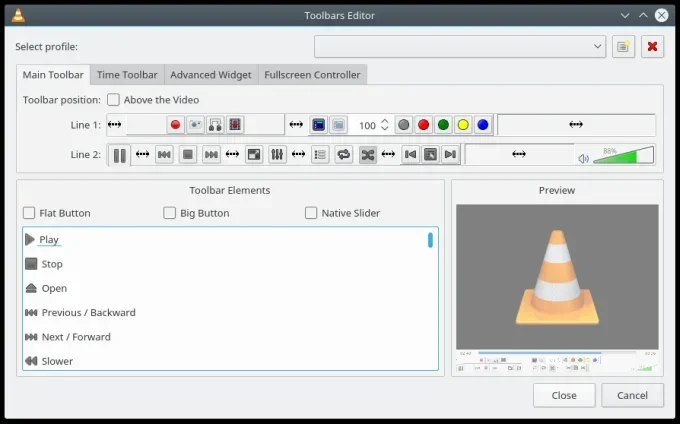
Not all apps use WASAPI by default. Music players like Foobar2000, VLC, and certain audio editing tools support WASAPI output. Open your app’s audio settings and look for the output driver option. Select WASAPI and choose either Shared or Exclusive mode.
Quick Tips for Best Results
- Use high-quality audio files or streams for the best experience.
- Keep your audio drivers updated through Windows Update or your laptop manufacturer’s website.
- Use good RMS power speakers or headphones that can handle high-quality audio signals.
- Experiment with buffer sizes in your audio app for the right balance between quality and performance.
Common Issues with WASAPI and Windows Audio
Even though WASAPI is a powerful system, you may run into some issues. Here are the most common problems and how to fix them.
No Sound in Exclusive Mode
If you switch to exclusive mode and suddenly lose sound, another app might be fighting for control of the audio device. Close other apps that use audio and try again. You can also check the Exclusive Mode setting in Sound Settings.
Audio Crackling or Distortion
Crackling or distortion often happens when your laptop’s audio driver is outdated or when the sample rate does not match your hardware. Update your drivers and make sure the sample rate in your audio app matches your speaker or headphone specifications.
High Latency Despite Using WASAPI
If you still experience high latency, check your buffer size settings. A smaller buffer size reduces latency but may cause audio glitches if your laptop cannot keep up. Find the sweet spot by testing different buffer sizes.
Apps Not Recognizing WASAPI
Some older apps do not support WASAPI. They may still use DirectSound or MME. In these cases, you can try updating the app or switching to a different audio player that supports Windows Audio Session API output.
WASAPI vs Other Audio APIs
To fully understand what WASAPI and Windows Audio are, it helps to compare WASAPI with other audio APIs that Windows has used over the years.
| Feature | WASAPI | DirectSound | MME |
|---|---|---|---|
| Introduced | Windows Vista | Windows 95 | Windows 3.0 |
| Latency | Low | Medium | High |
| Bit-Perfect Support | Yes | No | No |
| Exclusive Mode | Yes | No | No |
| Still Supported | Yes | Deprecated | Deprecated |
| Audio Quality | High | Moderate | Lower |
As you can see, WASAPI is the clear winner when it comes to modern audio performance on Windows. DirectSound and MME are outdated and no longer receive updates. If your app supports WASAPI, always choose it for the best experience.
Final Thoughts on WASAPI and Windows Audio
WASAPI and Windows Audio form the foundation of every sound you hear on a Windows laptop. Whether you are listening to music, gaming, or editing audio, understanding how this system works helps you get the most out of your setup. The direct audio path, low latency, and bit-perfect playback make WASAPI the best choice for anyone who cares about sound quality.
Take a few minutes to explore your Windows Sound Settings. Try switching to exclusive mode in your favorite music app. You might be surprised by how much better your laptop sounds. With the right setup and a little knowledge, you can turn your laptop into a powerful audio device.
If you want to dive deeper into speaker technology and how it affects your listening experience, check out what treble on speakers means and how it shapes your audio. Also, learning about RMS power in speakers helps you choose the right audio hardware for your laptop setup.
Frequently Asked Questions
What does WASAPI stand for?
WASAPI stands for Windows Audio Session API. It is the modern audio framework built into Windows that handles sound output for all applications on your laptop.
Is WASAPI better than DirectSound?
Yes, WASAPI is significantly better than DirectSound. It offers lower latency, bit-perfect audio playback, and support for high-resolution audio formats. DirectSound is an older API that has been deprecated by Microsoft.
Can I use WASAPI on any Windows laptop?
You can use WASAPI on any laptop running Windows Vista or later. It is built into the operating system and does not require any additional software or drivers to function.
What is the difference between WASAPI exclusive mode and shared mode?
Exclusive mode gives one app full control of the audio device for the best sound quality and lowest latency. Shared mode lets multiple apps play audio at once but uses the Windows mixer, which can slightly reduce audio quality.
Does WASAPI improve gaming audio?
Yes, WASAPI can improve gaming audio by reducing latency. Lower latency means you hear in-game sounds like footsteps and gunshots faster, which can give you a competitive advantage.
Do all music players support WASAPI?
Not all music players support WASAPI. Popular apps like VLC, Foobar2000, and some dedicated audio players do support it. Check your app’s audio or output settings to see if WASAPI is listed as an option.