What Is a Usb a Port Used For
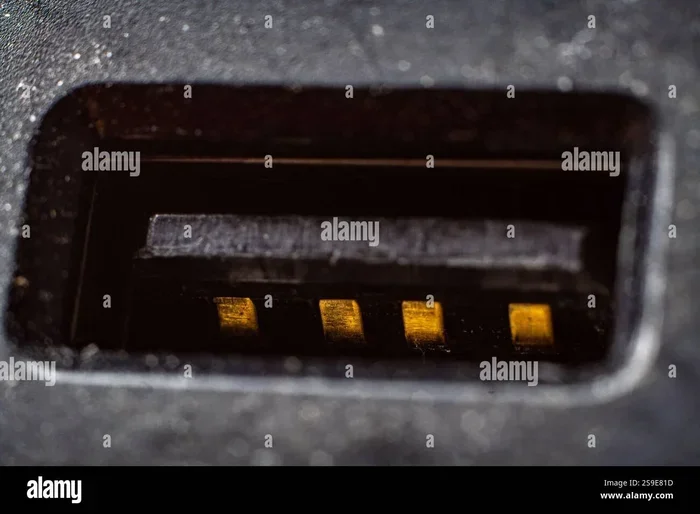
A USB A port is the most common and recognizable USB connector found on laptops and computers. It is used for connecting peripherals like keyboards, mice, flash drives, and external hard drives for data transfer and charging. Understanding what the USB A port does helps you make the most of your laptop’s connectivity options and avoid common mistakes.
A USB A port is one of those things we use every day without really thinking about it. You plug in your flash drive, connect your mouse, or charge your phone. But have you ever stopped to wonder what this port actually does? Why is it shaped the way it is? And why has it stuck around for so long? In this guide, we break it all down in plain, simple language.
If you use a laptop, you have almost certainly interacted with a USB A port. It is the rectangular-shaped connector that has been a part of computers for decades. Whether you are a student, a professional, or just someone who likes to stay connected, understanding this port helps you get more out of your device. Let us dive into exactly what it is and why it matters.
Key Takeaways
- Universal Connectivity: The USB A port is the standard connector used across most laptops, desktops, and peripherals for wired connections.
- Multiple Functions: It handles data transfer, charging devices, and connecting accessories like keyboards, mice, and external storage.
- Easy to Identify: The rectangular shape makes it instantly recognizable and simple to use.
- Backward Compatible: USB A ports work with older USB standards, giving you flexibility with legacy devices.
- Still Widely Used: Despite newer USB types, the USB A port remains a staple in laptop design and everyday tech.
📑 Table of Contents
What Exactly Is a USB A Port?
The USB A port is a standard connector type used in the Universal Serial Bus (USB) system. It is the flat, rectangular plug that you see on computers, laptops, gaming consoles, and many other devices. It is called “USB A” to distinguish it from other USB shapes like USB C, USB B, and USB Mini.
Here is a quick breakdown of what makes the USB A port special:
- Shape: Flat and rectangular with a slight bevel on one end.
- Size: Larger than USB C, making it easy to spot and use.
- Color: Often black or white, though some laptops use blue for USB 3.0 ports.
- Pins: Contains four pins for data and power delivery.
The USB A port has been around since the mid-1990s. It was designed to simplify how devices connect to computers. Before USB, you had a mess of different ports and cables. The USB A port brought order to that chaos. It became the go-to standard, and decades later, it is still widely used.
One reason the USB A port has survived so long is its plug-and-play capability. You do not need to install special software or restart your computer. Just plug it in, and your laptop recognizes the device almost instantly. This ease of use is a big reason it remains popular.
What Is a USB A Port Used For?
The USB A port serves several important functions. It is not just for one thing. It is a versatile connector that handles multiple tasks on your laptop. Let us look at the main uses in detail.
Connecting Peripherals and Accessories
The most common use of a USB A port is connecting peripheral devices. These are accessories that expand what your laptop can do. Think about the mouse you use, the keyboard you type on, or the webcam you video chat with. Most of these connect through a USB A port.
Other peripherals that rely on this port include:
- Computer mice and trackballs
- Keyboards, both wired and wireless (with a USB receiver)
- Printers and scanners
- Webcams and microphones
- Game controllers and joysticks
- External speakers and headphones
If you have ever plugged in a USB mouse or a wired keyboard, you have used a USB A port. It is that simple. The port provides both the data connection and the power needed to run these devices. This is why it remains the most popular port for everyday accessories.
Many laptop users still prefer wired peripherals over wireless ones. A wired connection means no charging, no batteries, and no lag. The USB A port makes this possible. If you are looking to buy a mouse for your setup, knowing what it connects to helps you make a better choice.
Data Transfer Between Devices
Another major function of the USB A port is data transfer. You can move files from one device to another using this port. This is incredibly useful for sharing documents, photos, videos, and backups.
Common devices used for data transfer include:
- USB flash drives: Small, portable storage that plugs right into the port.
- External hard drives: For backing up large files or extra storage.
- SD card readers: Many laptops use USB A readers to access memory cards.
- Smartphones: Some phones use USB A cables for file transfers.
The speed of data transfer depends on the USB version your port supports. USB 2.0 is slower but still works fine for basic tasks. USB 3.0 and USB 3.1 offer much faster speeds for large files like videos and backups. Check your laptop’s specs to know which version you have.
For many people, the USB A port is their go-to way to move files between devices. It is reliable, fast enough for most needs, and compatible with almost every storage device on the market. If you want to learn more about how your laptop handles data, you might also want to check out what RAM does for your laptop, since memory and storage work hand in hand.
Charging and Power Delivery
Did you know the USB A port can also charge your devices? It may not be as fast as modern USB C charging, but it still works. Many portable devices use USB A cables for power. This includes things like Bluetooth speakers, portable fans, and even some tablets.
Here are some devices you can charge through a USB A port:
- Smartphones (with the right cable)
- Wireless earbuds and their charging cases
- Portable battery packs
- USB-powered lamps and fans
- Some tablets and e-readers
The USB A port typically delivers 5 volts of power. This is enough for small devices but may be too slow for larger ones like laptops. Still, it is a handy feature to have, especially when you are traveling and need a quick charge.
One thing to keep in mind is that charging speed varies. Older USB A ports charge slowly compared to newer ones. If you need fast charging, you may want to look into other options. But for everyday devices, the USB A port gets the job done just fine.
How Does the USB A Port Work?
Understanding how the USB A port works is simpler than it sounds. At its core, it acts as a bridge between your laptop and another device. It sends and receives data, and it can also deliver electrical power. All of this happens through the four pins inside the port.
Here is how the process works in simple steps:
- You plug a USB device into the USB A port.
- The pins inside the port make contact with the corresponding pins on the cable.
- Your laptop detects the device and installs the necessary drivers (usually automatically).
- Data flows between the laptop and the device, or power flows to charge the device.
- When you unplug the device, the laptop recognizes the disconnection.
The USB A port follows a host-based architecture. This means your laptop acts as the host, and the connected device is the peripheral. The host controls the communication and decides when data is sent or received. This is different from some newer connection types where either device can act as the host.
The USB standard has evolved over the years. USB 1.0 was slow but revolutionary. USB 2.0 brought better speeds. USB 3.0 introduced blue-colored ports and much faster transfer rates. Even though newer standards exist, the USB A connector shape has stayed the same. This backward compatibility is a huge advantage. You can plug a modern USB 3.0 device into an older USB A port, and it will still work.
USB A Port vs. Other USB Types
The USB A port is not the only type of USB connector out there. Over the years, new shapes have been introduced to meet different needs. Let us compare the most common ones so you can see where the USB A port stands.
| Feature | USB A | USB C | USB B |
|---|---|---|---|
| Shape | Rectangular | Oval/rounded | Square with beveled corners |
| Common Use | Laptops, desktops, peripherals | Modern laptops, phones, tablets | Printers, scanners |
| Reversible? | No | Yes | No |
| Speed (Best Version) | Up to 10 Gbps (USB 3.1) | Up to 40 Gbps (USB 4) | Up to 10 Gbps (USB 3.1) |
| Power Delivery | Up to 5V, 0.5A–2.4A | Up to 20V, 5A | Up to 5V, 0.5A–2.4A |
| Still Widely Used? | Yes | Yes | Niche use |
As you can see, the USB A port is not the fastest or most modern option. But it is still the most widely available. Most laptops come with at least one or two USB A ports, even if they also have USB C. This is because so many devices still use USB A cables and connectors.
If your laptop only has USB C ports, you can use a USB adapter to connect USB A devices. These small adapters are inexpensive and very useful. They let you keep using your older peripherals without any hassle.
Common Devices That Use USB A Ports
Almost every wired accessory you own probably uses a USB A connection. Here is a list of the most common devices that rely on this port:
- USB flash drives: Also called thumb drives or pen drives. They are the most common use for a USB A port.
- Computer mice: Wired mice connect directly through USB A. If you are curious about what the mouse on your laptop is called, that is a separate built-in pointing device, but external mice use USB A.
- Keyboards: Both full-size and compact wired keyboards use USB A connectors.
- Printers: Most home and office printers connect via USB A for printing.
- External hard drives: Portable storage devices often use USB A for power and data.
- Webcams: Many standalone webcams connect through USB A for video calls.
- Controllers: Gaming controllers for PCs often use USB A cables.
The list goes on. The point is, if a device has a cable with a flat, rectangular plug, it connects to a USB A port. This universality is why the port has survived for so long. Even as laptops get thinner and lighter, manufacturers still include USB A ports because users demand them.
When you are building or upgrading your laptop setup, knowing which devices use USB A helps you plan better. It also helps you decide how many ports you need. If you use multiple USB A devices at once, consider getting a USB hub to expand your options.
Tips for Getting the Most From Your USB A Port
You already know what the USB A port does. Now let us look at some practical tips to help you use it better. These small habits can make a big difference in your daily workflow.
1. Check the USB version. Not all USB A ports are the same speed. Look for blue inserts inside the port (USB 3.0) or check your laptop specs. Using a USB 3.0 device in a USB 3.0 port gives you faster transfer speeds.
2. Use a quality cable. Cheap cables can cause slow transfers, connection drops, or even damage. Buy cables from reputable brands or trusted sellers. A good cable protects your devices and ensures stable performance.
3. Do not force the plug. The USB A port has a specific orientation. If it does not fit, flip it over. Forcing it can damage the pins inside. The beveled edge should face up when inserting the cable.
4. Keep your ports clean. Dust and debris can build up inside the port over time. Use compressed air to gently clean it out. A dirty port can cause connection problems that look like bigger issues.
5. Use a USB hub when needed. If you run out of ports, a USB hub is a great solution. It lets you connect multiple devices to a single port. Just make sure the hub is powered if you are connecting power-hungry devices.
6. Unplug devices safely. Always use the “Safely Remove Hardware” option before pulling out a USB device. This prevents data corruption and keeps your files safe.
These tips might seem basic, but they can save you from frustration and extend the life of your laptop’s ports. Taking care of your USB A ports means they will work reliably for years to come.
Final Thoughts
The USB A port is one of the most important and widely used connectors in the tech world. It connects your laptop to peripherals, transfers files, and even charges your devices. Despite the rise of newer port types like USB C, the USB A port remains a staple in laptop design. Its simplicity, reliability, and universal compatibility make it hard to replace.
Whether you are plugging in a flash drive, connecting a mouse, or charging a Bluetooth speaker, the USB A port has you covered. Understanding how it works and what it does helps you use your laptop more effectively. It also helps you troubleshoot issues when something does not work as expected.
As technology continues to evolve, the USB A port will likely stick around for a long time. Newer laptops may feature fewer USB A ports, but they are still included in most models. If you are shopping for a new laptop, check how many USB A ports it has. It can make a real difference in how you use your device day to day.
Take a moment to look at the ports on your laptop right now. Chances are, you will see at least one USB A port. Now you know exactly what it is for and how to get the most out of it. Keep this knowledge handy, and you will always be ready to connect, transfer, and charge with confidence.
For more tips on keeping your laptop running smoothly, check out our guide on what is the best investment for lifespan of PC. Taking care of your hardware, including your ports, goes a long way toward keeping everything working perfectly.
Frequently Asked Questions
Can I plug a USB A cable into a USB C port?
No, not directly. The USB A and USB C connectors have different shapes and pin configurations. However, you can use a USB A to USB C adapter or cable to bridge the two. These adapters are inexpensive and widely available online and in electronics stores.
Why is my USB A port not working?
There are several reasons a USB A port might stop working. It could be a loose connection, a dirty port, outdated drivers, or a hardware issue. Try cleaning the port first, then restart your laptop. If the problem persists, check your device manager for driver issues or test the port with a different device.
Is USB A faster than USB C?
In general, USB C supports faster speeds and more power than USB A. USB 3.0 USB A ports can reach speeds up to 5 Gbps, while USB C with USB 3.2 or USB 4 can go much faster. However, the actual speed depends on the specific USB version your devices and cables support.
Can I use a USB A port to connect an external monitor?
Yes, but it depends on the monitor. Some monitors use a USB A connection for data, while others use it only for charging or hub functionality. Most external monitors connect via HDMI, DisplayPort, or VGA. A USB A connection alone may not carry video signals unless the monitor has built-in processing.
How many devices can I connect to a single USB A port?
You can daisy-chain multiple devices using a USB hub, but there are limits. A single USB host controller can support up to 127 devices in a chain. In practice, most people use a hub with 4 to 7 ports. For best performance, use a powered USB hub when connecting multiple devices that draw power.
Does the USB A port work with all laptops?
Almost all laptops still include at least one USB A port. Some ultra-thin models have replaced USB A entirely with USB C ports. If your laptop lacks USB A, you can use a USB C to USB A adapter to connect traditional USB A devices. It is a simple and affordable solution.