What Is the Difference Between Save and Save As
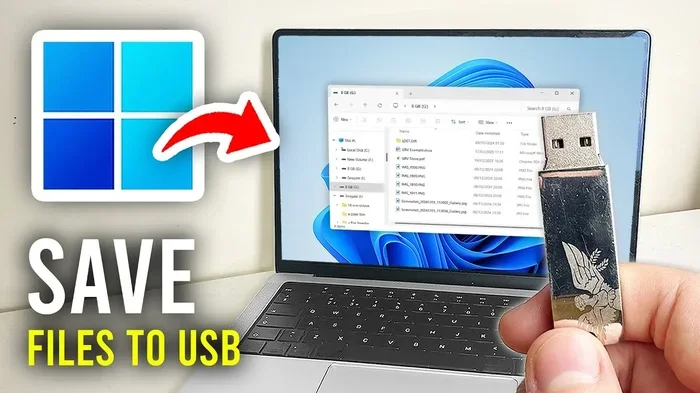
The Save command updates the file you are currently working on in its existing location and format. The Save As command lets you create a new copy of the file, choose a different name, pick a new location, or change the file format. Understanding this difference helps you manage files better and prevents accidental overwrites on your laptop.
Every time you work on a document, spreadsheet, or photo on your laptop, you rely on one simple command to keep your progress from disappearing. But have you ever paused to think about what really happens when you click Save versus Save As? These two options might look similar, but they do very different things behind the scenes.
Understanding the difference between Save and Save As is one of the most basic yet important laptop skills you can learn. It protects your files, keeps your folders organized, and saves you from frustrating mistakes. Whether you are a student writing a paper, a professional handling reports, or someone just browsing the web, this knowledge makes a big difference in your daily workflow.
In this guide, we break down exactly what each command does, when to use them, and how to avoid common pitfalls. By the end, you will never accidentally overwrite an important file again.
Key Takeaways
- Save updates the existing file: It overwrites the current version with your latest changes without asking for a new name or location.
- Save As creates a new copy: You get full control over the file name, save location, and file format every time you use it.
- Keyboard shortcuts make both faster: Ctrl+S for Save and Ctrl+Shift+S (or F12) for Save As work across most laptop apps.
- Use Save As to avoid losing original files: This is especially important when experimenting with edits or sharing versions with others.
- Save As supports file format changes: You can convert a Word document to PDF or a spreadsheet to CSV using this command.
- Check your save location regularly: Knowing where your files live on your laptop helps you find them quickly and keep things organized.
📑 Table of Contents
- What Does Save Mean on a Laptop?
- What Does Save As Mean on a Laptop?
- Key Differences Between Save and Save As
- When to Use Save vs Save As: Practical Scenarios
- Common Mistakes People Make with Save and Save As
- Tips for Better File Management on Your Laptop
- How Save and Save As Work Across Different Devices
- Conclusion
What Does Save Mean on a Laptop?
The Save command is your everyday, go-to option for keeping your work intact. When you click Save, your laptop writes the latest changes directly into the same file stored in the same location. It does not ask you for a new name. It does not ask where you want the file to go. It simply updates the existing file with your newest edits.
Think of it like editing a book in place. You open the book, make changes on the pages, and close it again. The book stays the same book, just with updated content. That is exactly what happens when you hit Save.
How Save Works Behind the Scenes
When you first create a new file and click Save, your laptop will ask you to choose a name and location. This is the one time Save behaves like Save As. After that initial save, every subsequent Save command simply overwrites the previous version of the file with the latest data. Your file name stays the same, your save location stays the same, and your file format stays the same.
This is why experienced laptop users always save early and often. If your laptop crashes or the power goes out, the most recent version of your file is the one that was saved. Every unsaved change since the last Save is lost.
When to Use the Save Command
You should use Save whenever you are continuing to work on a file that already exists. Here are the most common situations:
- You are typing a document and want to keep your progress without closing the file.
- You made small edits to a spreadsheet and want to keep the updated version in the same spot.
- You are working on a project over multiple sessions and want to preserve your latest edits.
- You are collaborating on a file and need to update the shared version.
The Save command is fast, simple, and efficient. It keeps your workflow moving without unnecessary interruptions. Just remember that every time you Save, the previous version of the file gets replaced. There is no going back unless you have a backup.
What Does Save As Mean on a Laptop?
The Save As command gives you full control over your file. It creates a brand new copy of your work and lets you decide exactly how that copy looks and where it lives. This is the command you reach for when you want to keep the original file untouched while experimenting with a new version.
Think of Save As like photocopying a document and then making changes to the copy. The original stays safe and sound. The copy gets the new name, new location, or new format that you choose.
How Save As Works Behind the Scenes
Every time you use Save As, your laptop opens a dialog box that lets you choose several things:
- File name: You can give the new copy a completely different name or keep the same name with a small tweak.
- Save location: You can move the file to a different folder, a different drive, or even a different laptop.
- File format: You can change the file type entirely. For example, you can save a Word document as a PDF or an image file as a PNG.
- File encoding: On some apps, you can choose how text characters are saved, which matters for files in different languages.
Because Save As always creates a new file, the original remains exactly as it was. This makes Save As your best friend when you are trying something new and do not want to risk losing your starting point.
When to Use the Save As Command
Save As shines in several specific situations. Here is when you should reach for it:
- You want to keep the original file intact while experimenting with edits on a copy.
- You need to share a version of the file with someone but want to use a different name.
- You want to change the file format, like converting a document to a PDF for easier sharing.
- You are saving the same file to a different folder or drive for better organization.
- You are creating a template from an existing file and want to preserve the original as a starting point.
Save As is also incredibly useful when you are working on a project that goes through multiple drafts. You can save each draft as a separate file, creating a clear trail of your progress. This is much safer than constantly overwriting a single file with Save.
Key Differences Between Save and Save As
The difference between Save and Save As comes down to one simple idea: Save updates what exists, while Save As creates something new. But let us look at the details side by side so the distinction is crystal clear.
Save vs Save As at a Glance
Here is a quick comparison of how these two commands differ:
- File name: Save keeps the original name. Save As lets you pick a new name.
- Save location: Save keeps the file where it is. Save As lets you choose a new folder or drive.
- File format: Save keeps the same format. Save As lets you convert to a different format.
- Original file: Save overwrites the original with new changes. Save As keeps the original untouched.
- First-time use: Save asks for a name and location the first time. Save As always asks every time.
- Keyboard shortcut: Ctrl+S triggers Save. Ctrl+Shift+S or F12 triggers Save As in most apps.
These differences might seem small, but they have a huge impact on how you manage your files. Using the wrong command at the wrong time can lead to lost work or messy file folders.
Which Command Does Your App Use by Default?
Different laptop apps handle Save and Save As in slightly different ways. Most word processors, spreadsheet apps, and image editors follow the standard behavior described above. However, some apps have unique quirks. For example, certain cloud-based apps automatically save your work in the background without you doing anything. In those cases, Save As might only be available through a menu option rather than a prominent button.
It is always a good idea to check the file menu of your specific app to see where Save and Save As are located. On most laptops, you find them under the File menu at the top left of the screen. Some apps also support right-click options or toolbar buttons for quick access.
When to Use Save vs Save As: Practical Scenarios
Knowing the theory is great, but seeing real-world examples makes the difference stick. Here are some practical scenarios that show when to use each command.
Scenario 1: Writing a School Essay
You are writing an essay for class and working on it over several days. Each time you open the file and add new paragraphs, you hit Ctrl+S to Save. This keeps your latest version in the same file. When you finish the final draft and want to submit it, you use Save As to create a clean copy with a different name like “Final_Essay_Draft” before submitting it to your teacher.
Scenario 2: Editing a Photo
You are editing a family photo on your laptop. You want to try different filters and adjustments. Instead of risking the original, you use Save As to save each experiment as a separate file. This way, you always have the original photo untouched if you want to go back to it.
Scenario 3: Sharing a Budget Spreadsheet
You maintain a monthly budget spreadsheet. At the end of the month, you use Save As to create a copy with the current month’s name. This lets you keep a running history of your budgets in separate files while always working from the latest version.
Scenario 4: Converting File Formats
You finished a report in a word processor and need to share it as a PDF. Save As lets you choose PDF as the output format without changing the original Word file. This is one of the most practical uses of Save As for laptop users who work with multiple file types.
Common Mistakes People Make with Save and Save As
Even experienced laptop users sometimes make mistakes with these two commands. Here are the most common ones and how to avoid them.
Accidentally Overwriting Important Files
The biggest risk with Save is accidentally overwriting a file you meant to keep. If you open an important document, make changes, and hit Save without thinking, the original version is gone. To avoid this, always use Save As when you are unsure whether you want to keep the original file exactly as it is.
Saving Files to the Wrong Location
When you use Save As, you get to choose where the file goes. But this also means you can accidentally save it somewhere you will never find it again. A good habit is to always save files to a dedicated folder for that project, and to check the save location before clicking the final Save button.
Forgetting to Use Save As for File Conversion
Some users try to change a file format by simply renaming the file extension. This does not work properly and often corrupts the file. Always use Save As to convert file formats, as this tells the app to properly encode the file in the new format.
Not Taking Advantage of Version Control
If you are working on a long project, using Save As to create dated versions (like “Report_V1,” “Report_V2,” and so on) helps you track your progress. Without this habit, you might find yourself wishing you had kept an earlier version of the file.
Tips for Better File Management on Your Laptop
Once you understand the difference between Save and Save As, you can build better habits around how you handle files on your laptop. Good file management saves time, reduces stress, and keeps your work safe.
Use Keyboard Shortcuts to Work Faster
Keyboard shortcuts are the fastest way to Save or Save As without taking your hands off the keyboard. Here are the most common ones:
- Ctrl+S saves your current file quickly.
- F12 opens the Save As dialog in most Windows apps.
- Ctrl+Shift+S also triggers Save As in many applications.
- Cmd+S works on Mac laptops for the Save command.
- Cmd+Shift+S triggers Save As on Mac.
Memorizing these shortcuts will speed up your workflow significantly. You will spend less time navigating menus and more time focused on your actual work.
Organize Your Folders with a Clear Structure
A good folder structure makes it easy to find files when you need them. Create main folders for broad categories like Work, Personal, School, and Projects. Inside each main folder, create subfolders for specific tasks or dates. This way, when you use Save As and need to choose a location, you already know exactly where the file belongs.
Enable Auto-Save When Possible
Many modern laptop apps now include auto-save features that constantly back up your work in the background. This is a great safety net, but it does not replace the need to understand Save and Save As. Auto-save still saves to the same file in the same location, so you still need Save As when you want a separate copy.
Check Your Save Location After Using Save As
After using Save As, take a moment to confirm where the file was saved. Look at the path shown in the Save As dialog box before you click the final Save button. This small habit prevents files from getting lost in the wrong folder or drive.
Keep Your Laptop Storage Organized
If your laptop storage is getting full, it is a good idea to regularly review your files and move older ones to external storage or cloud services. Understanding how Save and Save As work helps you make smart decisions about which files to keep, which to archive, and which to delete.
For more tips on managing your laptop efficiently, check out our guide on What Is The Ram On A Laptop to learn how memory and storage work together to keep your files running smoothly.
How Save and Save As Work Across Different Devices
The difference between Save and Save As is consistent across most devices and apps, but the experience can vary slightly depending on your setup. On a Windows laptop, the File menu at the top of each app gives you clear access to both commands. On a Mac laptop, the menu bar at the top of the screen shows Save and Save As under the File menu as well, though some apps use Duplicate instead of Save As.
If you use a laptop mouse, you can right-click within the file explorer to access quick save options. To learn more about your laptop mouse and how it works, visit our article on What Is The Laptop Mouse Called.
For users who rely on cloud storage services like OneDrive, Google Drive, or Dropbox, the Save and Save As commands work slightly differently. These services often sync your files automatically, which means Save might also upload your changes to the cloud. Save As can be used to create a local copy that does not sync immediately, giving you more control over your file versions.
No matter what device you use, the core principle remains the same. Save updates the existing file, and Save As creates a new copy with your chosen settings. Mastering this simple concept will serve you well across every app and device you use.
Conclusion
The difference between Save and Save As is one of the simplest yet most valuable pieces of laptop knowledge you can gain. Save keeps your work updated in the same file, while Save As gives you the power to create new versions, change formats, and choose where your files live. Together, these two commands form the foundation of smart file management on any laptop.
By using Save for everyday updates and Save As for creating copies, converting formats, and protecting originals, you will work more efficiently and avoid costly mistakes. Start using keyboard shortcuts, organize your folders, and make it a habit to think before you click Save or Save As. Your future self will thank you when you never lose an important file again.
For more helpful laptop tips, explore our other guides on laptop essentials. Whether you are learning about How To Know What Ram Is Compatible With My Laptop or looking for security tips like What Is The Best Method For Using Passkeys On Laptop, we have you covered.
Take a few minutes today to practice using both Save and Save As in your favorite apps. Once it becomes second nature, you will wonder how you ever worked without this understanding.
Frequently Asked Questions
What happens if I only use Save and never use Save As?
You can still work fine using only Save, but you risk overwriting your original files every time you make changes. Save As gives you the safety net of keeping the original file untouched while you experiment or create new versions. It is a best practice to use both commands depending on your needs.
Can I use Save As to change a file from one format to another?
Yes, absolutely. Save As lets you choose a different file format when you save a copy. For example, you can save a Word document as a PDF, or an image as a different file type. The original file stays in its original format while the new copy gets the format you choose.
What is the keyboard shortcut for Save As on a Windows laptop?
The most common shortcut is F12, which opens the Save As dialog in most Windows applications. Some apps also support Ctrl+Shift+S for the same purpose. You can always find the Save As option under the File menu at the top of your screen if the shortcut does not work.
Does Save As create a duplicate of my original file?
Yes, Save As creates a new copy of your file with the name, location, and format you choose. The original file remains exactly as it was, untouched and unchanged. This is what makes Save As so useful for keeping your starting point safe.
Is there a difference between Save and Save As on a Mac laptop?
The core difference is the same on Mac laptops as on Windows laptops. Save updates the existing file, and Save As creates a new copy. However, some Mac apps use the Duplicate command instead of Save As, which achieves a similar result by creating a copy of the file in the same location.
Should I use Save or Save As when working on a shared document?
Use Save to update the shared document with your latest changes. Use Save As if you want to create a personal copy before making significant edits. This way, you protect the shared version while still being able to experiment with your own copy. Always check with your team or instructor about the best file management practice for shared documents.