Coffee on Laptop What to Do
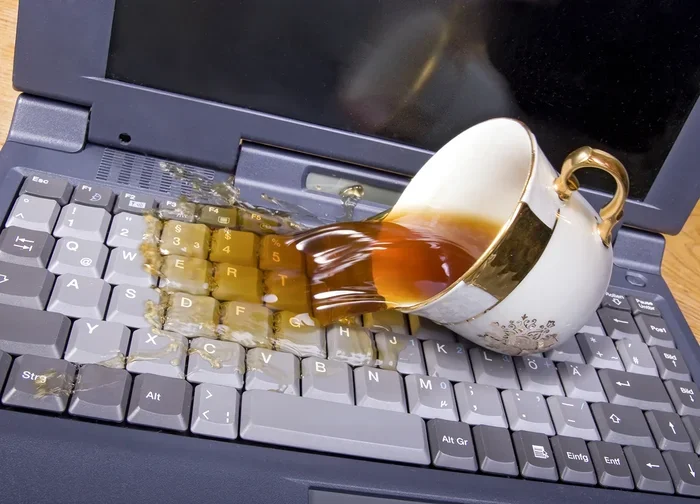
Spilling coffee on your laptop can be scary, but acting fast makes all the difference. This guide walks you through every step to save your device, from powering it off right away to drying and cleaning it properly. You will learn simple tips to prevent damage and keep your laptop running smoothly after a coffee accident.
You are working on your laptop, sipping your morning coffee, and then it happens. Your hand slips, and a wave of coffee spills directly onto your laptop. Your heart drops, and for a moment, you just freeze. What do you do next? This is a stressful situation, but the good news is that you can save your laptop if you act quickly and follow the right steps. Spilling a drink on your device does not always mean it is the end. Many laptops survive coffee accidents every day, and yours can too.
The key is staying calm and knowing what to do in the first few minutes. Panic leads to bad decisions, like pressing the power button or plugging in a charger. Instead, take a deep breath and focus on the steps ahead. This guide will show you exactly what to do when coffee spills on your laptop. We cover everything from the immediate actions you need to take, to drying and cleaning methods, and even how to prevent this from happening again. Whether your laptop is a budget model or a high-end machine, these tips apply to all of them.
Key Takeaways
- Act Fast: The first few seconds matter most when coffee spills on your laptop. Power it off immediately to prevent short circuits.
- Dry Thoroughly: Let your laptop air dry for at least 24 to 48 hours before turning it back on.
- Clean the Keyboard: Use gentle cleaning methods to remove coffee residue and sticky keys.
- Know When to Get Help: If your laptop still does not work after drying, seek professional repair services.
- Prevent Future Spills: Use laptop covers, keep drinks away, and follow simple habits to avoid damage.
- Backup Your Data: Always save your files regularly so a coffee accident does not mean lost work.
- Do Not Use Heat: Avoid hair dryers or heaters, as excessive heat can damage internal parts.
📑 Table of Contents
- Why Coffee Spills Are So Dangerous for Laptops
- Immediate Steps to Take When Coffee Spills on Your Laptop
- How to Properly Dry Your Laptop After a Coffee Spill
- Cleaning the Keyboard and Internal Components
- When to Seek Professional Repair
- Preventing Future Coffee Spills on Your Laptop
- What to Do If Your Laptop Won’t Turn On After a Coffee Spill
- Key Takeaways
Why Coffee Spills Are So Dangerous for Laptops
Coffee might seem harmless compared to other drinks, but it is actually quite damaging to electronics. Coffee contains water, oils, and sugars. All three of these can cause serious problems inside your laptop. Water causes short circuits by conducting electricity where it should not go. The oils leave a sticky residue that can gum up your keyboard and internal parts. Sugars make things worse by attracting dust and becoming even stickier as they dry. Together, these elements can fry your circuits, stick your keys, and corrode metal parts over time.
The damage depends on how much coffee spills and where it lands. A small splash on the keyboard is less dangerous than a full cup pouring directly into the vents. If coffee reaches the motherboard or internal components, the risks go up significantly. This is why every second counts. The faster you respond, the better your chances of saving your laptop. Understanding the liquid damage risks helps you take the situation seriously without panicking.
How Coffee Damages Different Laptop Parts
Different parts of your laptop react to coffee in different ways. The keyboard is the first line of contact, and it often takes the hardest hit. Keys can stick, stop working, or register random inputs. Under the keyboard, the motherboard is the brain of your laptop. Coffee on the motherboard can cause connections to fail or short out completely. The battery is another concern, as liquid near the battery can be very dangerous. Even the screen can suffer if coffee seeps through the hinges or cracks.
If you use an external mouse for laptop use, you might still be able to navigate while your laptop dries out. Some users find that their touchpad stops working after a spill, which makes a separate mouse very helpful during the recovery process. You can learn more about using an external device in our guide on How to Use a Mouse on a Laptop. This keeps you productive while you wait for repairs or drying time.
Immediate Steps to Take When Coffee Spills on Your Laptop
The first few minutes after a coffee spill on laptop are the most critical. What you do right now determines how much damage occurs. Follow these steps in order, and do not skip any of them.
Step 1: Unplug Everything and Power Off
The very first thing you must do is disconnect your laptop from power. Unplug the charger immediately. If your laptop battery is removable, take it out right away. Next, hold down the power button for several seconds to force a shutdown. Do not try to shut it down normally through the software, because the spill might have already affected the hardware. Cutting power stops electricity from flowing through the wet components, which reduces the risk of a short circuit.
Step 2: Flip the Laptop Upside Down
Once the power is off, flip your laptop upside down. Use a tent or inverted V shape so the keyboard faces downward. This helps gravity pull the coffee out instead of letting it seep deeper into the device. Do not shake the laptop, as this can spread the liquid to new areas. Just let it tilt and drain naturally. Place a towel or paper towel underneath to catch the dripping coffee.
Step 3: Remove External Devices
Take off anything connected to your laptop. Remove USB drives, external hard drives, headphones, and any other accessories. Liquid can travel through these connections into the ports and beyond. By removing them quickly, you protect both your laptop and your peripherals from additional damage.
Step 4: Blot, Do Not Wipe
Use a clean, soft cloth or paper towel to gently blot the surface of your laptop. Focus on the keyboard, the touchpad, and any visible puddles. The word here is blot, not wipe. Wiping pushes the liquid further under the keys and into crevices. Blotting absorbs the liquid sitting on top without spreading it around. Use a microfiber cloth if you have one, as it is gentle and highly absorbent.
After blotting the surface, resist the urge to turn your laptop on to see if it still works. This is one of the most common mistakes people make. Turning on a wet laptop can cause a short circuit and make the damage permanent. Always let it dry completely first.
How to Properly Dry Your Laptop After a Coffee Spill
Drying your laptop is not something you can rush. Many people make the mistake of using a hair dryer or placing their laptop near a heater. These methods seem helpful but can actually cause more harm than good. Heat can warp plastic parts, melt internal components, and push moisture deeper into the device. The best approach is simple, patient, and safe.
The Air-Dry Method
The safest way to dry a laptop after a coffee spill is to let it air dry naturally. Place your flipped laptop in a warm, dry area with good airflow. A room with a fan works well, as the gentle breeze helps evaporation without generating excessive heat. Leave your laptop in this position for at least 24 to 48 hours. The longer you wait, the better. Even if the surface feels dry, moisture may still be hiding inside the ports, under the keys, or around the internal circuits.
Using Silica Gel or Rice
Some people place their wet laptops in a bag of rice or surround them with silica gel packets. These materials absorb moisture from the air and can help speed up the drying process. However, rice is not the perfect solution some people claim. Rice dust can get inside your laptop and cause additional problems. Silica gel is a better option because it is cleaner and more effective at absorbing moisture. Place silica gel packets around and under your laptop if you have them available.
What Not to Do When Drying
- Do not use a hair dryer on high heat.
- Do not place your laptop in an oven or microwave.
- Do not use a heat gun or space heater.
- Do not try to turn it on to check if it works.
- Do not shake or tilt the laptop aggressively.
- Do not blow compressed air forcefully into the ports.
Avoiding these mistakes protects your laptop from thermal damage and further liquid spread. Patience is your best friend during this phase.
Cleaning the Keyboard and Internal Components
Once your laptop has dried completely, it is time to clean up the coffee residue. Coffee leaves behind sticky, oily deposits that can affect your keyboard and internal parts even after the liquid itself has evaporated. Cleaning these residues properly helps restore your laptop to working condition.
Cleaning the Keyboard
Start with the keyboard, since it took the most direct hit from the coffee. If your keys are sticky or unresponsive, gently pry them off if your laptop model allows it. Many laptops have removable keycaps that pop off with a small flat tool or your fingernail. Soak the keycaps in warm, soapy water for a few minutes, then rinse them and let them dry completely before putting them back. Use a cotton swab dipped in isopropyl alcohol to clean the area under each key. The alcohol evaporates quickly and does not leave moisture behind.
For the surface of the keyboard, dampen a cloth with a mixture of water and a tiny amount of dish soap. Gently wipe the keys and the spaces between them. Dry everything with a clean, soft towel afterward. Do not use too much water during this process, even though the laptop is already dry. The goal is to remove the sticky coffee residue, not introduce new moisture.
Dealing with Sticky or Unresponsive Keys
If some keys still do not work after cleaning, the coffee might have damaged the membrane or scissor mechanism underneath. In this case, you may need to replace the keyboard entirely. Replacement keyboards are available online for most laptop models and are relatively affordable. If you are not comfortable doing the replacement yourself, a local repair shop can handle it for you. Some people find that using an external pointing device helps while they wait for the keyboard fix. You can learn more about navigating without a working touchpad in our article on How to Make Mouse Work on Laptop, which offers practical tips for getting your cursor moving again.
Internal Cleaning (For Advanced Users)
If you feel comfortable opening your laptop, you can clean the internal components as well. Use compressed air to blow out any remaining coffee dust or residue from the fans and vents. Wipe the motherboard gently with a cloth lightly dampened with isopropyl alcohol. Be very careful around the battery and any exposed circuits. If you are not experienced with laptop disassembly, skip this step and take your device to a professional instead.
When to Seek Professional Repair
Not every coffee spill can be fixed at home. Some situations require the help of a trained technician. Knowing when to seek professional help saves you time, money, and the risk of making things worse.
You should see a professional if your laptop does not turn on after drying for 48 hours. If you notice a burning smell, see smoke, or observe visible corrosion on the internal parts, stop trying to fix it yourself. These are signs of serious electrical damage that only a trained technician can safely handle. Also, if the coffee spill reached the screen or the internal display, professional repair is almost always necessary.
Before taking your laptop to a repair shop, back up any important data if the device still turns on. Use an external hard drive or cloud storage to save your files. This ensures you do not lose important documents, photos, or work files, even if the laptop needs extensive repairs. You can also check whether your laptop warranty covers liquid damage, though many standard warranties do not. Some extended protection plans do include accidental damage coverage, so it is worth checking your terms.
Preventing Future Coffee Spills on Your Laptop
The best way to deal with a coffee spill is to prevent it from happening in the first place. A few simple habits can protect your laptop from future accidents and keep it running smoothly for years.
Create a Safe Workspace
Set up your laptop on a stable, flat surface away from the edge of a desk or table. Keep your coffee mug on a separate surface, ideally a coaster or a table that is not near your laptop. Consider using a spill-proof travel mug with a secure lid. These small changes reduce the risk of accidental spills dramatically.
Use Protective Accessories
Laptop covers, keyboard skins, and screen protectors add an extra layer of defense. A keyboard skin can prevent coffee from seeping between the keys and reaching the internal components. Laptop sleeves and cases protect your device during transport, reducing the chance of accidental spills when you are on the move. These accessories are inexpensive and can save you hundreds of dollars in repair costs.
Some users also benefit from using a separate laptop mouse instead of relying on the built-in touchpad, especially during busy work sessions when drinks are nearby. Having a mouse means your hands stay away from the laptop surface more often, reducing the chance of knocking over a cup. If your touchpad has been affected by a previous spill, you can find helpful guidance in our article on How to Enable Touchpad on Asus Laptop Without Mouse for devices where the touchpad needs to be reactivated.
Build Better Habits
Simple daily habits make a big difference. Always keep drinks at least a few feet away from your laptop. When working with coffee or other beverages, use a lid. Take breaks to move your drink to a safer location. Teach yourself and others in your household to be mindful of where liquids are placed. These habits become second nature over time and greatly reduce the chance of another coffee spill on laptop disaster.
What to Do If Your Laptop Won’t Turn On After a Coffee Spill
Even after following all the steps, your laptop might still refuse to turn on. This does not mean it is dead. There are a few things you can try before giving up or heading to a repair shop.
First, make sure the laptop is completely dry. Even a small drop of moisture left inside can prevent the device from powering on. Give it extra drying time if needed. Next, try a hard reset by holding the power button for 15 to 20 seconds while the laptop is unplugged. This can sometimes reset the internal circuitry and clear minor faults caused by the liquid.
If the hard reset does not work, try plugging in the charger and attempting to power on again. Sometimes a coffee spill affects the power circuit but not the main motherboard. If none of these steps work, the damage may be on the motherboard or another critical internal component. At this point, it is best to consult a professional repair service. They have the tools and expertise to diagnose and fix internal damage that is not visible from the outside.
Key Takeaways
- Act Fast: The first few seconds matter most when coffee spills on your laptop. Power it off immediately to prevent short circuits.
- Dry Thoroughly: Let your laptop air dry for at least 24 to 48 hours before turning it back on.
- Clean the Keyboard: Use gentle cleaning methods to remove coffee residue and sticky keys.
- Know When to Get Help: If your laptop still does not work after drying, seek professional repair services.
- Prevent Future Spills: Use laptop covers, keep drinks away, and follow simple habits to avoid damage.
- Backup Your Data: Always save your files regularly so a coffee accident does not mean lost work.
- Do Not Use Heat: Avoid hair dryers or heaters, as excessive heat can damage internal parts.
Frequently Asked Questions
Can a laptop survive a coffee spill?
Yes, many laptops survive coffee spills if you act quickly. The key is to power off the device immediately, flip it upside down, and let it dry completely for at least 24 to 48 hours. The faster you respond, the better the chances of saving your laptop from permanent damage.
Should I put my laptop in rice after a coffee spill?
Rice is not the best option. While it absorbs some moisture, rice dust can get inside your laptop and cause additional problems. Silica gel packets are a cleaner and more effective alternative. The most important thing is to let your laptop air dry in a warm, dry place with good airflow.
How long should I wait before turning my laptop on after a spill?
Wait at least 24 to 48 hours before attempting to turn your laptop on. Even if the surface feels dry, moisture can still be hiding inside the ports, under the keys, or around internal components. Patience is essential to avoid causing a short circuit when you power it back on.
Can coffee damage the laptop keyboard permanently?
Coffee can damage the keyboard permanently if the liquid reaches the underlying membrane or scissor mechanism. Sticky residues from coffee can also cause keys to malfunction over time. Cleaning the keys promptly and thoroughly reduces the risk of permanent keyboard damage.
Is coffee spill damage covered by laptop warranty?
Most standard laptop warranties do not cover liquid damage, as it is considered accidental damage. However, some extended protection plans or accidental damage coverage policies do include liquid spills. Check your specific warranty terms or contact the manufacturer to find out what is covered.
What should I do if my touchpad stops working after a coffee spill?
If your touchpad stops working, first make sure the laptop is completely dry. Sometimes moisture temporarily disables the touchpad, and it will work again once fully dried. If the touchpad still does not work after drying, you may need to enable it through settings or use an external mouse. You can learn more about using external input devices in our guide on How to Use a Mouse on a Laptop.
=== CONCLUSION ===
A coffee spill on your laptop is a scary moment, but it does not have to be the end of your device. By acting fast, following the right steps, and staying patient during the drying process, you give your laptop the best chance of surviving the accident. Remember to power off immediately, flip the laptop upside down, and let it air dry for at least a full day before trying to turn it back on. Clean the keyboard gently, remove coffee residue, and know when it is time to seek professional help. Taking preventive measures going forward, like using spill-proof mugs and keeping drinks away from your workspace, can save you from the same stressful situation in the future. Stay calm, follow these steps, and your laptop will have a real chance at a full recovery.