Do I Need to Charge a New Laptop Before Using It
No, you do not need to charge a new laptop before using it. Modern laptops come with a partial factory charge that is enough for initial setup. However, following a few simple battery charging best practices can help your laptop battery life last for years.
You just unboxed your shiny new laptop. The excitement is real. But then a question hits you: do I need to charge a new laptop before using it? You plug it in, turn it on, and… nothing happens. Or maybe it works right away. So what gives?
The short answer is no. You do not need to charge a new laptop before using it. Modern laptops ship with a partial battery charge from the factory. That small amount of power is more than enough to get you through the initial setup process. But there is a bit more to it than just flipping the power button. Let us walk through everything you need to know about charging your new laptop the right way.
Understanding how your laptop battery works can save you from common mistakes. It can also help you get the most out of your device for years to come. Whether you just bought a sleek ultrabook or a powerful gaming machine, this guide covers it all. We will look at first-time charging, battery health tips, and the myths that just will not die.
Key Takeaways
- No pre-charge needed: New laptops arrive with enough stored power to get you started.
- Charge to 100% soon: Fill the battery after unboxing for optimal lithium-ion battery health.
- Avoid deep discharges: Keep your battery between 20% and 80% for long-term battery maintenance.
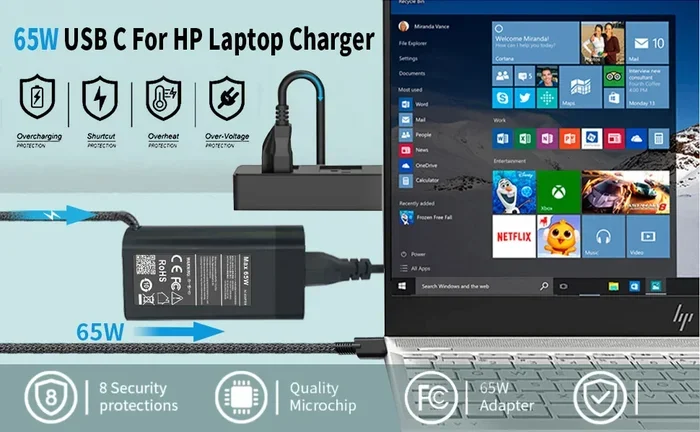
- Use the right adapter: Always use the original AC adapter that came with your laptop.
- Calibrate your battery: Run a full charge cycle occasionally to keep the battery indicator accurate.
- Store smartly: If storing your laptop, keep it at around 50% charge in a cool place.
📑 Table of Contents
Understanding Your New Laptop Battery
Before we answer the big question, let us talk about what is inside your laptop. Most modern laptops use lithium-ion batteries or lithium-polymer batteries. These are advanced rechargeable batteries that hold a lot of energy in a small space. They are lightweight, efficient, and much better than the old nickel-cadmium batteries from years ago.
When a laptop leaves the factory, it is not fully charged. Why? Because storing a battery at 100% charge for a long time can actually reduce its lifespan. So manufacturers typically ship laptops with around a 30% to 50% charge. This is called the factory charge level. It is just enough to get you through setup and your first few hours of use.
How the Battery Indicator Works
When you first turn on your new laptop, look at the battery indicator in the taskbar or system tray. It will show you the current battery percentage. If it shows anything above zero, you are good to go. You can start using your laptop right away. The battery icon gives you a quick visual of how much power you have left.
Some laptops also show a battery health status in the settings. This tells you the overall condition of the battery. It is a great way to know if your laptop battery is performing as it should. If the health is low out of the box, contact the manufacturer right away.
What Is the Right Charge Level for a New Laptop?
The ideal battery level for a new laptop is between 40% and 60% when it ships. This range minimizes stress on the battery cells during storage and transport. Once you start using your laptop, the goal is to bring it up to 100% within the first hour or two. This helps the battery management system calibrate properly.
Should You Charge a New Laptop Before First Use?
Here is where things get interesting. The old advice was to charge a new device for hours before using it. That was true for older battery types. But lithium-ion batteries do not need that treatment. You can use your laptop right out of the box if you want to. Just make sure you have enough power to complete the initial setup.
That said, there is no harm in charging it first. If you have the time and the charger handy, go ahead and top it off. Charging to 100% before first use gives you a full day of unplugged work right from the start. It also helps the battery settle into its full capacity.
The First Charge Myth
You may have heard people say you need to charge a new laptop for 12 hours the first time. This is a myth. It comes from the days of nickel-cadmium batteries, which had a “memory effect.” Modern batteries do not have this problem. Charging for 12 hours will not improve performance. It can actually put unnecessary stress on the battery.
Instead, just charge your laptop until it reaches 100%. Then unplug it and start using it. That is all you need to do. Simple, right? The key is to build good charging habits from day one. These habits will protect your battery for the long haul.
When to Plug In and When to Unplug
Once your laptop is at 100%, unplug it and start working. Most modern laptops have smart power management systems. These systems stop charging the battery once it hits full capacity. So leaving your laptop plugged in all the time will not overcharge it. However, keeping it plugged in 24/7 can still cause long-term battery wear.
A good rule of thumb is to let the battery discharge to around 20% before plugging it back in. This keeps the battery cells active and healthy. Think of it like stretching a muscle. You want to use it regularly, not keep it in a fixed position all the time.
How to Properly Charge Your New Laptop
Now that you know the basics, let us get into the details of proper laptop charging. How you charge your new laptop matters more than you might think. The way you treat your battery in the first few weeks sets the tone for its long-term health.
Step-by-Step First Charge Guide
Follow these simple steps for the best results with your new laptop:
- Unbox and inspect your laptop for any physical damage.
- Check the battery percentage on the screen or in the settings.
- Connect the AC adapter that came in the box. Use only the original charger.
- Charge the laptop to 100%. This usually takes one to two hours.
- Unplug the charger and start using your laptop normally.
- Let the battery drain to about 20% before plugging it back in.
This process gives your lithium-ion battery a healthy start. It also helps the operating system learn the battery’s full capacity. You only need to do this once. After that, just follow normal charging habits.
Choosing the Right Charger
Always use the charger that came with your laptop. Third-party chargers might work, but they can also cause problems. A low-quality power adapter may deliver inconsistent voltage. This can damage your battery over time. It can even void your warranty.
If you need a replacement charger, buy one from the laptop manufacturer or a trusted brand. Look for the correct wattage and connector size. Using the wrong charger is one of the easiest ways to harm your laptop battery life.
Charging Speed and Heat
Fast charging is convenient, but it generates more heat. Heat is the number one enemy of lithium-ion batteries. If your laptop gets hot while charging, try to use it on a flat, hard surface. Avoid charging on a bed or couch where air cannot circulate. Good airflow keeps the battery cool and healthy.
Some laptops offer battery saver modes that limit charging to 80%. This is a great feature if you keep your laptop plugged in most of the time. It reduces battery stress and extends the overall lifespan. Check your laptop settings to see if this option is available.
Battery Care Tips for Long-Term Health
Taking care of your laptop battery is not complicated. A few simple habits can make a huge difference. These tips will help you get the most battery life out of your device over months and years.
Keep the Battery Between 20% and 80%
This is the golden rule of battery maintenance. Lithium-ion batteries last longest when they are not fully drained or constantly kept at 100%. Keeping the charge between 20% and 80% reduces stress on the battery cells. It slows down the chemical degradation that happens over time.
If you are a heavy user, this might not always be possible. But even trying to stay in this range most of the time helps. Small changes add up over the months and years.
Avoid Extreme Temperatures
Do not leave your laptop in a hot car. Do not use it on a sunny windowsill. Heat degrades batteries fast. Cold temperatures are less harmful, but extreme cold can also cause temporary battery drain. The ideal temperature range for your laptop is between 50°F and 80°F (10°C to 27°C).
If your laptop gets hot during heavy tasks, consider using a cooling pad. This helps maintain good airflow around the device. A cooler laptop means a happier battery.
Calibrate Your Battery Regularly
Over time, your laptop’s battery indicator may become less accurate. The battery might show 15% and then shut off suddenly. This happens when the battery management system loses track of the true charge level. The fix is simple: calibrate the battery.
To calibrate, charge your laptop to 100%, then unplug it and use it until it shuts off from a full drain. Then charge it back to 100% without interruption. This resets the battery’s internal sensors. Do this once every two to three months for the best results.
Store Your Laptop Properly
If you are not going to use your laptop for a while, store it correctly. Charge the battery to around 50% before putting it away. Store it in a cool, dry place. Avoid storing it fully charged or fully empty. Both extremes can cause permanent battery damage over time.
Check on your stored laptop every few weeks. Give it a top-up charge if the battery drops below 20%. This keeps the cells active and prevents deep discharge.
Common Myths About Laptop Battery Charging
There is a lot of bad advice floating around about laptop battery charging. Let us clear up some of the most common myths. These misconceptions can actually hurt your battery if you follow them.
Myth 1: You Must Charge a New Laptop for 12 Hours
We already covered this one. It is not true. Modern lithium-ion batteries do not need a long initial charge. One to two hours is plenty. Charging for 12 hours will not make your battery last longer. It will just waste your time and possibly generate excess heat.
Myth 2: You Should Always Drain Your Battery to Zero
Deep discharges are hard on lithium-ion batteries. Draining your battery to zero regularly shortens its lifespan. It is much better to charge your laptop more often and keep it in the 20% to 80% range. Think of it as snacking instead of gorging. Small, frequent charges are much better for the battery.
Myth 3: Leaving Your Laptop Plugged In Damages the Battery
This one is partially true. Leaving your laptop plugged in all the time does not immediately damage the battery. Modern laptops have circuits that stop charging at 100%. But keeping the battery at 100% constantly does cause slow chemical degradation over time. The solution is to use battery saver mode or unplug occasionally to let the battery discharge a bit.
Myth 4: You Should Never Use Your Laptop While Charging
Using your laptop while it charges is perfectly fine. It will not harm the battery. Modern power supplies are designed to handle both charging and usage at the same time. The only thing to watch out for is heat. If your laptop gets very hot while gaming and charging, consider letting it cool down. Otherwise, go ahead and work or play while plugged in.
When to Worry About Your Laptop Battery
Most laptops last several years on the same battery. But sometimes, things go wrong. Knowing the warning signs can help you catch problems early. Here is what to look for:
- Very short battery life: If your laptop dies within 30 minutes of unplugging, something is wrong.
- Swollen battery: If the laptop case is bulging, stop using it immediately. This is a safety hazard.
- Charging takes too long: If your laptop takes more than 4 hours to charge, the battery may be failing.
- Battery health drops fast: If your battery health drops below 60% within a year, contact support.
- Random shutdowns: If your laptop shuts off even with 30% charge, the battery sensor may be faulty.
If you notice any of these issues, check your battery health in the operating system settings. On Windows, go to Settings > System > Power & Battery > Battery Health. On Mac, hold the Option key and click the battery icon. These tools give you a clear picture of your battery’s condition.
Sometimes the problem is software, not the battery itself. Update your power management drivers and BIOS. This can fix charging issues without replacing the battery. If the battery truly is defective, most manufacturers offer a one-year warranty. Contact their support team for a replacement.
How to Improve Your Laptop Battery Life Over Time
Beyond the tips above, there are a few extra things you can do. Reducing screen brightness saves a lot of power. Closing apps you are not using helps too. Turn off Bluetooth and Wi-Fi when you do not need them. These small steps add up and extend your battery life on every charge.
If your laptop has an efficient power mode, turn it on when working unplugged. This limits background processes and reduces power consumption. It is an easy way to squeeze more hours out of a single charge. You can find these settings in your system preferences or control panel.
For users who want even more control, look into battery saver software from your laptop manufacturer. These tools let you customize charging limits, performance profiles, and power settings. They give you a hands-on way to protect your battery investment.
Final Thoughts
So, do you need to charge a new laptop before using it? The answer is a clear no. Your new laptop has enough factory charge to get you started. Just charge it to 100% soon after unboxing and build good habits from there. Keep your battery between 20% and 80%, avoid extreme heat, and calibrate regularly. These simple steps will keep your laptop battery healthy and strong for years to come.
Your laptop is a big investment. Taking care of the battery is one of the easiest ways to protect that investment. A well-maintained battery means more untethered work, more portability, and fewer headaches. Start these habits today and your future self will thank you every time you unplug and go.
And remember, if you ever run into battery issues, do not panic. Most problems are fixable with a simple software update or a warranty replacement. Stay informed, charge smart, and enjoy your new laptop to the fullest.
Frequently Asked Questions
How long should I charge my new laptop for the first time?
Charge your new laptop for one to two hours until it reaches 100%. There is no need to leave it charging for 12 hours. Modern lithium-ion batteries do not require a long initial charge. Once it hits full, unplug and start using it.
Can I use my new laptop while it is charging?
Yes, you can use your laptop while it charges. It will not damage the battery. Modern laptops are designed to handle both tasks at the same time. Just make sure your laptop does not overheat, especially during heavy tasks like gaming or video editing.
How often should I charge my new laptop?
There is no set schedule. The best practice is to charge your laptop when the battery drops to around 20%. Avoid letting it fall below 5% regularly. Frequent small charges are better for battery health than deep discharges.
Should I leave my new laptop plugged in all the time?
It is not ideal to keep your laptop plugged in 24/7. Constant full-charge storage causes slow battery wear over time. If you must keep it plugged in, use a battery saver mode that limits charging to 80%. Unplug occasionally to let the battery discharge.
How do I check my new laptop battery health?
On Windows, go to Settings > System > Power & Battery > Battery Health. On Mac, hold the Option key and click the battery icon in the menu bar. These tools show your battery’s current condition and maximum capacity compared to when it was new.
What should I do if my new laptop battery drains too fast?
First, check for software updates. Sometimes power management drivers need updating. Reduce screen brightness and close unused apps. If the problem persists, run a battery report through your operating system. If the battery health is below 80%, contact the manufacturer for a possible warranty replacement.
=== CONCLUSION ===
Charging a new laptop is simpler than most people think. You do not need to follow old-school rules like charging for 12 hours or draining the battery to zero. Modern lithium-ion batteries work best with gentle, consistent care. Charge to 100% after unboxing, keep the charge between 20% and 80%, and avoid extreme heat. These small habits go a long way in protecting your laptop battery life.
Remember, your new laptop is ready to use right out of the box. The factory charge is enough to get you set up. Once you are online and ready, plug in and top off the battery. From there, just treat your battery well and it will reward you with reliable power for years. Charge smart, use confidently, and enjoy every moment with your new device.