Laptop Ram Speed Compatibility Everything You Need to Know
Laptop ram speed compatibility is the key to getting the best performance from your machine. Not all RAM modules work with every laptop, and choosing the right speed can make a huge difference. In this guide, we break down everything you need to know about memory speed, RAM types, and how to find the perfect match for your system.
Key Takeaways
- RAM speed matters: Faster memory speed can improve laptop performance in demanding tasks.
- DDR4 and DDR5 are the main types: They are not interchangeable, so always check your laptop’s supported standard.
- SODIMM modules are standard: Most laptops use small form factor RAM sticks called SODIMMs.
- Check your motherboard: Your laptop’s motherboard dictates the maximum RAM speed it can handle.
- Mixing RAM speeds can cause issues: Always match RAM modules for the best results.
- Use a compatibility checker: Tools and resources can help you verify RAM compatibility before buying.
📑 Table of Contents
- Laptop Ram Speed Compatibility Everything You Need to Know
- What Is Laptop RAM Speed and Why Does It Matter
- Understanding RAM Types: DDR4 vs DDR5
- How to Check Your Laptop’s RAM Compatibility
- Understanding SODIMM and RAM Form Factors
- Common Mistakes When Upgrading Laptop RAM
- Quick Tips for Choosing the Right RAM Speed
- Final Thoughts on Laptop Ram Speed Compatibility
Laptop Ram Speed Compatibility Everything You Need to Know
If you have ever tried to upgrade your laptop memory and ended up with a stick that just does not work, you know how frustrating it can be. Laptop ram speed compatibility is not always straightforward. There are different RAM types, speeds, and form factors to consider. But do not worry. This guide will walk you through everything step by step.
Your laptop’s performance depends a lot on its memory. Whether you are a student, a creative professional, or a gamer, having the right RAM speed can make a real difference. Slow memory can bottleneck your system, while fast and compatible RAM helps everything run smoother. Let us dive into what makes RAM compatible with your laptop.
The world of laptop memory can feel confusing at first. You see numbers like 3200MHz, DDR4, and SODIMM everywhere. But once you understand the basics, it all starts to make sense. This article covers the essential topics you need to know. We will look at RAM types, speed ratings, how to check compatibility, and common mistakes to avoid.
What Is Laptop RAM Speed and Why Does It Matter
RAM speed, also called memory frequency, measures how fast your laptop’s memory can read and write data. It is measured in megahertz (MHz). A higher MHz number means faster data transfer. For example, a 3200MHz RAM stick moves data quicker than a 2400MHz stick.
But speed is not the only factor. Latency and timings also play a role. These numbers tell you how many clock cycles it takes for RAM to respond. Lower latency is better. However, for most users, focusing on the MHz rating is the simplest way to compare RAM modules.
How RAM Speed Affects Laptop Performance
Faster RAM can boost your laptop in several ways. Here are some areas where memory speed makes a noticeable impact:
- Multitasking: Switching between apps feels faster with higher-speed memory.
- Gaming: Games load quicker and run more smoothly with better RAM speed.
- Video editing: Rendering and exporting files benefit from faster memory.
- Web browsing: Having many tabs open works better with quick RAM.
That said, the improvement depends on your laptop’s processor and motherboard. A fast RAM stick will not help much if your system cannot support it. This is why laptop ram speed compatibility is so important. Always match your RAM to what your laptop can handle.
Understanding RAM Types: DDR4 vs DDR5
RAM types have evolved over the years. The two most common types in modern laptops are DDR4 and DDR5. Each type has its own speed capabilities and physical design. They are not interchangeable, so you must know which type your laptop uses.
DDR4 RAM
DDR4 has been the standard for many years. It is reliable, widely available, and affordable. Most laptops from 2015 to 2023 use DDR4 memory. Common DDR4 speeds range from 2400MHz to 3200MHz. Some high-performance modules can go even higher.
If your laptop was built in the last few years, there is a good chance it uses DDR4. This is the most common RAM type you will encounter. When shopping for an upgrade, always look for DDR4 if your laptop supports it.
DDR5 RAM
DDR5 is the newer standard. It offers higher speeds and better efficiency than DDR4. Common DDR5 speeds start at 4800MHz and can go well beyond 6000MHz. However, DDR5 laptops are still relatively new and tend to cost more.
DDR5 is not backward compatible with DDR4 slots. You cannot put DDR5 RAM into a DDR4 laptop. So before you buy any memory, double-check which type your laptop supports. Mixing them up is one of the most common mistakes people make.
How to Check Your Laptop’s RAM Compatibility
Finding out what RAM your laptop supports is easier than you might think. There are several simple methods you can use. You do not need to be a tech expert to figure this out.
Method 1: Check Your Laptop Manual
Your laptop’s user manual is a great starting point. It usually lists the supported RAM type, maximum capacity, and speed. If you do not have a physical copy, you can almost always find the manual on the manufacturer’s website. Just search for your laptop model number.
Method 2: Use System Information Tools
Both Windows and Mac offer built-in tools to check your current memory specs. On Windows, you can use the Task Manager or a free tool called CPU-Z. These tools show you your current RAM type, speed, and how many slots are available.
On a Mac, click the Apple menu and select About This Mac. It will display your memory type, speed, and total capacity. This information helps you know exactly what to look for when buying new modules.
Method 3: Visit the Manufacturer’s Website
Most laptop manufacturers have a support page where you can enter your model number. These pages list all the compatible RAM modules and specifications. This is one of the most reliable ways to confirm compatibility before making a purchase.
Understanding SODIMM and RAM Form Factors
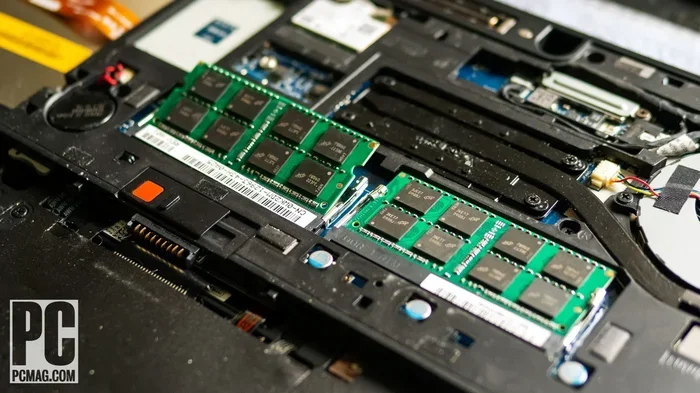
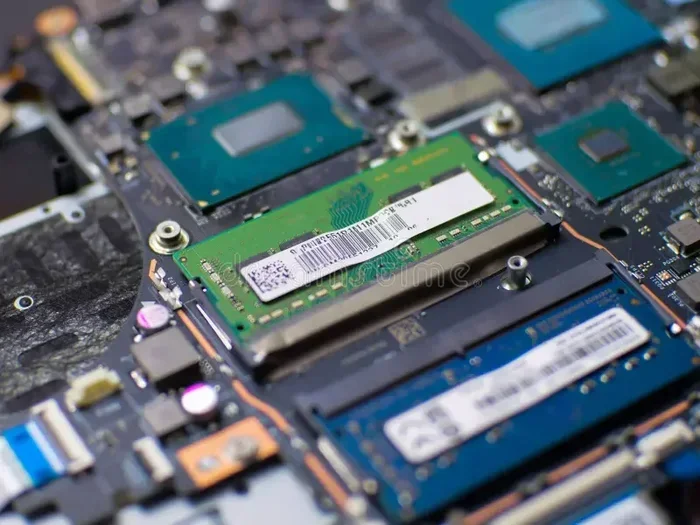
Laptops use a special type of RAM called SODIMM, which stands for Small Outline Dual In-Line Memory Module. These sticks are much smaller than the RAM used in desktop computers. They are designed to fit into the compact spaces inside laptops.
When shopping for laptop memory, always look for SODIMM modules. If you accidentally buy desktop RAM, it will not fit. The form factor is one of the most important aspects of laptop ram speed compatibility. Make sure the module matches your laptop’s slot type.
Most laptops have either one or two RAM slots. Some ultrabooks have memory that is soldered onto the motherboard and cannot be upgraded. Before buying new RAM, check how many slots your laptop has and whether the existing memory can be removed or expanded.
Common Mistakes When Upgrading Laptop RAM
Upgrading your laptop memory is a great way to boost performance. But many people make avoidable mistakes along the way. Here are some pitfalls to watch out for.
Mixing Different RAM Speeds
One of the biggest mistakes is combining RAM sticks with different speeds. If you put a 2666MHz stick and a 3200MHz stick in the same laptop, both will run at the slower speed. Your system will default to the lowest common speed, which defeats the purpose of upgrading.
To get the best performance, always match your RAM modules. Use the same brand, speed, and capacity whenever possible. This ensures dual channel mode works properly and your laptop runs at its full potential.
Ignoring Maximum Capacity Limits
Every laptop has a maximum RAM capacity. Putting in more RAM than your laptop supports will not work. The system simply will not recognize the extra memory. Check your laptop’s specs before buying to avoid wasting money.
Buying the Wrong RAM Type
As mentioned earlier, DDR4 and DDR5 are not interchangeable. Buying the wrong type is a costly mistake. Always verify your laptop’s RAM type before placing an order. A quick check on the manufacturer’s website can save you a lot of trouble.
Also, keep in mind that RAM speed can affect 3D rendering performance, so if you work with graphics or video, getting the right speed matters even more for your workflow.
Quick Tips for Choosing the Right RAM Speed
Here are some practical tips to help you choose the best RAM for your laptop:
- Stick to your laptop’s supported speed: Do not buy RAM that exceeds what your motherboard can handle.
- Match your existing RAM: If you already have a stick installed, buy the same speed and type.
- Check for dual channel support: Two matching sticks often perform better than a single stick.
- Read reviews: Look for user reviews on the RAM modules you are considering.
- Consider your use case: Gaming and creative work benefit more from faster RAM than basic office tasks.
If you are unsure about which RAM to choose, you can also check out guides on RAM upgrade for your laptop to get more specific recommendations based on your model.
Remember, compatibility is everything. The fastest RAM in the world will not help if your laptop cannot use it. Take the time to research your system’s requirements before making any purchase. A little homework goes a long way in ensuring a smooth upgrade experience.
Final Thoughts on Laptop Ram Speed Compatibility
Understanding laptop ram speed compatibility does not have to be overwhelming. By knowing your RAM type, speed, and form factor, you can confidently choose the right memory for your laptop. Always check your laptop’s specifications, match your modules, and avoid the common mistakes we covered.
A well-chosen RAM upgrade can breathe new life into an older laptop. It can make everyday tasks feel snappier and improve your experience with demanding applications. Whether you are upgrading for work, school, or play, getting the right RAM speed is one of the simplest and most effective upgrades you can make.
Take your time, do your research, and enjoy the boost that comes with the right memory. Your laptop will thank you for it.
Frequently Asked Questions
What happens if I put too fast RAM in my laptop?
Your laptop will still work, but it will run the RAM at the slowest speed it supports. The system automatically downclocks faster memory to match what the motherboard can handle. This means you would be paying extra for speed you cannot actually use.
Can I mix 2666MHz and 3200MHz RAM in my laptop?
Yes, but both sticks will run at the slower speed, which is 2666MHz in this case. Mixing speeds is not recommended if you want the best performance. Always try to use matching RAM modules for optimal results.
How do I know if my laptop supports DDR5 RAM?
Check your laptop’s manual or visit the manufacturer’s website and search for your model number. You can also use system tools like CPU-Z on Windows to see what type of RAM your laptop currently uses and what it supports.
Is higher RAM speed always better for laptops?
Not necessarily. Higher speed only helps if your laptop’s processor and motherboard can take advantage of it. For basic tasks like browsing and word processing, the difference between speeds is minimal. Faster RAM shines in demanding applications like gaming and video editing.
What is the difference between RAM speed and RAM capacity?
RAM speed (measured in MHz) refers to how fast data moves in and out of memory. RAM capacity (measured in GB) refers to how much data your laptop can hold in memory at once. Both matter, but they affect performance in different ways. Speed helps with responsiveness, while capacity helps with multitasking.
Can I upgrade the RAM in any laptop?
No, not all laptops allow RAM upgrades. Some have soldered memory that cannot be replaced or expanded. Before attempting an upgrade, check whether your laptop has removable RAM slots. Ultrabooks and thin laptops are more likely to have soldered memory.