How To Improve Audio Sync In Live Webcam Streaming
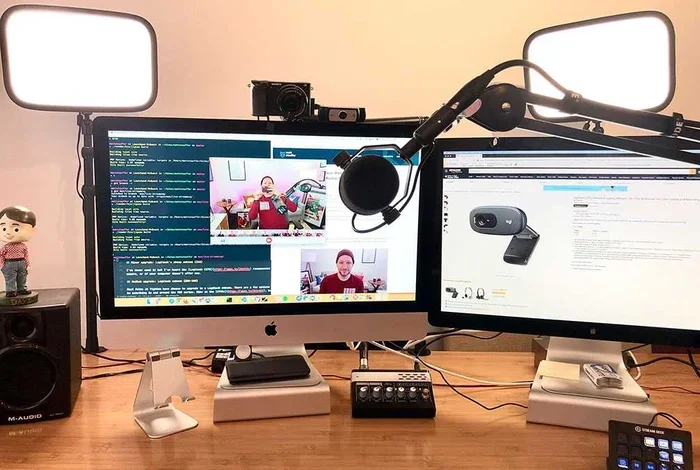
Struggling with audio sync in webcam streaming? This guide shows you how to fix lip sync issues and get perfect sound-video alignment. You’ll learn quick checks, software settings, and hardware upgrades to make your live streams sound flawless.
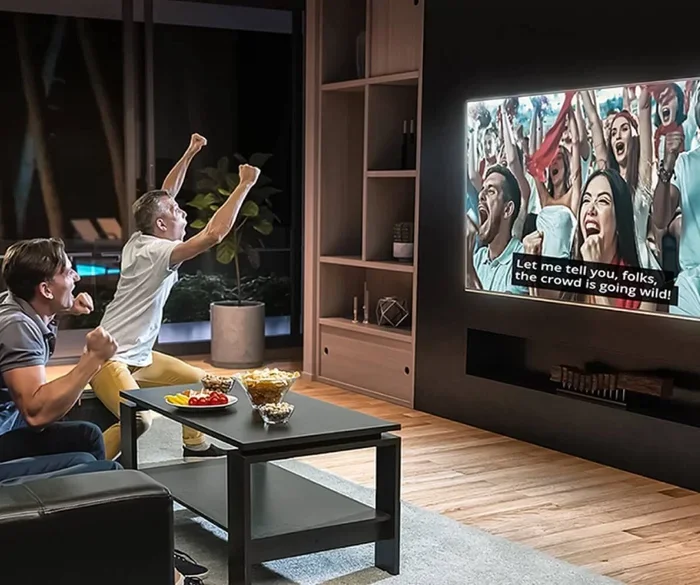
If you’ve ever watched a live stream and noticed the speaker’s mouth moving before the words come out, you know how jarring that can be. Audio sync in webcam streaming is the invisible backbone of a professional-looking broadcast. When the sound and video are out of alignment, viewers get distracted and often leave. Whether you’re a beginner or a seasoned streamer, fixing this issue should be your top priority.
The good news is that you don’t need expensive gear to fix audio sync problems. Most of the time, a few simple tweaks to your software and settings can bring your sound and video back into perfect alignment. In this guide, I’ll walk you through every step, from quick checks to advanced fixes. You’ll learn how to diagnose the delay, adjust your streaming software, and even upgrade your hardware if needed.
By the end, you’ll know exactly how to diagnose and solve any lip sync problem. You’ll also learn how to prevent these issues from creeping back into your future streams. Let’s dive in and get your audio perfectly in sync.
Key Takeaways
- Understand the causes: Audio delay in webcam streaming often stems from latency, mismatched sample rates, or weak hardware.
- Check your sync with simple tests: The clap test and built-in tools quickly reveal how out of alignment your audio and video are.
- Tweak streaming software settings: Adjusting audio offset in OBS or similar tools can fix most lip sync problems.
- Upgrade your hardware when needed: More RAM and a better audio interface reduce buffering and improve synchronization.
- Sync all peripherals properly: A well-synced mouse and microphone keep your stream professional and delay-free.
- Monitor your setup: Use delay calculators and lighting guides to maintain a high-quality streaming environment.
📑 Table of Contents
Why Audio Sync Issues Happen In Webcam Streaming
Every time you capture video and audio, they travel through different paths. Your webcam sends a video signal, while your microphone captures sound. These signals are processed by your streaming software, like OBS Studio, and then sent to platforms like Twitch or YouTube. Because each path has its own delay, the audio and video can arrive at the viewer’s screen at slightly different times. This mismatch is called audio delay or lip sync drift. Even a few milliseconds of difference can be noticeable to your audience.
The Basics Of Audio And Video Latency
Latency is the time it takes for a signal to travel from your device to the viewer. Video frames need to be encoded, compressed, and sent over the internet. Audio packets take a similar journey. If your system is slow or overloaded, one signal can be delayed more than the other. This creates a gap between what you see and what you hear. Understanding this basic concept helps you tackle the root cause of sync problems. Many streamers overlook the fact that even a tiny delay can break the illusion of a live conversation.
Common Culprits Behind Lip Sync Problems
Several factors can throw off your audio sync in webcam streaming. Here are the most common culprits:
- Weak hardware: An old CPU or insufficient RAM struggles to process video and audio simultaneously.
- Mismatched sample rates: If your microphone records at 48kHz but your software is set to 44.1kHz, a permanent offset occurs.
- Wireless peripherals: Bluetooth headphones and wireless microphones add extra latency to the audio chain.
- Buffering issues: A slow hard drive or full storage can cause buffering that delays one stream over the other.
- Software conflicts: Running too many background apps can steal processing power from your streaming software.
- Driver issues: Outdated audio or webcam drivers can introduce hidden delays in the signal path.
How To Check Your Current Audio Sync
Before you start tweaking settings, you need to know exactly how bad the sync issue is. Most streaming software includes built-in tools to help you measure the delay. Here’s how to check your current setup.
Using Built-In Tools To Detect Lag
In OBS Studio, open the ‘Stats’ window by going to View > Stats. Look at the ‘Encoding Lag’ and ‘Frame Time’ values. High numbers indicate your system is struggling to keep up. You can also use the ‘Audio Monitoring’ feature to listen to your live input separately from the output stream. This helps you hear if the audio is lagging behind the video in real time. Another useful tool is the ‘Sync Offset’ slider in the advanced audio properties panel. You can also use a simple test recording to review the sync after a stream.
The Clap Test Method
A simple and effective way to check sync is the clap test. Follow these steps:
- Start your stream or recording and clap your hands loudly once.
- Watch the playback later, either in your recording software or by reviewing a saved clip.
- Look at the hand movement and listen for the clap sound.
- If the sound arrives a fraction of a second after the visual, you have a sync issue.
- Note the direction and amount of delay for your next steps.
This test works whether you’re streaming to a platform or recording locally. It’s a quick diagnostic that saves you hours of guesswork. Try to perform this test in a quiet room so you can clearly hear the clap.
Optimizing Your Streaming Software Settings
Once you’ve identified the delay, you can start fixing it in your streaming software. Most programs offer direct controls for audio sync. Here’s how to use them effectively.
Adjusting Audio Offset In OBS Studio
OBS Studio gives you fine control over audio sync. In the ‘Advanced Audio Properties’ panel, you’ll find an ‘Audio Sync Offset’ field for each audio source. This value is measured in milliseconds. If your audio is ahead of the video, enter a positive number to delay it. If your audio is behind, use a negative number. Start with small adjustments, like plus or minus 50 milliseconds, and check the result. Keep tweaking until the lip movements match the words perfectly. You can also use the ‘Sync Offset’ filter on individual audio tracks for more precise control.
Enabling Audio Sync Features In Other Software
If you use a different streaming tool like Streamlabs Desktop or XSplit, they also offer audio sync settings. Look for an ‘Audio Delay’ or ‘Sync Offset’ option in the audio mixer or settings menu. Some software even has an automatic sync feature that analyzes your video and adjusts the audio track in real time. Enable this if available. These tools can save you a lot of manual tweaking. Always test your changes with a short recording before going live.
Comparison: Audio Sync Settings Across Popular Streaming Tools
| Software | Sync Control | Auto-Sync Feature | Ease of Use |
|---|---|---|---|
| OBS Studio | Manual offset in ms | No | Intermediate |
| Streamlabs Desktop | Offset slider | Yes (optional) | Easy |
| XSplit Broadcaster | Audio delay in ms | Yes | Easy |
| Discord (for monitoring) | Input delay settings | No | Easy |
Using the right tool makes a big difference. Choose the software that matches your comfort level and streaming needs. Each program handles audio sync a little differently, so take time to explore the settings.
Hardware And Equipment Fixes
Software tweaks alone can only do so much. Your hardware plays a huge role in maintaining smooth audio sync in webcam streaming. Upgrading key components can eliminate bottlenecks that cause delays.
Upgrading Your System Memory For Better Performance
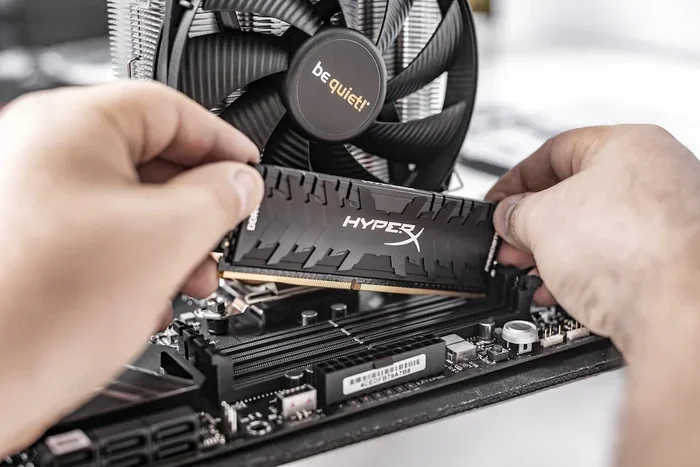
Your computer’s RAM handles multitasking between video encoding and audio processing. When your system runs low on memory, it starts swapping data to your storage drive. This creates bottlenecks that can delay audio processing. Upgrading your RAM is one of the most effective ways to reduce these bottlenecks. More memory allows your streaming software to handle video encoding and audio processing simultaneously without lag. If you’re not sure how to add RAM, you can follow the detailed guide on How To Install Ram In Laptop.
Choosing The Right Microphone And Audio Interface
Your microphone choice also affects sync. Cheap USB microphones sometimes have internal buffering that adds delay. A dedicated audio interface with a low-latency driver can solve this. Look for interfaces that support ASIO or Core Audio drivers. These provide a direct, fast path from your microphone to your streaming software. A condenser microphone with a USB connection is fine for beginners, but a dynamic mic with an XLR interface offers better control. Investing in quality audio gear reduces the need for constant software adjustments and improves your overall stream quality.
Sync External Devices Like Your Mouse For Stream Control
Streamers often use a mouse or a streaming controller to trigger alerts and manage their broadcast. If your mouse is not properly synced, it can cause input lag that feels like an audio delay. To keep everything running smoothly, make sure your pointing device is perfectly synced with your laptop. You can refer to the How To Sync A Mouse To A Laptop guide for step-by-step instructions. A responsive mouse ensures your actions match the stream in real time and keeps your workflow seamless.
Advanced Tips For Perfect Audio Sync
For streamers who want to take their setup to the next level, these advanced techniques can deliver flawless synchronization.
Using A Dedicated Audio Mixer
A hardware audio mixer can be a game-changer for serious streamers. A mixer lets you adjust audio levels before they ever reach your streaming software. You can balance your microphone, desktop audio, and game sound on separate channels. This prevents one source from overpowering another and reduces the chance of sync drift. Mixers with built-in USB outputs send a clean, single audio track to your PC. This simplifies the audio path and minimizes latency. Many professional streamers rely on mixers to maintain perfect audio sync in webcam streaming throughout their broadcasts.
Monitoring Your Stream With A Delay Calculator
Every streaming platform adds its own delay. Twitch typically adds a few seconds, while YouTube Live can have a longer buffer. To compensate, you can use a delay calculator tool. These tools estimate the total latency from your microphone to the viewer’s ear. You input your audio offset, platform delay, and processing time. The calculator tells you the final sync value to enter in your software. This method is especially useful for long streams where drift can accumulate over time. Keeping a delay calculator bookmarked can save you a lot of guesswork.
Setting Up Proper Lighting
While lighting doesn’t directly fix audio, it improves the overall viewer experience and helps you spot sync issues more easily. A well-lit stream makes it obvious when a speaker’s lips are out of sync. Proper lighting also reduces the need for high ISO settings, which can introduce video noise and processing strain. For tips on creating the perfect setup, check out the How To Set Up Lighting For Streaming guide. A clean visual feed works hand-in-hand with crisp audio to deliver a professional stream that keeps viewers coming back.
Troubleshooting Common Sync Problems
Even with the best setup, you might run into sync issues during a live stream. Here’s how to troubleshoot the most common problems.
Fixing Audio Drift Over Long Streams
Audio drift is when the sync starts out perfect but gradually worsens during a long stream. This usually happens because your CPU temperature rises over time, causing the processor to throttle. When the CPU slows down, video encoding takes longer, but audio processing stays the same. The result is a growing gap between sound and picture. To fix this, monitor your CPU temperature with a tool like HWMonitor. If it gets too hot, improve your laptop’s cooling or reduce your stream’s bitrate. Keeping your system cool maintains consistent audio sync in webcam streaming throughout the session.
Dealing With Browser-Based Streaming Delays
If you stream through a browser instead of dedicated software, you might face extra delays. Browsers add their own buffering and processing layers. This can make your audio and video fall out of sync. To minimize this, close unnecessary browser tabs and extensions. Use a browser that’s optimized for streaming, like Chrome or Edge. Also, ensure your hardware acceleration is enabled in browser settings. This offloads video decoding to your GPU, reducing the load on your CPU and helping maintain tight sync. A clean browser setup is a simple but effective way to reduce stream delays.
Quick Tips: Daily Habits For Perfect Sync
Build these simple habits into your streaming routine to keep audio sync flawless:
- Restart your streaming software before every stream: This clears memory leaks and resets audio buffers.
- Check your sample rates weekly: Make sure your microphone, software, and platform all match.
- Close background apps: Free up CPU and RAM for your stream.
- Update your audio drivers: Outdated drivers can introduce hidden latency.
- Use a wired connection: Ethernet cables reduce network jitter that can affect sync.
- Do a quick clap test before going live: It takes only ten seconds and saves you from awkward delays.
Common Mistakes That Worsen Audio Sync
Avoid these pitfalls that can make your sync problems worse:
- Using a Bluetooth headset without a low-latency codec.
- Setting your microphone to a different sample rate than your software.
- Overloading your CPU with too many overlays and sources.
- Ignoring Windows audio enhancements that add extra processing.
- Streaming on a full or fragmented hard drive.
- Forgetting to check your audio sync after a software update.
Expert Insight: What Pro Streamers Do
Professional streamers know that perfect audio sync is not a one-time fix—it’s an ongoing process. They regularly monitor their stream health metrics and adjust their audio offset as needed. Many use a dedicated audio interface and a hardware mixer to create a clean, low-latency audio path. They also test their setup with the clap test before every major stream. By building these habits into your routine, you can maintain a broadcast that looks and sounds completely professional. The best streamers treat audio sync as seriously as their video quality because viewers will forgive a slightly blurry image but rarely a constant echo or delay.
Conclusion
Fixing audio sync in webcam streaming doesn’t have to be complicated. With the right checks, software tweaks, and hardware upgrades, you can achieve flawless lip sync every time. Start with the clap test, adjust your audio offset in OBS, and consider a RAM upgrade if your system is struggling. A well-synced stream keeps your viewers engaged and makes your content look professional. Take action today, and your audience will notice the difference immediately.
Frequently Asked Questions
What causes audio sync issues in webcam streaming?
Audio sync problems are usually caused by latency, mismatched sample rates, weak hardware, or wireless peripherals. When your CPU or RAM is overloaded, video and audio can arrive at the viewer at different times, creating a noticeable delay.
How do I fix audio sync in OBS Studio?
Open OBS, go to Advanced Audio Properties, and use the Audio Sync Offset field. Enter a positive number if your audio is ahead, or a negative number if it’s behind. Start with small adjustments of plus or minus 50 milliseconds and test until the lip movements match the words.
Can a RAM upgrade improve audio sync?
Yes, upgrading your RAM can help. More memory allows your system to handle video encoding and audio processing simultaneously without bottlenecks. If your laptop struggles with multitasking, adding RAM can reduce buffering and improve synchronization.
How can I test my audio sync at home?
Use the clap test. Start a recording, clap your hands loudly once, and watch the playback later. If the sound arrives after the hand movement, you have a sync delay. This simple test works for any streaming setup.
Why does my audio drift during long streams?
Audio drift often happens because your CPU heats up over time and throttles. When the processor slows down, video encoding takes longer while audio processing stays the same, causing a growing gap. Monitor your CPU temperature and improve cooling or reduce your bitrate to fix this.
Is a hardware audio mixer worth it for streaming?
Yes, a dedicated audio mixer can be a game-changer. It lets you adjust levels before the audio reaches your streaming software, reducing sync drift. Mixers with USB outputs send a clean, single track to your PC, simplifying the audio path and minimizing latency.