What to Do If My Closed Captioning Is Out of Sync
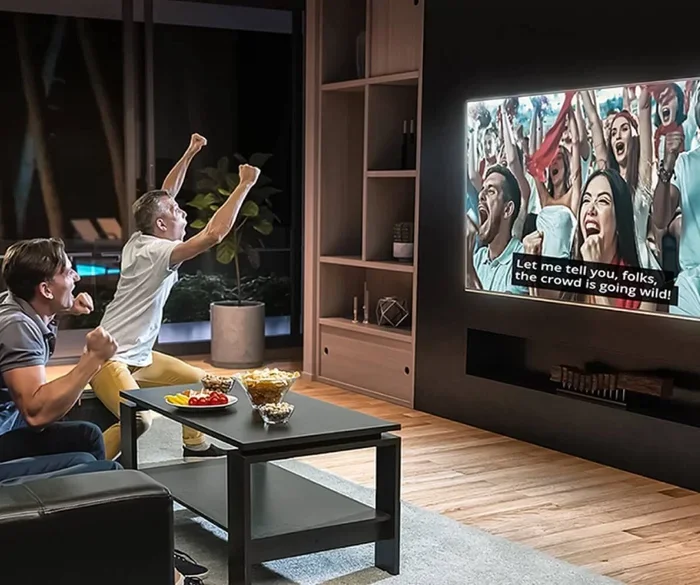
Closed captioning out of sync is a frustrating but fixable problem. Whether captions lag behind dialogue on your TV, laptop, or streaming app, this guide walks you through proven solutions. You will learn quick fixes, device-specific steps, and how to prevent sync issues from returning.
There is nothing more annoying than watching a video where the words on screen do not match the speaker’s mouth. Closed captioning out of sync ruins the viewing experience for everyone, especially those who rely on captions to follow along. Whether you are streaming a movie on your laptop, watching TV at home, or using a mobile app, this problem can show up at the worst possible moment.
The good news is that you do not need to be a tech expert to fix it. Most of the time, a few simple steps bring your captions back into perfect alignment. In this guide, we will walk you through every solution you need to try. We will cover quick fixes, platform-specific settings, device troubleshooting, and long-term prevention tips.
By the end of this article, you will know exactly what to do when your closed captioning is out of sync. Let us dive right in.
Key Takeaways
- Restart your device and app: A simple reboot often fixes caption sync problems instantly.
- Adjust caption delay settings: Most platforms let you manually offset captions to match audio.
- Update your software: Outdated apps and firmware are a leading cause of caption lag.
- Check your hardware: Sometimes the issue stems from device compatibility or insufficient system resources.
- Clear cache and data: Corrupted temporary files can mess up caption timing on streaming apps.
- Contact support if needed: Persistent issues may require help from your device manufacturer or streaming service.
📑 Table of Contents
Why Do Closed Captions Go Out of Sync?
Understanding the root cause helps you pick the right fix. Caption sync issues can come from several different sources. Let us break them down so you can troubleshoot with confidence.
Software and App Glitches
The most common reason for caption lag is a simple software bug. Streaming apps like Netflix, YouTube, and Hulu run complex code in the background. Sometimes that code stutters, and your captions fall behind the audio. This happens more often when your app has not been updated in a while.
Device Performance Issues
Your device might be struggling to keep up with video playback. If your system is low on memory or processing power, captions can delay while the video catches up. For example, if you are using an older laptop and notice caption lag, it might be worth checking your system specs. You can learn how to find out the RAM of my laptop to see if your hardware is holding things back.
Network Connectivity Problems
Streaming captions rely on a steady internet connection. When your Wi-Fi signal drops or slows down, the video and caption streams can separate. The video keeps playing from a buffer, but the captions arrive late. This is especially common on shared networks where multiple devices are using bandwidth at the same time.
Incorrect Caption Files
Sometimes the problem is not your device at all. The caption file itself might be misaligned. This often happens with downloaded videos or content from unofficial sources. The caption track was created separately from the video, and the timing offsets were not set correctly.
Quick Fixes You Can Try Right Now
Before you dig into advanced settings, try these fast solutions. Most people find that one of these steps solves the problem immediately.
Restart Your Device and App
This sounds too simple, but it works more often than you think. Restarting clears temporary memory and resets the app’s connection to the caption server. Close the app completely, power off your device for about ten seconds, and then turn it back on. Open the app and play your video again to see if the captions are in sync.
Check Your Internet Connection
A weak or unstable connection is a top culprit for caption lag. Try running a speed test on your device. If your download speed is below 5 Mbps, that could explain why captions are falling behind. Move closer to your router, disconnect other devices from the network, or try switching from Wi-Fi to a wired connection if possible.
Clear App Cache and Data
Over time, streaming apps collect temporary files that can interfere with playback. Clearing the cache removes these files without deleting your account or watch history. On most devices, you can find this option in the Settings menu under Apps. After clearing, restart the app and check if the captions sync properly.
Update the App and Your Device
Developers release updates regularly to fix bugs, including caption sync issues. Check your app store for any pending updates. Also make sure your device operating system is up to date. An outdated system can cause compatibility problems with the latest caption formats.
Adjusting Caption Settings on Popular Platforms
Many streaming platforms give you direct control over caption timing. Here is how to adjust captions on the most popular services.
Netflix
On Netflix, you can adjust the subtitle offset manually. Start playing your video and open the Audio and Subtitles menu. Look for the “Subtitle Settings” or “Timing” option. From there, you can shift the captions forward or backward in small increments until they match the audio perfectly.
YouTube
YouTube offers a built-in caption settings panel. Click the gear icon on the video player, then select “Subtitles.” From the settings menu, you can adjust the caption delay using a slider. This is especially helpful for user-uploaded videos where auto-generated captions often arrive late.
Disney Plus and Other Streaming Services
Most streaming services follow a similar pattern. Look for the settings or gear icon during playback. Navigate to the subtitles or accessibility section. You should find an option to adjust the caption delay or offset. If you do not see this option, the service may not support manual timing adjustments, and you may need to contact their support team.
Troubleshooting Caption Sync on Different Devices
The fix you need often depends on what device you are using. Let us go through the most common setups.
On Laptops and Desktops
If your closed captioning is out of sync on a computer, start by checking your browser. Try switching to a different browser like Chrome, Firefox, or Edge. Sometimes browser extensions interfere with caption rendering. Also, make sure your browser is the latest version. If you are using a laptop with limited hardware, your device might not be keeping up with modern video playback demands. You can check what hardware you have and whether an upgrade might help by learning how to know what RAM is compatible with my laptop and considering a memory upgrade.
On Smart TVs
Smart TV caption issues are often caused by the TV’s built-in software. Go to your TV settings and look for the Accessibility or Caption section. Many TVs let you adjust the caption delay directly. If your TV is older, the firmware may be outdated. Check for a system update in the settings menu. Restarting your TV completely (unplug it for 30 seconds) can also clear temporary glitches that affect caption timing.
On Mobile Devices
Phones and tablets have their own caption settings that sometimes override app defaults. On iPhone, go to Settings, then Accessibility, then Subtitles and Captioning. On Android, look for Captions under the Accessibility section in Settings. Make sure the “Style” and “Timing” options are set correctly. Also, check if your streaming app has its own caption settings that might conflict with your device-level settings.
On Media Players (VLC, etc.)
If you use a media player like VLC to watch downloaded videos, caption sync is easy to adjust manually. While the video is playing, go to the Subtitle menu and select “Subtitle Track Synchronization.” You can shift the subtitles forward or backward in milliseconds. This is one of the most reliable ways to fix caption lag on locally stored files.
When Hardware Limitations Cause Caption Lag
Sometimes the problem is not software at all. It is your hardware. Older devices with limited processing power and memory can struggle to keep video and captions aligned, especially when playing high-resolution content.
If you have an older laptop or desktop, the RAM might be the bottleneck. Modern video playback requires enough memory to process both the video stream and the caption data simultaneously. If your system does not have enough, captions will lag behind. You might want to look into upgrading your memory. You can find out what kind of RAM your device supports by checking compatibility guides or learning how to know what RAM is compatible with my laptop before making a purchase.
For desktop computers, adding more RAM is usually straightforward and affordable. If you are comfortable opening your computer case, you can install new memory sticks yourself. Alternatively, a local repair shop can do it for you in under an hour. The difference in video playback performance, including caption sync, can be dramatic.
On the other hand, if you are already planning a hardware upgrade, you might also want to consider how much RAM is truly enough for your needs. Check out guides on how do I add RAM to my laptop to get started with the installation process safely.
Preventing Caption Sync Issues in the Future
Once you fix the problem, you want to keep it from coming back. Here are some habits that help maintain perfect caption sync.
- Keep your apps updated: Enable automatic updates for all streaming apps on your devices. Developers fix caption bugs in every release.
- Maintain a stable internet connection: Use a reliable router and avoid streaming on congested networks. A wired Ethernet connection is the most stable option.
- Restart your devices regularly: A weekly restart clears temporary files and refreshes system processes that affect caption rendering.
- Avoid unofficial content sources: Videos downloaded from unofficial sites often have misaligned caption files. Stick to legitimate streaming services for the best experience.
- Check for firmware updates on smart TVs: TV manufacturers release updates that fix caption bugs and improve compatibility with modern caption formats.
When to Contact Support
If you have tried every fix in this guide and your captions are still out of sync, it is time to reach out for help. Contact your device manufacturer’s support team or the streaming service’s customer care. Provide them with details about your device model, the app version, and the steps you have already taken. This information helps them diagnose the issue faster and give you a targeted solution.
Persistent caption sync problems can sometimes indicate a deeper issue with your device’s operating system or a bug in a specific app version. Support teams often have access to internal tools and workarounds that are not available to the general public. Do not hesitate to file a support ticket if the problem continues.
Conclusion
Dealing with closed captioning that is out of sync does not have to be a permanent headache. Most of the time, a simple restart, cache clear, or settings adjustment brings everything back into alignment. You now have a full toolkit of solutions to try, from quick fixes to device-specific troubleshooting steps.
Remember to keep your apps and device software updated, maintain a stable internet connection, and do not be afraid to reach out to support if the problem persists. With the right approach, you can enjoy every video with perfectly timed captions. Take action today and never let out-of-sync captions ruin your viewing experience again.
Frequently Asked Questions
Why are my closed captions delayed on my TV?
This is usually caused by a software glitch or an outdated TV firmware. Try restarting your TV and checking for system updates. If the delay continues, look for a caption timing offset option in your TV’s accessibility settings.
Can a slow internet connection cause captions to be out of sync?
Yes, absolutely. A weak or unstable connection can cause the caption stream to arrive later than the video stream. Check your internet speed and try connecting to a more stable network to see if that resolves the issue.
How do I manually adjust caption timing on my streaming app?
Most streaming apps have a subtitle settings option during playback. Look for a gear icon or an “Audio and Subtitles” menu. From there, you can adjust the caption delay or offset to match the audio on screen.
Is it normal for captions to be slightly out of sync on older devices?
It is fairly common. Older devices with less processing power and memory can struggle to process video and captions simultaneously. Upgrading your device’s RAM or using a newer model can significantly improve caption sync.
What should I do if clearing the cache does not fix the caption sync?
Try updating the app and your device software next. If that does not work, uninstall and reinstall the app. If the problem still persists, contact the app’s customer support for further troubleshooting steps.
Are there any free tools to fix caption sync on downloaded videos?
Yes, media players like VLC allow you to adjust subtitle timing manually during playback. You can also use free caption editing tools like Subtitle Edit to permanently fix the timing of SRT or VTT caption files on your computer.