Best RAM for Mini PC to Supercharge Your Productivity
Finding the best RAM for mini PC can transform your entire computing experience. Whether you use your compact system for work, gaming, or media tasks, the right memory upgrade delivers faster speeds, smoother multitasking, and better overall performance. In this guide, we break down everything you need to know to pick the perfect RAM for your mini PC setup.
Your mini PC is compact, efficient, and surprisingly powerful. But there is one component that can hold it back more than anything else: RAM. The best RAM for mini PC setups can turn a sluggish machine into a speed demon. Whether you are streaming content, running productivity apps, or diving into light gaming on a mini PC, memory plays a huge role in how smoothly everything runs.
In this guide, we walk you through everything you need to know about upgrading or choosing RAM for your mini PC. We cover types, capacities, speeds, compatibility, and share our top recommendations. By the end, you will know exactly what to buy and why.
Key Takeaways
- RAM type matters: SO-DIMM modules are the standard for most mini PCs, and choosing between DDR4 and DDR5 depends on your board’s compatibility.
- Capacity drives performance: 8GB handles basic tasks, 16GB is the sweet spot for productivity and light gaming, and 32GB future-proofs power users.
- Speed and latency count: Higher frequency RAM with tight timings boosts responsiveness in demanding applications.
- Dual channel beats single channel: Installing RAM in matched pairs can nearly double memory bandwidth and improve system responsiveness.
- Upgrade ease varies: Some mini PCs have accessible RAM slots, while others require careful disassembly or soldered memory.
- Brand reliability matters: Stick with reputable manufacturers like Corsair, Kingston, Crucial, and G.Skill for dependable performance.
📑 Table of Contents
Why RAM Matters in a Mini PC
RAM, or random access memory, acts as your PC’s short-term workspace. Every app you open, every tab you browse, and every file you edit lives in RAM while you work. When RAM fills up, your system slows down dramatically because it has to swap data to your storage drive instead.
Mini PCs are especially sensitive to RAM limitations. These compact machines often share architecture with larger desktops but pack everything into a smaller chassis. That means memory upgrades can have an outsized impact on overall performance. A simple RAM swap can make a noticeable difference in boot times, app loading, and multitasking capability.
If you use your mini PC for media serving with Plex or as a daily driver for work, having enough fast RAM is non-negotiable. It is one of the most cost-effective upgrades you can make.
How RAM Affects Everyday Performance
Think of RAM like a desk. A bigger desk lets you spread out more papers and work on them simultaneously. A small desk forces you to keep shuffling papers in and out of a filing cabinet. In computing terms, the filing cabinet is your hard drive or SSD, and it is much slower than RAM.
Here is what happens when you have enough RAM versus when you do not:
- Enough RAM: Apps open instantly, switching between tasks feels seamless, and your system stays responsive even under heavy load.
- Too little RAM: Apps take longer to launch, your browser tabs crash or freeze, and your system stutters during multitasking.
For most users, 16GB of RAM strikes the perfect balance between cost and capability. But your ideal amount depends on what you do with your machine.
Types of RAM for Mini PCs
Not all RAM is created equal, and mini PCs have specific requirements that differ from full-sized desktops. Understanding the different types helps you avoid buying the wrong module.
SO-DIMM vs. DIMM
Full-sized desktop PCs use DIMM modules, which are large sticks that fit into full motherboard slots. Mini PCs use SO-DIMM (Small Outline Dual In-Line Memory Module) sticks. These are roughly half the size of standard DIMMs but offer the same functionality.
Always check your mini PC’s specifications before purchasing. Buying a full DIMM module will not fit into a SO-DIMM slot, and vice versa. This is the most common mistake people make when upgrading mini PC memory.
DDR4 vs. DDR5 RAM
The two main generations of RAM you will encounter are DDR4 and DDR5. Here is a quick comparison:
- DDR4 RAM: The current mainstream standard. It is widely available, affordable, and compatible with most mini PCs built in the last several years. Speeds typically range from 2666MHz to 3600MHz.
- DDR5 RAM: The newer generation offering higher bandwidth and improved efficiency. It is still emerging in the mini PC space, so compatibility is more limited. Speeds start at 4800MHz and go much higher.
For most users right now, DDR4 SO-DIMM is the safest and most practical choice. It offers excellent performance at a reasonable price. However, if your mini PC supports DDR5 and you want maximum future-proofing, the newer standard is worth considering.
RAM Speed and Latency Explained
RAM speed is measured in megahertz (MHz). Higher numbers generally mean faster data transfer. But speed is not the whole story. Latency, measured in CAS latency (CL), also matters. Lower latency means the RAM responds faster to requests.
For mini PC use, look for modules in the 3200MHz to 3600MHz range with CL16 or CL18 timings. This sweet spot offers excellent performance without breaking the bank. If you want to dive deeper into RAM for gaming PCs, many of the same principles apply to mini PC configurations.
How Much RAM Do You Really Need?
One of the first questions people ask is how much memory they should get. The answer depends entirely on your use case. Let us break it down.
| RAM Amount | Best For | Performance Level |
|---|---|---|
| 8GB | Basic tasks, web browsing, office apps | Entry level |
| 16GB | Multitasking, light gaming, productivity | Sweet spot for most users |
| 32GB | Heavy multitasking, video editing, emulation | Enthusiast level |
| 64GB | Professional workloads, 4K editing, virtualization | Overkill for most mini PCs |
For most mini PC users, 16GB is the ideal starting point. It handles everyday tasks with ease and leaves room for heavier workloads. If you plan to use your mini PC for emulation, 16GB is essential since emulators can be memory-hungry.
8GB works fine for basic browsing and document editing, but you will feel the limits quickly if you keep many browser tabs open or run multiple apps at once. On the other hand, 32GB is great if you do video editing, run virtual machines, or want a system that stays fast for years to come.
Single Channel vs. Dual Channel
Another important factor is how your RAM is configured. Single channel means one stick of RAM is working alone. Dual channel means two sticks work together, effectively doubling the memory bandwidth.
For the best performance, always install RAM in matched pairs. If your mini PC has two slots, buy a 2x8GB kit instead of a single 16GB stick. This simple change can improve performance by 10 to 20 percent in memory-intensive tasks. It is one of the easiest ways to get more out of your system without spending extra.
Top Picks for Best RAM for Mini PC
Now that you understand the basics, let us look at some of the best RAM options for mini PCs. These picks balance performance, compatibility, reliability, and value.
1. Corsair Vengeance SO-DIMM (16GB DDR4 3200MHz)
Corsair is a trusted name in PC memory, and their Vengeance SO-DIMM line delivers excellent performance for mini PCs. These 16GB kits run at 3200MHz with CL16 timings, making them a reliable choice for everyday use and light gaming.
The build quality is solid, and Corsair offers a lifetime warranty. These modules fit most popular mini PC brands and are widely available at competitive prices. If you want dependable RAM without any hassle, this is a great pick.
2. Kingston Fury Impact (16GB DDR4 3200MHz)
Kingston’s Fury Impact series is designed specifically for compact systems. These SO-DIMM modules offer fast 3200MHz speeds in a low-profile form factor that fits even the tightest mini PC chassis.
Kingston is known for producing reliable memory at fair prices. The Fury Impact line includes an aluminum heat spreader that helps with thermal management, which is especially useful in compact mini PC builds where airflow is limited.
3. Crucial SO-DIMM (16GB DDR4 3200MHz)
Crucial, a brand under Micron, is one of the most respected names in memory. Their SO-DIMM kits are plug-and-play compatible with most systems and come with a straightforward installation process.
Crucial offers an online compatibility tool on their website where you can enter your mini PC model and get guaranteed compatible RAM suggestions. This takes the guesswork out of shopping and ensures you get the right module the first time.
4. G.Skill Ripjaws SO-DIMM (16GB DDR4 3600MHz)
For users who want a speed boost, G.Skill Ripjaws SO-DIMM modules clock in at 3600MHz. This is slightly faster than the standard 3200MHz modules and can make a noticeable difference in memory-heavy tasks.
G.Skill is well known for producing high-performance memory, and their Ripjaws line balances speed with affordability. These kits work well in mini PCs that support higher frequency RAM and are a great option if you want to squeeze every bit of performance from your system.
5. Samsung DDR4 SO-DIMM (8GB or 16GB)
Samsung produces some of the highest-quality memory chips in the world. Their SO-DIMM modules use premium chips that offer excellent stability and efficiency. While they may cost a bit more than budget options, the quality and longevity are worth it.
Samsung memory is an excellent choice if you want a reliable, no-nonsense upgrade. These modules are available in both 8GB and 16GB capacities and work well in a wide range of mini PC configurations.
How to Upgrade RAM in Your Mini PC
Upgrading RAM in a mini PC is usually straightforward, but the process can vary depending on your model. Here is a step-by-step guide to help you through it.
Step 1: Check Compatibility
Before buying any RAM, check your mini PC’s manual or manufacturer website. Look for the following details:
- RAM type: SO-DIMM or another form factor
- Supported generation: DDR4, DDR5, or DDR3
- Maximum capacity: How much total RAM your system supports
- Number of slots: How many RAM slots are available
- Supported speeds: What frequencies your board accepts
Taking a few minutes to verify compatibility saves you from buying the wrong module. This step is especially important for mini PCs, which sometimes have unique hardware configurations.
Step 2: Purchase the Right Modules
Once you know what your system supports, choose your RAM. For most users, a 2x8GB kit is the best value. It gives you 16GB in dual channel configuration, which is ideal for performance.
If your mini PC only has one slot, a single 16GB stick works fine, though you will miss out on the dual channel benefit. If budget is tight, a single 8GB stick is better than nothing, and you can always add a second stick later.
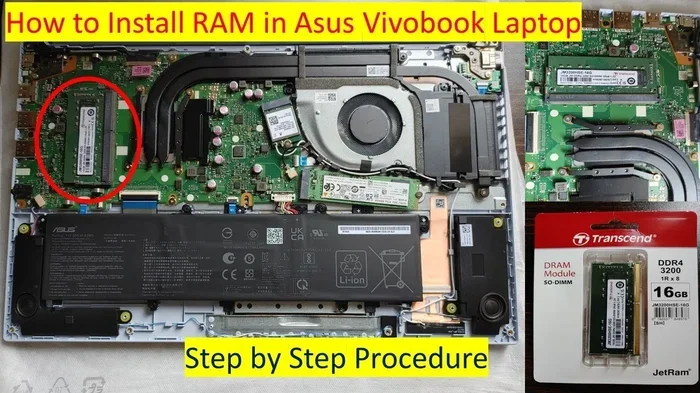
Step 3: Install the RAM
Follow these steps to install your new RAM:
- Power off your mini PC and unplug all cables.
- Open the case or access panel (check your specific model for instructions).
- Locate the RAM slots. They are usually easy to spot.
- Press the clips on either side of the slot to release any existing modules.
- Align the notch on the new RAM stick with the slot key.
- Press the module firmly into the slot at a 45-degree angle until it clicks.
- Push the module down flat until the side clips lock into place.
- Close the case, reconnect cables, and power on.
Most mini PCs will automatically detect the new RAM and configure it correctly. If you run into issues, try reseating the modules or checking the BIOS settings.
Quick Tips for a Smooth Upgrade
- Always ground yourself before touching internal components to prevent static damage.
- Handle RAM by the edges, never touch the gold contacts.
- If your mini PC has soldered RAM, you may not be able to upgrade. Check before purchasing.
- Keep your old RAM as a backup or use it in another compatible system.
- After installing, run a memory test tool like MemTest86 to verify everything works correctly.
Common Mistakes to Avoid When Buying RAM for Mini PC
Even experienced builders sometimes make mistakes when choosing RAM for mini PCs. Here are the most common pitfalls and how to avoid them.
Buying the Wrong Form Factor
The most frequent error is purchasing standard desktop DIMM RAM instead of SO-DIMM. Mini PCs use the smaller SO-DIMM format, and full-sized sticks simply will not fit. Always double-check the form factor before placing an order.
Ignoring Maximum Capacity Limits
Some mini PCs have a maximum RAM limit of 16GB or 32GB. Buying a 64GB kit will not work if your system does not support it. Always check your manufacturer’s specifications to avoid wasting money.
Mismatching RAM Kits
While you can mix RAM sticks, it is best to use matched pairs from the same kit. Mismatched modules can cause compatibility issues, reduce performance, and in some cases prevent your system from booting. Stick with a single kit for dual channel configurations.
Overlooking Speed Compatibility
Your mini PC’s motherboard may only support certain RAM speeds. Buying 4000MHz modules for a board that maxes out at 3200MHz means the RAM will downclock to the lower speed. Check your board’s supported speeds and buy accordingly.
Forgetting About Cooling
Mini PCs have limited airflow compared to full-sized cases. High-speed RAM can generate more heat, which may cause stability issues in tight spaces. If you are pushing high frequencies, consider modules with heat spreaders or ensure your mini PC has adequate ventilation.
Expert Insights: Getting the Most from Your Mini PC RAM
Upgrading RAM is one of the easiest ways to breathe new life into an aging mini PC. But to truly maximize your investment, consider these expert tips.
First, always check whether your mini PC uses single-rank or dual-rank RAM modules. Dual-rank modules have slightly better performance because they access memory more efficiently. This difference is small but noticeable in demanding workloads.
Second, keep your BIOS updated. Manufacturers often release firmware updates that improve RAM compatibility and stability, especially for newer memory speeds. A quick BIOS update can sometimes unlock higher performance from your existing setup.
Third, consider your overall system balance. If you upgrade your RAM but still use a slow hard drive, you will not see the full benefit. Pairing a RAM upgrade with an SSD is one of the best combinations for boosting mini PC performance. RAM is one of the best investments for extending the lifespan of your PC, and it works best when combined with other smart upgrades.
Finally, if you use your mini PC for demanding tasks like video editing or gaming accessories setups, prioritize capacity and dual channel configuration over raw speed. 16GB in dual channel will outperform 8GB at higher speeds in most real-world scenarios.
Conclusion
Choosing the best RAM for mini PC does not have to be complicated. By understanding the basics of SO-DIMM modules, DDR4 and DDR5 standards, capacity needs, and dual channel configuration, you can make a confident purchase that delivers real performance gains.
For most users, 16GB of DDR4 SO-DIMM in a matched dual channel kit is the ideal choice. It handles everyday tasks with ease, supports multitasking and light gaming, and offers excellent value. Brands like Corsair, Kingston, Crucial, and G.Skill produce reliable modules that fit virtually any mini PC.
Remember to check compatibility before buying, install your RAM carefully, and enjoy the boost in speed and responsiveness. A RAM upgrade is one of the simplest and most affordable ways to supercharge your mini PC and keep it running smoothly for years to come.
Frequently Asked Questions
Can I mix different RAM brands in my mini PC?
Yes, you can mix RAM brands, but it is not always ideal. For best results, use matched pairs from the same kit. Mixing different speeds or timings can cause your system to default to the slowest module’s settings, which may reduce performance.
Is 8GB RAM enough for a mini PC in 2024?
8GB is enough for basic tasks like web browsing, email, and document editing. However, if you multitask frequently, use creative applications, or play games, 16GB is a much better choice. 8GB will feel limiting as software becomes more demanding over time.
Do I need to install RAM in pairs for dual channel?
Yes, to enable dual channel mode, you need two RAM sticks of the same capacity, speed, and ideally the same brand and model. Installing a single stick will run your system in single channel mode, which reduces memory bandwidth and can impact performance.
Can I upgrade the RAM in any mini PC?
Not all mini PCs allow RAM upgrades. Some models have soldered memory that cannot be replaced or expanded. Always check your specific mini PC model’s specifications before purchasing RAM to confirm whether upgradeable slots are available.
What is the difference between DDR4 and DDR5 RAM for mini PCs?
DDR5 RAM offers higher bandwidth, improved power efficiency, and faster speeds compared to DDR4. However, DDR5 is still emerging in the mini PC space and tends to cost more. DDR4 remains the most widely compatible and affordable option for most mini PC users today.
How do I know if my RAM is working correctly after an upgrade?
After installing new RAM, your system should boot normally and recognize the full capacity in your operating system. You can verify this in your system settings or task manager. Running a memory diagnostic tool like MemTest86 can confirm that the RAM is stable and error-free.