How to Fix Windows Host Process Rundll32 Has Stopped Working
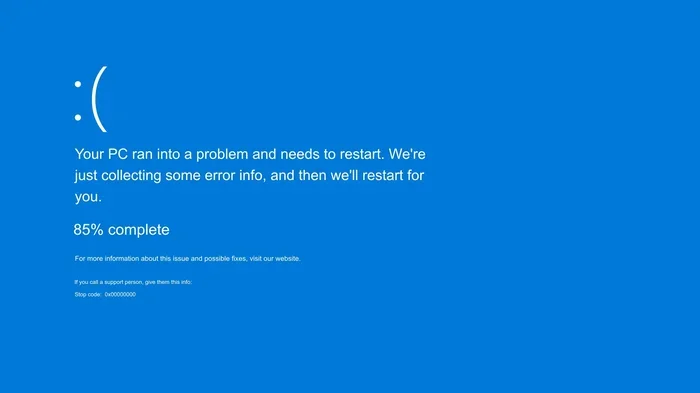
The Windows Host Process Rundll32 Has Stopped Working error is a common Windows issue that can frustrate any PC user. This error happens when a DLL file fails to load properly, causing system disruptions and unexpected crashes. In this guide, you will learn proven fixes like running SFC and DISM scans, updating drivers, and performing clean boots to resolve the problem quickly and easily.
Few things are more annoying than seeing the Windows Host Process Rundll32 Has Stopped Working pop-up on your screen right when you are in the middle of something important. Your workflow halts, your mouse might freeze, and you are left staring at a confusing error message that offers little help.
This error is more common than you might think. It affects Windows 10 and Windows 11 users alike, and it can show up for a variety of reasons. Sometimes a DLL file gets corrupted. Other times, outdated drivers or conflicting software are to blame. Whatever the cause, the good news is that you can fix it without needing to be a tech expert.
In this guide, we will walk you through every solution that actually works. We start with the easiest fixes and move toward more advanced troubleshooting. By the end, your PC should be running smoothly again, and you will know exactly what caused the problem in the first place.
Key Takeaways
- Restart Your PC First: A simple reboot can often clear temporary glitches causing the Rundll32 error.
- Run SFC and DISM Scans: These built-in Windows tools repair corrupted system files that may trigger the error.
- Update Your Drivers: Outdated drivers are a leading cause of Rundll32 stopping unexpectedly.
- Perform a Clean Boot: This helps identify if third-party software is conflicting with system processes.
- Check for Windows Updates: Microsoft regularly releases patches that fix known Rundll32 issues.
- Scan for Malware: Malicious software can corrupt DLL files and cause Rundll32 to fail.
- Reinstall Problematic Software: If a specific app triggers the error, reinstalling it often fixes the root cause.
📑 Table of Contents
- What Is Rundll32 and Why Does It Stop Working?
- Quick Fixes to Try First
- Repair Corrupted System Files
- Update and Reinstall Drivers
- Perform a Clean Boot
- Keep Windows Up to Date
- Advanced Fixes for Stubborn Errors
- Common Mistakes to Avoid
- Preventing Rundll32 Errors in the Future
- When to Seek Professional Help
- Final Thoughts
What Is Rundll32 and Why Does It Stop Working?
Before diving into fixes, it helps to understand what Rundll32 actually does. Rundll32 is a legitimate Windows system process that handles DLL (Dynamic Link Library) files. These DLL files contain code and data that many programs share. Think of them as shared toolboxes that different apps can open at the same time.
When Rundll32 stops working, it means something went wrong with one of these shared files. The system cannot find or load the DLL it needs. This triggers the error message you see on screen. It is not always a sign of a serious problem, but it should not be ignored either.
Several things can cause this error to appear. Corrupted system files are a big one. So are outdated device drivers, especially for your graphics card or touchpad. Sometimes a recent Windows update goes wrong. And in some cases, malware or a buggy third-party app is the real culprit. Understanding the root cause helps you pick the right fix.
Quick Fixes to Try First
Not every fix requires deep technical knowledge. Start with these simple steps before moving on to advanced solutions. Many users have resolved the Rundll32 error with just one of these methods.
Restart Your Computer
It sounds too simple, but restarting your PC clears out temporary files and resets running processes. A lot of Windows errors, including Rundll32 crashes, are caused by temporary memory glitches. A fresh restart gives your system a clean slate.
Make sure you save any open work before restarting. Once your PC boots back up, check if the error still appears. If it does not show up again, you may be in the clear. If it returns, move on to the next fix.
Run a Virus or Malware Scan
Malicious software can corrupt DLL files and interfere with system processes like Rundll32. Run a full system scan using Windows Defender or your preferred antivirus tool. Remove any threats it finds and restart your PC afterward.
If you do not have antivirus software installed, Windows Defender comes built into Windows 10 and Windows 11. It is free and does a solid job catching most threats. You can also use a trusted third-party scanner for a second opinion.
Repair Corrupted System Files
Corrupted system files are one of the most common reasons the Windows Host Process Rundll32 Has Stopped Working error appears. Windows has built-in tools designed to find and repair these files automatically.
Run the SFC Scan
The System File Checker (SFC) scans your entire system for damaged or missing files and replaces them with healthy copies. Here is how to use it:
- Click the Start menu and type cmd.
- Right-click Command Prompt and select Run as administrator.
- Type sfc /scannow and press Enter.
- Wait for the scan to finish. It may take several minutes.
- Restart your PC when prompted.
If the SFC scan finds and fixes errors, the Rundll32 issue may disappear immediately. If it reports that it could not fix some files, do not worry. Move on to the next step.
Run the DISM Command
The Deployment Image Servicing and Management (DISM) tool repairs the Windows system image. When SFC cannot fix something, DISM often can. Follow these steps:
- Open Command Prompt as an administrator again.
- Type DISM /Online /Cleanup-Image /RestoreHealth and press Enter.
- Wait for the process to complete. This can take 10 to 20 minutes.
- Run the SFC scan again after DISM finishes.
- Restart your PC.
These two tools together form a powerful one-two punch against system file corruption. Most users see significant improvement after running both scans.
Update and Reinstall Drivers
Outdated or corrupted drivers are a sneaky cause of Rundll32 errors. Your PC relies on drivers to communicate with hardware like your mouse, keyboard, graphics card, and touchpad. When a driver goes bad, system processes like Rundll32 can crash.
Update Drivers Through Device Manager
Windows makes it easy to update drivers without visiting the manufacturer’s website:
- Right-click the Start button and select Device Manager.
- Expand each category and look for devices with a yellow warning icon.
- Right-click the device and select Update driver.
- Choose Search automatically for drivers.
- Repeat for all devices that need updates.
Pay special attention to your graphics driver and touchpad driver. These are the most common culprits when Rundll32 stops working. If you have a mouse pad on your laptop that stopped working along with the Rundll32 error, updating the touchpad driver is a smart first move.
Download Drivers from the Manufacturer
Sometimes Windows Update does not have the latest driver. In that case, visit your PC manufacturer’s website and download the driver manually. Brands like Dell, HP, Acer, and Lenovo all have support pages where you can search for your model and find the latest drivers.
Perform a Clean Boot
A clean boot starts Windows with only the essential services and drivers. This helps you figure out if a third-party program is causing the Rundll32 error. If the error disappears after a clean boot, you know a software conflict is the problem.
How to Do a Clean Boot in Windows
- Press Windows + R to open the Run dialog.
- Type msconfig and press Enter.
- Go to the Services tab and check Hide all Microsoft services.
- Click Disable all.
- Go to the Startup tab and click Open Task Manager.
- Disable every startup item in Task Manager.
- Close Task Manager and click OK in System Configuration.
- Restart your PC.
If the Rundll32 error does not appear after a clean boot, you have found the problem. Re-enable services and startup items one by one to narrow down which app is causing the conflict. Once you find it, you can update it, reinstall it, or remove it entirely.
Sometimes the conflict comes from apps you barely remember installing. This is especially true for utilities like system optimizers, VPN software, and mouse customization tools. These can interfere with core Windows processes in surprising ways.
Keep Windows Up to Date
Microsoft regularly releases updates that patch known bugs and fix system errors. The Rundll32 stopping issue may already have a fix waiting for you in the latest Windows update. Keeping your system current is one of the easiest ways to prevent this error from returning.
To check for updates, go to Settings > Update & Security > Windows Update and click Check for updates. Install any available updates and restart your PC. This is also a good habit to build overall, since updates improve security and performance too.
Advanced Fixes for Stubborn Errors
If none of the above solutions worked, do not give up yet. There are a few more things you can try that address deeper system issues.
Uninstall Recent Windows Updates
Sometimes a Windows update itself introduces the Rundll32 error. If the problem started right after an update, rolling it back may help:
- Go to Settings > Update & Security > Windows Update.
- Click View update history.
- Click Uninstall updates.
- Select the most recent update and click Uninstall.
Check if the error goes away after removing the update. If it does, you can wait for Microsoft to release a fix in a future update.
Check for DLL File Corruption
In some cases, a specific DLL file that Rundll32 depends on becomes corrupted. You can try registering the DLL files manually through Command Prompt. This is a more advanced step, so be careful and follow the instructions exactly.
Reset or Repair Windows
As a last resort, you can reset Windows while keeping your personal files. This reinstalls the operating system and replaces corrupted system components without deleting your data. Go to Settings > Update & Security > Recovery > Reset this PC and choose Keep my files.
Always back up your important files before doing this, just to be safe. A reset should fix virtually any Rundll32 error that refuses to go away through other methods.
Common Mistakes to Avoid
When dealing with Rundll32 errors, some people make mistakes that make the problem worse. Here is what to watch out for:
- Downloading DLL files from random websites: This is dangerous and often introduces malware. Let Windows handle DLL repairs through SFC and DISM.
- Ignoring the error: A Rundll32 error might seem minor at first, but it can get worse over time and lead to bigger problems.
- Skipping driver updates: Many users forget that outdated drivers can trigger system process errors. Always keep drivers current.
- Not checking for malware: Even if you think your PC is clean, a second opinion from a different scanner can catch what your primary tool missed.
Preventing Rundll32 Errors in the Future
Once you have fixed the Rundll32 error, you want to make sure it does not come back. Here are some habits that keep your PC healthy:
- Keep Windows updated at all times.
- Run regular virus and malware scans.
- Update your drivers every few months.
- Avoid installing software from untrusted sources.
- Clean up temporary files regularly using Disk Cleanup.
- Restart your PC at least once a week.
These simple habits go a long way in preventing system errors of all kinds, not just Rundll32 issues. A well-maintained PC runs faster, stays safer, and gives you fewer headaches overall.
When to Seek Professional Help
Most Rundll32 errors can be fixed at home using the steps above. But if you have tried everything and the error keeps coming back, it may be time to consult a professional. Persistent Rundll32 failures can sometimes point to deeper hardware issues or severe system corruption that requires expert diagnosis.
If you are using a laptop and notice that your mouse stopped working on laptop along with the Rundll32 error, a professional technician can check for hardware problems like a failing motherboard or damaged USB controller. Similarly, if you notice your laptop keyboard and mouse stopped working at the same time, this could indicate a broader system issue that needs advanced troubleshooting.
Do not hesitate to reach out to a trusted repair service if the problem persists. It is always better to get a proper diagnosis than to keep guessing and risk making things worse.
Final Thoughts
The Windows Host Process Rundll32 Has Stopped Working error can be annoying, but it is almost always fixable. You do not need expensive software or professional help in most cases. Start with the simple fixes like restarting your PC, running SFC and DISM scans, and updating drivers. If those do not work, move on to clean boots and checking for malware.
Remember that prevention is just as important as fixing. Keep your system updated, run regular scans, and maintain good computing habits. Your PC will thank you with fewer errors and better performance over time.
Take action today. Pick the fix that matches your situation and follow the steps carefully. You will be back to using your PC without interruptions in no time.
Frequently Asked Questions
Why does Rundll32 keep stopping on my PC?
Rundll32 keeps stopping because of corrupted system files, outdated drivers, or software conflicts. Running SFC and DISM scans usually fixes the root cause. If the problem persists, a clean boot can help identify the conflicting software.
Is Rundll32 a virus or malware?
No, Rundll32 is a legitimate Windows system process. However, malware can disguise itself as Rundll32 or corrupt the files it depends on. Always run a malware scan if you suspect something is wrong with your system.
Can I disable Rundll32 to stop the error?
You should not disable Rundll32. It is an essential part of Windows that many programs rely on to function properly. Disabling it will cause more problems than it solves. Focus on fixing the underlying issue instead.
What should I do if Rundll32 stops working after a Windows update?
Try uninstalling the most recent Windows update through Settings. If that does not help, run SFC and DISM scans to repair any files the update may have affected. Check again for subsequent updates that may contain a fix.
How long does it take to fix the Rundll32 error?
Most fixes take between 10 and 30 minutes. Simple solutions like restarting or running a virus scan take just a few minutes. More advanced fixes like DISM scans or clean boots may take longer but are still straightforward.
Will fixing Rundll32 delete my files?
No, none of the standard fixes delete your personal files. Even resetting Windows with the Keep My Files option preserves your data. Always back up important files before making major system changes, just to be safe.