M 2 Ssd Nvme Enclosure
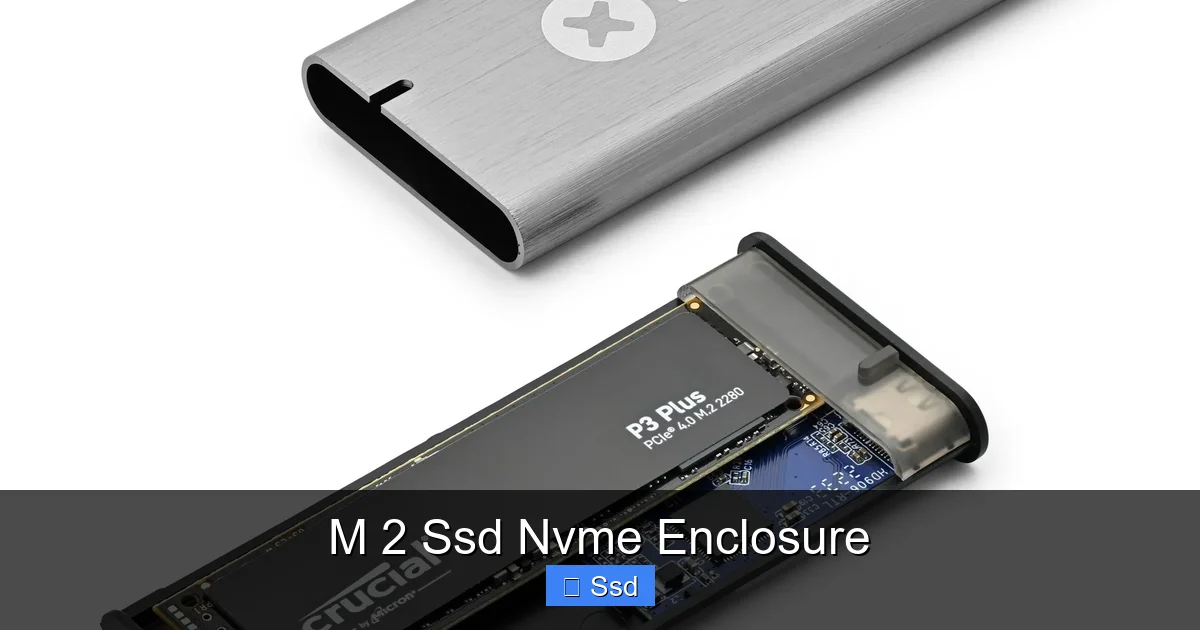
An M.2 SSD NVMe enclosure is a simple, affordable adapter that turns your internal NVMe solid-state drive into an external USB drive. It’s the perfect tool for upgrading old laptops, creating ultra-fast portable storage, or repurposing a spare SSD. Choosing the right one requires checking your SSD’s length and key type against the enclosure’s specs. With the right enclosure, you can unlock blistering speeds over 2,000 MB/s, far outpacing traditional external hard drives.
Key Takeaways
- Core Function: An M.2 NVMe enclosure is a protective case with a USB controller that converts your internal SSD’s NVMe protocol to a standard USB connection, making it a portable external drive.
- Critical Compatibility: You must match your SSD’s physical length (e.g., 2280), keying (M.2 M+B or M key), and protocol (NVMe PCIe, not SATA) with the enclosure’s supported specs.
- Speed is King: NVMe enclosures leverage USB 3.2 Gen 2 or Thunderbolt 3/4 to deliver speeds up to 10 Gbps or 40 Gbps, respectively, making them 10-20x faster than USB-A hard drives.
- Heat Matters: High-performance NVMe SSDs generate heat. Look for enclosures with aluminum or heatsink designs, and consider adding thermal pads for sustained performance.
- Versatile Use Cases: Ideal for booting portable OSes, expanding game libraries on consoles, fast video editing scratch disks, and secure data transfer between systems.
- Setup is Plug-and-Play: Most modern enclosures require no drivers. Simply insert the SSD, secure it, connect via USB-C, and format the drive in your OS.
[FEATURED_IMAGE_PLACEHOLDER]
📑 Table of Contents
- What Exactly Is an M.2 SSD NVMe Enclosure?
- Demystifying Compatibility: It’s All About the Details
- Performance Realities: How Fast Can You Really Go?
- Setup & Installation: Simpler Than You Think
- Top Use Cases: Why You Need One Right Now
- Your Buying Guide: Picking the Perfect Enclosure
- Future-Proofing and Maintenance
- Conclusion: Unlock Your Storage’s True Potential
What Exactly Is an M.2 SSD NVMe Enclosure?
Let’s start with the basics. You’ve probably heard of external hard drives—those bulky, slow boxes you plug in for extra storage. An M.2 SSD NVMe enclosure is their sleek, hyper-modern cousin. It’s a tiny, usually metal, case that houses a specific type of internal solid-state drive: the M.2 NVMe SSD. Inside this case is a small circuit board (the bridge or controller) that translates the fast, direct PCIe language of your NVMe SSD into the universal language of USB. This simple act of translation transforms a component meant to be soldered inside a laptop or desktop into a powerful, portable drive you can slip in your pocket.
Think of it like this: your NVMe SSD is a high-performance race car engine. By itself, it’s useless. The M.2 SSD NVMe enclosure is the chassis, wheels, and steering wheel that let you actually drive that engine on the road (in this case, the USB highway). Without it, that fantastic SSD is just a spare part. With it, you have one of the fastest external storage solutions available to consumers today. This little adapter is a game-changer for tinkerers, IT professionals, gamers, and anyone looking to maximize their storage value and speed.
The Two Essential Pieces: The SSD and The Enclosure
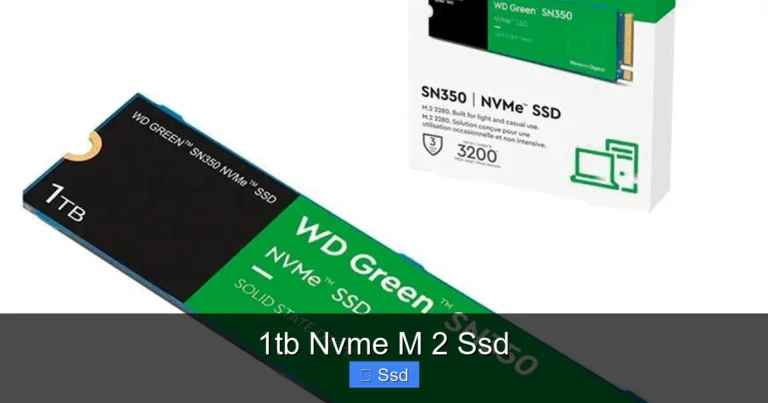
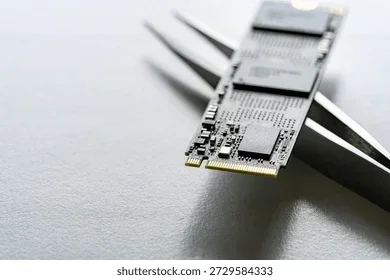
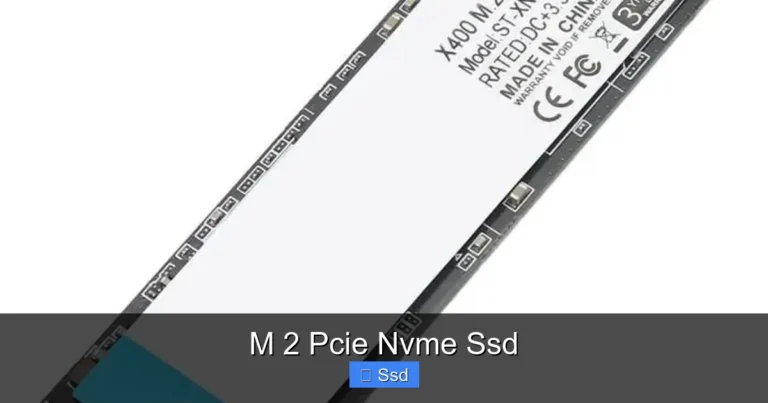
To understand the M.2 SSD NVMe enclosure, you must first understand its heart: the M.2 NVMe SSD itself. M.2 is a form factor—a physical size and connector shape. NVMe (Non-Volatile Memory Express) is the high-speed communication protocol that runs over the PCIe bus. This combination is what gives modern PCs their incredible boot times and application loading speeds. These SSDs are long, thin sticks, commonly 22mm wide and 80mm long (2280), but also available in 2242, 22110, and other lengths.
The enclosure is the host. It provides the M.2 slot (with the correct keying—usually an “M” key for NVMe), the USB interface (almost always USB-C today), and the power management. When you slide your compatible SSD into the enclosure and screw it down, you’ve created a complete, self-contained external drive. The quality of the M.2 SSD NVMe enclosure’s internal controller chip is what ultimately determines the real-world speed you’ll experience. A cheap controller will bottleneck even the fastest SSD.
Demystifying Compatibility: It’s All About the Details
This is the most crucial section. Buying the wrong M.2 SSD NVMe enclosure is the most common mistake. You can’t just grab any enclosure and any M.2 drive. They must speak the same physical and electrical language. Here’s your compatibility checklist, broken down simply.
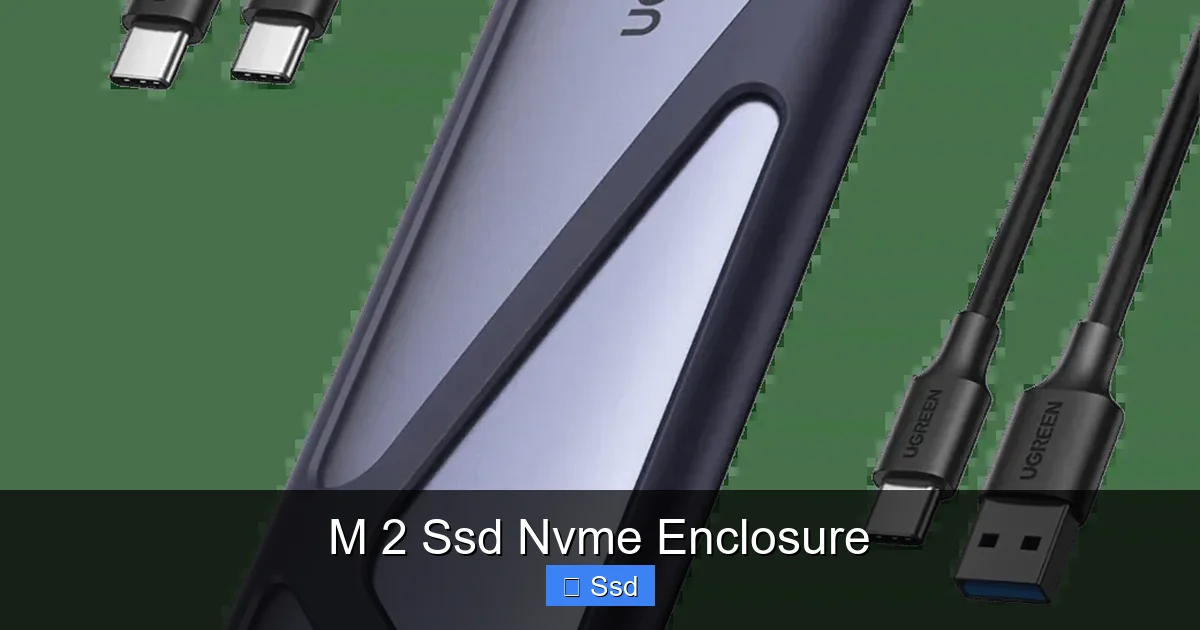
Visual guide about M 2 Ssd Nvme Enclosure
Image source: eu.ugreen.com
1. Physical Fit: Length and Keying
The first check is purely mechanical. Look at your SSD. Does it have one or two notches (keys) on the connector? An M.2 SSD NVMe enclosure for an NVMe drive will have an “M” key (a single, slightly off-center notch). SATA M.2 drives use a “B+M” key (two notches). An NVMe-only enclosure will NOT work with a SATA M.2 drive. Next, measure the length of your SSD’s gold connector. The number in “2280” means 22mm wide, 80mm long. Most enclosures support 2280, but some support shorter (2242) or longer (22110) drives. Ensure your SSD’s length is within the enclosure’s supported range.
2. Protocol: NVMe vs. SATA – NO COMPROMISE
This is the dealbreaker. M.2 SSD NVMe enclosures are designed exclusively for NVMe (PCIe) SSDs. They do not support the older, slower SATA protocol, even if the M.2 drive physically fits. The controller inside the enclosure is built for the NVMe protocol. If you try to plug a SATA M.2 SSD into an NVMe enclosure, it simply will not be recognized by your computer. Conversely, an “M.2 SATA enclosure” won’t work with an NVMe SSD. You must match the protocol. Your SSD’s model name will usually say “NVMe” or “PCIe” if it’s the right type (e.g., Samsung 980 NVMe, WD Black SN850).
3. Interface Speed: USB 3.2 vs. Thunderbolt
The M.2 SSD NVMe enclosure’s external port dictates your maximum speed ceiling. A standard USB 3.2 Gen 2 (10 Gbps) enclosure is excellent and cost-effective, offering real-world speeds up to ~1,000 MB/s. For true NVMe speeds (2,500 MB/s+), you need a Thunderbolt 3 or 4 enclosure (40 Gbps). Some newer USB 3.2 Gen 2×2 (20 Gbps) enclosures are a middle ground. Match the enclosure’s port to your computer’s available ports and your speed needs. A Thunderbolt SSD in a USB-only port will work but at USB speeds.
Performance Realities: How Fast Can You Really Go?
Marketing claims for M.2 SSD NVMe enclosures can be dizzying. “Up to 40 Gbps!” But real-world performance depends on a chain of factors, and the weakest link determines the speed. Let’s break down that chain.
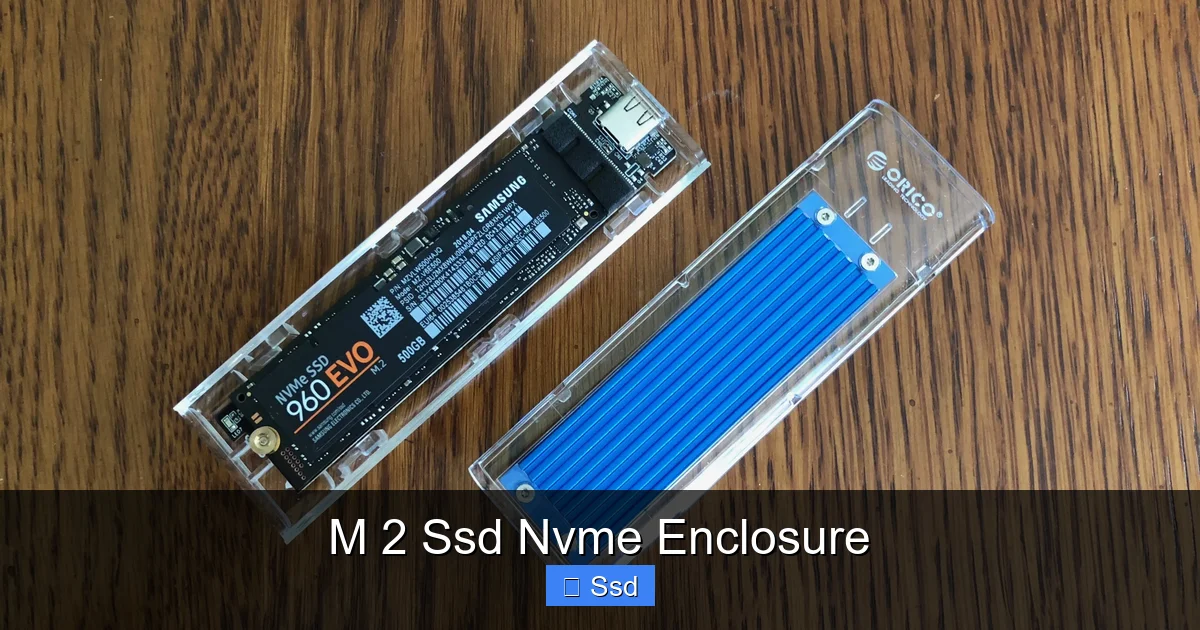
Visual guide about M 2 Ssd Nvme Enclosure
Image source: 9to5mac.com
The Speed Chain: SSD → Enclosure Controller → USB Cable → Computer Port
Your ultimate speed is limited by the slowest component. First, your SSD must be fast enough. A budget NVMe SSD might max out at 2,000 MB/s. Second, the enclosure’s controller must be high-quality. A poor controller introduces overhead and heat, throttling speeds. Third, the USB standard matters: USB 3.2 Gen 2 (~10 Gbps) caps at ~1,000 MB/s after overhead; Thunderbolt 3/4 (~40 Gbps) can handle ~2,800-3,000 MB/s. Fourth, your computer’s port must match. Plugging a Thunderbolt SSD into a USB 3.2 port will limit you to USB speeds. Finally, the cable must be certified for the standard (e.g., a Thunderbolt cable for a Thunderbolt port).
Thermal Throttling: The Silent Speed Killer
High-speed NVMe SSDs are power-hungry and generate significant heat. In the confined space of an M.2 SSD NVMe enclosure, this heat has nowhere to go. Most SSDs have a thermal throttling mechanism: when they get too hot, they deliberately slow down to prevent damage. This can reduce speeds by 50% or more during sustained large file transfers. This is why enclosure design is critical. Look for models with full aluminum bodies that act as passive heatsinks. Some premium enclosures include built-in heatsinks with thermal pads that contact the SSD’s memory and controller chips. For heavy, sustained workloads (like editing 4K video), a well-ventilated or actively cooled enclosure is a wise investment.
Setup & Installation: Simpler Than You Think
Fear not. Setting up your new M.2 SSD NVMe enclosure is a five-minute job requiring only a tiny screwdriver. Here’s the foolproof walkthrough.
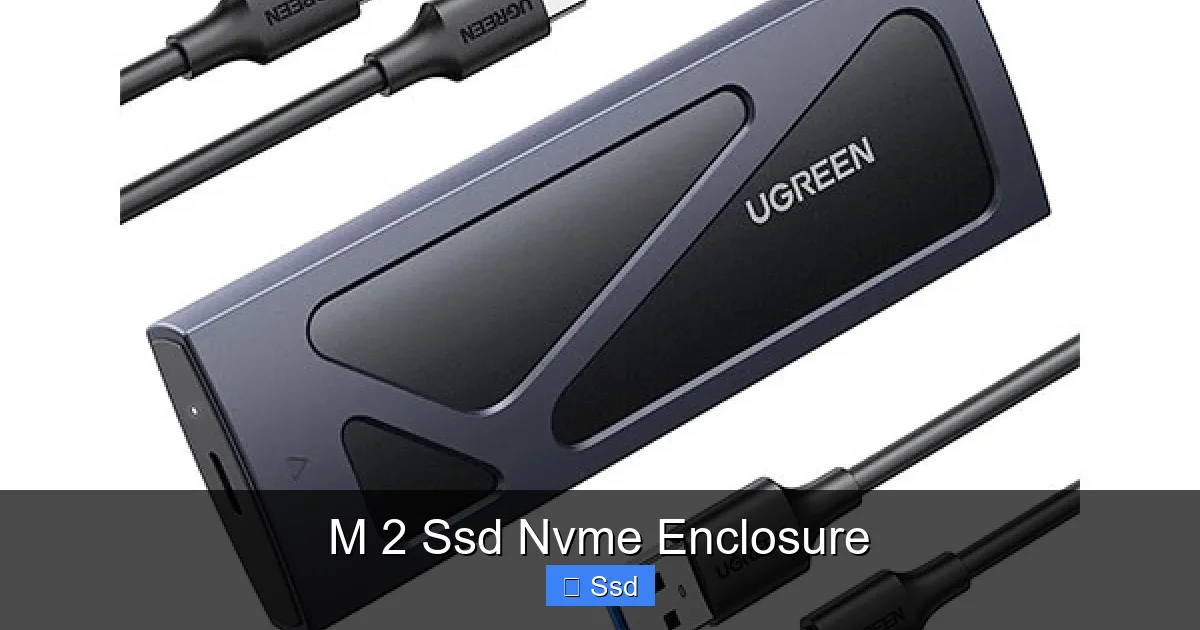
Visual guide about M 2 Ssd Nvme Enclosure
Image source: globalbrand.com.bd
Step-by-Step: From Box to Drive
- Gather Tools: You’ll need the enclosure, your M.2 NVMe SSD, and the small screwdriver (often included).
- Open the Enclosure: Most use two screws on the back or bottom. Some have a tool-less slide-off cover. Gently open it up.
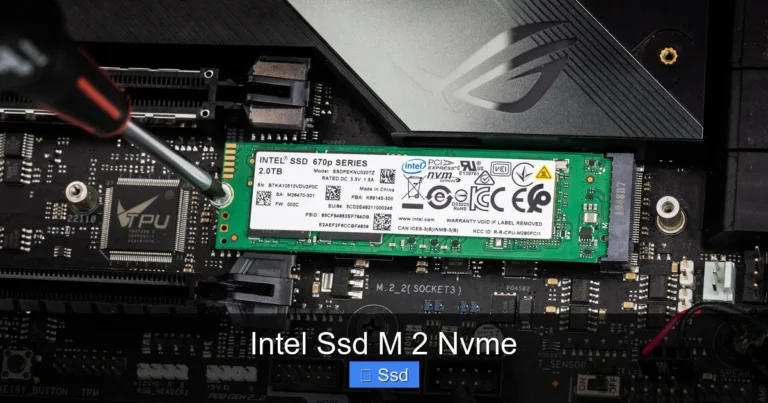
- Insert the SSD: Locate the M.2 slot. Hold the SSD at a ~30-degree angle and insert the gold connector firmly into the slot. It should sit flat. Do not force it.
- Secure the SSD: Most enclosures have a small screw or a retention bracket. Screw it down gently to hold the SSD in place. Don’t overtighten.
- Close the Enclosure: Replace the cover and screws.
- Connect and Initialize: Plug the enclosure into your computer via the USB-C cable. Your OS (Windows, macOS, Linux) should recognize it as a new, unformatted drive.
- Format: In Windows, use Disk Management. In macOS, use Disk Utility. Choose exFAT for universal compatibility between OSes, or NTFS for Windows-only, or APFS for Mac-only. Formatting erases all data on the SSD.
Software & Driver Notes
Modern M.2 SSD NVMe enclosures are truly plug-and-play. They use standard USB mass storage drivers built into all major operating systems. You should not need to install any special software for basic functionality. Some high-end Thunderbolt enclosures may require a one-time firmware update or driver installation from the manufacturer’s website for full performance or advanced features, but this is rare. Always check the manufacturer’s quick start guide. If your drive isn’t recognized, the issue is almost always physical incompatibility (wrong SSD type) or a faulty enclosure/SSD.
Top Use Cases: Why You Need One Right Now
An M.2 SSD NVMe enclosure isn’t just a novelty. It’s a versatile tool that solves real problems and unlocks new possibilities for tech users.
The Ultimate Bootable Toolkit
Have an old laptop with a slow hard drive? Instead of opening it up and risking damage, you can install a fresh OS (Windows, Linux, or macOS) onto a fast NVMe SSD in an enclosure and boot your entire computer from it via USB. This is a lifesaver for troubleshooting, testing new operating systems without touching your internal drive, or giving a new lease on life to an old machine. Gamers use this to carry their entire game library and settings between multiple PCs.
Portable Powerhouse for Creators
Video editors, photographers, and music producers deal with massive files. An external M.2 SSD NVMe enclosure provides the speed of an internal SSD with the convenience of a plug-in drive. You can work directly from the external drive on any computer, move projects between workstations in seconds, or use it as a high-speed scratch disk to improve editing software performance. It’s far more reliable and faster than a traditional external hard drive for this workflow.
Console Storage Expansion (PS5 & Xbox Series X/S)
Both the PlayStation 5 and Xbox Series X/S support expanding storage via external USB drives, but for playing current-gen games, you need speed. An M.2 SSD NVMe enclosure with a fast NVMe SSD (meeting console requirements) is a perfect, often cheaper, alternative to the proprietary console expansion cards. You can store and play a vast library of games from a single, fast external drive. (Note: For PS5, only certain USB drives meet the spec for playing PS5 games; check Sony’s list).
Your Buying Guide: Picking the Perfect Enclosure
The market is flooded with M.2 SSD NVMe enclosure options. Don’t get overwhelmed. Focus on these key decision points.
Form Factor & Build Quality
Most are rectangular “sticks,” but some are wider “pucks.” Stick-style is more common and often fits in tight spaces. Build quality is paramount. Look for anodized aluminum or robust plastic. Aluminum acts as a heatsink. Avoid flimsy, hollow-feeling enclosures—they’re likely to overheat and fail. Check reviews for reports of poor screw threading or loose SSD mounts.
Controller Chip & Interface
The controller is the brain. For USB 3.2 Gen 2 (10 Gbps), common chips are from ASMedia (ASM2362) or Realtek (RTL9210). For Thunderbolt 3/4, it’s almost always Intel’s Titan Ridge or Falcon Ridge chip. The controller brand isn’t as important as its reputation in reviews. Read professional and user reviews specifically about sustained transfer speeds and heat. If you need maximum speed and have a Thunderbolt port, invest in a Thunderbolt enclosure. Otherwise, a quality USB 3.2 Gen 2 enclosure is the sweet spot for performance and price.
Extra Features to Look For
- Tool-less Design: A sliding latch or clip that lets you insert the SSD without screws. Great for frequent swaps.
- LED Activity Light: A small LED that blinks when data is being read/written. Useful for confirming activity.
- Included Cable: Does it come with a high-quality, short USB-C to USB-C cable? A long, cheap cable can degrade signal quality.
- Thermal Pads: Some enclosures include adhesive thermal pads to apply between the SSD and the enclosure’s metal case for better heat dissipation. A major plus.
- Multiple Key Support: While rare for NVMe-only enclosures, some support both M+B and M keys, offering more SSD compatibility.
Future-Proofing and Maintenance
An M.2 SSD NVMe enclosure is a long-term investment. Here’s how to keep it performing for years.
Firmware Updates
Like any tech product, the enclosure’s controller has firmware. Manufacturers occasionally release updates that fix bugs, improve compatibility with new SSDs or operating systems, or enhance power management. Bookmark the support page for your specific enclosure model and check once a year. Updating is usually a simple process via a utility program.
Proper Care and Handling
These are solid-state devices with no moving parts, but they still need care. Don’t drop the enclosure, especially while powered on. The SSD inside can be dislodged. Keep the USB-C port clean of debris. When not in use, store it in a static-free bag or case. For the SSD itself, avoid filling it to 100% capacity. NVMe drives need some free space (10-20%) for wear leveling and maintaining peak performance. If you use it as a primary drive for a portable OS, consider a drive with high endurance (TBW rating).
Conclusion: Unlock Your Storage’s True Potential
An M.2 SSD NVMe enclosure is one of the most empowering pieces of tech you can buy for under $50. It democratizes high-speed storage, letting you reuse old SSDs, upgrade laptops without tools, and carry a lightning-fast drive in your pocket. The key is knowledge: understanding the non-negotiable compatibility rules between your SSD and the enclosure. Once you match those, you’re greeted with speeds that make traditional external drives feel like relics. Whether you’re a gamer wanting to load levels instantly, a creator moving projects between studios, or just someone who hates waiting for file copies, the right NVMe enclosure is a transformative upgrade. Do your homework on the controller and thermal design, buy a reputable brand, and you’ll have a reliable, blisteringly fast companion for years to come.
Frequently Asked Questions
Can I use an M.2 SATA SSD in an NVMe enclosure?
No. An M.2 SSD NVMe enclosure is built for the NVMe (PCIe) protocol only. Physically, a SATA M.2 drive may fit (it has a B+M key), but electrically it is incompatible and will not be recognized by your computer. You need a separate “M.2 SATA enclosure” for SATA drives.
What’s the real-world speed difference between USB 3.2 and Thunderbolt enclosures?
A quality USB 3.2 Gen 2 (10 Gbps) enclosure typically delivers 800-1,050 MB/s read/write. A Thunderbolt 3/4 (40 Gbps) enclosure can sustain 2,500-3,000 MB/s with a fast SSD. The Thunderbolt option is over 2x faster and is necessary if your SSD itself can exceed 1,000 MB/s.
My enclosure gets very hot during transfers. Is this normal?
Yes, some heat is normal as the SSD and controller work. However, excessive heat that leads to speed drops (thermal throttling) is a problem. Ensure your enclosure has a metal case for passive cooling. For heavy workloads, consider an enclosure with an active fan or add small thermal pads between the SSD and enclosure case to improve heat transfer.
Can I boot my computer from an M.2 NVMe SSD in an enclosure?
Yes, absolutely. This is a popular use case. You can install a full operating system (Windows, Linux) on the SSD in the enclosure and configure your computer’s BIOS/UEFI to boot from the USB device. It’s perfect for a portable OS, troubleshooting, or reviving an old machine without opening it.
What’s the best SSD length (e.g., 2280) for an enclosure?
The vast majority of consumer NVMe SSDs and enclosures use the 2280 form factor (22mm wide, 80mm long). This is the safest, most compatible choice. Unless you have a specific shorter (2242) or longer (22110) SSD, buy an enclosure that explicitly supports 2280 drives, which almost all do.
Can I use an NVMe enclosure as a permanent internal drive replacement?
Technically yes, but it’s not ideal for a primary internal drive. Enclosures are designed for external use, with less robust cooling than a motherboard’s M.2 slot and a reliance on USB power (which may be limited). For a desktop’s internal storage, install the SSD directly onto the motherboard. The enclosure is best for portable, secondary, or backup storage.