Intel Ssd M 2 Nvme
Intel SSD M.2 NVMe drives represent the cutting edge of consumer storage technology, offering dramatic speed improvements over traditional SATA SSDs and hard drives. By leveraging the PCIe interface and the NVMe protocol, these compact, gumstick-shaped drives deliver near-instant boot times, lightning-fast game and application loading, and seamless performance for demanding creative workflows. Choosing an Intel drive means investing in proven engineering, robust endurance, and comprehensive software support for a future-proof storage solution.
Remember that agonizing feeling? You press the power button on your computer, go make a coffee, and maybe even sit down and open a book before your desktop finally appears. Or the loading screens in your favorite game that give you just enough time to check your phone. It’s 2024, and that experience is utterly unacceptable. The culprit is almost always the storage drive. If you’re still using a hard disk drive (HDD) or even an older SATA SSD, you are living in the digital slow lane. The ticket out? An Intel SSD M.2 NVMe drive. This isn’t just an incremental upgrade; it’s a fundamental shift in how your computer accesses its most important data. Let’s dive deep into what makes these little sticks of silicon so revolutionary and why an Intel-branded one should be at the top of your list.
Key Takeaways
- Form Factor & Interface: Intel M.2 NVMe SSDs use the small, efficient M.2 form factor and connect via the high-speed PCIe bus, not the older SATA interface.
- Massive Speed Leap: They offer sequential read/write speeds often 4-6 times faster than the best SATA SSDs, drastically reducing load times and file transfer durations.
- NVMe Protocol Efficiency: The NVMe protocol is designed for flash memory, offering lower latency and higher input/output operations per second (IOPS) than the older AHCI protocol used by SATA.
- Intel’s Core Advantages: Intel focuses on reliable 3D NAND memory, advanced controller technology, rigorous validation, and useful software like the Intel® Memory and Storage Tool.
- Ideal For: These drives are perfect for gaming PCs, content creation workstations, modern laptops, and any system where storage performance is a bottleneck.
- Compatibility is Key: You must ensure your motherboard or laptop has an available M.2 slot that supports NVMe (PCIe) protocol, not just SATA protocol, for optimal performance.
📑 Table of Contents
- What Exactly is an Intel SSD M.2 NVMe? Demystifying the Jargon
- Why Choose Intel? Brand Trust and Engineering Philosophy
- Performance Benchmarks: What “Blazing Fast” Actually Means
- How to Choose and Install Your Intel M.2 NVMe SSD
- Use Cases: Who Benefits the Most from an Intel NVMe SSD?
- Future-Proofing and Longevity: Will It Last?
- The Verdict: Is an Intel SSD M.2 NVMe Right for You?
What Exactly is an Intel SSD M.2 NVMe? Demystifying the Jargon
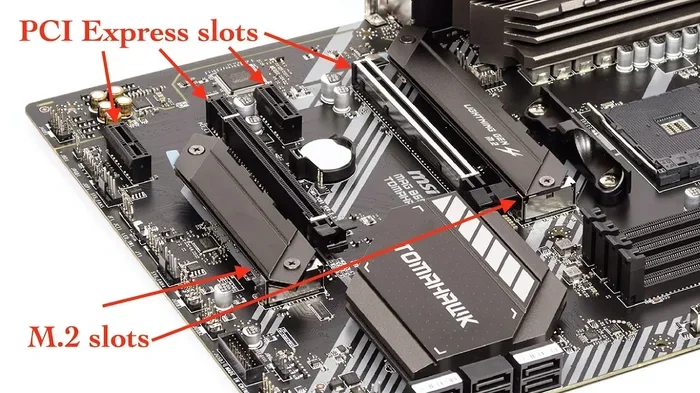
To understand why this is a big deal, we need to quickly break down the name. “Intel SSD” is the brand and product type. “M.2” refers to the physical form factor—a small, flat card that plugs directly into a dedicated slot on your motherboard, resembling a piece of gum. It’s a huge space-saver compared to the 2.5-inch drives that need cables. The most critical part is “NVMe.” This stands for Non-Volatile Memory Express. It’s a communication protocol, a set of rules for how the drive talks to the rest of your computer. Think of it like this: SATA is a single-lane country road, while NVMe is a multi-lane, no-speed-limit superhighway built specifically for flash storage.
The Evolution from SATA to PCIe to NVMe
Traditional hard drives and early SSDs used the SATA interface, which was originally designed for spinning hard disks. Even the fastest SATA SSDs are capped at around 550/520 MB/s. The real breakthrough came when SSDs started connecting directly to the PCI Express (PCIe) bus, which is the same high-speed pathway used for your graphics card. But just having a fast pipe isn’t enough; you need an efficient driver to manage the traffic. That’s NVMe. It’s purpose-built for flash memory, with thousands of parallel command queues versus SATA’s single queue. The result? Dramatically lower latency (delay) and massively higher throughput, especially when dealing with many small files, which is what operating systems do constantly.
Why Choose Intel? Brand Trust and Engineering Philosophy
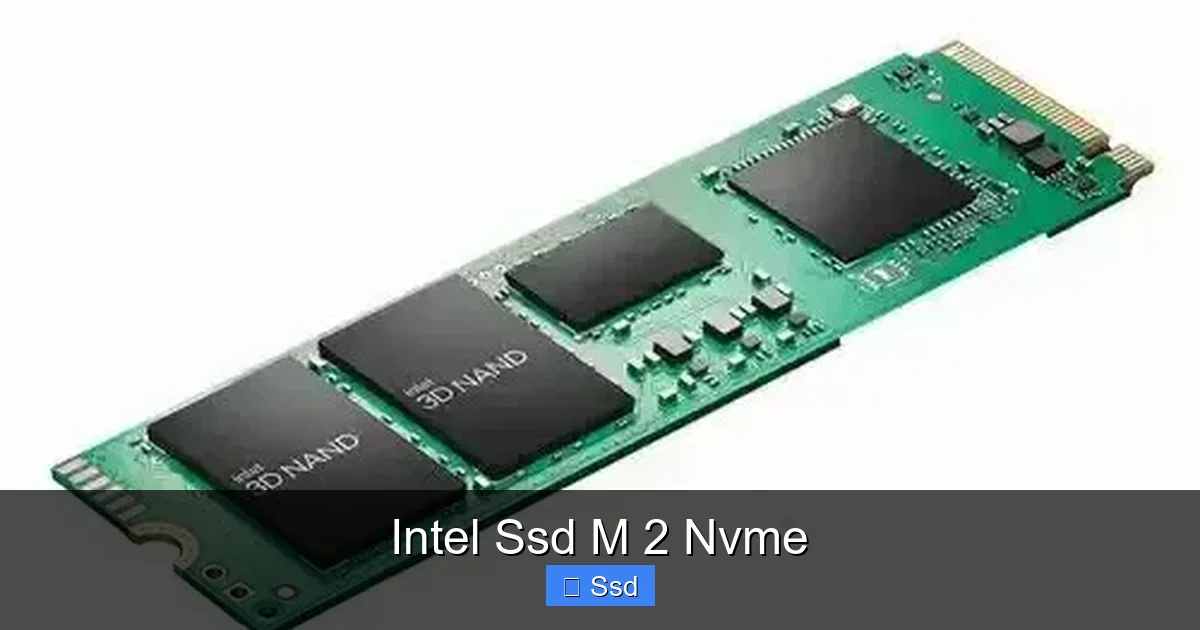
The SSD market is crowded, so why specifically consider Intel? It boils down to three pillars: silicon heritage, vertical integration, and trust. Intel literally invented the modern microprocessor. That deep understanding of silicon, controllers, and system architecture translates directly to their storage products. They don’t just buy components and slap a label on them; they design key parts, like their own custom controllers and firmware, in-house.
Visual guide about Intel Ssd M 2 Nvme
Image source: img.ep-cdn.com
3D NAND and Intel’s Manufacturing Prowess
At the heart of every SSD is NAND flash memory. Intel (in partnership with Micron) was a pioneer in moving from planar NAND to 3D NAND, where memory cells are stacked vertically like a skyscraper. This “ stacking” increases density without shrinking cells, which improves endurance and reduces cost per gigabyte. Intel’s 3D NAND (often branded as Intel® 3D NAND or now under the Solidigm brand post-acquisition) is known for its reliability and consistent performance, even as the drive fills up. When you buy an Intel SSD, you’re buying storage built on decades of semiconductor manufacturing excellence.
Rigorous Validation and Reliability
Intel subjects its drives to brutal validation testing—temperature extremes, shock, vibration, and millions of hours of power-on testing. This isn’t just marketing; it’s a culture of quality. The result is some of the lowest annualized failure rate (AFR) numbers in the industry. For a system drive where your operating system and critical files live, that peace of mind is priceless. You want a drive that will boot your system tomorrow, next year, and five years from now without a hiccup.
Performance Benchmarks: What “Blazing Fast” Actually Means
Spec sheets are great, but what do these speeds mean for your real-world experience? Let’s translate megabytes and IOPS into tangible benefits.
Visual guide about Intel Ssd M 2 Nvme
Image source: techpowerup.com
Sequential Speeds: Moving Big Files
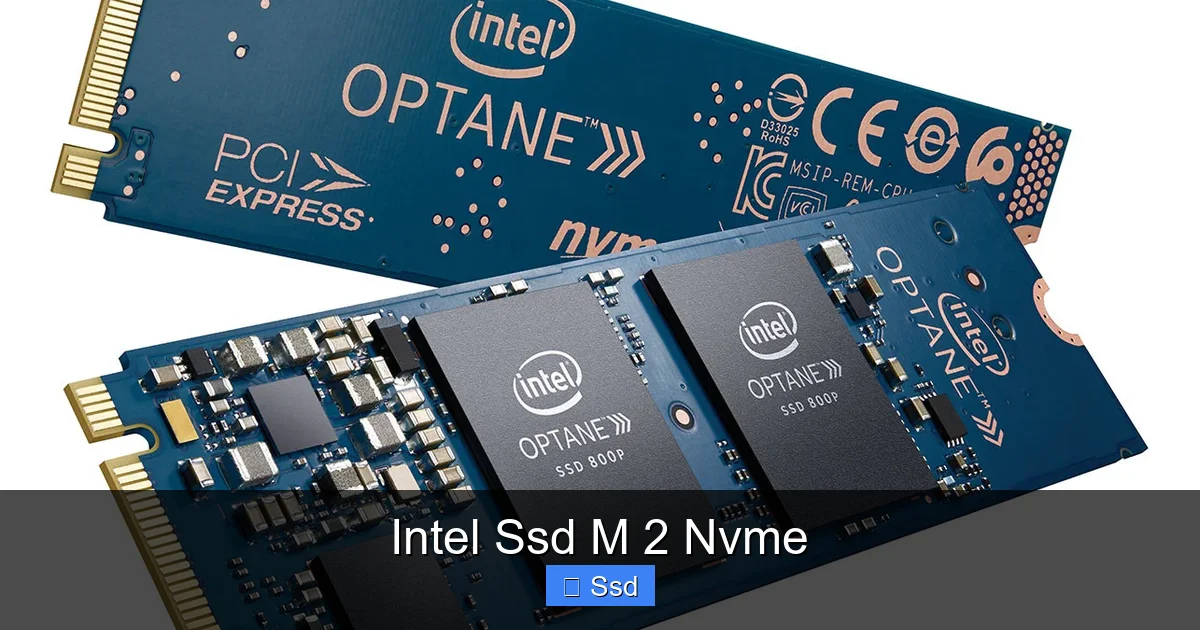
Sequential read/write speeds measure how fast the drive can handle large, contiguous files—like a 50GB video project, a huge game install, or a massive ISO file. A top-tier Intel M.2 NVMe SSD like the Intel® 670p or the higher-end 580 series can easily hit over 3,000 MB/s reads and 2,500 MB/s writes. Compare that to a SATA SSD’s ceiling of ~550 MB/s. That’s a 5-6x improvement. Copying that 50GB game? Instead of waiting 2-3 minutes, you might be done in 30-40 seconds. It’s a transformative difference.
Random IOPS: The Key to System Responsiveness
This is where NVMe truly shines and where you’ll feel it every single day. Random read/write speeds measure how many small, scattered file operations the drive can handle per second. Your operating system is constantly reading and writing thousands of tiny system files, registry entries, and cache data. A good NVMe drive can achieve over 500,000 IOPS. A SATA SSD might manage 80,000-100,000 IOPS. This gap is why your PC feels so “snappy” with an NVMe drive. Windows boots faster, applications launch almost instantly, and even browsing with dozens of tabs feels smoother because the drive is servicing those tiny requests with incredible speed.
Real-World Gaming and Creative Workflow Examples
Gaming: Load times in open-world games like Cyberpunk 2077 or Red Dead Redemption 2 are cut dramatically. You’re not just waiting for the initial load; fast travel and area transitions become near-instant. In competitive games like Valorant or CS:GO, map load times are eliminated, getting you into the action faster after a match ends.
Video Editing & 3D Rendering: Working with 4K or 8K video is a data-hungry process. An NVMe drive as your scratch disk (where the editing software stores temporary files) allows for smooth scrubbing through the timeline without stutter. Rendering times can see modest improvements as assets are read from the drive. For photo editors with thousands of high-res RAW files, gallery loading is instantaneous.
How to Choose and Install Your Intel M.2 NVMe SSD
So you’re convinced. Now, how do you pick the right one and get it working?
Visual guide about Intel Ssd M 2 Nvme
Image source: m.media-amazon.com
Step 1: Check Your Motherboard’s M.2 Slot Specifications
This is the most critical step. Open your case or look up your motherboard/laptop model online. You need to know three things:
- Does it have an M.2 slot? Most modern motherboards (last 5-6 years) do.
- What lengths does it support? M.2 SSDs come in 2242, 2260, and 2280 sizes (22mm wide, 42/60/80mm long). 2280 is the most common. Ensure your slot fits the drive you buy.
- Does it support PCIe (NVMe) or SATA protocol? Some cheaper or older M.2 slots only support SATA protocol, negating the speed benefit. You want one that explicitly says “PCIe” or “NVMe.” Also, check if it’s PCIe 3.0 or 4.0. Intel’s current consumer drives like the 670p are PCIe 3.0, offering excellent value. PCIe 4.0 drives (like the 580) are faster but require a compatible 4.0 slot for those speeds.
Step 2: Picking the Right Intel Drive
Intel’s lineup is now managed by Solidigm, but the branding remains clear. For most users, the Intel® 670p is the sweet spot. It’s a PCIe 3.0 drive offering fantastic everyday performance, excellent endurance (600 TBW for 1TB), and great value. If you have a PCIe 4.0 motherboard and want top-tier speed for professional work, look at the Intel® 580 series. For budget-conscious upgrades in a secondary system or laptop, the Intel® 660p (QLC memory) is still a massive upgrade over any HDD, though with lower endurance for heavy write workloads.
Step 3: The Installation Process (It’s Easier Than You Think)
1. Power Down and Unplug: Shut down your PC, flip the PSU switch, and unplug the cable. Press the power button to discharge residual power.
2. Ground Yourself: Use an anti-static wrist strap or touch the metal case to discharge static electricity.
3. Locate the M.2 Slot: It’s usually near the PCIe slots or the CPU. You may need to remove a small heatsink cover (many modern motherboards include one for NVMe drives).
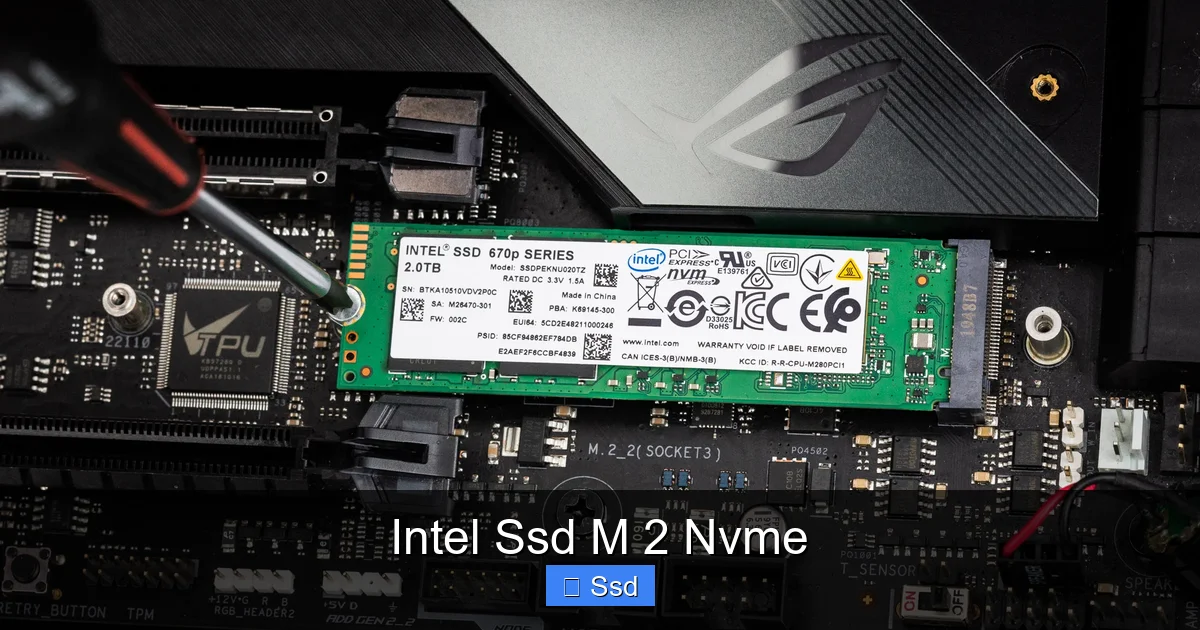
4. Insert at an Angle: Hold the SSD by the edges. Align the notch on the drive’s connector with the key in the slot. Insert it at a ~30-degree angle until it clicks into place.
5. Secure It: Gently lay the drive flat and secure it with the tiny screw provided with your motherboard into the standoff. Don’t overtighten!
6. Reassemble and Boot: Put your case panel back, plug in, and boot. You’ll need to initialize and format the new drive in your operating system’s disk management utility (Disk Management in Windows, Disk Utility in macOS).
Use Cases: Who Benefits the Most from an Intel NVMe SSD?
While anyone will notice an improvement, the benefits are most pronounced for specific user profiles.
The Professional Content Creator
If you work with 4K/8K video, large Photoshop files, complex 3D scenes, or massive audio project files, your storage is your pipeline. An Intel NVMe SSD as your primary drive and, more importantly, as your dedicated “scratch” or “cache” drive for active projects eliminates I/O bottlenecks. You spend less time waiting for assets to load and more time being creative. The high endurance ratings ensure these drives can handle the constant read/write cycles of professional work.
The Hardcore PC Gamer
For gamers, storage speed directly impacts load times. Modern AAA games can be 100GB+. An NVMe SSD reduces loading screens to mere seconds. In games that stream assets in the background (like open-world games), it virtually eliminates texture pop-in and stuttering caused by the HDD/SSD struggling to keep up. Pair an Intel NVMe drive with a powerful GPU and CPU, and you’ve got a system that delivers buttery-smooth, immersive experiences without interruption.
The General User & Laptop Upgrader
If your laptop or desktop feels sluggish just opening programs or browsing the web with many tabs, an NVMe SSD is the single most impactful upgrade you can make. For laptops, the M.2 form factor is perfect—no bulky 2.5” drive and cable to fit. Replacing an old HDD or even a SATA SSD with an Intel M.2 NVMe will make the entire system feel new again. Boot times drop to under 10 seconds, and the overall responsiveness is night and day.
Future-Proofing and Longevity: Will It Last?
Storage is a long-term investment. You buy a drive hoping it lasts the life of your PC or longer. Intel builds with this in mind.
Understanding TBW (Total Bytes Written) and DWPD
Endurance is measured in TBW—the total amount of data you can write to the drive before the memory cells are likely to wear out. A 1TB Intel 670p is rated for 600 TBW. That means you could write 600,000 GB of data to it. For a typical user, that’s several years of heavy use. For a power user writing hundreds of GBs daily, it might be 3-5 years. DWPD (Drive Writes Per Day) is another metric; for the 670p, it’s about 0.33 DWPD over 5 years, meaning you can write 33% of the drive’s capacity every single day for 5 years. For nearly all consumers, this is overkill—the drive will likely become obsolete from a capacity/speed standpoint before it wears out.
Thermal Throttling and the Need for Heatsinks
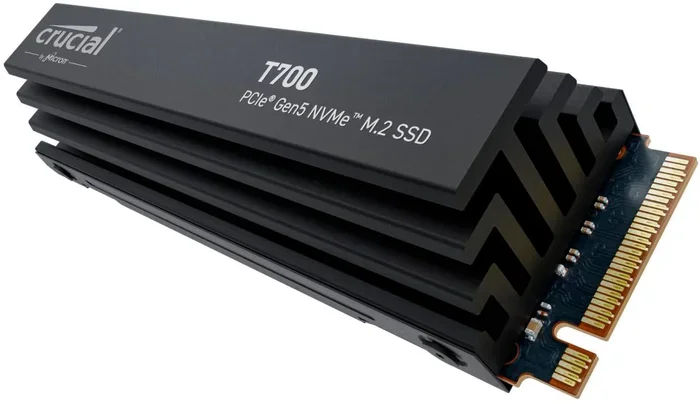
High-speed NVMe drives generate heat. Under sustained heavy workloads (like a long video export), the drive’s controller can get hot and “throttle”—reduce its speed to cool down and prevent damage. This is normal. Many modern motherboards include an M.2 heatsink that screws onto the drive. If yours doesn’t and you do heavy sustained work, consider an aftermarket M.2 heatsink. For gaming and general use, throttling is rarely an issue as workloads are bursty, not constant. Intel’s power management is generally excellent at balancing performance and thermals.
The Verdict: Is an Intel SSD M.2 NVMe Right for You?
If your computer is still using a spinning hard drive, the answer is an emphatic YES. The upgrade is the single most noticeable performance improvement you can make for under $100. If you already have a SATA SSD, the jump to NVMe is less dramatic for everyday tasks but still very real for large file transfers and professional workloads. The Intel SSD M.2 NVMe combination offers a compelling package: blistering speeds, the compact and convenient M.2 form factor, and the backing of a semiconductor giant known for quality and reliability. You are not just buying storage; you are buying reduced waiting times, smoother workflows, and a more responsive computing experience that makes every interaction with your PC feel faster and more fluid. In a world where time is our most precious resource, that is an investment that pays dividends every single day.
Frequently Asked Questions
Is an Intel M.2 NVMe SSD compatible with my older desktop?
It depends on your motherboard. You need an available M.2 slot that supports the PCIe protocol (not just SATA) and is at least PCIe 3.0 for current Intel drives. Check your motherboard’s manual or specifications online. Most motherboards from 2017 onward have compatible slots.
Do I need to install special drivers for an Intel NVMe SSD?
Generally, no. Modern operating systems like Windows 10/11 and macOS have native NVMe drivers built-in. The drive will work immediately after installation and formatting. However, for the best experience, you should download and install the Intel® Memory and Storage Tool (or Solidigm Tool) from Intel’s website. This utility lets you monitor drive health, update firmware, and optimize settings.
What’s the main difference between Intel’s 670p and 580 SSDs?
The primary difference is the interface and target audience. The Intel 670p is a PCIe 3.0 x4 drive, offering excellent everyday performance at a great price, ideal for most gamers and general users. The Intel 580 is a PCIe 4.0 x4 drive, offering significantly higher sequential speeds (up to 7,400 MB/s read) for professional workloads and users with PCIe 4.0 motherboards who need maximum throughput for large, sequential file transfers.
Can I use an M.2 NVMe SSD as a secondary drive?
Absolutely. While many use it as their primary OS drive, there’s no reason you can’t install your most demanding games, video editing projects, or large software suites on a secondary NVMe SSD. This keeps your primary drive less cluttered and can further improve load times for those specific applications.
How do I know if my M.2 slot is running at PCIe 3.0 or 4.0 speeds?
You can check this in your motherboard’s BIOS/UEFI settings, which often display the negotiated link speed. Alternatively, after installing the drive, you can use a free tool like CrystalDiskInfo. It will show the “Interface” and “Transfer Mode.” “PCI Express 3.0 x4” or “PCI Express 4.0 x4” indicates the active speed.
What’s the typical lifespan of an Intel NVMe SSD?
For a typical consumer, the drive will likely last 5-10 years or more, far outlasting its usefulness in a performance sense. Intel’s drives are rated with high TBW (Total Bytes Written) values. A 1TB 670p’s 600 TBW rating means you’d have to write about 330 GB every single day for five years to hit that limit. Most users write far less, so wear-out is not a practical concern. The drive will become obsolete due to capacity or speed advancements long before the NAND wears out.