Laptop in Freezer
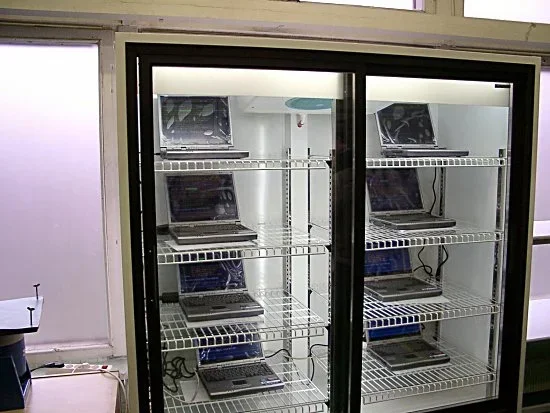
Putting a laptop in the freezer is a risky myth that can cause serious damage. While it may seem like a quick fix for an overheating laptop, the cold creates condensation that harms internal hardware. This guide explains why freezing a laptop is a bad idea and shares safer laptop cooling solutions.
You have probably heard the advice before. Your laptop is running hot. The fan is screaming. The keyboard feels like a furnace. And someone, somewhere, told you to throw it in the freezer. It sounds crazy, right? But when your laptop overheating gets bad enough, people will try just about anything. So the question remains. Can you really put a laptop in the freezer? And more importantly, should you?
The short answer is no. Putting your laptop in freezer conditions is one of the worst things you can do. It might feel like a fast fix, but the damage it causes can be far worse than the overheating itself. In this article, we will walk through exactly what happens when a cold laptop meets warm air, why people try this trick in the first place, and what you should do instead to keep your device running smoothly.
Key Takeaways
- Freezing a laptop causes condensation that can short-circuit sensitive components and lead to permanent damage.
- Thermal shock from extreme cold cracks solder joints and damages the laptop hardware over time.
- Safer cooling methods like cleaning vents, using cooling pads, and checking RAM performance work much better.
- Laptop troubleshooting should always start with understanding the root cause of overheating, not quick fixes.
- Regular laptop maintenance keeps your device running cool and extends its lifespan significantly.
📑 Table of Contents
Why People Put Laptops in the Freezer
The idea of using cold to fix heat problems feels logical on the surface. Heat melts things. Cold hardens things. So if your laptop is too hot, freeze it, right? This kind of thinking comes from everyday experiences. Put a warm drink in the fridge. It cools down. But laptops are not drinks. They are complex pieces of laptop hardware with sensitive electronics that do not react well to extreme temperatures.
Many users turn to the freezer when their laptop performance drops. A hot laptop slows down. The system thermal-throttles to protect itself. Games lag. Videos stutter. Work gets frustrating. When normal fixes like a laptop cooling pad or a quick restart do not work, desperation sets in. That is when someone Googles “laptop in freezer” and finds forum posts from people who swear it worked. But those stories rarely mention the long-term damage hiding underneath.
The Overheating Problem
Laptops generate a lot of heat. The processor, the graphics card, and even the RAM all produce warmth during use. Your laptop has a built-in cooling system with fans and heat pipes designed to handle this. But over time, dust builds up. Thermal paste dries out. Fans wear down. Suddenly the cooling system cannot keep up.
When this happens, the laptop temperature climbs. You might notice the bottom of the laptop feels burning hot. The fan runs constantly at full speed. The system becomes sluggish. These are all signs that your laptop needs attention. But freezing it is not the answer. Let us look at what actually happens when you do it.
What Actually Happens When You Put a Laptop in the Freezer
Understanding the science behind this helps explain why it is so dangerous. When you take a warm laptop and place it in a freezing environment, several things happen very fast. None of them are good for your device.
Condensation and Moisture Damage
This is the biggest danger. When a warm laptop enters a cold freezer, moisture in the air condenses on every surface. Think about how water forms on a cold glass of juice on a hot day. The same thing happens inside your laptop. Water droplets form on the motherboard, the CPU, the RAM chips, and other laptop components. Even a tiny amount of moisture can cause short circuits. Corrosion starts to develop on metal contacts. Over time, this leads to permanent laptop damage.
Here is the scary part. The damage might not show up right away. You take the laptop out, let it warm up, and it seems fine. You use it for a few days or weeks. Then suddenly, it crashes. The screen goes black. The keyboard stops working. By then, the internal corrosion has already done its job. This is why many people do not connect the freezer incident to the failure later.
Thermal Shock Risks
Laptop parts are designed to operate within a specific temperature range. Sudden temperature changes cause materials to expand and contract at different rates. The metal, the plastic, the silicon chips, and the solder joints all react differently. This stress is called thermal shock. Over time, it cracks solder connections and loosens components.
A single trip to the freezer might not break anything immediately. But repeat the process a few times, and the cumulative damage adds up. Your laptop’s lifespan takes a serious hit. Instead of lasting five or more years, you might find yourself needing laptop repair far sooner than expected.
Can Freezing a Laptop Fix Overheating?
Some people claim that freezing a laptop temporarily fixes the overheating problem. And technically, they are not entirely wrong. The cold does lower the laptop temperature for a short time. The processor might run faster without thermal throttling. But this is a band-aid at best. The root cause of the overheating is still there. Dust is still clogging the vents. The fan is still struggling. The thermal paste is still dried up.
Freezing does nothing to address any of these issues. It only masks the symptoms for a brief window. And the risks of condensation and thermal shock far outweigh any temporary relief. If your laptop is overheating, there are much better and safer ways to fix the problem. Let us explore those now.
Better Ways to Cool Down an Overheating Laptop
Instead of reaching for the freezer, try these proven methods to bring your laptop temperature back to a safe level. Each of these addresses the real causes of overheating and helps your device run better for the long haul.
Clean the Fans and Vents
Dust is the number one enemy of laptop cooling. Over months of use, dust accumulates in the vents and clogs the fan. This restricts airflow and traps heat inside the chassis. Grab a can of compressed air and gently blow out the vents. Hold the fan still while you do this to prevent it from spinning too fast and damaging the motor. A soft brush can also help dislodge stubborn dust.
This simple maintenance task can make a dramatic difference in laptop cooling. Most users are surprised how much heat a little dust can trap. Do this every few months and your laptop will stay much cooler.
Use a Cooling Pad
A laptop cooling pad is one of the best investments you can make. These pads sit underneath your laptop and use built-in fans to push extra air across the bottom of the chassis. They do not replace your laptop’s internal cooling system, but they help a lot. Look for a pad with fans that match the size of your laptop. A well-placed cooling pad can drop your laptop temperature by several degrees.
Check Your RAM and Hardware
Sometimes overheating is linked to how hard your laptop is working. If your system does not have enough memory, the processor works overtime to compensate. This generates more heat. You can check how much RAM your laptop has and see if an upgrade might help. Running too little RAM forces your system to use the hard drive as temporary memory, which slows everything down and creates extra heat.
Similarly, understanding what RAM does in your laptop helps you make better decisions about upgrades. More RAM means less strain on the processor. Less strain means less heat. It is a simple relationship that many users overlook when troubleshooting overheating problems.
Replace the Thermal Paste
Thermal paste is the material that sits between your processor and the heatsink. It helps transfer heat away from the CPU efficiently. Over time, this paste dries out and loses its effectiveness. When that happens, heat builds up inside the laptop. Replacing the thermal paste is one of the most effective ways to restore proper heat dissipation. This does require opening the laptop, so if you are not comfortable doing it yourself, seek help from a professional.
Adjust Your Power Settings
Your laptop’s power settings can also affect how much heat it generates. Switching to a power-saving mode reduces the processor’s speed and voltage, which lowers the temperature. You do not need maximum performance for every task. Browse the web, write documents, and watch videos on balanced or power-saving modes. Reserve high performance for gaming or heavy workloads only.
When to Seek Professional Help
If you have tried all of the above steps and your laptop is still overheating, it might be time to see a professional. Persistent overheating can signal a deeper problem. The fan might be failing. The heatsink might be improperly seated. The motherboard could have a fault. A trained technician can open up your laptop, inspect every component, and diagnose the real issue.
Do not wait too long before seeking help. Running a hot laptop continuously can degrade other parts, including the battery and the storage drive. If you are considering hardware upgrades to improve performance and reduce heat, you might want to look into whether you can increase the RAM in your laptop or explore other component upgrades that ease the workload on your processor.
Also, keep in mind that the environment where you use your laptop matters. Using it on soft surfaces like beds or couches blocks the vents. Always use your laptop on a hard, flat surface. This one simple change can improve airflow and lower temperatures significantly.
Common Mistakes People Make with Laptop Cooling
Beyond the freezer trick, there are other mistakes users make that worsen overheating problems. Let us quickly go through the most common ones.
- Using the laptop on soft surfaces. Beds, pillows, and blankets block the vents and trap heat.
- Ignoring warning signs. If the fan is loud or the laptop feels hot, address it early before it becomes a bigger problem.
- Blocking the vents on purpose. Some people place their laptop against a wall or in a cramped space. This restricts airflow and raises the temperature.
- Running too many programs at once. Each open program uses processor power. More processor power means more heat. Close apps you are not using.
- Skipping regular cleaning. A yearly cleaning of the internal components goes a long way in maintaining proper laptop maintenance and cooling.
Key Takeaways
- Never put your laptop in the freezer. The risks of condensation, moisture damage, and thermal shock far outweigh any temporary cooling benefit.
- Overheating has real causes like dust buildup, dried thermal paste, and insufficient RAM that need proper solutions.
- Simple maintenance such as cleaning vents and using a cooling pad can dramatically improve laptop temperature.
- Upgrading hardware like RAM can reduce the workload on your processor and lower heat output.
- Seek professional help if basic fixes do not resolve the overheating issue.
- Good laptop care habits like using hard surfaces and closing unused programs keep your device running cooler longer.
Conclusion
The idea of putting a laptop in freezer is tempting when your device is running hot and slow. But it is a myth that can do more harm than good. Condensation, thermal shock, and long-term damage are real risks that far outweigh any brief cooling effect. Instead of reaching for the freezer, focus on the proven methods that actually fix the problem. Clean your vents, use a cooling pad, check your RAM, and replace dried thermal paste. These steps address the root causes of overheating and keep your laptop running at a safe temperature.
Your laptop is an investment. Treat it with care. Keep it clean, keep it ventilated, and give it the hardware it needs to perform without overheating. With the right approach, you can enjoy a cool, fast, and reliable laptop for years to come. Skip the freezer. Your laptop will thank you for it.
Frequently Asked Questions
Can putting a laptop in the freezer damage it?
Yes, it can. The rapid temperature change causes condensation to form inside the laptop, which can lead to short circuits and corrosion on sensitive components like the motherboard and RAM. Thermal shock from the extreme cold can also crack solder joints over time.
Why does my laptop overheat so quickly?
Laptops overheat for several reasons. Dust buildup in the vents and fans is the most common cause. Dried-out thermal paste reduces heat transfer. Running too many programs at once strains the processor. And using the laptop on soft surfaces like beds blocks airflow. Addressing these issues is much safer than trying a freezer fix.
How long can I safely use a hot laptop?
You should not use a laptop that consistently feels very hot to the touch. Prolonged exposure to high temperatures degrades the battery, slows performance, and shortens the overall lifespan. If your laptop runs hot frequently, it is time to troubleshoot the root cause rather than applying temporary fixes.
What is the safe temperature range for a laptop?
Most laptops operate safely between 50°F and 95°F (10°C to 35°C). During heavy use, temperatures up to 105°F (40°C) are normal but should not be sustained for long periods. If your laptop regularly exceeds these temperatures, check the fans, vents, and thermal paste.
Does upgrading RAM help reduce laptop overheating?
It can help indirectly. When your laptop has enough RAM, the processor does not have to work as hard. Less processor strain means less heat generated. If you are unsure about your current setup, you can check how much RAM your laptop needs and consider an upgrade if you are running low.
Are laptop cooling pads worth buying?
Yes, cooling pads are a worthwhile investment for anyone who uses their laptop for extended periods or runs demanding tasks. They improve airflow and can lower internal temperatures by several degrees. Look for a pad with fans that align with your laptop’s ventilation points for the best results.