Are All Usb Cables the Same
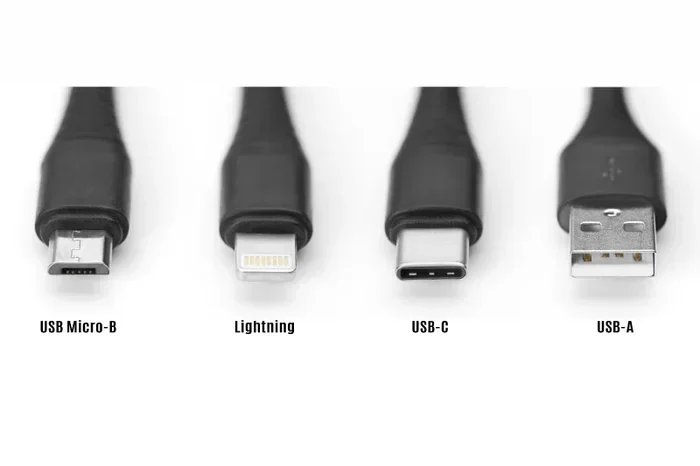
No, not all USB cables are the same. USB cables come in different types, sizes, and speeds, and choosing the wrong one can slow down your data transfer or even damage your devices. Understanding the differences between USB-A, USB-C, USB 2.0, and USB 3.0 helps you make smarter choices.
You have probably grabbed a USB cable from a junk drawer and plugged it into your device, only to wonder why nothing happened. Or maybe you noticed your phone charges slower than your friend’s phone, even though you both have the same brand. The truth is, not all USB cables are the same. They come in different shapes, sizes, speeds, and power levels. And using the wrong one can cause frustration, slow performance, or even harm your gadgets.
Whether you are charging your phone, transferring files from a camera, or connecting a M.2 NVMe SSD to a USB port, the cable you choose makes a big difference. In this guide, we will break down everything you need to know about USB cables. By the end, you will never grab the wrong cable again.
Key Takeaways
- USB cables are not universal: Different types serve different purposes and devices.
- USB-A and USB-C are the most common: Each has distinct use cases and capabilities.
- USB 2.0 vs USB 3.0 matters for speed: USB 3.0 transfers data significantly faster.
- Power delivery varies by cable: Some cables charge faster than others based on wattage and protocol.
- Cheap cables can be risky: Low-quality cables may damage your devices or fail to charge properly.
- USB-C is the future: Most modern devices now use USB-C for faster charging and data transfer.
📑 Table of Contents
What Is a USB Cable?
A USB cable connects your devices to each other or to a power source. USB stands for Universal Serial Bus. The idea behind it was simple: create one standard connector that works across many devices. Over the years, that idea has evolved into several different types and standards.
USB cables do two main jobs. They transfer data between devices, and they deliver power for charging. Some cables do both jobs well. Others are designed for just one purpose. Understanding this basic difference is the first step to picking the right cable.
The History of USB Cables
USB cables first appeared in the mid-1990s. Back then, every device had a different charging port. You needed a separate cable for your phone, your camera, and your printer. USB was meant to simplify all of that. The first versions were slow by today’s standards, but they set the foundation for the fast connections we use now.
Over the years, USB standards have improved dramatically. USB 1.0 transferred data at 12 megabits per second. USB 2.0 bumped that up to 480 megabits per second. USB 3.0 pushed the limit to 5 gigabits per second. And now, USB4 can handle up to 40 gigabits per second. Each new version brought faster speeds, better power delivery, and improved connectors.
Types of USB Connectors
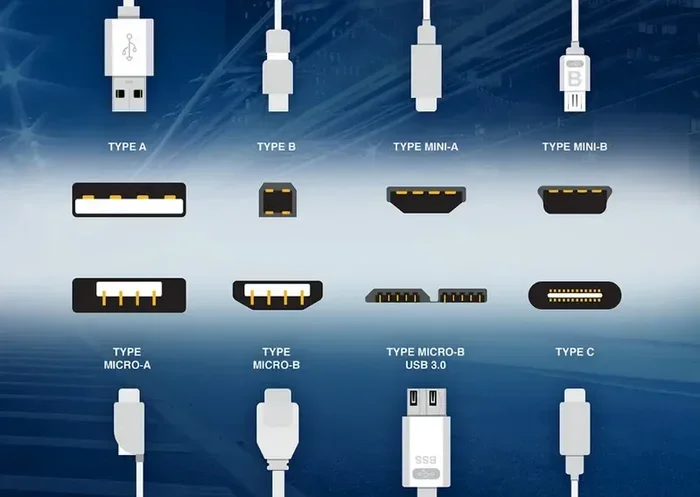
Not all USB cables look the same. The connector on each end determines what device it works with and what it can do. Let us look at the most common types you will encounter every day.
USB-A
USB-A is the classic rectangular connector. You have probably seen it on your computer, wall charger, or TV. It is one of the oldest and most widely used USB connector types. USB-A cables are typically used for connecting peripherals like keyboards, mice, and external hard drives.
USB-A connectors only plug in one way. If you have ever flipped a USB cable three times before it fit, that was probably a USB-A connector. It is a reliable connector, but it is not the fastest or most versatile option available today.
USB-B
USB-B connectors are square-shaped and often found on printers and older external hard drives. They are less common in everyday consumer devices now, but you will still see them in specific professional settings. USB-B cables are typically used for data transfer rather than charging.
USB-C
USB-C is the modern standard. It is small, reversible, and incredibly versatile. You will find USB-C on most smartphones, laptops, tablets, and even some gaming consoles. USB-C supports fast data transfer and high power delivery, making it the most flexible connector type available today.
One of the best things about USB-C is that it is reversible. You can plug it in either way, which saves you from the frustrating flip-flip-fit struggle. Many people now prefer USB-C for almost all their connectivity needs.
Mini and Micro USB
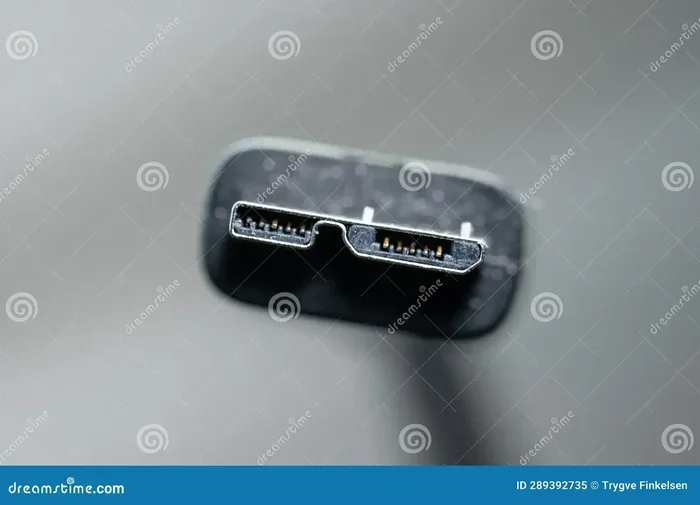
Mini USB and micro USB are smaller versions of the standard USB connector. Micro USB was the go-to charging port for smartphones for many years. You will still find it on older devices, budget gadgets, and some accessories. Mini USB is mostly found on older cameras and portable electronics.
While these connectors are becoming less common, they are still worth knowing about. If you have older devices lying around, you will likely need a micro or mini USB cable to keep them running.
USB Speeds and Data Transfer Rates
Not all USB cables transfer data at the same speed. The USB standard a cable supports determines how fast data moves between devices. This matters a lot if you regularly transfer large files like videos or backups.
USB 2.0
USB 2.0 is the older standard that many people still use every day. It supports data transfer speeds of up to 480 megabits per second. That is fast enough for basic tasks like charging your phone or transferring documents. But if you are moving large video files or backing up a full hard drive, USB 2.0 will feel painfully slow.
USB 3.0 and USB 3.1
USB 3.0 brought a massive speed upgrade. It supports data transfer rates of up to 5 gigabits per second. That is roughly ten times faster than USB 2.0. USB 3.1 Gen 2 pushed the limit even further to 10 gigabits per second. These speeds make a real difference when you are backing up large files or transferring high-resolution photos.
You can usually tell if a cable supports USB 3.0 by its color. USB 3.0 cables often have a blue insert inside the connector. If your cable does not have a blue color, it is likely a USB 2.0 cable.
USB4
USB4 is the latest standard, and it is a game-changer. It supports speeds of up to 40 gigabits per second. USB4 also supports DisplayPort and power delivery over a single cable. This means you can charge your laptop, connect an external monitor, and transfer data all with one USB-C cable.
Power Delivery and Charging Speeds
USB cables do more than just transfer data. They also deliver power to charge your devices. But not all cables deliver the same amount of power. The wattage and charging protocol matter a lot for how fast your device charges.
USB Power Delivery
USB Power Delivery, or USB PD, is a protocol that allows devices to negotiate the right amount of power. A USB PD-compatible cable can deliver up to 100 watts of power. This is enough to charge laptops, tablets, and even some monitors. USB PD works through USB-C cables, which is one reason USB-C has become so popular.
Without USB PD, your device may charge slowly or not charge at all when connected to a high-power source. This is why using the right cable matters for charging speed.
Quick Charge and Other Protocols
Beyond USB PD, there are other fast-charging protocols like Qualcomm Quick Charge and VOOC. These protocols work with specific cables and chargers to deliver faster charging speeds. If your phone supports quick charge, you will need a compatible cable and charger to take full advantage of it.
A common mistake people make is using a cable that does not support fast charging. Your device might charge at a normal rate even if your charger is capable of faster speeds. Always check that your cable supports the charging protocol your device uses.
Do All USB Cables Work for Every Device?
The short answer is no. USB cables are designed for specific purposes and devices. Using the wrong cable can lead to slow charging, poor data transfer speeds, or even damage to your device.
For example, a USB-A to USB-A cable will not work for charging most modern smartphones. You need a USB-A to USB-C cable or a USB-A to micro USB cable, depending on your device. Similarly, a USB 2.0 cable may not support the data speeds your external drive needs.
When buying a cable, always check what devices it is compatible with. Look at the connector types on each end and the USB standard it supports. A little research before you buy can save you a lot of frustration later.
How to Choose the Right USB Cable
With so many USB cables on the market, choosing the right one can feel overwhelming. Here are some practical tips to help you make the best choice.
Check Your Device’s Port Type
The first step is simple. Look at the port on your device. Is it USB-A, USB-C, micro USB, or something else? Buy a cable that matches your port type. If your device has a USB-C port, get a USB-C cable. If it has a micro USB port, get a micro USB cable.
Consider What You Need the Cable For
Think about how you will use the cable. Are you just charging your phone? A basic USB cable will work fine. Are you transferring large video files? You will need a USB 3.0 or USB4 cable for fast speeds. Are you charging a laptop? Look for a USB-C cable with USB PD support.
If you are using external storage like a SanDisk Extreme Portable 2TB External USB C NVMe SSD, you will need a high-quality USB-C cable that supports fast data transfer and power delivery.
Buy from Reputable Brands
Not all USB cables are created equal. Cheap, no-name cables may not deliver the speeds or power they claim. They can also be a safety risk. Poorly made cables can overheat, damage your devices, or even cause fires. Stick with trusted brands and look for cables that are certified by USB-IF (USB Implementers Forum).
Pay Attention to Cable Length
Cable length affects performance. Longer cables may experience more signal loss, which can slow down data transfer speeds. For best results, use the shortest cable that works for your setup. If you need a longer cable, look for one that is specifically rated for high-speed data transfer.
Common Myths About USB Cables
There are a lot of misconceptions about USB cables floating around. Let us clear up some of the most common ones.
Myth 1: All USB-C cables are the same. This is not true. USB-C cables come in different versions that support different speeds and power levels. Some USB-C cables only support USB 2.0 speeds, while others support USB 3.1 or USB4.
Myth 2: Thicker cables charge faster. Cable thickness does not always mean faster charging. What matters is the wire gauge and the internal construction of the cable. A thick cable with poor internal wiring may charge slower than a thinner, well-built cable.
Myth 3: Any cable will work with any charger. This is dangerous thinking. Using an incompatible cable with a high-power charger can damage your device. Always make sure your cable is rated for the power level your charger provides.
Myth 4: Expensive cables are always better. While price can sometimes indicate quality, it is not a guarantee. Some expensive cables are overpriced, and some affordable cables perform great. Look for certifications and reviews rather than just the price tag.
Quick Tips for USB Cable Care
Your USB cables take a beating every day. Here are some simple tips to keep them in good shape and lasting longer.
- Avoid bending cables at sharp angles. This can damage the internal wires and cause connection issues.
- Do not pull cables out by the cord. Always grip the connector and pull gently.
- Store cables loosely coiled. Tight winding can cause internal damage over time.
- Keep cables away from heat sources. Excessive heat can degrade the cable’s insulation and wiring.
- Inspect cables regularly. Look for fraying, exposed wires, or bent connectors. Replace damaged cables immediately.
Frequently Asked Questions
Can I use any USB cable to charge my phone?
Not necessarily. Your phone needs a cable that matches its port type and supports the right charging protocol. Using the wrong cable may result in slow charging or no charging at all. Always check your device’s requirements before buying a replacement cable.
Why is my USB cable so slow at transferring data?
Your cable may only support USB 2.0 speeds, which are much slower than USB 3.0 or USB4. Check the cable’s specifications and look for a USB 3.0 or higher rating. Also, the port on your device must support the same speed standard for fast transfer.
Are USB-C cables backward compatible?
USB-C cables are not always backward compatible with older USB standards. While the connector shape is universal, the technology inside varies. You may need an adapter or a cable that specifically supports older USB protocols to connect USB-C devices to USB-A ports.
Can a bad USB cable damage my device?
Yes, a poorly made or damaged USB cable can potentially damage your device. Cheap cables may not regulate power properly, which can lead to overheating or electrical damage. Always use certified, high-quality cables from reputable brands.
How do I know if my USB cable supports fast charging?
Look for USB PD (Power Delivery) support on the cable’s packaging or specifications. You can also check if the cable is rated for higher wattage, typically 18W or above. If your device supports fast charging, make sure both the cable and charger are compatible with that protocol.
What is the difference between USB 3.0 and USB 3.1?
USB 3.0 supports data transfer speeds of up to 5 gigabits per second. USB 3.1 Gen 2 doubles that to 10 gigabits per second. The naming can be confusing because USB 3.1 was later renamed USB 3.2 Gen 2, but the speeds remain the same. Always check the actual speed rating rather than the name.
Final Thoughts
The answer to “Are all USB cables the same” is a clear no. USB cables come in many different types, each designed for specific devices, speeds, and power levels. Using the right cable can make a huge difference in how fast your devices charge and how quickly you can transfer data.
Take a few minutes to understand what your devices need. Check the port type, the USB standard, and the power delivery requirements. Invest in quality cables from trusted brands, and you will enjoy a much better experience with every device you own. A good USB cable is one of the simplest and most affordable upgrades you can make to your tech setup.
Next time you reach for a USB cable, you will know exactly what to look for. And your devices will thank you for it.