Are Usb a and B the Same
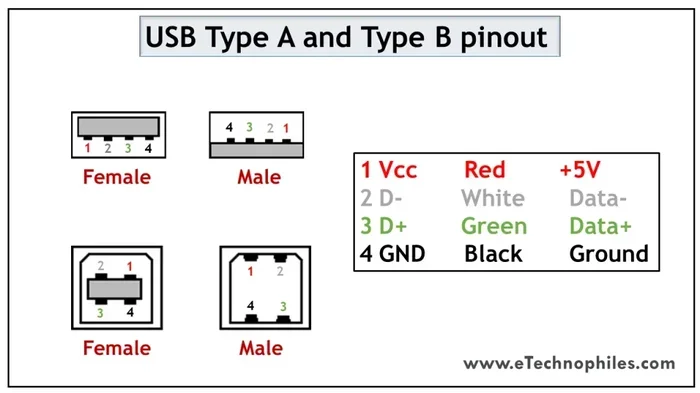
USB A and USB B are not the same. They look different, serve different purposes, and connect to different devices. USB Type-A is the flat, rectangular port you see on computers and hubs, while USB Type-B is the square-ish connector found on printers and larger devices. Understanding these differences helps you avoid frustration and choose the right cable every time.
Let’s talk about something that confuses a lot of people. You have a pile of USB cables on your desk. Some fit your computer. Some fit your printer. But why? Are USB A and B the same? The short answer is no. They are two completely different connector types, and each one has a specific job.
If you have ever grabbed the wrong cable and wondered why it does not fit, you are not alone. This guide breaks down everything you need to know about USB A vs USB B. We will cover what each one looks like, where you will find them, and how to tell them apart in seconds.
By the end of this article, you will never grab the wrong USB cable again. You will also understand USB connector types better and feel confident when shopping for cables or setting up new devices.
Key Takeaways
- USB-A and USB-B are different shapes: They are not interchangeable by design.
- USB-A is the host connector: It plugs into computers, chargers, and hubs.
- USB-B is the device connector: It connects to printers, scanners, and external drives.
- Using the wrong cable won’t work: The physical shapes prevent accidental misuse.
- USB versions matter too: USB 2.0, 3.0, and 3.1 all use the same A and B shapes but differ in speed.
- USB-C is replacing both: The newer reversible connector is becoming the new standard.
📑 Table of Contents
- What Is USB Type-A?
- What Is USB Type-B?
- Key Differences Between USB-A and USB-B
- Can You Use USB-A and USB-B Interchangeably?
- Which USB Type Do You Need for Your Setup?
- Quick Tips for USB Connectivity
- Common Mistakes People Make with USB Connectors
- Expert Insights on USB Connectivity
- Key Takeaways
- Conclusion
What Is USB Type-A?
USB Type-A is the most recognizable USB connector in the world. It is the flat, rectangular shape that you plug into your computer, TV, or wall charger. It is the “host” side of the connection. Think of it as the starting point of a USB connection.
What Does USB-A Look Like?
Imagine a flat rectangle with a slight bevel on the top edge. That is USB-A. It has a clean, wide shape that only fits one way. You cannot force it in upside down (well, you can try, but it will not work). The inside has a specific pin layout that carries data and power to connected devices.
USB-A ports come in different versions. USB 2.0 is the older standard. USB 3.0 and USB 3.1 are faster and often have a blue or teal-colored insert inside the port. The shape stays the same across all versions, so cables are backward compatible.
Where Will You Find USB-A Ports?
You will find USB-A ports almost everywhere. Here is a quick list:
- Desktop computers and laptops
- Wall chargers and power banks
- USB hubs and docking stations
- Televisions and gaming consoles
- Car stereos and dashboard systems
When you are buying a new laptop or checking the ports on a prebuilt PC, USB-A is the port you will use most often. It handles everything from charging your phone to connecting a keyboard or mouse.
If you are wondering whether the USB ports on your device support fast charging or high-speed data, check the port color or look for the “SS” (SuperSpeed) logo next to it. That tells you the USB version and helps you get the most out of your connection.
What Is USB Type-B?
USB Type-B is the connector you see on the other end of a printer cable. It is a square-shaped port with slightly beveled corners. Unlike USB-A, USB-B connects to the device, not the host. Think of it as the “receiving” end of the connection.
What Does USB-B Look Like?
USB-B is taller and more square than USB-A. It has a chunky, sturdy shape. The top corners are slightly slanted, giving it a distinctive look. There are several variations of USB-B, including standard USB-B, USB-B mini, and USB-B micro. But they all share that square-ish footprint.
The standard USB-B connector is what you will find on printers, scanners, and some external hard drives. The mini and micro versions are smaller and fit compact devices like older cameras, MP3 players, and some mobile gadgets.
Where Will You Find USB-B Ports?
USB-B ports live on devices that need to receive data or power from a host computer. Common places include:
- Printers and multifunction printers
- Scanners and copiers
- External hard drives and NAS devices
- Some audio interfaces and MIDI controllers
- Older smartphones and cameras (mini or micro USB-B)
If you are trying to connect a printer to your computer, you will need a cable with USB-A on one end and USB-B on the other. This is one of the most common cable setups in any home or office.
One thing to keep in mind is that USB-B cables are not used for charging most devices today. Smartphones and tablets have mostly moved to USB-C or Lightning connectors. USB-B is still the go-to for larger peripherals that need a stable, reliable connection.
Key Differences Between USB-A and USB-B
Now that you know what each connector looks like, let us break down the real differences. This table makes it super easy to compare them side by side.
| Feature | USB Type-A | USB Type-B |
|---|---|---|
| Shape | Flat and rectangular | Square with beveled corners |
| Role | Host connector (plugs into computer) | Device connector (plugs into peripheral) |
| Common Devices | Computers, chargers, hubs, TVs | Printers, scanners, external drives |
| Size | Wider and thinner | Narrower and taller |
| Reversibility | Only fits one way | Only fits one way |
| Versions Available | USB 2.0, 3.0, 3.1, 3.2 | USB 2.0, 3.0, 3.1 |
The biggest takeaway here is that USB-A and USB-B serve different roles in a connection. One sends data and power out, and the other receives it. They are designed to work together, not to be swapped.
Another important difference is compatibility. You cannot plug a USB-A cable into a USB-B port, and vice versa. The shapes are physically different, which is actually a good thing. It prevents you from damaging your devices by forcing the wrong connector.
If you are setting up a new workspace or buying cables, make sure you get the right combination. A typical printer cable has USB-A on one end and USB-B on the other. That way, the computer side uses USB-A and the printer side uses USB-B.
Can You Use USB-A and USB-B Interchangeably?
The short answer is no. You cannot use them interchangeably because the shapes are completely different. A USB-A plug simply will not fit into a USB-B port, and a USB-B plug will not fit into a USB-A port.
This is by design. USB developers created different shapes for different roles to prevent confusion and protect your devices. It is a simple but effective system that has worked well for decades.
That said, some people get confused because they see both connectors on the same cable. A standard printer cable, for example, has USB-A on one end and USB-B on the other. Both ends are different, but they work together as a pair.
When shopping for cables, always check both ends. If you need to connect a computer to a printer, you want USB-A to USB-B. If you need a cable for your phone, you might need USB-A to USB-C or USB-A to Lightning, depending on your device.
Also, keep in mind that USB versions can differ even within the same connector shape. A USB 2.0 cable and a USB 3.0 cable can both use USB-A and USB-B shapes, but the USB 3.0 version will be faster and often has a blue interior.
Which USB Type Do You Need for Your Setup?
Choosing the right USB connector depends on what devices you are connecting. Here is a quick guide to help you decide.
For Connecting Peripherals to Your Computer
If you are plugging in a keyboard, mouse, flash drive, or webcam, you need USB-A. These are the most common peripherals, and they all use USB-A on the computer side. Just plug the USB-A end into your computer and the other end into your device.
If your device only has a USB-B port, you will need a USB-A to USB-B cable. These cables are widely available and inexpensive. You can find them at any electronics store or online.
For Printers and Scanners
Printers and scanners almost always use USB-B on the device side. You will need a USB-A to USB-B cable to connect them to your computer. Make sure you get the right size USB-B connector. Standard USB-B is the most common for printers.
If you are setting up a printer and the cable does not work, double-check that you have the correct connector type. Sometimes people grab a USB-A to USB-C cable by mistake, and it will not fit the printer port.
For Upgrading or Adding Devices
If you are upgrading your computer, such as adding more RAM to your laptop, you might also want to consider how your USB ports factor into the setup. Some RAM upgrades require you to connect external tools or drives, and having the right USB cable ready makes the process smoother.
When you are buying a new laptop or computer, pay attention to the USB ports available. If you mostly connect older devices like printers and scanners, make sure the machine has USB-A ports. Newer laptops are dropping USB-A in favor of USB-C, which can create compatibility issues with older peripherals.
Planning ahead before a purchase is always smart. If you are deciding when to buy a new laptop, consider the USB ports you will need for your daily workflow. Having the right ports from day one saves you from buying adapters later.
Quick Tips for USB Connectivity
Here are some practical tips to make your USB experience smoother:
- Always check both ends of the cable. USB cables come in many combinations. Make sure you have the right connector types for both your computer and your device.
- Look for the blue insert inside USB 3.0 ports. This tells you the port supports faster speeds. USB 2.0 ports usually have a black or white insert.
- Do not force a connector. If it does not fit, you probably have the wrong type. USB connectors are designed to fit only one way.
- Keep a USB-A to USB-B cable on hand. It is the most common cable for connecting printers and external drives to computers.
- Consider USB-C for future-proofing. USB-C is smaller, reversible, and faster. Many new devices are switching to USB-C, so having one or two USB-C cables is a smart move.
These simple habits will save you time and prevent frustration. A little awareness about your USB ports goes a long way.
Common Mistakes People Make with USB Connectors
Even tech-savvy people make mistakes with USB connectors. Here are the most common ones:
- Assuming all USB cables are the same. They are not. The connector shapes, versions, and speeds all vary.
- Using a USB 2.0 cable for a USB 3.0 device. It will work, but you will not get the faster speeds.
- Forcing a connector into the wrong port. This can damage the port or the cable. Stop and check the shape first.
- Ignoring USB-B mini and micro variants. These smaller connectors look similar but are not interchangeable.
- Not checking port compatibility before buying a device. Always verify what USB types your device supports.
Avoiding these mistakes will keep your devices safe and your connections working properly. When in doubt, take a photo of your current cable and compare it before buying a replacement.
Expert Insights on USB Connectivity
From a technical standpoint, the reason USB-A and USB-B exist as separate shapes comes down to function. The USB implementers forum designed the system so that the host side (computer) and the device side (printer, drive, etc.) look different. This prevents accidental misuse and makes it easy for anyone to identify which end goes where.
Over the years, USB technology has evolved rapidly. USB 1.0 was slow by today’s standards. USB 2.0 brought a big speed boost. USB 3.0 introduced the blue port and much faster data transfer. And now, USB4 and USB-C are shaping the future.
Despite all these changes, the USB-A and USB-B shapes have remained largely the same. They are proven designs that work reliably. While USB-C is gradually replacing them, millions of USB-A and USB-B devices are still in use around the world.
If you are curious about how RAM works in a laptop and how USB ports support external devices during upgrades, understanding your connector types is a great starting point. The right cable ensures your peripherals communicate smoothly with your system.
Key Takeaways
- USB-A and USB-B are not the same: They have different shapes, sizes, and roles in a connection.
- USB-A is the host connector: It plugs into computers, chargers, and hubs.
- USB-B is the device connector: It connects to printers, scanners, and external drives.
- The shapes prevent interchangeability: You cannot plug one into the other by design.
- USB versions affect speed: USB 2.0, 3.0, and 3.1 all use the same shapes but offer different performance levels.
- USB-C is the future: The newer reversible connector is replacing both USB-A and USB-B in many modern devices.
- Always match your cable to your devices: Check both connector types before purchasing a replacement cable.
Conclusion
So, are USB A and B the same? No, they are not. They are two distinct connector types that serve different purposes in the USB ecosystem. USB-A is the flat rectangle you plug into your computer, and USB-B is the square connector you plug into your printer or external drive.
Understanding this simple difference saves you time, money, and frustration. The next time you reach for a USB cable, you will know exactly which end goes where. You will never force the wrong connector again.
As technology continues to evolve, USB-C is slowly taking over. But for now, USB-A and USB-B are still everywhere. Knowing how they work and how they differ is a small bit of knowledge that makes a big difference in your daily tech life.
Keep this guide handy. Share it with a friend who always grabs the wrong cable. And the next time you set up a new printer or connect a peripheral, you will do it with confidence.
Frequently Asked Questions
Can I plug a USB-A cable into a USB-B port?
No, you cannot. The shapes are physically different, so a USB-A plug will not fit into a USB-B port. This is intentional and protects your devices from damage. Always use a cable with the correct connector type for each end.
What is the difference between USB 2.0 and USB 3.0 in USB-A and USB-B?
The connector shapes are the same, but USB 3.0 is much faster. USB 3.0 ports and cables usually have a blue interior, while USB 2.0 are typically black or white. A USB 3.0 cable works in a USB 2.0 port but at the slower speed.
Do all printers use USB-B connectors?
Most printers use standard USB-B connectors. However, some newer models may use USB-C or wireless connections instead. Always check your printer’s manual or port type before buying a cable.
Is USB-B the same as USB-C?
No, they are completely different. USB-B is a square-shaped connector used mainly for printers and older devices. USB-C is a smaller, reversible connector used in modern phones, laptops, and tablets.
Can I use an adapter to connect USB-A to USB-B?
You do not need an adapter for a standard USB-A to USB-B connection. The cable itself has both connector types. Adapters are useful when you need to convert USB-A to USB-C or USB-B to USB-C, for example.
Will USB-A and USB-B cables become obsolete?
USB-A and USB-B are still widely used today, but USB-C is gradually replacing them. Many new laptops and devices are dropping USB-A entirely. However, millions of USB-A and USB-B devices are still in use, so these connectors will remain relevant for years to come.