Basic Elements Of A Computer System Explained Simply
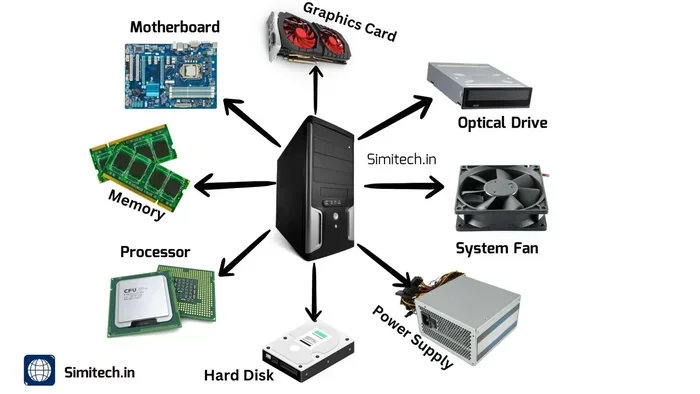
The basic elements of a computer system include the CPU, RAM, motherboard, storage, input devices, and output devices. Each part plays a vital role in making your computer work. Understanding these components helps you make better buying and upgrading decisions.
Key Takeaways
- CPU: The brain of your computer that processes all instructions and calculations.
- RAM: Temporary memory that lets your computer handle multiple tasks at once.
- Motherboard: The main circuit board that connects all components together.
- Storage: Hard drives or SSDs that save your files and programs permanently.
- Input/Output Devices: Keyboards, mice, monitors, and speakers that let you interact with your computer.
- Power Supply: Converts electricity to keep all parts running safely.
- Cooling System: Prevents overheating and keeps your computer performing well.
📑 Table of Contents
What Are the Basic Elements of a Computer System?
A computer system is made up of several key parts that work together. Each part has a specific job. When all the pieces function well, your computer runs smoothly. Whether you use a desktop or a laptop, the core elements stay the same. Let us break them down one by one.
Understanding computer hardware does not need to be scary. Think of your computer like a human body. The brain processes thoughts. The memory holds information temporarily. The heart pumps blood. Each part works together to keep things going. Your computer works the same way. The basic elements of a computer system each play a role in everyday tasks.
You do not need to be a tech expert to understand these parts. This guide explains everything in plain language. We will cover what each component does, why it matters, and how to choose the right ones. By the end, you will feel confident talking about computer components with anyone.
Why Knowing Your Computer Parts Matters
When you understand your computer, you make better choices. You know what to look for when buying a new machine. You can troubleshoot problems faster. You also save money by avoiding unnecessary upgrades. For example, if your computer feels slow, you might need more random access memory or a faster storage drive. Knowing the basics helps you decide.
The Central Processing Unit (CPU)
The CPU is the brain of your computer. It handles all the calculations and instructions. Every task you perform runs through the CPU. Opening a browser, typing a document, or playing a game, it all starts here. The CPU is often called the processor. It is the most important part of any computer system.
CPU speed is measured in gigahertz (GHz). A higher GHz number means faster processing. But speed is not everything. The number of cores matters too. A dual-core CPU handles two tasks at once. A quad-core CPU handles four. Modern processors can have eight or more cores. This makes multitasking much smoother.
When shopping for a computer, pay attention to the CPU. Intel and AMD are the two main brands. Both offer excellent options at different price points. If you use your computer for simple tasks like browsing and email, a mid-range CPU works great. For video editing or gaming, you want a stronger processor.
How the CPU Affects System Performance
Your CPU directly impacts how fast your computer feels. A slow processor creates bottlenecks. Even with lots of RAM, a weak CPU will hold things back. This is why balancing your components matters. Think of it like a team. The fastest runner cannot win if the rest of the team is slow.
Here are some quick tips for CPU care:
- Keep your computer clean to avoid dust buildup.
- Update your drivers regularly for best performance.
- Do not run too many heavy programs at once.
- Use a cooling pad if your laptop gets hot.
Random Access Memory (RAM)
RAM is your computer’s short-term memory. It holds data your computer is actively using. When you open a program, it loads into RAM. This is much faster than pulling data from storage. More RAM means your computer can handle more tasks at the same time.
Most modern computers come with 8GB of RAM. For everyday use like browsing and office work, this is usually enough. But if you run demanding programs, you might want 16GB or more. You can check how much RAM your system has by going to your system settings. Many users also ask, is 8GB of RAM enough for a laptop? The answer depends on your usage. Light users are fine with 8GB. Power users benefit from 16GB or more.
RAM vs Storage: What Is the Difference?
People often confuse RAM with storage. They are very different. RAM is temporary. It forgets everything when you turn off your computer. Storage is permanent. It keeps your files even when the power is off. Think of RAM as your desk workspace. Storage is your filing cabinet.
If your computer feels sluggish, more RAM might help. But if you run out of space for files, you need more storage. Both are essential parts of the basic elements of a computer system.
For those who want to learn more about RAM options, check out our guide on What Is The Ram Of A Laptop. It covers everything from types to speeds in detail.
The Motherboard
The motherboard is the backbone of your computer. It is a large circuit board that connects everything. The CPU, RAM, storage, and graphics card all plug into the motherboard. Without it, none of the parts could communicate with each other.
Motherboards come in different sizes called form factors. The most common for desktops is ATX. Smaller boards fit compact cases. Laptops have motherboards built into the chassis. They are not upgradeable like desktop boards.
What to Look for in a Motherboard
When choosing a motherboard, consider these factors:
- Socket type: Must match your CPU.
- RAM slots: Determines how much memory you can add.
- Expansion slots: For graphics cards and other add-ons.
- Connectivity: USB ports, HDMI, and other connections.
- Chipset: Controls what features the board supports.
The motherboard might not be the most exciting part. But it sets the foundation for everything else. A good motherboard ensures stable performance and room for future upgrades.
Storage Devices
Storage is where your computer keeps files long-term. Your photos, documents, games, and operating system all live here. There are two main types of storage: hard disk drives (HDDs) and solid-state drives (SSDs).
HDDs are the older technology. They use spinning disks to read and write data. They offer large storage at lower prices. SSDs are newer and much faster. They have no moving parts, which makes them more reliable. Most modern computers use SSDs as the main drive.
Many people wonder how much storage they need. For basic use, 256GB is enough. For gaming or video work, 512GB or 1TB is better. You can always add external storage if you need more space.
How Storage Affects Computer Speed
Storage speed impacts how fast your computer boots and loads programs. An SSD can make an older computer feel brand new. The difference is noticeable the moment you turn on your machine. If your computer uses an HDD, upgrading to an SSD is one of the best improvements you can make.
For laptops with lots of storage and memory, see our article on Laptops With A Lot Of Ram. It reviews top options that combine fast storage with plenty of memory.
Input and Output Devices
Input devices let you send data to your computer. Output devices let your computer send data back to you. Together, they create the bridge between you and your machine. Without them, a computer would just sit there doing nothing.
Common Input Devices
- Keyboard: The primary way you type and enter commands.
- Mouse: Lets you point, click, and navigate the screen.
- Microphone: Captures voice input for calls and recordings.
- Webcam: Captures video for video calls and streaming.
- Scanner: Converts physical documents into digital files.
Common Output Devices
- Monitor: Displays visual information from your computer.
- Speakers: Produce sound for music, videos, and calls.
- Printer: Creates physical copies of digital documents.
- Headphones: Provide private audio output.
These devices make computers useful and interactive. They turn raw computing power into something you can see, hear, and control. Choosing good input and output devices improves your daily experience significantly.
Power Supply and Cooling System
Two often overlooked parts of a computer are the power supply and cooling system. Both are essential for keeping your machine running safely.
The power supply unit (PSU) converts wall outlet electricity into power your computer parts can use. It provides steady, clean electricity to every component. A bad PSU can damage your entire system. Always choose a reliable power supply from a reputable brand.
The cooling system prevents your computer from overheating. CPUs and GPUs generate heat during use. Without proper cooling, temperatures can rise to dangerous levels. This causes slowdowns, crashes, and even permanent damage. Most computers use fans and heat sinks. Some high-end systems use liquid cooling for better performance.
Signs Your Computer Is Overheating
- The fan runs loudly all the time.
- The computer shuts down unexpectedly.
- Performance drops during heavy tasks.
- The chassis feels very hot to the touch.
If you notice these signs, take action quickly. Clean the dust from vents and fans. Consider replacing thermal paste on your CPU. Good airflow keeps your system healthy and extends its lifespan.
Putting It All Together
Every part of a computer works as a team. The CPU processes data. The RAM holds it temporarily. The motherboard connects everything. Storage saves it for the long term. Input and output devices let you interact with it all. The power supply and cooling keep things running safely.
Understanding these basic elements of a computer system gives you confidence. You can build, buy, or upgrade with knowledge. You can troubleshoot problems more effectively. You can communicate better with tech support. The basics open the door to deeper understanding.
For those interested in checking their current setup, learning how to check the RAM of a laptop is a great starting point. It gives you immediate insight into your system’s capabilities. You can also explore How To Check The Ram Of A Laptop for a step-by-step walkthrough.
Technology evolves fast, but the fundamentals stay the same. The core components of a computer system have not changed in their basic purpose. They just get faster and more efficient every year. Staying informed helps you make smart decisions no matter what new technology comes next.
Conclusion
The basic elements of a computer system are not as complicated as they seem. Each part has a clear role. The CPU processes, the RAM stores temporarily, the motherboard connects, storage saves permanently, and input/output devices let you interact. The power supply and cooling keep everything safe.
Take time to understand your own computer. Check what components you have. Learn what each part does. This knowledge pays off every day. You will make smarter purchases, solve problems faster, and get more from your technology. Start with the basics and build from there.
Remember, every expert was once a beginner. The journey into understanding computer hardware starts with knowing the parts. You have already taken the first step by reading this guide. Now go explore your system and see these elements in action.
Frequently Asked Questions
What are the 5 basic elements of a computer system?
The five basic elements are the CPU, RAM, motherboard, storage device, and input/output devices. Each part handles a specific job. Together they make your computer work properly.
Is 8GB of RAM enough for everyday computer use?
Yes, 8GB of RAM handles everyday tasks like browsing, email, and office work. But if you edit videos or play demanding games, you may need 16GB. For most users, 8GB provides a solid experience.
What is the difference between RAM and storage?
RAM is temporary memory used while the computer is running. Storage is permanent and keeps your files even when the computer is off. RAM is fast but volatile. Storage is slower but retains data.
Can I upgrade my computer’s basic elements?
Yes, many components can be upgraded. RAM and storage are the easiest to upgrade in desktops. Laptops have more limited options. Check your computer system specifications before purchasing upgrades.
How do I know if my computer needs more RAM?
If your computer slows down when you open multiple programs, you likely need more RAM. You can check your current RAM usage in your system settings. If usage is consistently above 80 percent, an upgrade will help.
Why does my computer overheat?
Overheating happens when the cooling system cannot keep up with heat production. Dust buildup, old thermal paste, or failing fans are common causes. Regular cleaning and proper airflow prevent most overheating issues.