Use Capture Card with Laptop
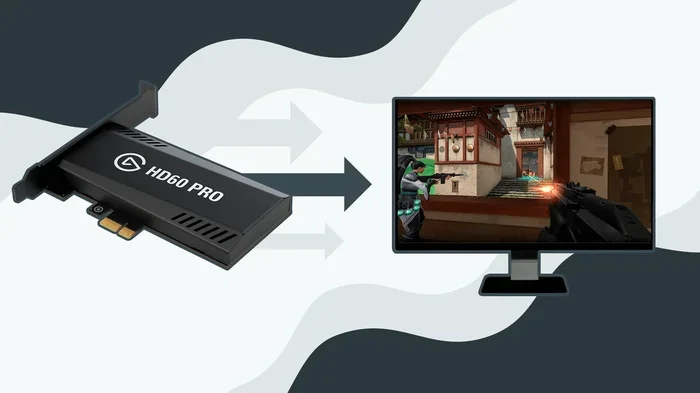
Using a capture card with your laptop lets you record and stream high-quality video from external sources like cameras and gaming consoles. This guide walks you through everything you need to know, from choosing the right device to setting up your recording software. You will learn practical tips to get the best video input and smooth performance every time.
Key Takeaways
- A capture card bridges external devices and your laptop, enabling high-quality video capture for streaming and recording.
- USB and HDMI capture cards are the two main types, each offering different levels of video quality and ease of use.
- Proper setup and driver installation are essential for smooth performance and avoiding common issues like lag.
- Optimizing your recording settings ensures the best video quality and frame rate for your content.
- Common problems like audio sync issues have simple fixes that anyone can apply.
- Your laptop specs matter for handling capture card workloads, so check compatibility before buying.
📑 Table of Contents
What Is a Capture Card and Why Use It with a Laptop
A capture card is a small device that takes video and audio from one source and sends it to your laptop. Think of it as a bridge between your camera, gaming console, or another device and your computer. Instead of relying on your laptop’s built-in webcam or limited inputs, a capture card opens up a world of possibilities.
People use capture cards for many reasons. Gameplay recording is a big one. Content creators, streamers, and video editors all rely on these devices to get high-quality video capture from external sources. Whether you are streaming on Twitch, making YouTube videos, doing screen recording, or recording lectures, a capture card makes the process much easier.
The beauty of using a capture card with a laptop is portability. You do not need a bulky desktop setup anymore. You can set up your recording station anywhere, from a coffee shop to a friend’s house. As long as your laptop has the right ports and enough power, you are good to go.
Understanding the Basics
A capture card works by receiving a video input through HDMI or USB and then converting it into a format your laptop can read. The card acts as a middleman. It takes the raw signal and passes it along so you can record or stream it in real time.
Most modern capture cards plug directly into a USB port on your laptop. Others use an HDMI connection that goes into your laptop’s HDMI port. The type of card you choose depends on your laptop model and what you want to capture.
Who Needs a Capture Card
Not everyone needs a capture card, but certain users benefit a lot from one. If you are a gamer who wants to do gameplay recording from a console like a PlayStation or Xbox, you need one. If you are a content creator who films with a DSLR or mirrorless camera and wants to use that footage on your laptop, a capture card is essential.
Video editors who work with external camera footage also benefit from a capture card. Even professionals use them. YouTubers, podcasters, and educators rely on capture cards to get clean video input from their cameras. If you are serious about content creation and want polished results, this device is worth considering.
How to Choose the Right Capture Card for Your Laptop
Not all capture cards are the same. Choosing the right one for your laptop depends on several factors. You need to think about your budget, the type of device you are capturing from, and the video quality you want.
USB vs HDMI Capture Cards
USB capture cards are the most popular choice for laptop users. They are easy to set up and work with most modern laptops. You simply plug them into a USB port, and your computer recognizes them right away. These are great for beginners and casual users who want a simple recording setup.
HDMI capture cards, on the other hand, offer better video quality and lower latency. They connect directly through an HDMI cable and often provide a more stable video output. However, not every laptop has an HDMI input port, so check your device first before purchasing.
Key Features to Look For
When shopping for a capture card, look for these key features. First, check the maximum resolution and frame rate it supports. If you want broadcast quality recordings, aim for 1080p at 60 frames per second or higher.
Next, consider the video input options. Make sure the card has the right ports for your source device. USB 3.0 or USB-C connections are ideal for fast data transfer. Finally, check if the card is compatible with popular streaming software like OBS Studio. Compatibility saves you a lot of headache down the road.
Step-by-Step Setup Guide for Using a Capture Card with a Laptop
Setting up your capture card is easier than you might think. Follow these steps to get your recording setup running smoothly.
Connecting Your Devices
Start by plugging your capture card into your laptop. If it is a USB card, insert it into an available port. For HDMI cards, connect the HDMI cable from your source device to the card, and then connect the card to your laptop using the provided cable.
Make sure all connections are secure. A loose cable can cause signal loss or poor video quality. Once everything is plugged in, your laptop should recognize the device within a few seconds.
If you are also using other peripherals for your streaming setup, you might want to learn how to use a mouse with your laptop for better control during recording or streaming sessions. A reliable mouse makes navigating your streaming software much easier.
Installing Drivers and Software
Most capture cards come with a driver disc or a download link. Install the drivers first before launching any recording software. Without the correct drivers, your laptop may not detect the card properly.
Once the drivers are installed, open your preferred streaming or recording software. OBS Studio is a popular free option that works well with most capture cards. In the software, add the capture card as a video input source, and you are ready to start recording.
Optimizing Your Settings
To get the best results, spend a few minutes adjusting your settings. Set the resolution to match your source device. If your console outputs at 1080p, set your capture card to receive at 1080p as well. Match the frame rate to avoid stuttering or dropped frames.
If you are doing live streaming, check your bitrate settings. A higher bitrate gives better video quality but requires a faster internet connection. Find the balance that works for your setup and internet speed. Test your settings with a short recording before going live.
Best Practices for Quality Video Capture
Getting great results from your capture card is about more than just plugging it in. A few best practices can make a big difference in your final output.
Lighting and Audio Tips
Good lighting makes a huge difference in video quality. If you are capturing from a camera, make sure your subject is well lit. Natural light works well, but a simple ring light or softbox can improve your results dramatically.
Audio is just as important as video. Use a dedicated microphone instead of relying on your laptop‘s built-in mic. A good external mic ensures your voice sounds clear and professional. Many capture cards also pass through audio, so you can record sound directly from your source device.
Keeping Your System Running Smoothly
Recording and streaming use a lot of your laptop‘s resources. Close unnecessary programs before you start. This frees up processing power and memory for your recording setup.
Make sure your laptop has enough storage space too. High-quality video files can take up a lot of room. If you are running low on space, consider using an external hard drive for saving your recordings.
Before buying any new hardware, check what RAM is compatible with your laptop to ensure your system can handle the demands of video capture and streaming without slowdowns.
Common Problems and How to Fix Them
Even with the best setup, you may run into issues. Here are some common problems and simple fixes that will save you time and frustration.
Lag and Latency Issues
Lag is one of the most frustrating problems when using a capture card. It usually happens when your laptop cannot process the video fast enough. To fix this, lower the resolution or frame rate in your software settings.
Another cause of lag is a slow USB port. Try plugging your capture card into a USB 3.0 port instead of a USB 2.0 port. This gives you faster data transfer and reduces delays. If you are using a USB hub, connect the card directly to your laptop for the best performance.
Audio Sync Problems
Audio sync issues happen when the sound and video do not match up. This is common with some capture cards and laptops. The fix is often simple. Go into your recording software and adjust the audio delay settings. Add a small delay to the audio track until it matches the video.
Sometimes the problem comes from your source device. If your console or camera outputs audio and video at slightly different rates, you may notice a sync issue. Check your device settings and make sure they are configured correctly.
Final Thoughts on Using a Capture Card with a Laptop
Using a capture card with a laptop opens up exciting possibilities for recording, streaming, and content creation. Whether you are a beginner or a seasoned creator, this device can elevate your work to the next level. The setup process is straightforward, and the results are well worth the effort.
Remember to choose a card that fits your needs and your laptop‘s capabilities. Pay attention to video quality, frame rate, and compatibility. With the right setup and a little practice, you can produce broadcast quality recordings and streams from your laptop wherever you go.
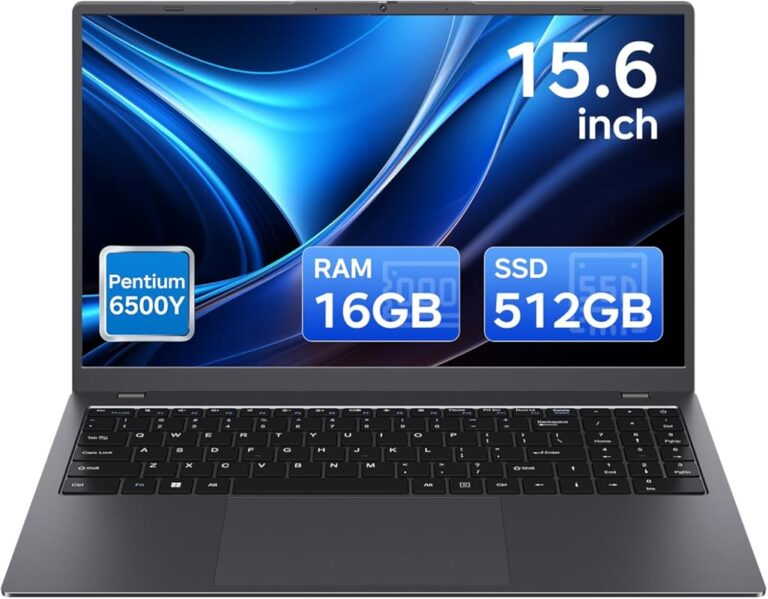
If you are also looking to upgrade other parts of your setup, consider exploring options like an laptop with an i7 processor and 16GB RAM touchscreen for smooth performance with capture cards and heavy recording software. A powerful machine makes all the difference in your workflow.
Start experimenting today. Once you see the difference a capture card makes, you will wonder how you ever managed without one.
Frequently Asked Questions
Do I need a capture card to stream from a laptop?
It depends on what you are streaming. If you are streaming gameplay from a console or using an external camera, a capture card is necessary. However, if you are just using your laptop’s built-in webcam, you do not need one. A capture card becomes essential when you want to capture high-quality video from external devices.
Can I use a capture card with any laptop?
Most laptops can work with a capture card, but compatibility depends on your ports and processing power. USB capture cards work with almost any laptop that has a USB port. HDMI capture cards require a laptop with an HDMI input. Check your laptop specifications before buying to make sure it is compatible.
What is the best capture card for beginners?
USB capture cards are the best choice for beginners. They are affordable, easy to set up, and do not require technical knowledge. Popular brands like Elgato and AverMedia offer reliable options that work well with most laptops. Start with a basic model and upgrade later if you need advanced features.
Does a capture card reduce laptop performance?
A capture card uses some of your laptop’s resources, but modern laptops handle them well. If your laptop has a decent processor and enough RAM, you should not notice a big drop in performance. Closing other programs while recording or streaming helps keep things running smoothly.
Can I use a capture card for live streaming?
Yes, capture cards are widely used for live streaming. They allow you to capture video from consoles or cameras and send it directly to streaming software like OBS Studio. Make sure your internet connection is fast enough to support live broadcasting at the quality you want.
How much does a capture card cost?
Prices vary depending on the features and quality. Basic USB capture cards can cost as little as $20 to $50. Mid-range options with better resolution and frame rates typically run between $50 and $150. Professional-grade cards with broadcast quality output can cost $150 or more. Choose one that fits your budget and needs.