Best Ram For Thinkpad Top Choices For Faster Performance
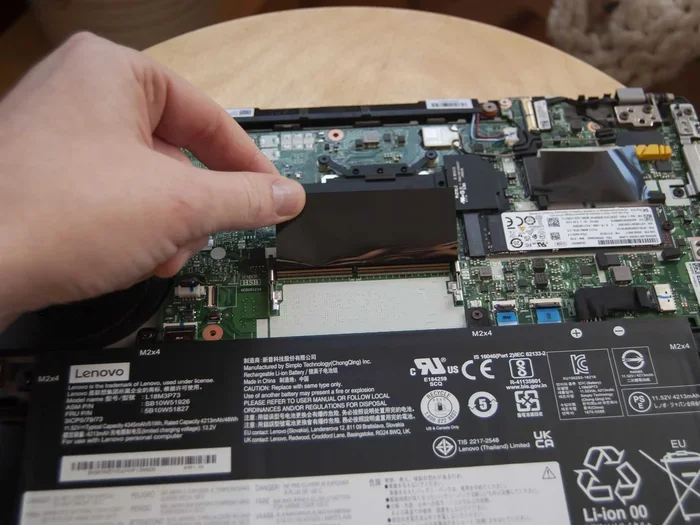
Choosing the best RAM for ThinkPad can transform your laptop’s speed and multitasking ability. Whether you use your ThinkPad for work, gaming, or creative projects, the right memory upgrade makes a huge difference. In this guide, we break down the top RAM options, compatibility tips, and simple upgrade steps to help you get the most out of your ThinkPad.
Finding the best RAM for ThinkPad doesn’t have to be confusing. Your ThinkPad is a powerful machine, but its performance depends heavily on the memory inside it. Think of RAM as your laptop’s short-term brain. When you open apps, browse tabs, or run heavy software, your ThinkPad uses RAM to keep everything running smoothly.
If your current memory feels slow or your laptop freezes when you multitask, it might be time for an upgrade. In this guide, we walk you through the top RAM choices for ThinkPad laptops. We cover what to look for, which options deliver the best value, and how to upgrade your memory without any headaches. Whether you own a ThinkPad T series, X series, or E series, this guide has you covered.
Key Takeaways
- DDR4 RAM is the standard: Most modern ThinkPads use DDR4 memory for reliable speed and efficiency.
- 8GB to 16GB is the sweet spot: This range covers everyday tasks and moderate workloads with ease.
- Check compatibility first: Not all RAM sticks work with every ThinkPad model, so verify your specs before buying.
- Upgrading is simple and affordable: You can boost performance in minutes without professional help.
- Speed and capacity matter: Higher MHz and more GB give you smoother multitasking and faster load times.
📑 Table of Contents
- Why RAM Matters for ThinkPad Performance
- Understanding RAM Types for ThinkPad
- Best RAM Options for ThinkPad
- How to Choose the Right RAM for Your ThinkPad
- How to Upgrade RAM in Your ThinkPad
- Common Mistakes to Avoid When Buying ThinkPad RAM
- How Much RAM Do You Really Need for a ThinkPad?
- Expert Tips for Maximizing ThinkPad RAM Performance
- Final Thoughts
Why RAM Matters for ThinkPad Performance
RAM plays a huge role in how fast your ThinkPad responds. More memory means your laptop can handle more tasks at once without slowing down. When you run out of RAM, your system starts using your hard drive as temporary storage, which is much slower and frustrating.
Here are the main reasons why RAM matters so much for your ThinkPad:
- Faster multitasking: Switch between apps without lag or delays.
- Smoother workflow: Run office apps, browsers with many tabs, and light creative tools together.
- Better gaming performance: Games load faster and run more smoothly with sufficient memory.
- Future-proofing: Newer software demands more memory, so having extra RAM keeps your laptop relevant longer.
For most users, 8GB of RAM is the minimum for a comfortable experience. But if you work with video editing, programming, or data analysis, you’ll want to consider 16GB or more. The best RAM for ThinkPad depends on what you use your laptop for every day.
Understanding RAM Types for ThinkPad
Not all RAM is the same. Different types of memory modules work with different ThinkPad models. Knowing the basics helps you choose the right one without any guesswork.
DDR4 RAM: The Modern Standard
Most ThinkPads made in the last several years use DDR4 RAM. This type of memory offers a great balance of speed and power efficiency. DDR4 modules run at higher speeds than older DDR3 sticks, which means better overall performance. They also use less battery, so your ThinkPad lasts longer on a single charge.
When shopping for DDR4 RAM for ThinkPad, look for these specs:
- Speed: 2666 MHz or 3200 MHz are common and reliable choices.
- Capacity: 8GB or 16GB sticks are widely available and affordable.
- Form factor: SO-DIMM is the small size used in laptops, not the full-size desktop modules.
DDR3 RAM: For Older ThinkPad Models
Older ThinkPad models from around 2015 and earlier may use DDR3 memory. If you own one of these laptops, DDR3 RAM is what you need. It’s slower than DDR4, but it still provides a noticeable upgrade over very low memory configurations. Check your ThinkPad’s manual or use a system info tool to confirm which type your model uses.
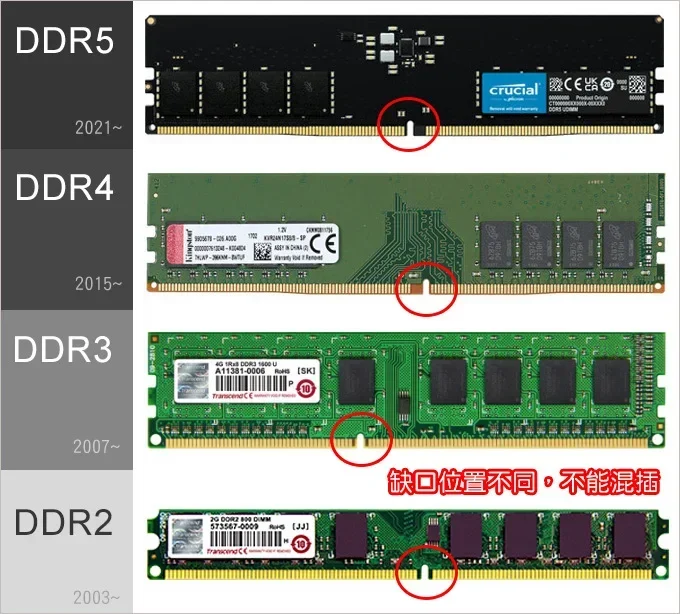
One important tip: DDR3 and DDR4 are not interchangeable. You cannot put DDR4 RAM into a slot designed for DDR3, and vice versa. Always double-check your ThinkPad’s memory type before purchasing any RAM.
Best RAM Options for ThinkPad
Now let’s look at the top RAM choices for ThinkPad laptops. These options are reliable, well-reviewed, and compatible with most ThinkPad models.
8GB DDR4 2666MHz RAM Stick
The 8GB DDR4 2666MHz RAM stick is a popular and affordable choice for ThinkPad users. It’s perfect for everyday tasks like browsing the web, working in Microsoft Office, and streaming videos. Most ThinkPads come with 8GB of RAM from the factory, so adding another 8GB stick gives you 16GB total.
This option works great for students, office workers, and casual users. It’s also one of the most budget-friendly upgrades you can make. If you want to know the cost, check out 8GB RAM for laptop pricing to compare current deals.
16GB DDR4 3200MHz RAM (Dual Channel)
If you want serious performance, the 16GB DDR4 3200MHz RAM kit is a fantastic choice. Running RAM in dual channel mode means two sticks work together, which doubles the data transfer rate. This setup is ideal for power users who run multiple heavy applications at once.
Think about video editors, software developers, and anyone who works with large datasets. This configuration also handles modern gaming very well. For ThinkPad users who want the best of both worlds, this is the go-to option.
32GB DDR4 RAM for Heavy Workloads
For professionals who push their ThinkPads to the limit, 32GB of RAM opens up serious possibilities. This amount of memory handles virtual machines, 4K video editing, 3D rendering, and complex data analysis without breaking a sweat. It’s also great for ThinkPad gaming enthusiasts who want maximum performance.
While 32GB is more expensive, it future-proofs your laptop for years to come. Software keeps getting more demanding, and having extra headroom means you won’t need another upgrade anytime soon.
How to Choose the Right RAM for Your ThinkPad
Picking the right RAM involves a few simple checks. Follow these steps to make sure you buy the perfect match for your ThinkPad.
Step 1: Check Your ThinkPad Model
Every ThinkPad model has specific RAM requirements. Look up your exact model number (like ThinkPad T480 or ThinkPad X1 Carbon Gen 8) and find the official specs. Lenovo’s website has detailed information about maximum RAM, supported types, and the number of RAM slots.
Step 2: Check Current RAM Usage
Before buying new memory, check how much RAM your ThinkPad currently has. On Windows, open Task Manager and go to the Performance tab. Click on Memory to see your total RAM, speed, and how many slots are in use. If you have one open slot, you just need to add a matching stick.
If both slots are filled, you might need to replace your existing RAM with higher-capacity modules. This is still simple, but it means you lose the old modules.
Step 3: Match the Specifications
Make sure your new RAM matches these key specs:
- Type: DDR4 or DDR3 (depending on your model)
- Speed: Match the MHz of your existing RAM for best results
- Form factor: SO-DIMM for all ThinkPad laptops
- Voltage: 1.2V for DDR4 is standard for most ThinkPads
Using mismatched RAM can cause instability or prevent your laptop from booting. When in doubt, buy a matching pair of RAM sticks for dual channel performance.
How to Upgrade RAM in Your ThinkPad
Upgrading your ThinkPad’s RAM is one of the easiest and most rewarding DIY projects. You don’t need any special tools or technical skills. Here’s how to do it step by step.
What You’ll Need
- A Phillips head screwdriver
- Your new RAM stick(s)
- A clean, flat workspace
- An anti-static wrist strap (optional but recommended)
Step-by-Step Upgrade Process
- Power off your ThinkPad and unplug all cables. Remove the battery if it’s removable.
- Find the RAM access panel on the bottom of your laptop. It’s usually a small rectangular cover held by one or two screws.
- Remove the screws and gently slide off the panel.
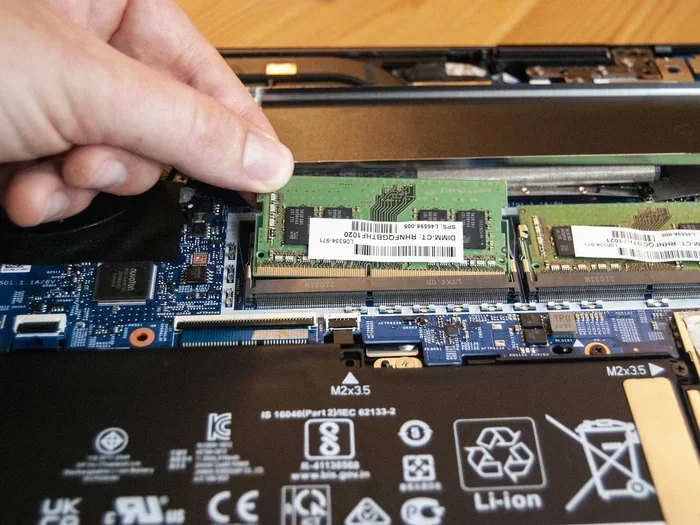
- Locate the RAM slots. You’ll see the existing memory modules seated in their slots.
- To remove old RAM: Push the metal clips on either side of the module outward. The stick will pop up at an angle. Pull it out gently.
- To insert new RAM: Align the notch on the RAM stick with the ridge in the slot. Press the module down at an angle until it clicks into place. The metal clips should snap back automatically.
- Replace the access panel and screw it back in.
- Power on your ThinkPad and check that the new RAM is recognized. Go to Task Manager or System Information to confirm the upgrade.
If you run into any issues or want more detailed guidance, check out our how to increase RAM for laptop guide for additional tips and troubleshooting steps.
Common Mistakes to Avoid When Buying ThinkPad RAM
Even though upgrading RAM is straightforward, some common mistakes can cause problems. Here’s what to watch out for:
- Buying the wrong RAM type: DDR3 and DDR4 look similar but are not compatible. Always verify your ThinkPad’s supported type before purchasing.
- Ignoring speed matching: Mixing RAM sticks with different speeds can cause both to run at the slower speed. Try to match the MHz of your existing modules.
- Overlooking capacity limits: Some ThinkPad models have a maximum RAM limit. Installing more than your laptop supports won’t work.
- Forgetting dual channel: Buying a single 16GB stick is fine, but two 8GB sticks in dual channel mode deliver better performance.
- Skipping the BIOS update: Some older ThinkPads need a BIOS update to recognize newer, higher-capacity RAM modules.
Avoiding these mistakes saves you time, money, and frustration. A little research before you buy goes a long way.
How Much RAM Do You Really Need for a ThinkPad?
The right amount of RAM depends entirely on how you use your ThinkPad. Here’s a simple breakdown to help you decide.
| Usage Type | Recommended RAM | Why |
|---|---|---|
| Basic browsing and office work | 8GB | Handles everyday tasks with room to spare |
| Multitasking and moderate work | 16GB | Keeps many apps running smoothly |
| Video editing and programming | 16GB – 32GB | Supports heavy software and large files |
| Gaming and 3D rendering | 16GB – 32GB | Ensures smooth performance in demanding applications |
| Virtual machines and data science | 32GB+ | Provides the headroom needed for intensive workloads |
For most ThinkPad users, 16GB is the ideal amount. It handles everything from work to entertainment without any bottlenecks. If you’re on a tight budget, 8GB is still enough for basic tasks. But if you can afford it, going with 16GB gives you much more flexibility and longevity.
Curious about how much RAM your specific ThinkPad model can support? Check out our guide on how much RAM do you need for a laptop for detailed recommendations based on your usage.
Expert Tips for Maximizing ThinkPad RAM Performance
Once you’ve upgraded your ThinkPad’s memory, a few extra steps can help you squeeze out every bit of performance.
- Keep your RAM clean: Close apps you’re not using. Each open program consumes memory, even in the background.
- Disable startup programs: Many apps launch automatically and eat up RAM. Use Task Manager to manage startup items.
- Use a RAM cleaning tool: Tools like Windows Memory Diagnostic can identify and fix memory-related issues.
- Monitor your RAM usage: Keep an eye on Task Manager to spot memory hogs and close them when needed.
These simple habits keep your ThinkPad running fast long after the upgrade. Memory management is just as important as the hardware itself.
Final Thoughts
Upgrading the best RAM for ThinkPad is one of the simplest and most cost-effective ways to breathe new life into your laptop. Whether you choose an 8GB DDR4 stick for basic tasks or a 32GB kit for heavy workloads, the right memory upgrade makes a noticeable difference. Your ThinkPad will boot faster, apps will launch quicker, and multitasking becomes effortless.
Remember to check your model’s compatibility, match the RAM specs carefully, and follow the upgrade steps with confidence. With the right RAM installed, your ThinkPad will perform at its best for years to come. Take the time to choose wisely, and your laptop will thank you every single day.
Frequently Asked Questions
What is the best RAM for ThinkPad laptops?
The best RAM for ThinkPad depends on your model and usage. For most modern ThinkPads, DDR4 SO-DIMM RAM in 8GB or 16GB capacities is the ideal choice. If you do heavy work like video editing or programming, consider 16GB or 32GB for maximum performance.
Can I upgrade the RAM in my ThinkPad?
Yes, most ThinkPad models allow RAM upgrades. Check your specific model to confirm the maximum supported capacity and RAM type. The upgrade process is straightforward and usually requires just a small screwdriver.
How much RAM do I need for my ThinkPad?
For everyday tasks, 8GB is sufficient. For multitasking and moderate workloads, 16GB is the sweet spot. Power users who run heavy software should consider 32GB or more. You can also check our is 8GB RAM enough for laptop guide for more details.
Is 8GB RAM enough for a ThinkPad?
8GB RAM is enough for basic tasks like web browsing, email, and office work. However, if you run multiple apps at once or use demanding software, you’ll benefit from 16GB or more. Check our is 8GB RAM good for laptop article for a deeper look.
What RAM speed is best for ThinkPad?
For most ThinkPads, DDR4 RAM at 2666MHz or 3200MHz provides excellent performance. Higher speeds offer marginal gains for most users. The most important thing is to match the RAM type and form factor to your specific ThinkPad model.
How do I know which RAM my ThinkPad supports?
Check your ThinkPad’s user manual or visit Lenovo’s official website and enter your model number. You can also use system information tools on Windows to see your current RAM type, speed, and maximum supported capacity.