Bluestacks 5 System Requirements

Bluestacks 5 system requirements include a 64-bit Windows 10 or 11 OS, at least 4GB of RAM (8GB recommended), and a dedicated GPU for optimal performance. Meeting these specs ensures your Android apps and games run without lag. This guide covers every detail you need before installing Bluestacks 5 on your computer.
Bluestacks 5 has become one of the most popular Android emulators for PC users who want to run mobile apps and games on a bigger screen. Whether you are a casual gamer or someone who needs to test apps, knowing the Bluestacks 5 system requirements before installation is crucial. Running Bluestacks on hardware that does not meet the specs can lead to crashes, slow performance, and a frustrating experience overall.
In this guide, we break down every requirement you need to know. We cover the minimum and recommended specifications, explain why each component matters, and share practical tips to get the most out of your setup. By the end, you will know exactly whether your PC is ready for Bluestacks 5 or what upgrades you might need.
Key Takeaways
- Operating System: Bluestacks 5 requires a 64-bit version of Windows 10 or Windows 11 for full compatibility.
- RAM: A minimum of 4GB is needed, but 8GB or more is strongly recommended for smooth multitasking.
- CPU: An Intel or AMD processor with virtualization support is essential for running Bluestacks 5 efficiently.
- Storage: You need at least 5GB of free disk space, though SSD storage significantly boosts performance.
- GPU: A dedicated graphics card with updated drivers ensures the best gaming and app experience.
- Virtualization: Enabling VT-x or AMD-V in your BIOS is a critical step many users overlook.
- Network: A stable internet connection is required for app downloads and updates within Bluestacks 5.
📑 Table of Contents
- Why Bluestacks 5 System Requirements Matter
- Operating System Requirements
- Processor (CPU) Requirements
- RAM and Memory Requirements
- Graphics Card (GPU) Requirements
- Storage and Disk Space Requirements
- How to Check If Your PC Meets the Requirements
- Common Mistakes to Avoid
- Optimizing Bluestacks 5 After Installation
- Final Thoughts
Why Bluestacks 5 System Requirements Matter
Bluestacks 5 is a powerful tool that mimics an Android device on your computer. It uses your PC hardware to simulate a mobile environment, which means every component plays a role in how well it performs. If your system falls short, apps will lag, games will stutter, and the whole experience suffers.
Understanding the Bluestacks 5 system requirements helps you avoid wasted time and potential frustration. It also helps you plan upgrades if your current setup is not quite ready. Think of it like checking the ingredients before you start cooking a complex recipe. You want everything in place before you begin.
Minimum vs Recommended Specs
Bluestacks provides two tiers of specifications. The minimum specs let the software run, but you may experience performance issues. The recommended specs deliver a smooth, enjoyable experience. Always aim for the recommended specs if possible.
- Minimum specs get Bluestacks 5 running but with limited performance.
- Recommended specs ensure smooth multitasking and gaming.
- Meeting only the minimum may cause app crashes and slow loading times.
- Recommended specs give you headroom for demanding apps and games.
Operating System Requirements
The operating system is the foundation of your Bluestacks 5 experience. Bluestacks 5 is designed specifically for 64-bit Windows operating systems. Older 32-bit systems or unsupported versions will not work with the emulator.
Windows 10 and Windows 11 are the primary supported operating systems. Both offer the necessary drivers and virtualization features that Bluestacks 5 relies on. If you are still on Windows 7 or 8, you will need to upgrade to use Bluestacks 5. For guidance on choosing the right setup, you can explore the best operating system for gaming PC options that pair well with emulation software.
Here is a quick look at the supported operating systems:
- Windows 10 (64-bit): Fully supported, version 1903 or later recommended.
- Windows 11 (64-bit): Fully supported and optimized for the latest features.
- Windows 8.1 (64-bit): Limited support, not recommended for best performance.
- Windows 7: Not supported for Bluestacks 5.
Why 64-Bit Matters
A 64-bit operating system can access more RAM and handle larger processes than a 32-bit system. Bluestacks 5 takes advantage of this capability to run multiple apps simultaneously. Without a 64-bit OS, the emulator simply will not install or function properly.
Processor (CPU) Requirements
The processor is the brain of your Bluestacks 5 experience. It handles all the calculations needed to emulate an Android environment on your desktop. A weak processor will bottleneck the entire system, no matter how much RAM or storage you have.
Bluestacks 5 requires an Intel or AMD processor that supports virtualization technology. Intel calls this VT-x, and AMD calls it AMD-V or SVM. You must enable these features in your BIOS settings before installing Bluestacks 5. Without virtualization enabled, the emulator will either fail to start or run extremely slowly.
Recommended CPU Specifications
- Minimum: Intel Core i3 or equivalent AMD processor.
- Recommended: Intel Core i5 (7th generation or newer) or AMD Ryzen 5.
- Ideal for gaming: Intel Core i7 or AMD Ryzen 7 and above.
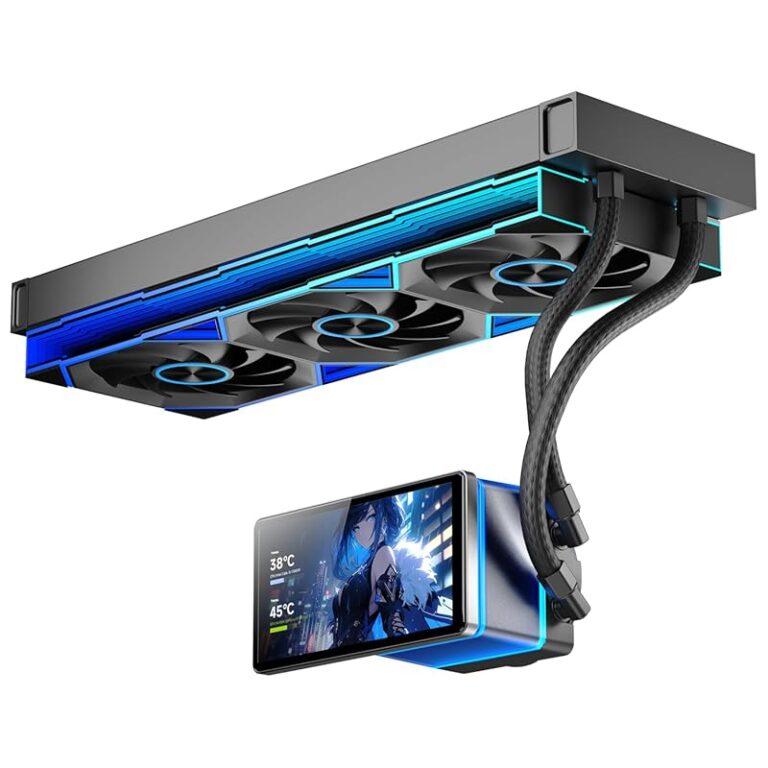
Your CPU also needs enough cores to handle both the emulator and your host operating system. A dual-core processor can run Bluestacks 5, but you will notice performance drops when running multiple apps. A quad-core or higher processor provides a much smoother experience. Keep in mind that running Bluestacks alongside other demanding software can heat up your system, so maintaining good thermal performance is important. If you are concerned about heat management, check out the best cooling system for PC options to keep your hardware running at safe temperatures.
RAM and Memory Requirements
Random Access Memory, or RAM, is one of the most critical components for Bluestacks 5. The emulator allocates a portion of your system RAM to create a virtual Android device. More RAM means more room for apps, games, and background processes to run without slowing down.
Bluestacks 5 recommends at least 4GB of RAM for basic use. However, if you plan to play games or run multiple apps at once, 8GB is the sweet spot. For power users running demanding games alongside other software, 16GB or more provides the best experience.
How RAM Affects Bluestacks Performance
- 4GB RAM: Basic apps run fine, but games will struggle.
- 8GB RAM: Smooth performance for most apps and casual gaming.
- 16GB RAM: Excellent for heavy gaming and multitasking.
- 32GB RAM: Overkill for Bluestacks alone, but great for full productivity setups.
It is also important to note that your host operating system uses RAM too. Windows 10 or 11 typically uses 3-4GB on its own. So if you have 8GB total, Bluestacks 5 only gets about 4-5GB of usable memory. This is why more RAM is always better when running an emulator.
Graphics Card (GPU) Requirements
The graphics card handles all the visual output from Bluestacks 5. A dedicated GPU makes a huge difference in app rendering, game performance, and overall visual quality. Without a decent GPU, you may experience screen tearing, low frame rates, and laggy animations.
Bluestacks 5 supports both integrated and dedicated graphics cards. However, for a truly smooth experience, a dedicated GPU is strongly recommended. The emulator relies on your GPU to render the Android interface and run graphics-heavy games efficiently.
GPU Recommendations for Bluestacks 5
- Minimum: Intel HD Graphics 5000 or AMD Radeon R5 integrated graphics.
- Recommended: NVIDIA GeForce GTX 700 series or AMD Radeon R7 series.
- Ideal for gaming: NVIDIA GeForce GTX 1050 or higher, AMD Radeon RX 560 or higher.
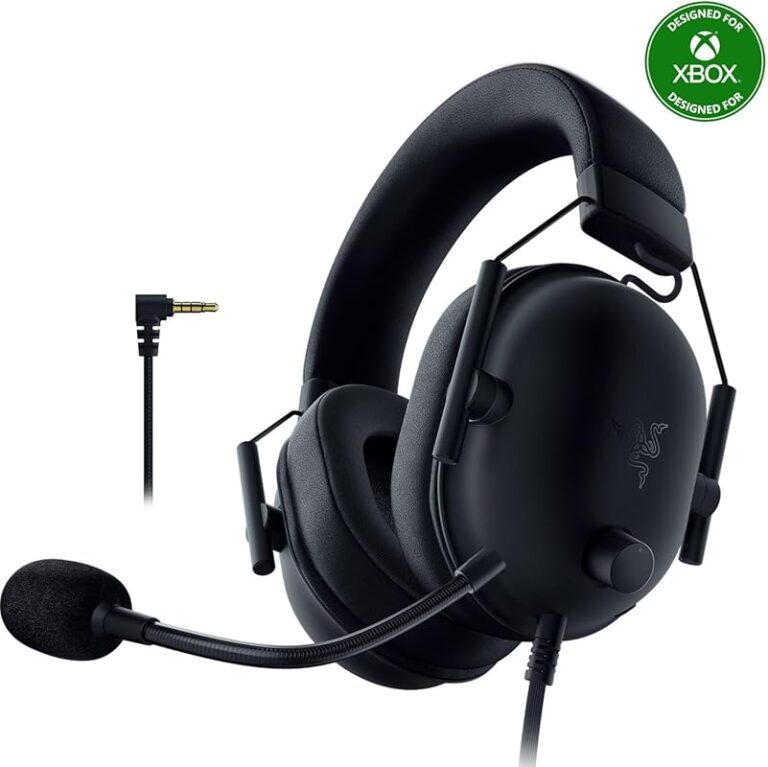
Keeping your GPU drivers updated is essential. Outdated drivers can cause crashes, visual glitches, and poor performance. Both NVIDIA and AMD release regular driver updates that improve compatibility with emulators like Bluestacks 5. Additionally, if you want to enjoy audio while using the emulator, having good headphones enhances the overall experience. You might consider checking out the best headphones for 5-50Hz for deep bass and clear audio that complements your gaming sessions.
Storage and Disk Space Requirements
Bluestacks 5 needs a minimum of 5GB of free disk space for installation. However, this is just the base requirement. App installations, cached data, game files, and system updates can quickly consume additional space. If you plan to install multiple games or large apps, you will need significantly more storage.
Using a Solid State Drive (SSD) instead of a traditional Hard Disk Drive (HDD) makes a noticeable difference in Bluestacks 5 performance. SSDs load apps faster, reduce lag, and improve overall responsiveness. If your budget allows, installing Bluestacks 5 on an SSD is one of the best upgrades you can make.
Storage Tips for Optimal Performance
- Install Bluestacks on your SSD if possible for faster load times.
- Keep at least 20% of your disk free for smooth operation.
- Regularly clear app cache within Bluestacks to free up space.
- Consider an external drive for storing large game files you are not currently using.
How to Check If Your PC Meets the Requirements
Before you download and install Bluestacks 5, it is smart to check whether your PC meets the specifications. Windows has built-in tools that make this process easy and straightforward.
Here is how you can check your system specs on Windows:
- Press Windows Key + R to open the Run dialog box.
- Type “msinfo32” and press Enter to open System Information.
- Check your OS type to confirm it is 64-bit.
- Look at your Processor model and speed.
- Check your Installed RAM amount.
- Go to Device Manager and expand “Display adapters” to see your GPU.
Once you have all this information, compare it against the Bluestacks 5 system requirements listed in this guide. If your system meets or exceeds the recommended specs, you are good to go. If not, consider upgrading the components that fall short. Most often, adding more RAM or enabling virtualization in BIOS makes the biggest difference.
Enabling Virtualization in BIOS
Virtualization is a feature that allows your CPU to run multiple operating systems simultaneously. Bluestacks 5 uses virtualization to create the Android environment on your PC. By default, this feature is often disabled in BIOS. Here is how to enable it:
- Restart your PC and enter BIOS by pressing F2, F10, or Delete during startup.
- Navigate to Advanced Settings or the CPU configuration menu.
- Find Intel VT-x or AMD-V and set it to Enabled.
- Save changes and exit BIOS.
Enabling virtualization is one of the most important steps for Bluestacks 5. Without it, the emulator will either not work at all or perform poorly. If you are unsure about your BIOS settings, consult your motherboard manual or search online for your specific model.
Common Mistakes to Avoid
Many users run into problems with Bluestacks 5 because they skip important setup steps or ignore warning signs. Here are common mistakes to avoid:
- Skipping BIOS virtualization: This is the number one cause of Bluestacks 5 failing to run properly.
- Using outdated GPU drivers: Always update your graphics drivers before installing Bluestacks.
- Running Bluestacks on an HDD: An SSD makes a significant performance difference.
- Allocating too little RAM: Give Bluestacks at least 2GB of RAM in the settings for decent performance.
- Ignoring Windows updates: Outdated Windows versions can cause compatibility issues.
Optimizing Bluestacks 5 After Installation
Once you have confirmed your PC meets the Bluestacks 5 system requirements and the emulator is installed, you can take a few extra steps to optimize performance. These small adjustments can make a big difference in your daily use.
- Adjust CPU cores: In Bluestacks settings, allocate more CPU cores for better performance.
- Increase RAM allocation: Give Bluestacks 2-4GB of RAM depending on your total system memory.
- Enable High Performance mode: Go to Windows Power Settings and select High Performance.
- Close background apps: Free up resources by closing unnecessary programs while using Bluestacks.
- Update Windows regularly: Keep your OS updated for the best compatibility.
Taking these optimization steps ensures that Bluestacks 5 runs as smoothly as possible on your hardware. Even if your system is just above the minimum requirements, these tweaks can bring performance close to recommended levels.
Final Thoughts
The Bluestacks 5 system requirements are straightforward and manageable for most modern computers. As long as you have a 64-bit Windows 10 or 11 operating system, a multi-core processor with virtualization support, at least 4GB of RAM, and a decent GPU, you will be able to run Bluestacks 5 without major issues. Meeting the recommended specifications ensures a smooth and enjoyable experience, especially for gaming.
Take the time to check your system before installing. Enable virtualization in BIOS, update your drivers, and consider upgrading key components if needed. With the right setup, Bluestacks 5 opens up a world of Android apps and games on your PC. Follow the tips in this guide, and you will be well on your way to a seamless emulation experience.
Frequently Asked Questions
What is the minimum RAM needed for Bluestacks 5?
The minimum RAM required for Bluestacks 5 is 4GB. However, 8GB is recommended for a smooth experience. If you have less than 4GB, the emulator may not run properly or will perform very slowly.
Can I run Bluestacks 5 on Windows 11?
Yes, Bluestacks 5 is fully compatible with Windows 11 (64-bit). In fact, Windows 11 offers the best environment for running Bluestacks 5 with improved virtualization support and updated drivers.
Do I need a dedicated GPU for Bluestacks 5?
A dedicated GPU is not strictly required but is highly recommended. Integrated graphics can run Bluestacks 5 for basic tasks, but a dedicated GPU provides much better performance for gaming and graphics-heavy apps.
How do I enable virtualization for Bluestacks 5?
Restart your PC and enter BIOS settings by pressing F2, F10, or Delete during startup. Find the Intel VT-x or AMD-V option under CPU or Advanced settings, set it to Enabled, save, and exit. This step is essential for Bluestacks 5 to function.
Is Bluestacks 5 free to download and use?
Yes, Bluestacks 5 is free to download and use for personal purposes. There is also a Premium version that offers additional features like multi-instance support and priority performance, but the free version works well for most users.
Can I use Bluestacks 5 on a laptop?
Yes, Bluestacks 5 works on laptops as long as they meet the system requirements. Just make sure your laptop has a 64-bit Windows OS, sufficient RAM, and a processor that supports virtualization. Laptops with dedicated GPUs will deliver the best performance.
=== CONCLUSION ===
The Bluestacks 5 system requirements are designed to ensure a smooth and enjoyable Android emulation experience on your PC. By meeting the minimum or recommended specifications, you set yourself up for success from the moment you launch the emulator. Focus on having a 64-bit Windows 10 or 11 OS, a multi-core processor with virtualization enabled, adequate RAM, and a capable graphics card.
Do not overlook the small but important details like enabling BIOS virtualization, keeping drivers updated, and using an SSD for storage. These steps can transform a mediocre setup into a high-performing Bluestacks 5 environment. Whether you are gaming, testing apps, or multitasking, a well-configured system makes all the difference. Take action today, check your PC against these requirements, and get ready to enjoy the full Bluestacks 5 experience.