Obs Studio System Requirements
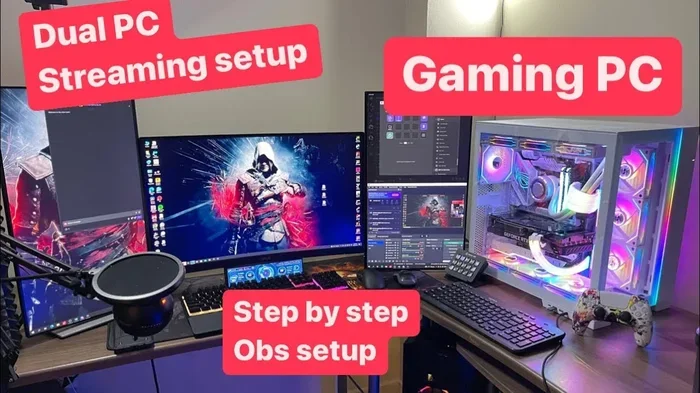
OBS Studio system requirements are the foundation of a smooth streaming and recording setup. Whether you are a beginner or a seasoned content creator, knowing your PC specs ensures you avoid lag, crashes, and poor video quality. This guide breaks down every requirement from CPU to storage so you can build or upgrade with confidence.
Key Takeaways
- Minimum specs are just the starting point: You need at least a 4-core CPU and 8GB of RAM for basic streaming, but recommended specs deliver a much better experience.
- A dedicated GPU makes a huge difference: It handles encoding and frees up your processor for smoother performance during live broadcasts.
- Storage speed matters: An SSD keeps your recordings and streams running without dropped frames or stuttering scene transitions.
- Audio setup is just as important: Good headphones and a quality microphone complete your streaming rig and keep viewers engaged.
- Cooling affects performance: A well-cooled system maintains stable frame rates during long streaming sessions without thermal throttling.
- Your needs depend on your content: Gaming streams require more power than simple screen captures or talking-head broadcasts.
📑 Table of Contents
What Are OBS Studio System Requirements?
OBS Studio is one of the most popular streaming software options available today. It is free, open source, and packed with powerful features. But to run it smoothly, you need the right PC specifications for streaming. Understanding OBS Studio system requirements before you start helps you avoid frustration later.
Many beginners jump into streaming without checking their hardware first. They end up with choppy video, laggy audio, or crashes mid-stream. That is why this guide covers every requirement in detail. You will learn what your processor speed needs to be, how much RAM for streaming you really need, and which graphics card delivers the best results.
Whether you are building a new rig or upgrading an existing one, this article has you covered. Let us dive into the details so you can stream with confidence.
Minimum vs Recommended System Requirements
OBS provides both minimum and recommended specs. The minimum specs let you run the software at all. The recommended specs give you a comfortable experience with good quality output. Knowing the difference helps you set realistic expectations for your setup.
Minimum Requirements
- Operating System: Windows 8.1 or newer, macOS 10.13 or newer
- CPU: Intel Core i5 or equivalent with 4 cores
- RAM: 8GB
- GPU: DirectX 10.1 capable card
- Storage: 200MB of free space
- Internet: Stable connection for streaming
Recommended Requirements
- Operating System: Windows 10 or 11 (64-bit)
- CPU: Intel Core i7 or AMD Ryzen 7 with 6+ cores
- RAM: 16GB or more
- GPU: NVIDIA GTX 1060 or better
- Storage: SSD with at least 50GB free
- Internet: 10Mbps upload speed or higher
The gap between minimum and recommended is significant. Running OBS on minimum specs works for simple screen captures. But if you want broadcast quality gameplay with overlays and multiple scenes, you need the recommended specs or better. Your system performance depends heavily on staying above the minimum threshold.
CPU and Processor Needs
The CPU requirements for OBS are the most critical part of your setup. OBS relies heavily on the processor for encoding video in real time. A weak CPU means dropped frames and poor stream quality. Your processor speed directly impacts how smoothly your stream runs.
Why CPU Matters So Much
When you stream, the CPU compresses raw video data into a format that can be sent over the internet. This process is called encoding. If your processor speed is too slow, the encoding falls behind. The result is stuttering video and audio desync that frustrates viewers.
For most streamers, a 6-core processor is the sweet spot. It handles OBS encoding while leaving enough power for games or other applications. The system performance stays stable even during intense gaming sessions or heavy scene switching.
Best CPUs for OBS Streaming
- Intel Core i5-12400: Great budget option for beginners getting started
- Intel Core i7-12700: Excellent for gaming and streaming simultaneously
- AMD Ryzen 5 5600X: Strong multi-threaded performance at a fair price
- AMD Ryzen 7 5800X: Premium choice for heavy multitasking and high-quality streams
If you are using a laptop for streaming, consider the best laptop for Fl Studio as a reference point. Those machines are built for creative workloads, and the same hardware principles apply to OBS streaming. A portable setup still needs sufficient processing power to handle real-time encoding without stuttering.
Graphics Card and GPU Requirements
The GPU requirements for OBS depend on what you are streaming. If you are recording your screen only, a basic GPU works fine. But if you are gaming while streaming, you need a dedicated graphics card that can handle both tasks at the same time.
Hardware Encoding vs Software Encoding
OBS supports two main encoding methods. Software encoding uses the CPU to compress video. Hardware encoding uses the GPU. Hardware encoding is much more efficient and is the preferred choice for most streamers. It frees up your processor to focus on running games and applications.
NVIDIA GPUs with NVENC support are excellent for OBS. They offload the encoding work from the CPU, resulting in smoother gameplay and better stream quality. AMD GPUs also offer hardware encoding through their AMF technology, giving you solid options regardless of your brand preference.
Recommended GPUs for Streaming
- NVIDIA GTX 1660 Super: Solid entry-level streaming GPU for beginners
- NVIDIA RTX 3060: Great balance of price and performance for most streamers
- NVIDIA RTX 4060: Top choice for modern streaming setups with ray tracing
- AMD Radeon RX 6600: Strong alternative to NVIDIA options at a competitive price
Your graphics card also affects the quality of your stream. Higher-end GPUs support higher resolution outputs and smoother frame rates. This directly impacts the viewer experience and keeps people coming back to your streams.
RAM and Storage Considerations
RAM for streaming plays a bigger role than many people realize. OBS uses memory to store scenes, sources, and encoding buffers. When you run low on RAM, your system performance drops quickly and frames start dropping.
How Much RAM Do You Need?
For basic streaming, 8GB of RAM is the absolute minimum. But 16GB is the real sweet spot. It gives you room to run OBS alongside a game, a browser for chat, and other background apps without any hiccups.
If you do heavy multitasking, consider 32GB. This is especially true if you use multiple monitors or run resource-intensive games. More RAM means smoother performance and fewer crashes during important live broadcasts.
Storage: SSD vs HDD
Storage type matters more than most people think. An SSD loads scenes and assets faster than a traditional hard drive. This reduces stuttering when switching between OBS scenes and keeps your recordings flowing smoothly.
For recordings, you need plenty of space. A one-hour 1080p recording can take up 5 to 10GB. At 4K resolution, that number jumps significantly. Make sure you have enough free space on a fast drive to avoid interruptions during recording sessions.
Just like with any creative setup, keeping your system cool is essential. Check out the best cooling system for PC to maintain stable performance during long streaming sessions. Overheating can throttle your CPU and GPU, causing dropped frames and poor stream quality.
Audio and Peripherals for Streaming
Great audio makes or breaks a stream. Viewers will tolerate average video quality, but bad audio drives people away. Your audio input setup is just as important as your video hardware when building a complete streaming rig.
Microphone Selection
A quality microphone captures your voice clearly and without background noise. USB microphones are the easiest option for beginners. They plug in and work with minimal setup, making them ideal for those just getting started with live streaming.
For a professional-grade audio experience, consider investing in a dedicated home studio setup microphone. The right microphone paired with proper audio input settings in OBS delivers broadcast-quality sound that keeps viewers engaged and coming back for more content.
You can also look at the best microphones for home studio to find options that work well for streaming. Many studio-grade microphones double as excellent streaming mics, giving you versatility across different creative projects.
Headphones and Monitoring
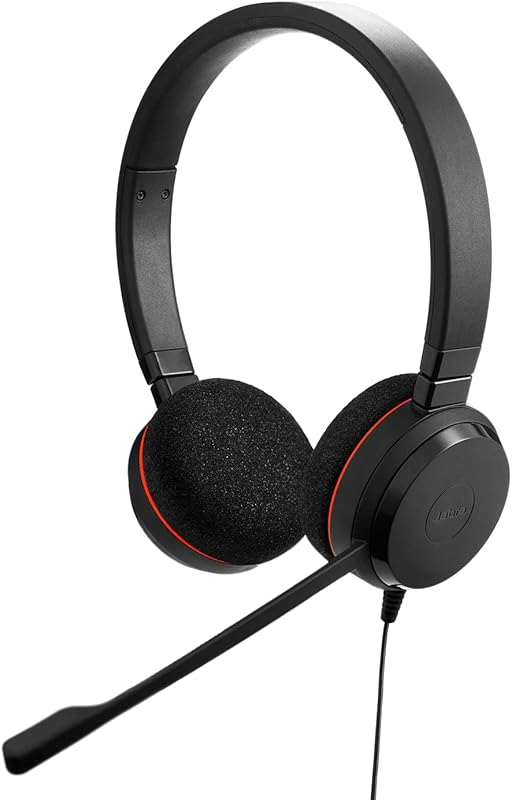
You need headphones to monitor your stream audio in real time. Open-back headphones offer a wider soundstage, but closed-back headphones isolate your audio better and prevent sound leakage into your microphone.
When choosing headphones for your streaming setup, look at options designed for music production. They provide accurate sound reproduction, which helps you mix your stream audio properly and ensure your viewers hear exactly what you intend.
Optimizing Your PC for OBS Studio
Meeting the minimum OBS Studio system requirements is not enough. You also need to optimize your system for the best results. A few simple tweaks can dramatically improve your stream quality and viewer experience.
Update Your Graphics Drivers
Always keep your GPU drivers up to date. New driver updates often include performance improvements for streaming and encoding. NVIDIA and AMD both release regular updates that boost OBS compatibility and fix known issues with specific game titles.
Set the Right Encoding Preset
In OBS settings, choose your encoding preset carefully. The “Quality” preset gives the best output but uses more resources. The “Speed” preset is faster but produces lower quality. Find the balance that works for your hardware and stick with it for consistent results.
Close Unnecessary Background Apps
Every app running in the background steals resources from OBS. Close browsers, update tools, and other unnecessary programs before you go live. This frees up CPU, RAM, and network bandwidth for your stream, giving you a smoother and more reliable broadcast.
Use a Wired Internet Connection
Wi-Fi can be convenient, but it is less stable than a wired connection. For reliable streaming, plug your PC directly into your router with an Ethernet cable. This reduces dropped frames and connection issues that can ruin your live broadcast.
Configure Your Stream Settings
Your streaming bitrate and resolution settings should match your upload speed. A 1080p stream at 60 frame rate needs at least 6,000 Kbps of upload bandwidth. If your connection cannot support that, drop to 720p at 60fps or 1080p at 30fps for a smoother experience.
Setting the right frame rate is also important. 60fps gives smooth motion for gaming streams. 30fps works fine for talking-head content or screen recordings with less movement. Always test your settings before going live to make sure everything runs smoothly.
Conclusion
Understanding OBS Studio system requirements is the first step toward a great streaming setup. From your CPU requirements for OBS to your RAM for streaming and GPU requirements for OBS, every component plays a vital role. Meeting the recommended specs ensures smooth, high-quality broadcasts that keep your audience engaged.
Do not overlook the peripherals either. Good audio, a quality microphone, and reliable headphones complete the picture. And remember, optimization matters just as much as hardware. Keep your drivers updated, close background apps, and use a wired connection for the best results.
Start with the basics, upgrade as you grow, and you will be streaming like a pro in no time. The right PC specifications for streaming make all the difference between a frustrating experience and a smooth, enjoyable broadcast that viewers love to watch.
Frequently Asked Questions
What is the minimum RAM needed for OBS Studio?
OBS Studio requires a minimum of 8GB of RAM to run. However, 16GB is strongly recommended if you plan to game while streaming. More RAM ensures smoother performance and prevents crashes during long broadcasting sessions.
Can OBS Studio run on a laptop?
Yes, OBS Studio can run on a laptop as long as it meets the minimum system requirements. However, laptops with dedicated GPUs and at least 16GB of RAM will deliver much better streaming performance. Consider the best laptop options designed for creative workloads for the best results.
Do I need a dedicated GPU for OBS Studio?
A dedicated GPU is not strictly required but is highly recommended. It handles hardware encoding, which frees up your CPU and delivers smoother stream quality. Integrated graphics can work for basic screen captures but struggle with gaming while streaming.
What internet speed do I need for OBS streaming?
You need at least 10Mbps of upload speed for 1080p streaming at 60fps. For 720p streaming, 6Mbps is usually sufficient. Always use a wired Ethernet connection for the most stable streaming experience and fewer dropped frames.
Does OBS work on macOS?
Yes, OBS Studio is compatible with macOS 10.13 or newer. The system requirements for macOS are similar to Windows. However, some hardware encoding features may differ, so check your Mac specifications before setting up your streaming rig.
How much storage do I need for OBS recordings?
A one-hour 1080p recording typically takes up 5 to 10GB of storage. At 4K resolution, the file size increases significantly. An SSD with at least 50GB of free space is recommended for smooth recording and playback without performance issues.