Toshiba Satellite Laptop Ram Upgrade
A Toshiba Satellite laptop RAM upgrade is one of the easiest and most affordable ways to breathe new life into an aging machine. Whether you want to run more apps at once, speed up multitasking, or improve overall system performance, adding memory is the answer. This guide covers everything from choosing the right RAM modules to installing them yourself.
A slow Toshiba Satellite laptop can be incredibly frustrating. Pages take forever to load. Apps freeze. And multitasking feels impossible. The good news is that a Toshiba Satellite laptop RAM upgrade can fix most of these problems without breaking the bank.
RAM, or Random Access Memory, is the short-term memory your laptop uses to handle tasks. When you run out of it, everything slows down. Adding more RAM gives your machine the breathing room it needs to work smoothly.
In this guide, we walk you through everything you need to know about upgrading RAM in your Toshiba Satellite. From checking compatibility to installing new modules, we cover it all.
Key Takeaways
- Easy DIY Project: Upgrading RAM on a Toshiba Satellite is simple and requires minimal tools.
- Big Performance Boost: More RAM means faster multitasking, smoother browsing, and better app performance.
- Check Compatibility First: Your Satellite model determines the type and maximum RAM it supports.
- DDR3 vs DDR4 Matters: Always match the RAM type to your laptop’s motherboard requirements.
- Affordable Upgrade: RAM is one of the cheapest ways to significantly improve laptop speed.
- Warranty Considerations: Check your warranty status before opening the laptop.
- Maximum Capacity Varies: Most Toshiba Satellite models support up to 16GB or 32GB depending on the year and model.
📑 Table of Contents
- Why Upgrade RAM on Your Toshiba Satellite?
- Understanding Your Toshiba Satellite’s RAM Requirements
- How to Check Your Current RAM and Maximum Capacity
- Step-by-Step Guide to Upgrading RAM on Your Toshiba Satellite
- Common Mistakes to Avoid When Upgrading RAM
- How Much Does a Toshiba Satellite RAM Upgrade Cost?
- When Should You Consider a Professional?
- Benefits of a Toshiba Satellite RAM Upgrade
- Final Thoughts
Why Upgrade RAM on Your Toshiba Satellite?
Your Toshiba Satellite came with a specific amount of RAM when you bought it. Over time, software updates and new applications demand more memory than before. What worked fine three years ago may feel painfully slow today.
Here are the most common reasons people upgrade their laptop RAM:
- Slow multitasking: Switching between browser tabs, apps, and documents becomes laggy.
- Long load times: Programs and files take forever to open.
- System freezes: Your laptop freezes or crashes when running multiple tasks.
- Gaming struggles: Games stutter or fail to run smoothly.
- Video editing delays: Rendering and playback become choppy.
A Toshiba Satellite RAM upgrade addresses all of these issues. It is one of the simplest and most cost-effective upgrades you can perform on any laptop.
How Much RAM Do You Actually Need?
The right amount depends on how you use your laptop. Here is a quick breakdown:
- 4GB: Basic web browsing and word processing only. This is the bare minimum today.
- 8GB: The sweet spot for most users. Handles everyday tasks with ease.
- 16GB: Great for multitasking, light gaming, and creative work.
- 32GB: Ideal for heavy workloads like video editing and programming.
Most Toshiba Satellite laptops benefit greatly from moving from 4GB or 8GB to at least 16GB. Check what is good RAM on a laptop to understand your specific needs better.
Understanding Your Toshiba Satellite’s RAM Requirements
Not all RAM is the same. Before buying new memory, you need to know what your specific Toshiba Satellite model supports. Using the wrong type will not work.
DDR3 vs DDR4 vs DDR5
Different generations of RAM exist, and they are not interchangeable. Older Toshiba Satellite models from around 2010–2015 typically use DDR3 RAM. Newer models use DDR4, and the latest laptops use DDR5.
- DDR3: Older but still common in legacy Toshiba Satellite models.
- DDR4: The current standard for most mid-range laptops.
- DDR5: The newest generation, found in the latest high-end models.
Always check your laptop’s manual or use a system information tool to confirm which type your machine needs. Mixing RAM types can damage your motherboard.
SODIMM Modules
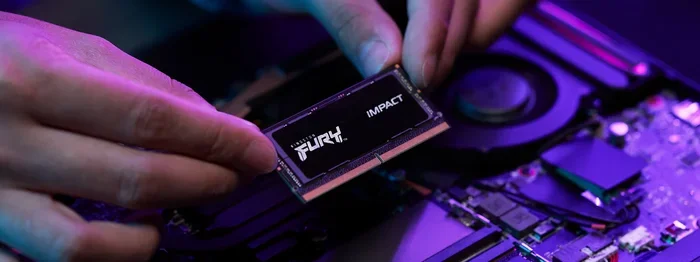
Laptops use smaller RAM modules called SODIMM (Small Outline Dual In-Line Memory Module). These are different from the larger RAM sticks used in desktop computers. Make sure you purchase SODIMM modules specifically designed for laptops.
How to Check Your Current RAM and Maximum Capacity
Before you buy anything, find out what your Toshiba Satellite currently has and what it can support.
Follow these steps on Windows:
- Open the Task Manager by pressing Ctrl + Shift + Esc.
- Click on the Performance tab.
- Select Memory from the left panel.
- Look at the total RAM and the speed listed.
You can also check your maximum RAM capacity by searching for “System Information” in the Windows search bar. Look for the “Maximum Memory” field.
If you are unsure about compatibility, visit your specific model’s support page on Toshiba’s website or use a tool like Crucial’s Scanner. Also, check out can I upgrade my laptop RAM for general guidance on laptop upgrade possibilities.
Step-by-Step Guide to Upgrading RAM on Your Toshiba Satellite
Installing RAM in a Toshiba Satellite is straightforward. You do not need to be a tech expert. Follow these steps carefully.
Step 1: Gather Your Tools
You will need very little:
- A small Phillips-head screwdriver
- The new SODIMM RAM modules
- A clean, flat workspace
- An anti-static wrist strap (optional but recommended)
Step 2: Power Down and Unplug
Turn off your laptop completely. Unplug the power adapter. Remove the battery if it is removable. This protects both you and the laptop from electrical damage.
Step 3: Open the Back Panel
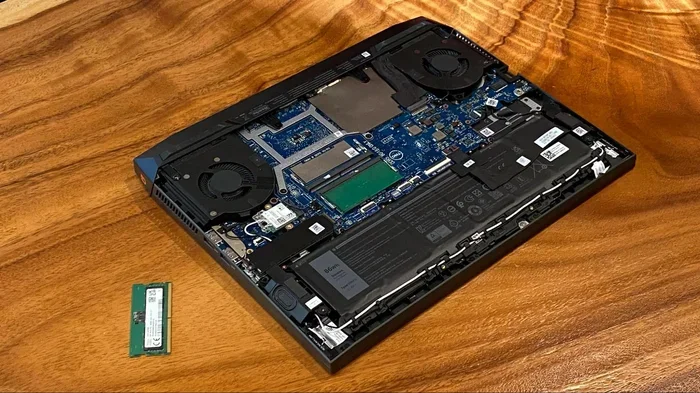
Flip your Toshiba Satellite over. Locate the RAM access panel on the bottom. It is usually marked with a small icon of a memory stick. Remove the screws holding the panel in place and gently lift it off.
Step 4: Remove the Old RAM (If Necessary)
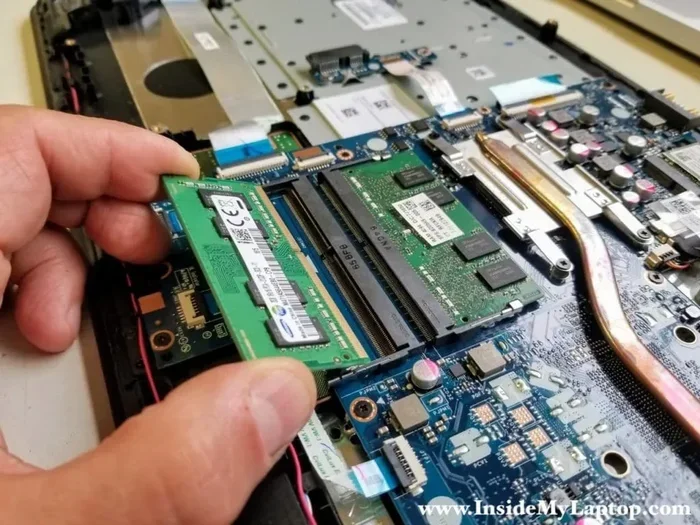
If you are replacing existing RAM, gently push the side clips outward. The old module will pop up at an angle. Pull it out carefully.
Step 5: Install the New RAM
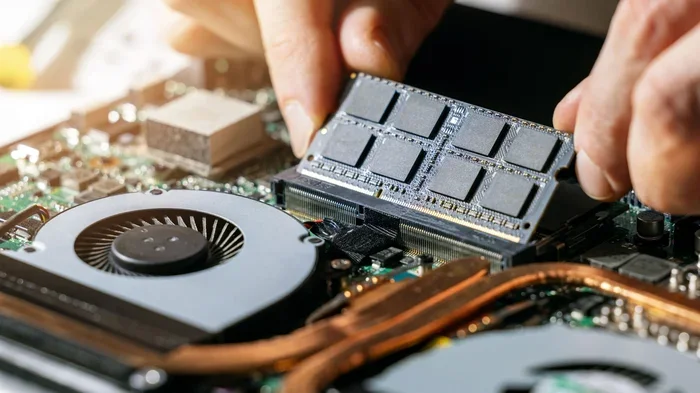
Align the notch on the new SODIMM module with the slot. Insert it at a 45-degree angle and press it down firmly until the side clips click into place. The module should sit flat.
Step 6: Close Up and Test
Replace the back panel and screw it in. Reinsert the battery. Plug in the power adapter. Turn on your laptop and check the Task Manager to confirm the new RAM is recognized.
For a more detailed walkthrough of the installation process, check out how to upgrade RAM on a laptop for additional tips and visual guidance.
Common Mistakes to Avoid When Upgrading RAM
Even a simple upgrade can go wrong if you are not careful. Here are mistakes to avoid:
- Buying the wrong RAM type: DDR3 will not work in a DDR4 slot. Always double-check before purchasing.
- Mixing different brands or speeds: While it sometimes works, matching the brand, speed, and size of your RAM modules ensures the best performance.
- Forcing the module: If it does not slide in easily, you may have the wrong slot or the wrong orientation. Do not force it.
- Skipping the anti-static precaution: Static electricity can damage sensitive components. Touch a metal surface before handling RAM.
- Ignoring the maximum capacity: Your Toshiba Satellite has a limit. Installing more RAM than it supports will not help.
Take your time and be gentle. RAM upgrades are safe and reversible. If something does not fit, stop and recheck your work.
How Much Does a Toshiba Satellite RAM Upgrade Cost?
One of the best things about upgrading RAM is the price. RAM modules are affordable compared to other laptop upgrades.
Here is a rough cost breakdown:
- 8GB SODIMM DDR4: Around $20–$35
- 16GB SODIMM DDR4: Around $40–$70
- 32GB SODIMM DDR4/DDR5: Around $80–$150
Compare these prices to buying a brand-new laptop. A RAM upgrade costs a fraction of the price and delivers noticeable results immediately. For more budget-friendly options, explore 16GB RAM laptop deals and similar resources.
When Should You Consider a Professional?
Most people can upgrade their Toshiba Satellite RAM at home without any issues. However, there are situations where professional help makes sense.
Consider a professional if:
- Your laptop is still under warranty and opening it might void coverage.
- You feel uncomfortable working with internal components.
- Your model has a complex disassembly process.
- You want someone to test the upgrade and optimize settings for you.
Many local computer repair shops offer RAM installation services for a small fee. It is worth the peace of mind if you are unsure.
Benefits of a Toshiba Satellite RAM Upgrade
Still on the fence? Here is what you can expect after upgrading your Toshiba Satellite laptop RAM:
- Faster boot times: Your laptop starts up more quickly.
- Smoother multitasking: Run multiple apps without slowdowns.
- Better browser performance: Keep more tabs open without freezing.
- Improved gaming: Games run more smoothly with extra memory.
- Longer laptop lifespan: A RAM upgrade can extend the useful life of your machine by several years.
Upgrading RAM is often the single best improvement you can make for an older laptop. It costs little, takes minutes, and delivers immediate results.
Final Thoughts
A Toshiba Satellite laptop RAM upgrade is one of the smartest investments you can make for your aging laptop. It is affordable, easy to do, and delivers a real performance boost. Whether you are a student, a professional, or a casual user, more RAM will improve your daily computing experience.
Start by checking your current RAM and maximum capacity. Then, purchase the right SODIMM modules for your model. Follow the installation steps carefully, and enjoy a faster, more responsive laptop.
If you found this guide helpful, consider sharing it with friends who might be dealing with a slow Toshiba Satellite. And remember, upgrading laptop RAM is one of the simplest ways to keep your machine running strong for years to come.
Do not let a sluggish laptop hold you back. Upgrade your RAM today and feel the difference immediately.
Frequently Asked Questions
Can I upgrade the RAM in my Toshiba Satellite laptop?
Yes, most Toshiba Satellite laptops allow RAM upgrades. Check your specific model to confirm the maximum supported capacity and RAM type before purchasing new modules.
How much RAM does a Toshiba Satellite need for Windows 11?
Windows 11 officially requires 4GB of RAM, but 8GB is the recommended minimum for smooth performance. For the best experience, aim for 16GB on your Toshiba Satellite.
What type of RAM does a Toshiba Satellite use?
Older Toshiba Satellite models typically use DDR3 SODIMM modules, while newer models use DDR4 SODIMM. Check your specific model number to confirm the correct type.
Is it hard to upgrade RAM on a Toshiba Satellite?
Not at all. Most Toshiba Satellite laptops have an accessible RAM compartment on the bottom. With a small screwdriver and a few minutes, you can complete the upgrade yourself.
How much does it cost to upgrade RAM on a Toshiba Satellite?
A single 8GB or 16GB SODIMM module typically costs between $20 and $70. The total cost depends on the RAM type, capacity, and brand you choose.
Will upgrading RAM void my Toshiba Satellite warranty?
It depends on your warranty terms. Some warranties cover user-installed components, while others do not. Check with Toshiba or your retailer before opening the laptop if it is still under warranty.